How to set up OKRs in startbuddi

To set up OKRs, open Work, go to Goals and click New goal. Write the outcome you want (the objective), add one to three key results that prove you got there, then link the projects and tasks that will move them. If OKRs are new to you, read what OKRs are first; it takes two minutes.
Goals live in Goals, OKRs and KPIs inside Work, and you can use them on your current plan. Anyone in Work can create a goal. Admins decide which goals need approval, and asking Chip to draft a check-in uses Chip credits.
A good first set is small: one company goal for the quarter, with two or three key results you can actually count. For example, “Win more repeat clients” with key results “10 returning clients”, “Average project value ₦500,000” and “Send a follow-up to every past client”.
Steps
- Open Goals
Click Work in the sidebar, then Goals in the Work menu. You will see three views: Goals (what you are aiming at), Timeline (what lands when) and Numbers (month by month).
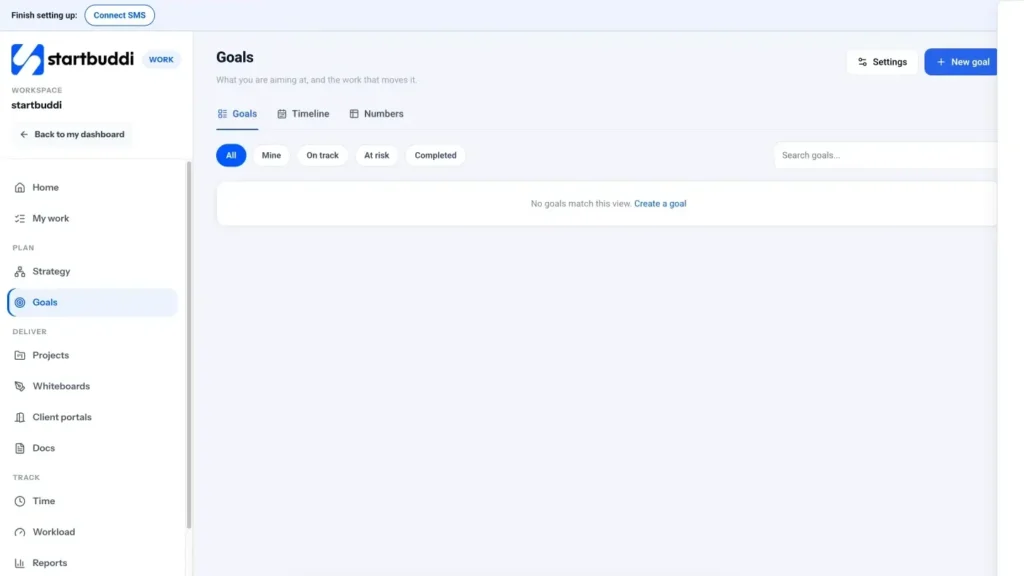
- Create the goal
Click New goal. Under Goal, write the outcome, for example "Increase qualified leads by 30%". Pick the Owner, and optionally a Team and a Parent goal. Set Visibility to Visible to all in workspace, Team only or Private.
- Choose the period and rhythm
Use Which period? to fill in the dates, or pick a Goal period (Weekly, Monthly, Quarterly or Custom) and set the Start date and Due date. Set Reporting cadence to Weekly and choose a Check-in day so the owner knows when to update it. If your business has pillars, file the goal under What is this for?
- Add key results
Click + Add key result. Name it, choose how it is measured (Number, Percentage, Currency or Yes/No), and type the Target and Unit. You can give each one an owner and a linked project. Then click Save goal. You can add more later on the goal's Key results tab.
- Connect the work on the Strategy map
Open Strategy in the Work menu. The Map shows each goal broken into key results, initiatives, projects, milestones and tasks. Use Add an initiative under a key result and pick the project that delivers it. Each key result can update From tasks, From milestones or be Updated by hand.
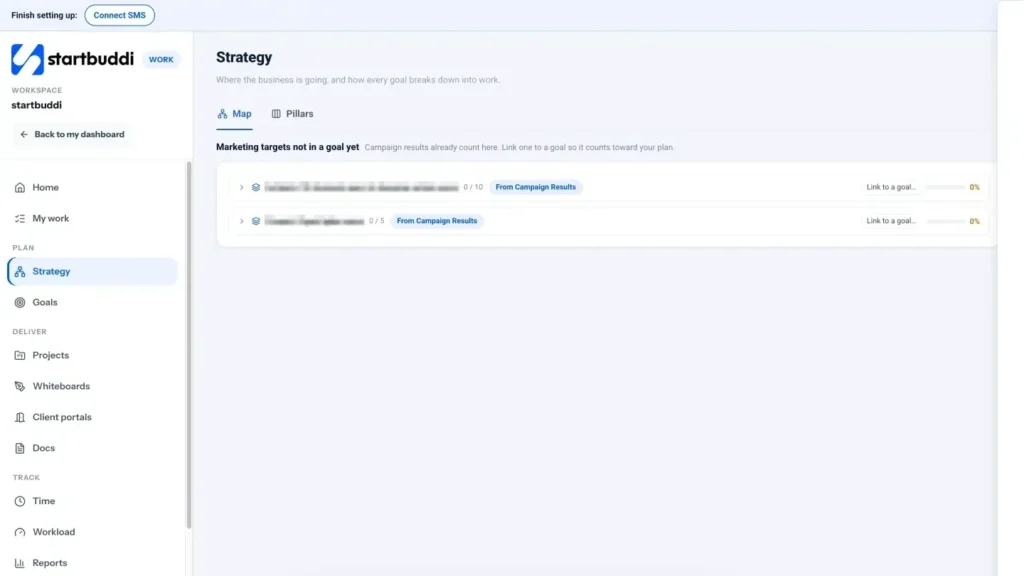
- Decide who approves goals
On the Goals page, click Settings. Under Approval rules, choose whether company and team goals need admin approval, all goals do, or none. When a goal is waiting, a banner on the Goals page says it needs approving before it counts, with a button to review it. Next, set up your weekly habit with the related article on tracking goal progress week over week.
Troubleshooting
The Save goal button does nothing.
A goal needs a name. If the Goal box is empty you will see "Enter a goal name to save". Also check the due date is not before the start date.
My new goal is not counting yet.
Your workspace may require approval. Check Goals, then Settings, then Approval rules. An admin can approve it from the banner on the Goals page.
How many key results should a goal have?
Two or three is plenty. Each one should be a number you can check without debate. If you cannot measure it, it is probably a task, not a key result.
Tiwalade Joanna Okedara-Kalu is the founder, CEO and CTO of startbuddi, the business system that brings clients, bookings, invoices, projects, marketing and the Chip AI assistant into one place. Tiwalade builds software around how service businesses really work day to day, and writes about client management, getting paid on time and why small businesses outgrow the tools they start with.
Founded startbuddi and leads its product and engineering