How to create a booking event for a client


Most clients book themselves through your booking link, but sometimes you agree a time on the phone, over WhatsApp or at the front desk. This guide shows how to create a booking event for that client yourself, so it sits in your calendar with everything else and the client gets the details by email.
Bookings works on every plan, and there is no limit on the number of bookings you receive. You need at least one service set up first. If you haven’t made one yet, follow how to set up a booking session. Anyone on your team who can manage bookings can create one.
Before you create a booking event
Have these details ready: the client’s name and email address, the service they want, who will host, the date and time, and whether it is a video or phone call. Agree the time with the client first, because startbuddi checks the slot against your other bookings and blocked time, not against the client’s diary. If you want the client to pay before the session, it is usually easier to send them your booking link for that service instead, so they choose the time and pay in one go.
Steps
- Click New Booking
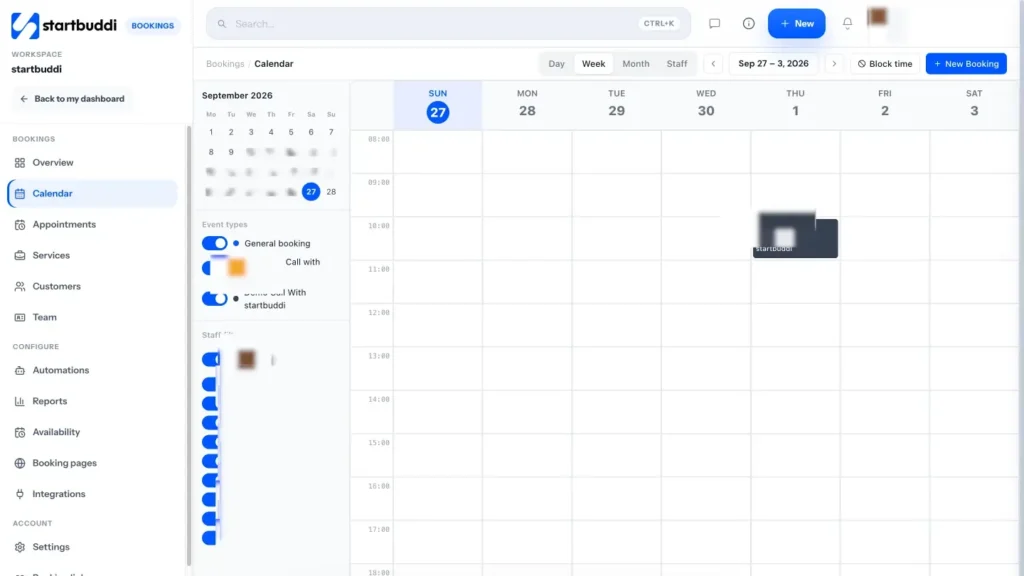
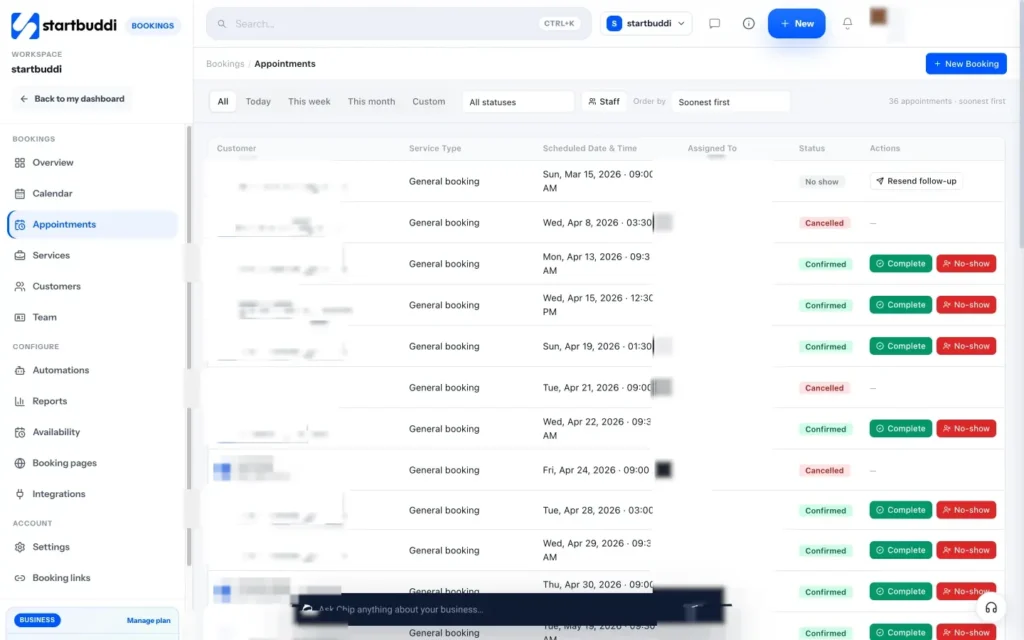
Open Bookings. Click New Booking on the Overview, the Calendar or the Appointments tab. The New Booking window opens.
- Choose the client
Pick the client from the Customer list, which shows the contacts already in your account. The client needs an email address on their contact record so startbuddi can send them the booking.
For someone who isn't a contact yet, such as a walk-in, leave Customer empty and fill in Guest Name and Guest Email, plus Guest Phone if you have it. They are added to your contacts when the booking is saved.
- Pick the service and host
Choose the Service. Its length and price come from the service, so pick the one that matches what the client is booking. Then choose who will run the session under Staff. In a team, double-check this is the right person, because the host is notified about the booking.
- Set the date, time and platform
Enter the Date and Time. Under Platform, choose Video call or Phone call. For a video call, startbuddi adds a meeting link when Google Calendar is connected or you have added manual meet links under Availability.
- Add notes and create the booking
Use Notes for anything your team should know, such as what the client wants to cover or that they have already paid. These are internal notes for your team. Then click Create booking.
- Check what the client receives
The client gets an email with the service, date and time, a Confirm booking button, a Cancel instead link and a calendar invite. If Notify staff on new booking is on in Bookings Settings, the host gets an email too. Any Bookings automation that starts when a booking is created runs as well.
The booking appears in the Calendar and in Appointments, where you can open it to send a reminder, reschedule or add more notes.
Troubleshooting
It says the selected client has no email address
Open the contact, add their email and save, then create the booking again. Or leave Customer empty and book them as a guest with their name and email.
It says that time is already booked
Another booking or blocked time overlaps the slot, including any buffer you set after events. Pick a different time, or check the Calendar to see what is there.
My client says they didn't get the email
Check the email address on the booking and ask them to look in spam or promotions. You can send them a reminder from the booking at any time.
The service I need isn't in the list
Only services you have set up appear. Create it under Services first, then come back to New Booking.
Omolola Akiyode is the operations and project manager at startbuddi, leading cross-functional projects and the content that helps founders get set up. Omolola writes about projects, websites and getting found online, and turns complex ideas into clear, practical steps.
Runs operations and projects at startbuddi