How to send a WhatsApp campaign

A WhatsApp campaign sends one approved message to many people at once. To send a WhatsApp campaign, get a template approved on the Templates tab, then click + Create a campaign and follow five short steps: Audience, Template, Personalise, Schedule and Review. Broadcasts go one way; any replies carry on in your inbox.
Who can do this: WhatsApp campaigns need the Starter plan or above (Marketing is locked on Free). You need a connected, registered WhatsApp number that isn’t a Meta test number. Marketing templates only reach contacts who have opted in; utility templates (confirmations, reminders) can go to anyone with a phone number.
For the bigger picture on broadcasts, see what a WhatsApp broadcast is and our WhatsApp marketing page.
Plan a little time for the first one: the template has to be approved by Meta before it can go out. After that, every new campaign reuses your approved templates and takes a couple of minutes.
Steps
- Start a new template
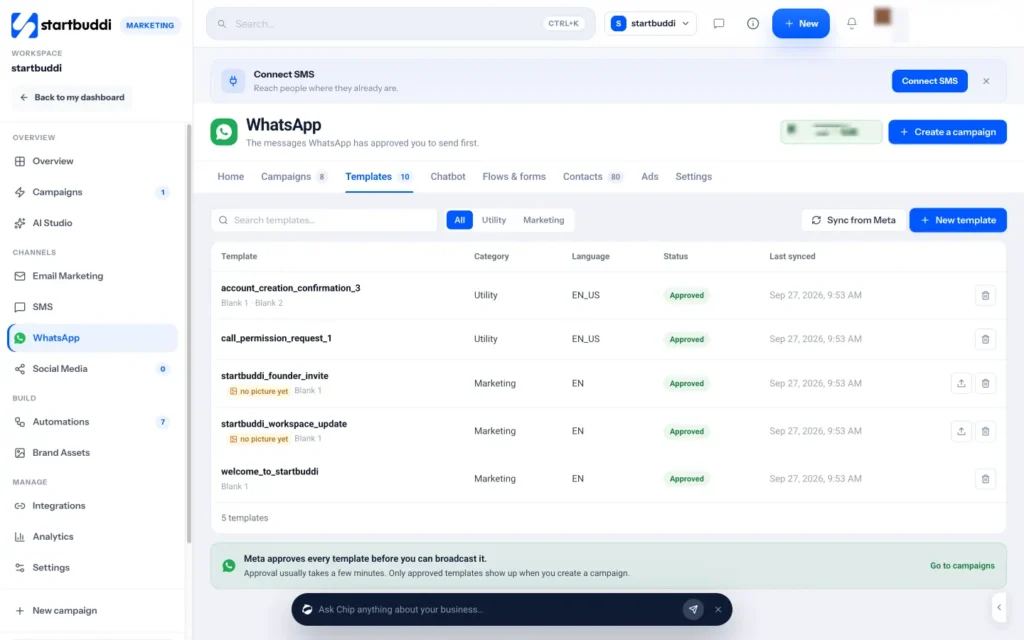
In Marketing › WhatsApp, open the Templates tab and click + New template. Choose Write your own, or Pick from Meta's library for a pre-written template that's already approved and ready to send.
- Write it and send it to Meta for review
Give the template a name, then under "What kind of message" choose Utility or Marketing, and pick a language. Choose what it Starts with (nothing, a title, a picture, a video or a file), write the message and add blanks with the variable chips, such as First name. Fill in the example values, add a footer or buttons if you want, check How it looks, then click Send to Meta for review. Approval usually takes a few minutes; click Sync from Meta to refresh the status.
- Click Create a campaign and pick your audience
Click + Create a campaign at the top of the WhatsApp page. On Audience ("Who is this going to?"), search and select the contacts you want. The count shows how many are selected.
- Name the campaign and choose the template
On Template, type a campaign name and pick one of your approved templates. Only approved templates are listed. If the one you need isn't there, the wizard takes you to the Templates tab and brings you back to carry on.
- Fill in the blanks
On Personalise, match each blank in the template to a contact field (First name, Last name, Full name, Phone number, Email or Company), or type one value that's the same for everyone. startbuddi suggests a match where it can.
- Send now or schedule, then review
On Schedule, choose Send now or Schedule for later. On Review ("Check it over"), read it through and click Create and send or Schedule it. Changed your mind? Start over discards the draft.
- Follow the results
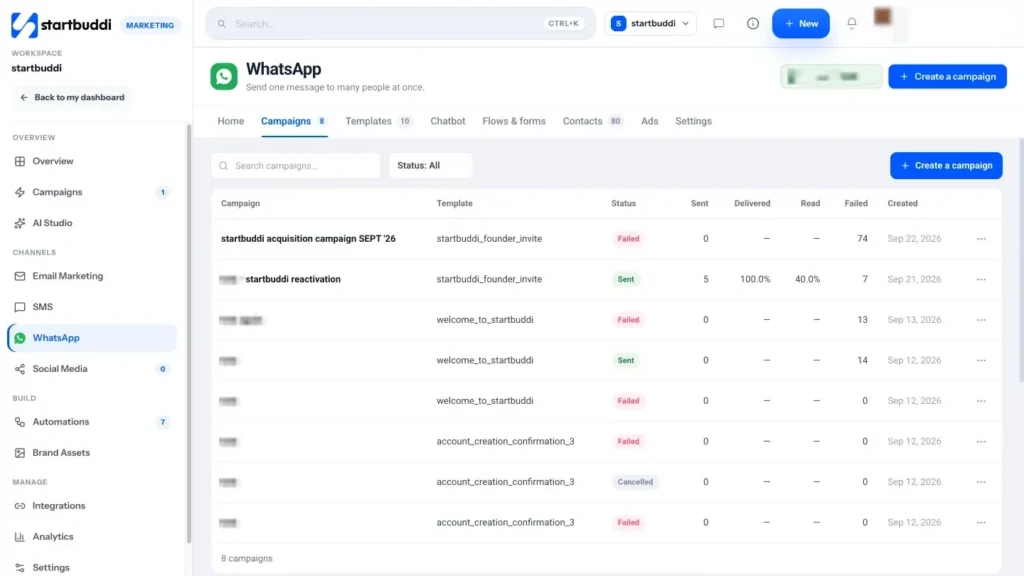
Open the Campaigns tab to see where your messages got to: sent, delivered, read, replied and failed. Open a campaign for its full results, including a Failure reasons table. From the list you can Pause, Send now or Cancel campaign while it's still going out.
Troubleshooting
Meta rejected my template. What now?
Open the Templates tab to see its status, then write a new version. Keep marketing and utility messages separate, fill in realistic example values for every blank, and avoid vague or misleading wording. Library templates from Meta are approved straight away.
Some contacts didn't get my campaign.
Marketing templates only go to contacts who have opted in, so check the Contacts tab for anyone Opted out or not yet opted in. For messages that failed, open the campaign and read the Failure reasons table, which lists the contact, the reason and the code.
Can I just type a free message to everyone?
No. WhatsApp only lets businesses start a conversation with an approved template. Once someone replies, you can write freely to them from the inbox for 24 hours after their last message.
Olabimpe Salami is the email and outreach specialist at startbuddi. Olabimpe writes about the messages that bring customers in and back: email, WhatsApp and SMS campaigns, follow-ups, and turning enquiries into paying clients.
Runs email and outreach at startbuddi