How to invite your team to startbuddi

To invite your team, open Settings, then Team & Staff, add their email addresses, pick a role and click Send invitations. Each teammate gets an email with a link to join your workspace.
Before you invite your team: plans and seats
Each person who joins uses a seat. The Free plan only includes the owner’s seat, so team invites are locked on Free. Starter includes 2 seats, Growth 5 and Scale 15, and you can add extra seats on any paid plan (see pricing). Only the workspace owner or an admin can send invites.
If you’re bringing in someone from outside your business to work on one project, invite them with the Client role. They see only the projects you add them to, and nothing else. For more about working with a growing team, see team directory and org chart.
Which role should I pick?
- Member suits most teammates who do the core work.
- Manager is for someone who owns delivery or client work and needs broad access.
- Admin is for people who help run the workspace, including billing and invites. Keep it to a trusted few.
- View only lets a stakeholder look around the whole workspace without changing anything.
- Client is safer than View only for outsiders, because it shows only their projects.
You can change anyone’s role later, so there’s no harm in starting small.
Steps
- Open Team & Staff
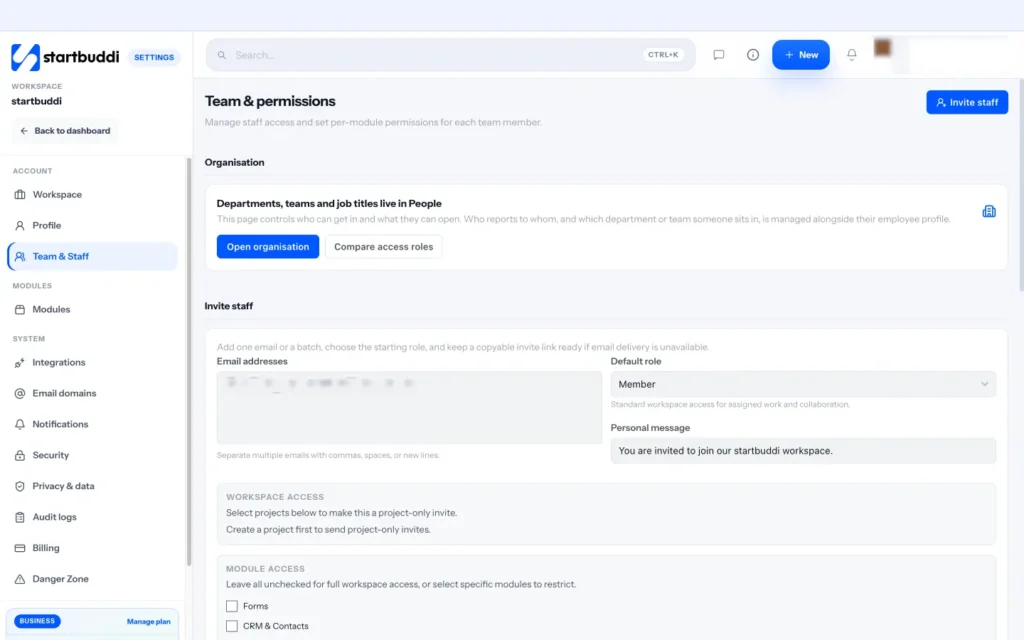
Open Settings and choose Team & Staff. You'll see everyone in the workspace, their role, and the Invite staff section.
- Make sure you have a free seat
If every seat is taken, open Settings, then Billing, and add a seat in the Seats card first. Our guide to managing seats and roles shows how.
- Add their email addresses
Under Email addresses, type one or more emails. Separate them with commas, spaces or new lines to invite a whole batch at once.
- Choose a role and add a note
Pick a Default role: Admin, Manager, Member, View only or Client. Start with Member for most teammates. Add a Personal message if you'd like to say hello or explain what they'll be working on.
- Decide what they can see
Under Access scope, keep Workspace access, or choose Projects only and tick the projects they should see. On the Scale plan you can also set Module access to limit which parts of startbuddi they can open.
- Send the invitations
Click Send invitations. If email delivery isn't available, startbuddi creates an invite link you can copy and send yourself, on WhatsApp for example.
- Track pending invites
Invites appear under Pending invites until they're accepted or expire. You can copy a link again or click Delete to cancel an invite and free up the seat.
Troubleshooting
It says team invites are locked on the free plan.
Free only includes the owner's seat. Click Unlock more seats to pick a paid plan, then come back and send the invite.
My teammate never got the email.
Ask them to check spam first. If it still hasn't arrived, copy the invite link from Pending invites and send it to them directly.
I see a seat limit message when I send the invite.
Every seat on your plan is in use or held by a pending invite. Add an extra seat in Settings, then Billing, or delete an old pending invite.
Can a client see my contacts or invoices?
Not with the Client role. Clients only see the projects you add them to, and nothing else in the workspace.
Tiwalade Joanna Okedara-Kalu is the founder, CEO and CTO of startbuddi, the business system that brings clients, bookings, invoices, projects, marketing and the Chip AI assistant into one place. Tiwalade builds software around how service businesses really work day to day, and writes about client management, getting paid on time and why small businesses outgrow the tools they start with.
Founded startbuddi and leads its product and engineering