How to build a landing page in startbuddi

A landing page is one page with one job: collect emails, take bookings, sell one thing or run a waitlist. You can build a landing page in startbuddi without a website, from a sentence to Chip, a template or a blank page. Everyone who fills in the form on it becomes a contact, with the page they came from saved.
Before you build a landing page
Landing pages are part of Publish and work on every plan, with no limit on how many you make. Having Chip build the page costs 15 Chip credits, and templates and blank pages are free. Pages on the Free plan show a small “Powered by startbuddi” line, which any paid plan can turn off. A follow-up email after someone signs up uses an automation, which needs the Starter plan or above.
For tips on what to put on the page, read how to build a landing page that converts, or see the landing pages overview.
Steps
- Start a new landing page
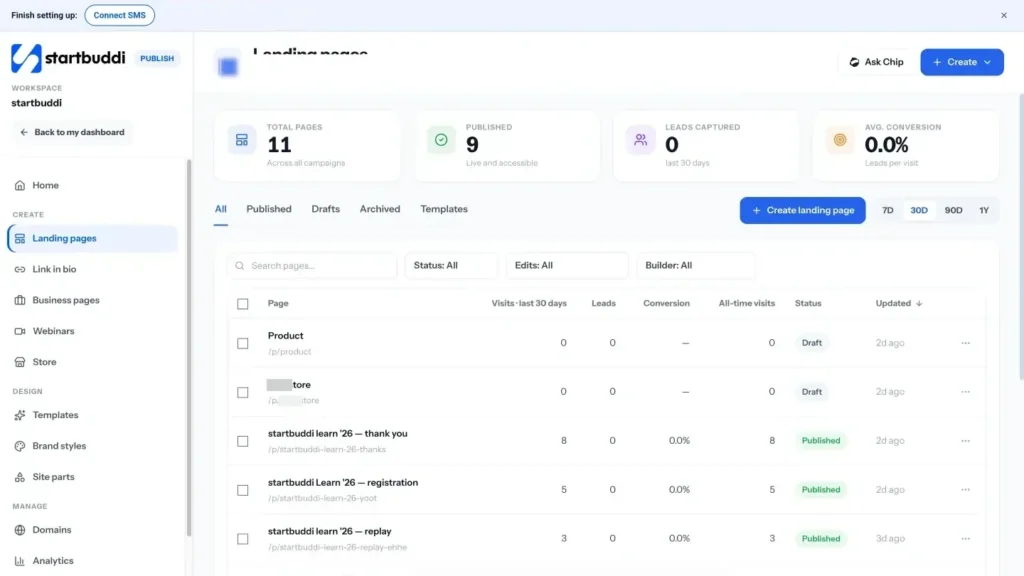
Open Publish and click Landing pages, then Create landing page. You can also use the + Create menu at the top of any Publish screen.
- Choose how to start
Pick Build with Chip to describe the page in a sentence and let Chip design it and write the words, Start from a template for a finished design, or Start blank for an empty page in your brand. All three open in the same editor.
- Fill in a few details
For a template or blank page, enter a Page name, the Address it will live at, and What it is for: Collect leads, Sell something, Take bookings or Build a waitlist. Click Create and open editor. Nothing is saved until you do.
- Add and edit your sections
In the editor, click Add to drop in things like a form, buttons, pricing or a countdown. Click anything on the page to change its words, pictures and colours. The Theme tab changes the look of the whole page.
Want new words? The Chip tab can rewrite the page for your business, change the tone or translate it. The price in credits shows on the button before anything is spent.
- Check it on a phone
Most visitors will arrive on a phone. Switch the preview between desktop, tablet and phone, and fix anything that looks cramped. Changes you make at a smaller size apply to that size and smaller.
- Publish the page
Click Publish. The Publish check lists anything worth fixing, such as a missing search title or a picture without a description. These are suggestions, not blockers. Press Publish to go live now, or use Schedule for later and set Go live at.
- Set up the follow-up
Back on the page's own screen, the Leads tab lists everyone who filled in the form. Use Connections to add a follow-up automation, and Emails to write a thank-you that goes out straight away.
Troubleshooting
Can I change the page address after sharing it?
Yes. Change the Web address in the page's Settings tab. The old address keeps working, so links you have already shared do not break.
The Publish check shows warnings. Do I have to fix them?
No. The check gives advice and never stops you publishing. Fixing the search title, description and social image does help the page look better on Google and when shared.
People signed up but nobody got a thank-you email
A page sends nothing until you set it up. Open the page, go to Emails and write the thank-you, or add a follow-up under Connections. Free includes 2 active automations, and Starter allows 10.
Chip did not build my page
Check you have enough Chip credits. If a build fails, the credits are returned to your account and you can try again or start from a template.
Tiwalade Joanna Okedara-Kalu is the founder, CEO and CTO of startbuddi, the business system that brings clients, bookings, invoices, projects, marketing and the Chip AI assistant into one place. Tiwalade builds software around how service businesses really work day to day, and writes about client management, getting paid on time and why small businesses outgrow the tools they start with.
Founded startbuddi and leads its product and engineering