Getting started with the startbuddi CRM (Customers)

The startbuddi CRM lives under Customers in the sidebar. It keeps your contacts, companies, deals, conversations and follow-ups in one place, so you stop hunting through WhatsApp chats and spreadsheets to remember who said what.
This guide gets you from an empty account to a working CRM in about 15 minutes. Customers is on every plan, including Free (up to 250 contacts). Starter raises that to 1,000, Growth to 5,000 and Business to 20,000. Connecting channels to the shared inbox (email, WhatsApp, SMS, social and website chat) needs the Starter plan or above, and every paid plan starts with a 30-day trial.
What you will find in the startbuddi CRM
The left menu inside Customers is split into a few groups:
- Home, Inbox, Live chat, Deals, Pipeline and Activities for day-to-day work.
- Records: Contacts, Companies, Prospecting, Segments and Properties.
- Engage: Automations for follow-ups that run by themselves.
- Insights: Data Quality, Reports and Settings.
If you want the bigger picture of what a CRM does first, read what a CRM is in our glossary.
Steps
- Open Customers and read your briefing
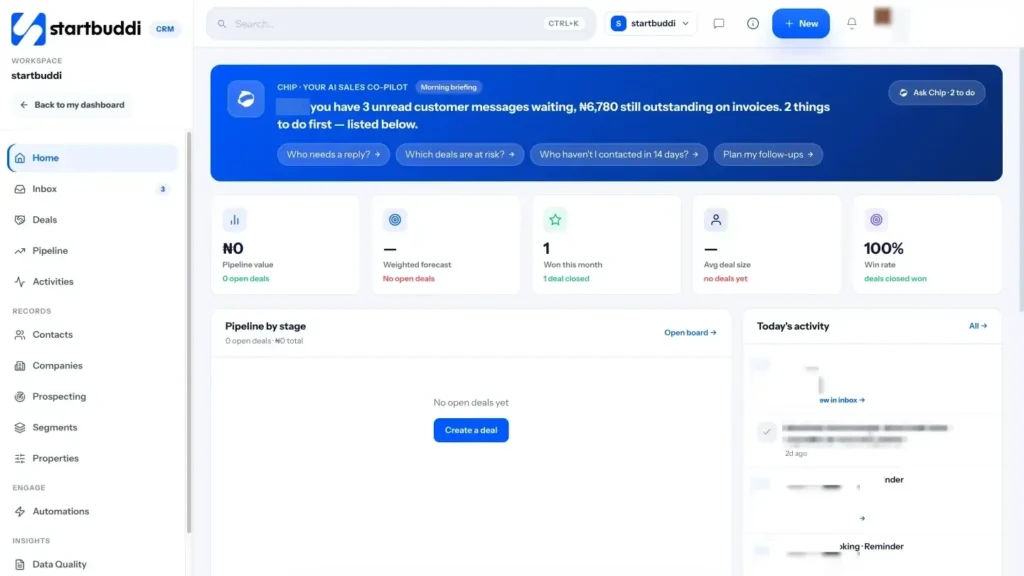
Click Customers in the sidebar. Home opens with a card called Chip · Your AI Sales Co-pilot, a one-line briefing built from your real numbers: unread messages, open deals and money still owed on invoices.
Below it you will see your pipeline value, today's activity, an inbox preview and Next best actions. On a new account most of these are empty, and that is fine. They fill in as you work.
- Add your first contact
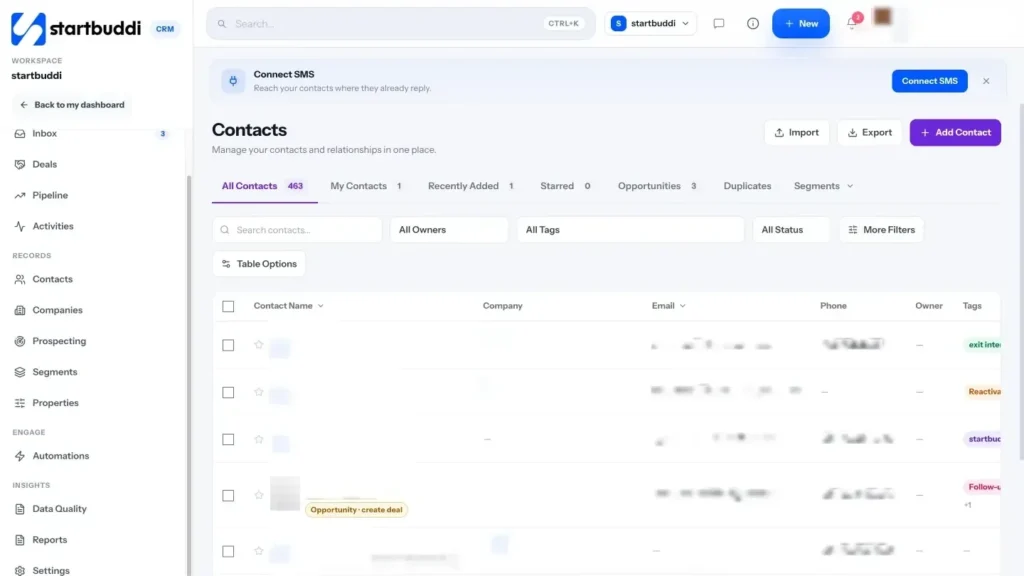
Under Quick actions, click Add a contact (or go to Contacts and click Add Contact). A name, an email or a phone number is enough to start. You can also add a company and a few tags such as vip or referral.
Click Add contact to save and stay on the list, or Save & open to go straight to the contact's page.
- Bring in the rest of your list
If your customers are already in a spreadsheet, go to Contacts and click Import. You can bring in up to 10,000 contacts at a time from a CSV file. Our import guide walks through column matching and duplicates.
Contacts also appear by themselves when someone fills in one of your forms, makes a booking or starts a website chat.
- Create your first deal
A deal is a piece of work someone might pay you for. From Home, click Create a deal. Give it a name, pick the contact, enter the value and choose a stage, then click Save Deal.
Your deal now sits on the Pipeline board, where you drag it from stage to stage as the conversation moves on. See sales pipeline and deals for what the board can do.
- Connect a channel to your inbox
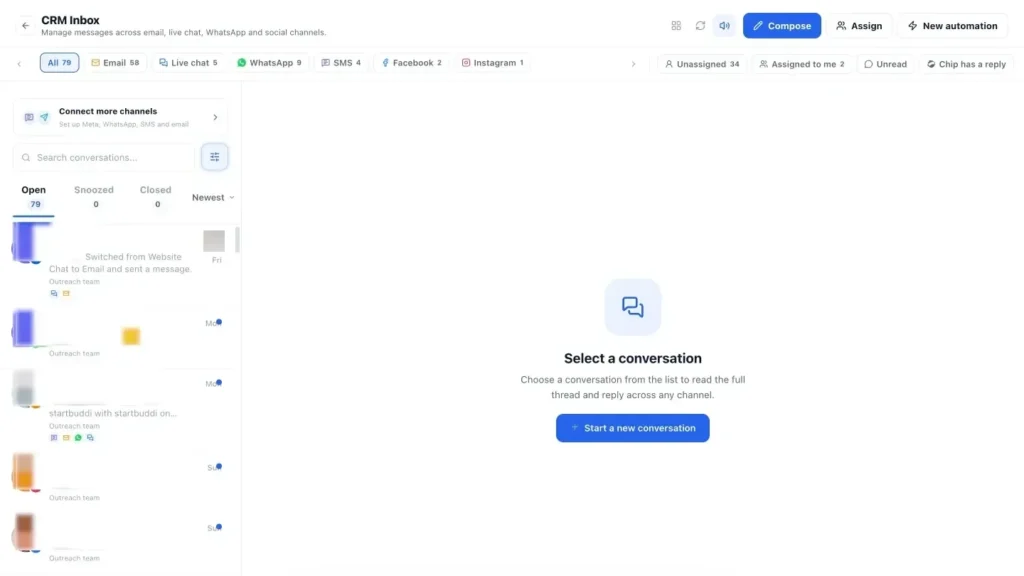
Open Inbox. If nothing is connected yet you will see Connect a channel to start your inbox. Email is usually the quickest to connect, then WhatsApp, SMS, Instagram or Facebook when you are ready. Channels need the Starter plan or above.
Every message your business receives then lands in one shared list, and replies are saved on the contact's timeline automatically.
- Ask Chip who needs you today
Back on Home, click a prompt such as Who needs a reply? or Plan my follow-ups. The Chip panel opens with the question filled in and answers from your own contacts, deals and messages.
Chip replies use Chip credits. Every plan includes a monthly allowance, starting at 100 on Free.
Troubleshooting
I can't find a menu called CRM. Where is it?
The CRM is called Customers in the sidebar. A few page headings inside it still say CRM, such as CRM Pipeline and CRM Inbox, but it is the same module.
I've hit my contact limit. What happens now?
Free includes 250 contacts. To add more, unlock Starter (2,500 contacts), Growth (15,000) or Scale (75,000) from Settings, then Billing. Your existing contacts stay exactly as they are.
Home looks empty. Is something wrong?
No. The briefing, pipeline and next best actions are built from your real data, so they fill in once you add contacts, create deals and connect a channel to the inbox.
Why are the inbox channels locked?
Connecting channels to the inbox, including email, WhatsApp, SMS and website chat, needs the Starter plan or above. Every paid plan comes with a 30-day trial, so you can try it before you pay.
Tiwalade Joanna Okedara-Kalu is the founder, CEO and CTO of startbuddi, the business system that brings clients, bookings, invoices, projects, marketing and the Chip AI assistant into one place. Tiwalade builds software around how service businesses really work day to day, and writes about client management, getting paid on time and why small businesses outgrow the tools they start with.
Founded startbuddi and leads its product and engineering