How to use whiteboards

Whiteboards are shared boards for brainstorming. You add sticky notes, shapes, arrows and mind maps, your team edits with you in real time, and when you have agreed what to do, you turn the chosen notes into tasks in a project. Nothing gets retyped.
Whiteboards are in Work. The Free plan includes 1 whiteboard; any paid plan unlocks unlimited boards, and your existing board stays as it is. Chip actions on a board, such as brainstorming or grouping, use Chip credits.
A board works best with a clear question at the top, such as “How do we get 20 new clients before December?”. Give everyone ten minutes to add notes on their own, then vote. You will get more ideas, and fewer that simply echo the loudest person in the room.
Boards can belong to a project too. A project board is open to everyone on that project, which keeps workshop notes next to the work they lead to.
Steps
- Create a whiteboard
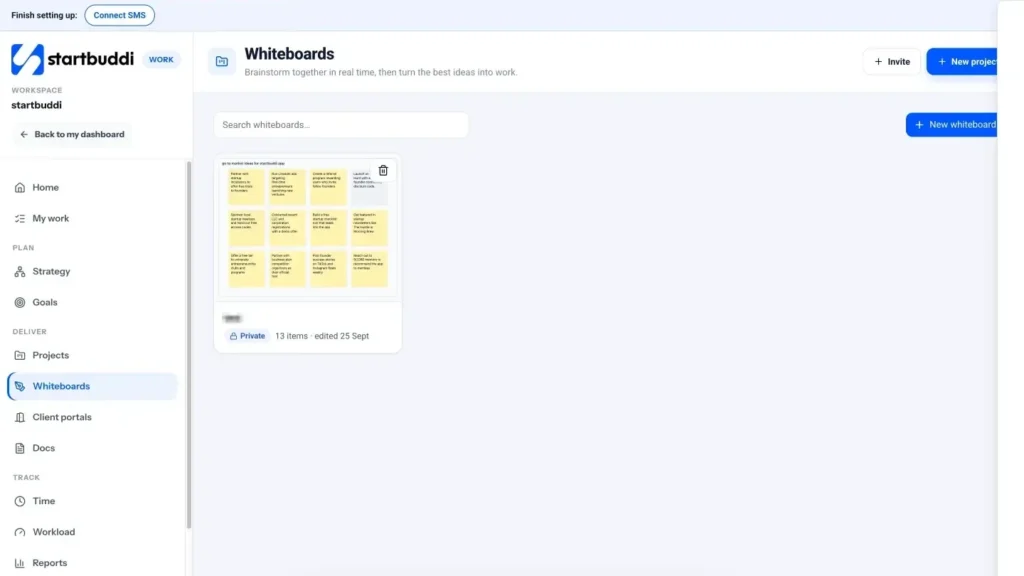
Go to Work and click Whiteboards. Click New whiteboard, give it a name such as "Launch ideas", and choose who can open it: Everyone on the team or Only me (share later). Click Create whiteboard.
- Add your ideas
Double-click anywhere to add a sticky note. The toolbar also has Text, Rectangle, Ellipse, Diamond, Pen, Arrow, Frame and Mind map (Tab adds a child, Enter a sibling). You can add an image or link a project, task or document. Teammates who open the board edit with you live.
- Let Chip start or tidy the board
Open the Chip panel. Brainstorm ideas asks what the ideas should be about and drafts notes, Group by theme sorts sticky notes into groups, and Summarise this board writes a short summary. Chip shows you a draft first; nothing is added until you say so.
- Vote on the best ideas
Turn on dot voting from the toolbar, then click notes to vote. Alt-click takes a vote back. The notes with the most dots are your shortlist.
- Turn notes into tasks
Select the winning sticky notes and choose Turn notes into tasks. Pick the project and confirm. The app tells you how many tasks were added; click Open them to assign owners and dates. You can also choose Turn notes into initiatives to add them under a goal's key result.
- Share or export the board
Click Share to switch on a public link. Anyone with the link can view, not edit, and you can let guests leave comments. To save a copy, use Export and choose Download PNG or Download SVG. Version history keeps earlier versions you can restore.
Troubleshooting
I cannot create a second whiteboard.
The Free plan includes 1 whiteboard. Click Unlock unlimited whiteboards to see paid plans. Your current board stays exactly as it is.
Turn notes into tasks says I have no project.
Tasks need a project to go into. Create a project first, then select the notes again.
It says "Offline".
Your connection dropped. Your changes are kept and will sync when you reconnect, so keep working.
Someone restored an old version by mistake.
Open Version history. The version before a restore is saved too, so you can restore it again.
Tiwalade Joanna Okedara-Kalu is the founder, CEO and CTO of startbuddi, the business system that brings clients, bookings, invoices, projects, marketing and the Chip AI assistant into one place. Tiwalade builds software around how service businesses really work day to day, and writes about client management, getting paid on time and why small businesses outgrow the tools they start with.
Founded startbuddi and leads its product and engineering