How to import contacts into the startbuddi CRM from a spreadsheet

You can import contacts into startbuddi from any spreadsheet saved as a CSV file, up to 10,000 contacts at a time. The importer lets you match your columns to startbuddi fields, decide what happens to people who are already in your list, and tag or group everyone as they arrive.
You need permission to add contacts to run an import. Viewing the import history afterwards needs the Admin role. How many contacts you can keep depends on your plan: Free holds 250, Starter 2,500, Growth 15,000 and Scale 75,000.
Before you import contacts: tidy the file
Five minutes of tidying saves an hour of fixing later:
- Put one person per row and one kind of detail per column (first name, last name, email, phone, company).
- Keep a header row, so each column has a name.
- Write phone numbers with the country code, for example +234 for Nigeria, so WhatsApp and SMS work later.
- Delete empty rows and obvious test entries.
If your list is scattered across WhatsApp chats and notebooks, our CRM vs spreadsheet article explains why getting it into one place is worth the effort.
Steps
- Save your list as a CSV file
The importer accepts CSV files only. In Excel choose File, Save As and pick CSV. In Google Sheets choose File, Download, then Comma-separated values.
Not sure how the file should look? The importer has a Download a template link with the right columns ready to fill in.
- Open Contacts and click Import
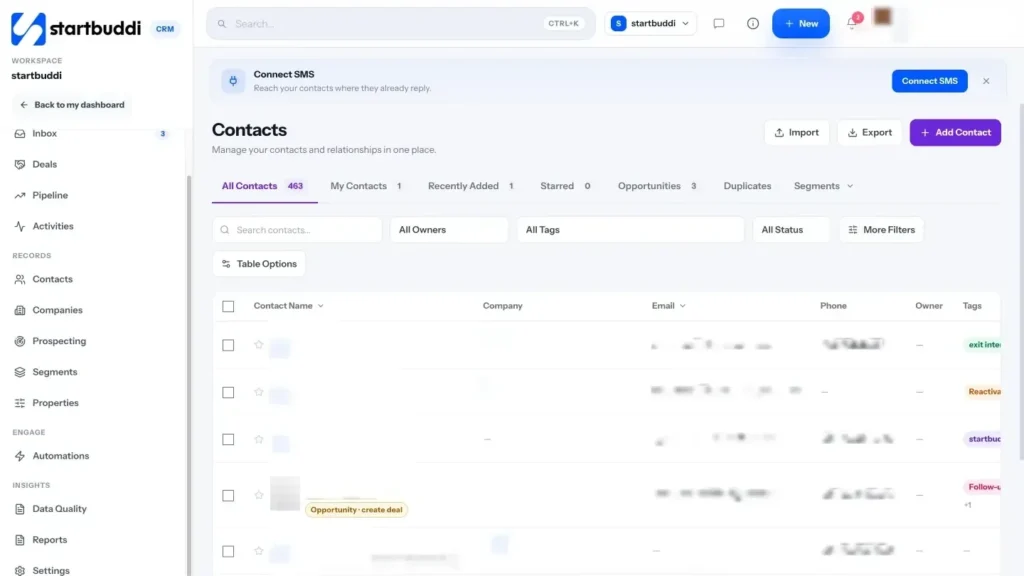
Go to Customers, then Contacts, and click Import at the top right. The Import contacts window opens.
- Drop in your file
Drag your CSV onto the box that says Drop a CSV here, or choose a file, or click it to browse. startbuddi reads the file straight away and moves you to the matching step.
- Match your columns
You will see a table with Column in your file, First value and Goes to. Check that each of your columns points at the right startbuddi field. For anything you don't need, choose Don't import.
At least one column must point at a name, email or phone number, because that is what a contact is saved by. Then click Continue.
- Decide what happens to duplicates, then add tags
The review step shows how many contacts are in the file and how many are Already here. Pick one:
- Update them: fill in anything new from the file and keep what is already there.
- Leave them alone: only add the contacts you don't have yet.
You can also use Add everyone to a group (for example "Expo leads"), Tag everyone (optional) and Note on every contact (optional). Tags make it easy to build segments and filtered views later.
- Run the import and check the result
Click Import (the button shows how many contacts will come in). When it finishes you will see a summary, including any rows that could not be saved and why. Click Done.
Admins can open See past imports from the import window at any time to see who imported what, when, and how many rows were added, skipped or failed.
Troubleshooting
Can I import an Excel (.xlsx) file directly?
No, the importer reads CSV files only. Open the file in Excel or Google Sheets and save or download it as CSV, then import that copy.
The Continue button is greyed out. Why?
None of your columns is matched to a name, email or phone field. Point at least one column at one of those, and Continue becomes available.
Some rows say they could not be saved. What should I do?
The summary lists the row number and the reason for the first few failures. Fix those rows in your spreadsheet, save only them as a new CSV, and import that file with Leave them alone selected so nothing is doubled.
The import was refused with a limit message.
startbuddi counts every row in the file against your plan's contact limit before it saves anything: Free holds 250 contacts, Starter 2,500, Growth 15,000 and Scale 75,000. Import a smaller file, remove rows you don't need, or unlock a bigger plan in Settings, then Billing.
Tiwalade Joanna Okedara-Kalu is the founder, CEO and CTO of startbuddi, the business system that brings clients, bookings, invoices, projects, marketing and the Chip AI assistant into one place. Tiwalade builds software around how service businesses really work day to day, and writes about client management, getting paid on time and why small businesses outgrow the tools they start with.
Founded startbuddi and leads its product and engineering