How to create and send invoices in startbuddi


This guide shows you how to create and send invoices in startbuddi, from picking the customer to watching the payment land. Invoices live in Money Manager, which is on every plan. On the Free plan you can create 5 invoices a month; Starter and above have no limit. Anyone on your team with access to Money Manager can create invoices.
You don’t need a payment provider to send an invoice. If you connect Paystack or Stripe first, your customer can pay online with one tap, and startbuddi marks the invoice paid for you. See how invoicing works in startbuddi for the bigger picture.
Before you start
- Have the customer’s name and email ready, or add them to your contacts first.
- Know what you are charging for, line by line. Clear descriptions get paid faster than a single vague total.
- Decide the due date. Many small businesses use 7 or 14 days; you can set a default in Money Manager settings.
Steps
- Start a new invoice
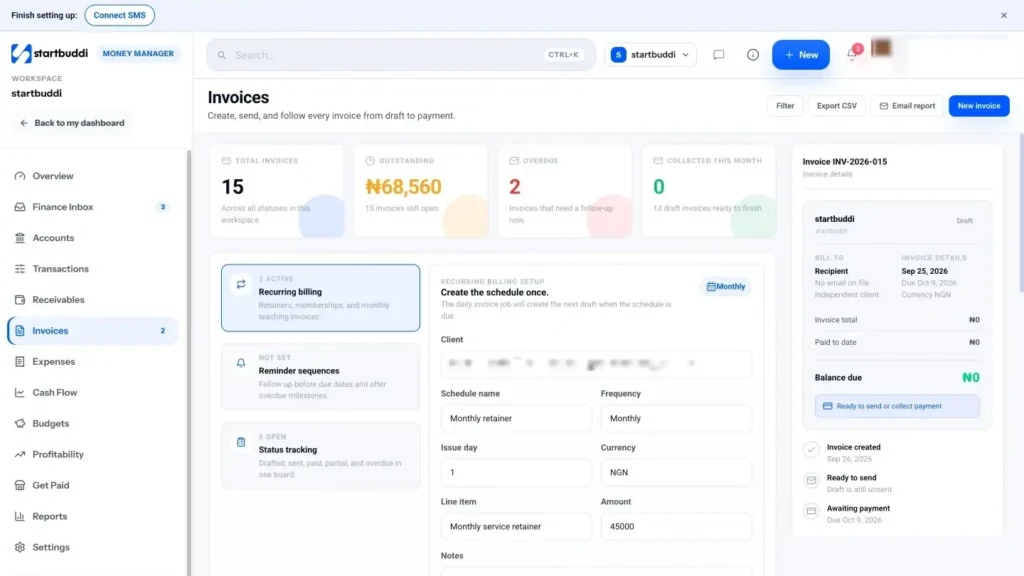
Open Money Manager from the Finance section of the sidebar. On the overview, click Create invoice. You can also go to Invoices in the Money Manager menu and click New invoice. The builder opens with the note "Saved as draft until you send it", so nothing goes to your customer yet.
- Choose who the invoice is for
Under Who is this invoice for?, pick Existing client and choose a contact from the Client list. For someone who isn't in your contacts yet, switch to One-off recipient and type their name, email, phone and company. Tick Also save as a contact if you'll bill them again.
The customer needs an email address if you want startbuddi to send the invoice for you.
- Add what they are paying for
In Line items, enter a Description, Qty and Unit price for each thing you are charging for. Click Add item for another line. Each line rolls into the subtotal automatically.
Set the Currency (a three-letter code such as NGN, USD or GBP) and a Due date. If the work belongs to a project, pick it under Project (optional).
- Set tax, discount and notes
In the Summary box, enter a Tax rate and any Discount. The total updates as you type. Under Notes & footer, use Notes (shown on invoice) for payment instructions or what the price covers, and Footer (bottom of PDF) for a short sign-off.
- Let your customer pay online
Under Accept online payments, choose Accept payment via Paystack or Accept payment via Stripe. If a provider isn't connected yet, you'll see a Connect Paystack or Connect Stripe link that takes you to Money Manager settings.
Bank transfer and PayPal details you save in Money Manager settings are shown on the online invoice page too.
- Save or send
Click Create and send to email the invoice now, or Save as draft to check it first. A draft opens on its own page, where Send invoice emails it when you are ready. Your customer gets a link to an online invoice page where they can pay.
- Follow it to payment
The invoice page shows its status (Draft, Sent, Viewed, Partially paid, Paid or Overdue) and a Collection timeline. Use Download PDF or Print for a copy, and the copy button to share the invoice link in WhatsApp. Online payments through Paystack or Stripe are recorded automatically. If the customer pays you another way, click Record payment.
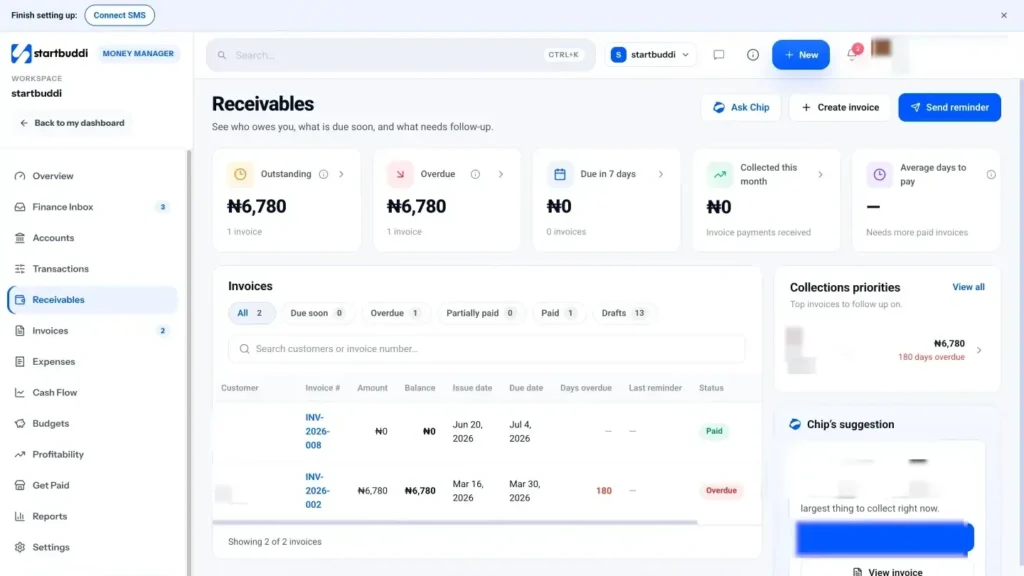
Receivables in the Money Manager menu shows everyone who still owes you, with a Remind button for each open invoice.
Next step: connect a payment provider so your next customer can pay with one tap. Follow how to collect payment via Paystack.
Troubleshooting
It says the invoice was created but the email was not sent. What now?
The invoice is saved. Open it from Invoices, check the customer has an email address, then click Resend. If the customer is a contact with no email, add one in Customers first.
Why is the Send invoice button greyed out?
The invoice has no recipient email. Hover the button to see the reason, add an email to the contact or recipient, and try again.
My customer paid by bank transfer but the invoice still says Sent.
Transfers straight to your bank are not detected automatically. Open the invoice, click Record payment, choose Bank transfer, enter the amount and date, and save. Part payments are fine.
I can't create another invoice this month.
The Free plan includes 5 invoices a month. Unlock Starter or above for unlimited invoices, or wait for the new month.
Chinedu Kalu is the co-founder and chief operating officer of startbuddi, responsible for how the company runs day to day. Chinedu writes about the operational side of a small business: registering and running the company, money, hiring and the routines that keep a team on track.
Co-founded startbuddi and runs its operations