How to use the Chip AI assistant to run your business


The Chip AI assistant is built into startbuddi. It already knows your contacts, projects, invoices and numbers, so you can ask things like What should I focus on today? and get an answer about your own business. It can also draft emails, plan projects and create records, and it always shows you a preview before anything changes.
Chip is on every plan. Each request uses Chip credits: Free includes 50 a month, Starter 500, Growth 2,500 and Scale 8,000. Building your own agents needs Starter or above, and letting Chip answer customers on its own needs Growth. See Chip and AI agents for everything it can do.
Good first questions for Chip
- What should I focus on today? Chip reads your overdue tasks, unpaid invoices and new enquiries.
- Who should I follow up with? It lists contacts who have gone quiet.
- Draft a payment reminder for my oldest unpaid invoice.
- Turn these meeting notes into tasks, then paste your notes.
- Plan my week.
The Agents tab in the Chip panel also has ready-made helpers, such as a follow-up agent and an invoice assistant, for jobs you do often.
Steps
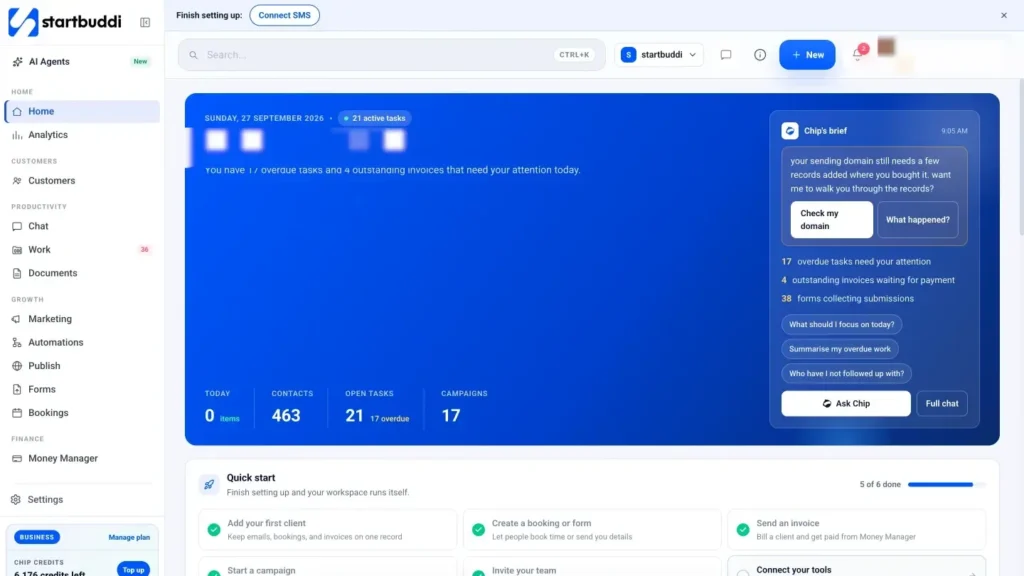
- Read Chip's brief on Home
Open Home. Chip's brief picks out what needs you today, such as overdue tasks or unpaid invoices, with starter prompts underneath. Tap a prompt to hand it straight to Chip.
- Open Chip from any page
Click Ask Chip in the top bar (or press ⌘J on a Mac). The Chip panel opens beside the page you're on, and Chip can see that page, so you can say summarise this contact without explaining who you mean.
- Ask in your own words
Pick a tile such as Plan my day or Draft an email, or type your question. Type @ to point at a contact, project, campaign or deal. You can attach up to 5 files for Chip to read.
- Review before Chip acts
When Chip wants to create, send or change something, you see a Review before Chip does this card. Check the details, then click Confirm or Cancel. Anything that reaches outside your workspace, like sending a message, always waits for your yes.
- Research with sources
Switch to the Research tab to search the web or research a competitor. Every answer comes with its sources, so you can check them before you use the information.
- Teach Chip about your business
Open Settings, then Modules, then the AI assistant tab. Under AI Assistant Knowledge, click Add knowledge and upload a document or write notes, such as your prices, opening hours or returns policy.
- Check what Chip did
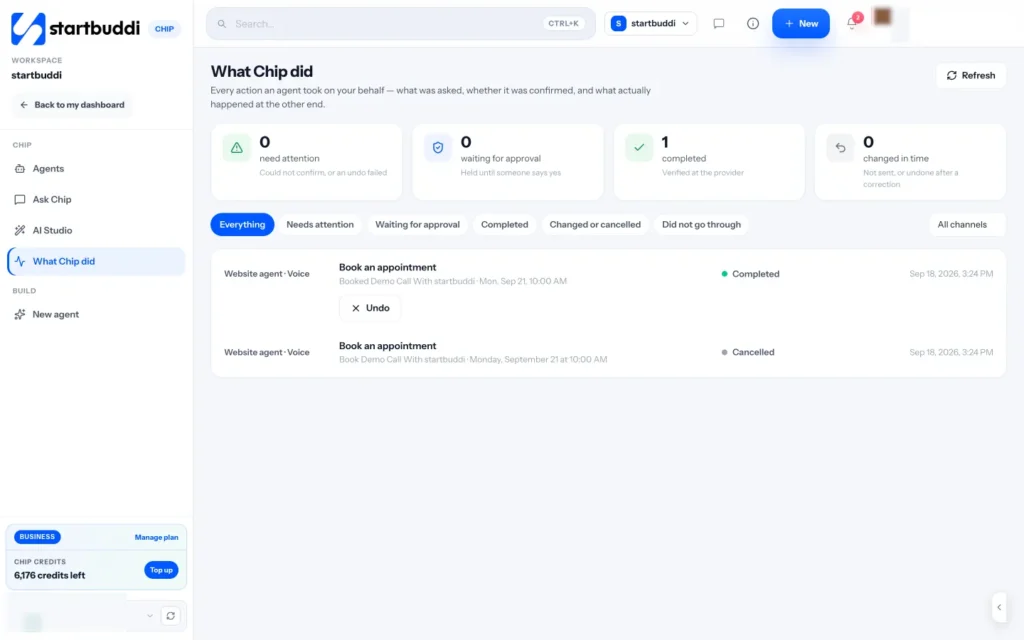
Open the Chip module (search for AI Agents with ⌘K) and choose What Chip did. It lists every action with its real outcome. Anything Waiting for approval can be approved from here.
Troubleshooting
Chip stopped doing research or images.
Your credits are nearly gone. At 15 credits or fewer, research, enrichment and images pause, but chat still works. Buy a credit pack in Settings, then Billing, under Buy more credits.
Chip gave an answer that isn't right for my business.
Add the missing facts under AI Assistant Knowledge in Settings, then ask again. Chip only knows what's in your workspace and what you've told it.
Can Chip send things without asking me?
Not in the app. Sending messages, publishing, sending campaigns and similar actions always show a review card first. After you confirm, you can undo where the action allows it.
Can Chip reply to my customers?
Yes, on the Growth plan and above. Chip can answer in your inbox, on WhatsApp and in website live chat, and steps back when a teammate replies.
Omolola Akiyode is the operations and project manager at startbuddi, leading cross-functional projects and the content that helps founders get set up. Omolola writes about projects, websites and getting found online, and turns complex ideas into clear, practical steps.
Runs operations and projects at startbuddi