How to use automations in startbuddi: build your first sequence


Automations in startbuddi are sequences of steps that run by themselves when something happens: someone fills in a form, books a call or pays an invoice. You decide what starts it, then add what happens next, such as send a welcome email, wait two days, then send a follow-up. Every module uses the same Automations engine, so booking reminders, form replies and invoice chasers are all built in one place.
Free includes 2 active automations, and Starter allows 10. Each plan includes a number of automation runs a month: Starter 250, Growth 2,000 and Scale 5,000. If you’re new to the idea, read what workflow automation is first.
Three automations worth starting with
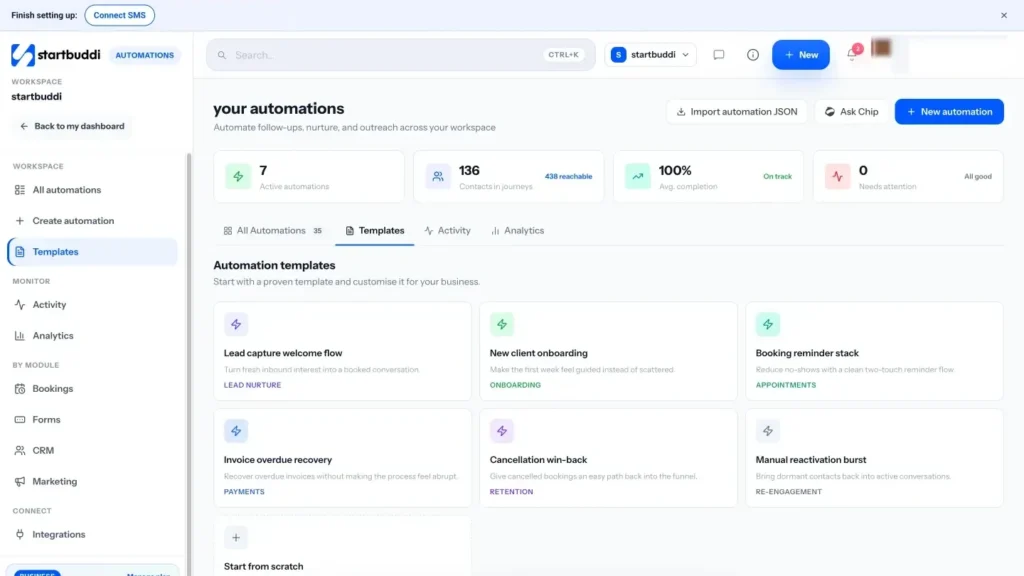
- Lead capture welcome flow: starts when a form is submitted and helps turn a new enquiry into a booked conversation.
- Booking reminder stack: starts with a new booking and sends two reminders to cut no-shows.
- New client onboarding: starts when a new contact is added and makes their first week feel guided.
When Chip builds an automation for you, it’s saved as a draft that’s switched off. Nothing runs until you review it and click Activate.
Steps
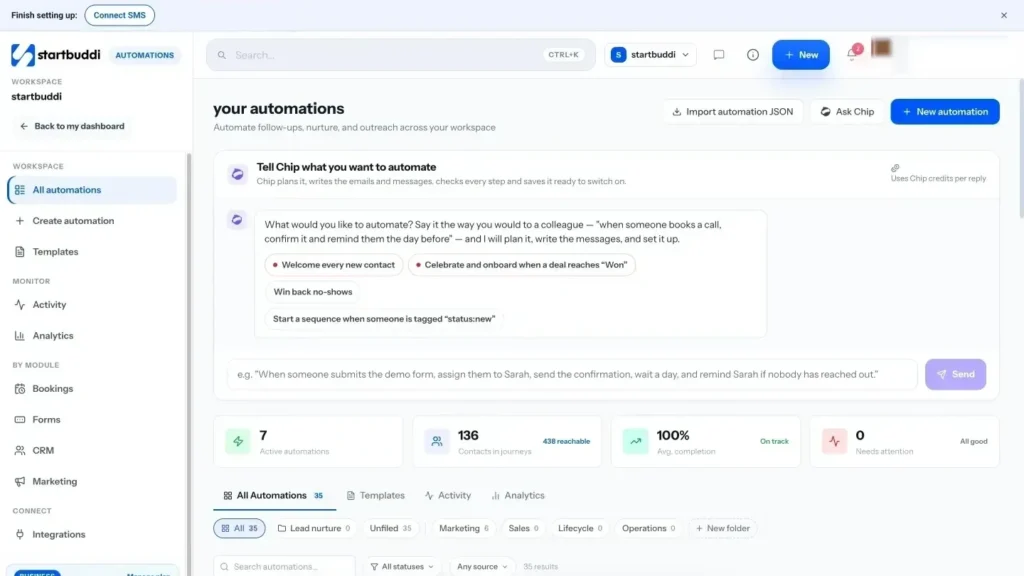
- Open Automations
Click Automations in the Growth section of the sidebar. You'll see every automation with its status, what starts it and how many people are in it right now.
- Click New automation
Click New automation and choose how to start:
- Tell Chip what you want: describe it in a sentence, and Chip plans the steps and writes the messages. It uses Chip credits.
- Use a template: ready-made flows such as a lead capture welcome, booking reminders or overdue invoice recovery.
- Start from scratch: build every step yourself.
- Choose what starts it and name it
Under What starts it?, pick the trigger, for example Form submitted or New booking made. Give it a clear name under Name your automation, then click Build automation. The canvas opens.
- Add your steps
Click Add a step below the trigger and choose what happens: Send email, Wait / delay, a Condition to branch on contact details, Add tag, Create task and more. Click a step to fill in its details. Steps show Needs setup until they're complete.
- Validate the flow
Click Validate. The panel lists Errors you must fix, Warnings to review and Suggestions. For example, every wait needs a time greater than zero.
- Test it before it goes live
Click Test, then Test with a contact to run it for one person, or Simulate an event to preview who it would reach. The Run timeline shows each step as it happens.
- Activate it
Click Save, then Activate. The Review before activating window checks consent and shows how many contacts can be reached. Click Activate automation to switch it on.
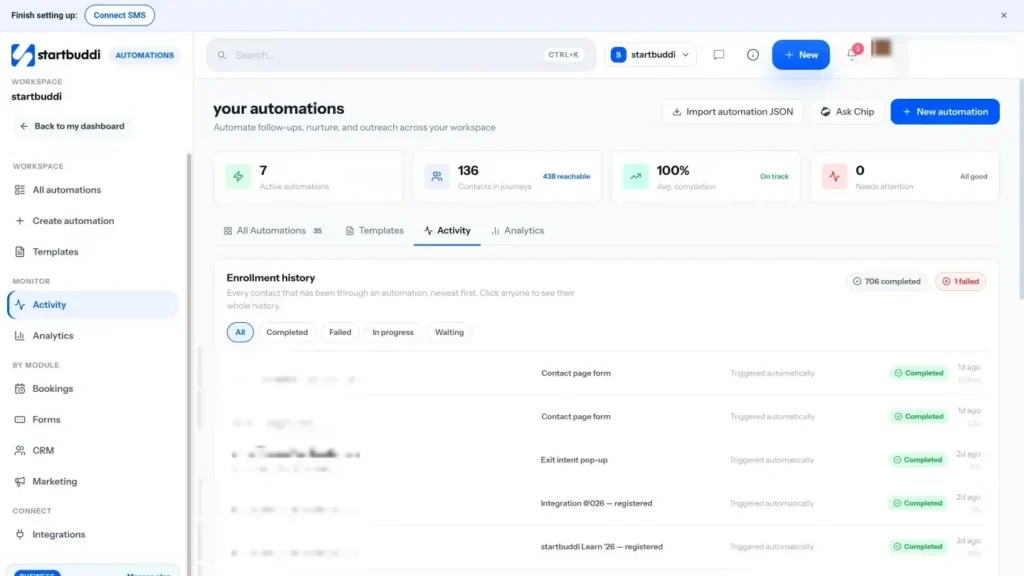
- Watch the activity
Open Activity to see everyone who has been through an automation, newest first. Click a person to see their whole history, or open Analytics in the canvas to see opens, clicks and completions.
Troubleshooting
Who goes into an automation?
Your contacts. People enter when the trigger fires for them, for example when they fill in a form or join a list of email subscribers. Before you activate, the review screen shows how many contacts can be reached and who is excluded for consent reasons.
A trigger says Not live yet.
A few triggers, such as date-based ones and task overdue, aren't switched on yet, and automations that use them can't go live. Pick another trigger for now.
My WhatsApp step shows a warning.
Free-text WhatsApp messages only reach people who messaged you in the last 24 hours. Choose an approved template in the step to reach everyone.
I changed a live automation. Do existing contacts get the new version?
When you save a running automation, you're asked to pause and save, then whether to enrol contacts who already match. Choose Yes, enrol them or No, only new ones.
I can't open Automations.
Check your role has access to Marketing. Free includes 2 active automations and Starter 10, so you may need to unlock a bigger plan for more. Ask your workspace owner to check your plan and your permissions.
Olabimpe Salami is the email and outreach specialist at startbuddi. Olabimpe writes about the messages that bring customers in and back: email, WhatsApp and SMS campaigns, follow-ups, and turning enquiries into paying clients.
Runs email and outreach at startbuddi