How to create a new email campaign in startbuddi


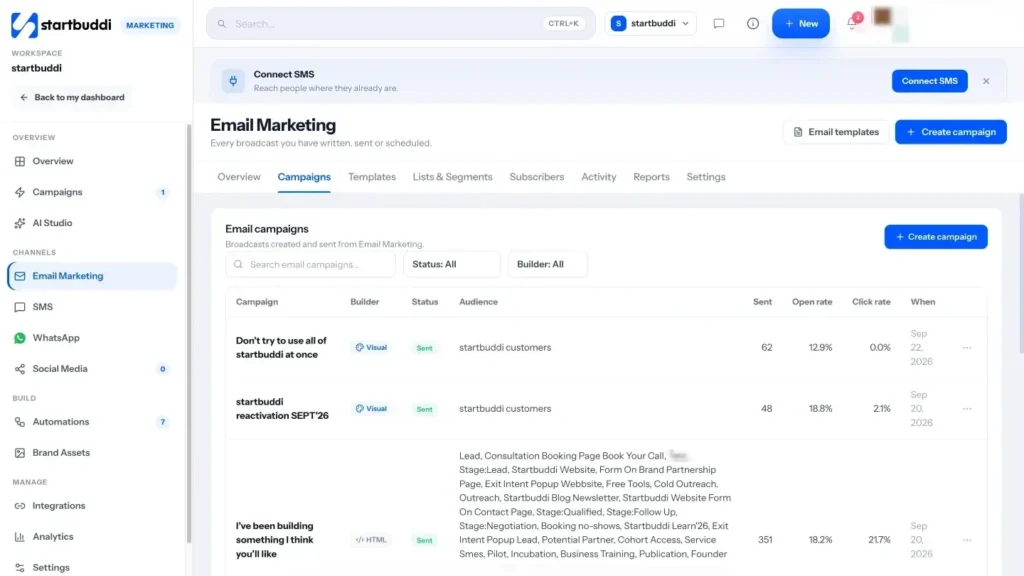
To create a new campaign, open Email Marketing, click + Create campaign, name it, then work through four steps: who gets it, what it says, a check, and when it goes out. You can write the email yourself, start from a template, or let Chip draft the subject, preview text, copy and call to action.
Who can do this: email campaigns need the Starter plan or above (Marketing is locked on Free). Your plan sets how many emails you can send each month (Free 300, Starter 3,000, Growth 10,000 and Scale 25,000; see pricing for the allowance where you are). Until you verify your own sending domain, marketing email from the shared startbuddi address is capped at 1,000 a month and 200 a day.
Before your first send, add your business postal address in Email Marketing › Settings (Footer address). Marketing email has to show one, and it’s added to every send along with the unsubscribe link. Your brand kit colours and logo are applied when you start a blank design. For more ideas, see email marketing.
Steps
- Click Create campaign and name it
In Marketing › Email Marketing, click + Create campaign. On "Name your email campaign", type an internal name (recipients never see it). If it's part of a bigger launch, use Add to a Marketing campaign so the results roll up together. Click Continue →.
- Choose who gets it
On the Audience step, tick Lists & segments, or switch to By properties to build a rule on the spot. Use Add exclusions to leave people out, or Ask Chip to build an audience from a plain-words description. The estimated recipients card shows how many people are eligible. Click Continue to message →.
- Write the email
Fill in From name, From email, Replies go to, Subject and Preview text. Then choose how to create the body: Create with Chip, Use a template, Start blank (the drag-and-drop builder) or HTML builder. Add {{first_name}} to greet people by name; if a first name is missing, it reads "there". Click Continue to review →.
- Review and send a test
The Review step runs every check on one page: missing subject, a subject cut off on phones, missing preview text, empty or broken links, images without alt text and nothing to click. Fix anything red, read Chip's read for suggested improvements, then click Send a test to see it in a real inbox. Click Continue to send →.
- Send now or schedule it
Choose Send now, Schedule (in your timezone) or Smart send, which picks the hour your readers open most once you have enough history. Click Send to N people, or Schedule.
- Read the report and follow up
On the sent screen, click View campaign and open Report: opens and clicks over time, when people read it, link clicks, devices and who did what. Under follow-up, click Resend to non-openers to send the same email with a new subject (once per campaign), or Create a follow-up automation.
Troubleshooting
Why is Smart send not available?
Smart send works out the best hour from past opens, so it needs enough open history first. Until then, use Schedule and pick a time yourself.
How do I run an A/B test?
On the Message step, add an A/B test and choose what to test: Subject line, Email content or Sender name. Write version B yourself or let Chip generate one. On the Send step, set the test size and duration, pick the winner by click rate or open rate, and choose to send the winner automatically.
Why can't I send my campaign?
Check Email Marketing › Settings. You need a From address and a footer postal address before broadcasts can send. If you've reached the shared-sender cap, verify your own sending domain to use your plan's full allowance.
Where do replies go?
Replies land in your customer inbox, labelled with the campaign they answer, so the team can pick them up in one place.
Olabimpe Salami is the email and outreach specialist at startbuddi. Olabimpe writes about the messages that bring customers in and back: email, WhatsApp and SMS campaigns, follow-ups, and turning enquiries into paying clients.
Runs email and outreach at startbuddi