How to segment your email audience

To segment your email audience, open Email Marketing, go to the Lists & Segments tab and click Create segment. Add rules (for example, city is Lagos, or opened a campaign in the last 30 days) and the segment fills itself with everyone who matches. People join when they match and leave when they stop matching.
You have two kinds of group. A list is a group you add people to yourself, such as “Workshop attendees”. A segment updates automatically from rules. Both are views of the same contacts, so one person can sit in several groups without being emailed twice.
Who can do this: Email Marketing is part of the Marketing module, which needs the Starter plan or above. How many contacts you can store depends on your plan (Free 250, Starter 2,500, Growth 15,000, Scale 75,000). Read more about email segmentation or see our audiences, lists and segments page.
Steps
- Check who you can email
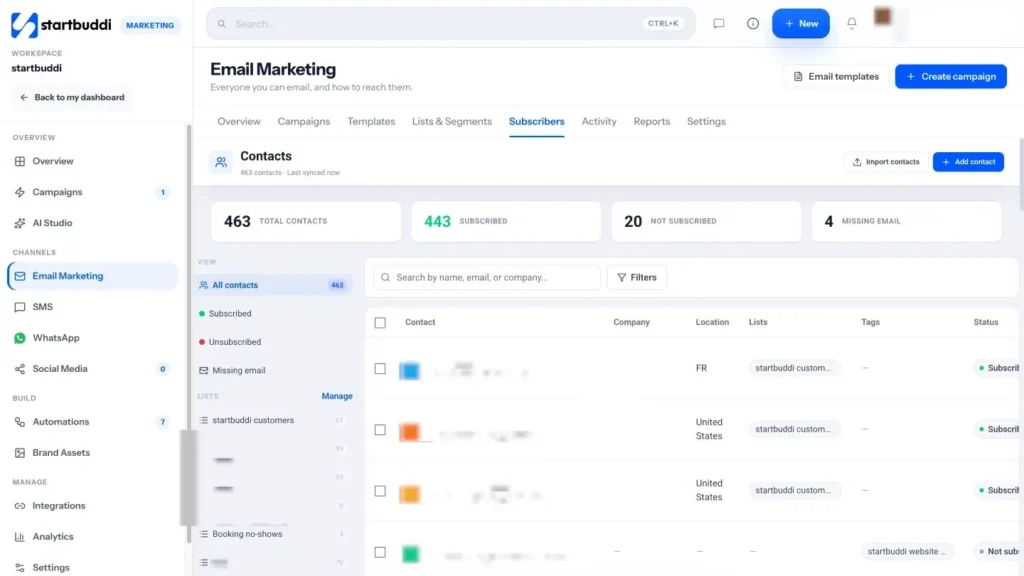
In Marketing › Email Marketing, open the Subscribers tab. The cards show total contacts, how many are subscribed, not subscribed or missing an email. Only subscribed contacts with a valid address receive campaigns, so fix any gaps here first. You can also import a CSV with Import contacts.
- Open Lists & Segments
Open the Lists & Segments tab. The top cards show how many lists and segments you have, how many distinct people are across them, and how many of those you can actually reach.
- Create a list for people you group by hand
Click Create list, type a List name (for example "Newsletter subscribers"), add an optional description and colour, then click Create list. To fill it, go to the Subscribers tab, tick the people you want and use Add to list from the bulk actions.
- Create a segment from rules
Click Create segment and give it a Segment name, such as "Lagos customers". Under Rules, click Add rule and pick a field, for example city, tag, date added, filled in a form, made a booking, opened or clicked a campaign, or has an unpaid invoice. Choose Match all or Match any. The line underneath shows how many contacts match right now. Click Create segment to save it.
- Or ask Chip to build the audience
When you create an email campaign, the Audience step has Ask Chip to build an audience. Describe the people in plain words, for example "customers in Abuja who booked in the last 3 months but haven't paid", then click Build audience. Chip turns it into rules, shows how many match today and saves it as a segment when you click Use audience. This uses Chip credits.
- Email the group
On any row in Lists & Segments, click Email this group to start a campaign with that audience, or View contacts to see who is in it. In a campaign's Audience step you can also tick several groups and use Add exclusions to leave some people out, even if another list includes them.
Troubleshooting
Why will fewer people get the email than my segment shows?
Contacts who have unsubscribed, bounced or have no email address are skipped automatically when you send. In the campaign's Audience step, the estimated recipients card has a breakdown showing who is skipped and why.
What's the difference between a list and a segment?
A list only changes when you add or remove people. A segment is rule-based: new contacts who match the rules join by themselves, and people who stop matching leave.
Someone unsubscribed by mistake. Can I add them back?
Only if they ask you to. Edit the contact and set their marketing status to Subscribed, which requires their explicit consent. A contact marked Suppressed is never emailed until someone clears it by hand.
Olabimpe Salami is the email and outreach specialist at startbuddi. Olabimpe writes about the messages that bring customers in and back: email, WhatsApp and SMS campaigns, follow-ups, and turning enquiries into paying clients.
Runs email and outreach at startbuddi