How to set booking reminders and notifications

Booking reminders cut no-shows, and startbuddi sends them for you. Every confirmed booking gets one automatic reminder at the time you choose: 1, 2, 4, 12, 24 or 48 hours before the start. The default is 24 hours. The reminder email comes with a calendar invite, a link to cancel and a link to pick a new time. If the booking has a meeting link, the reminder includes it, so your client has everything in one place. This guide shows how to choose the timing and the channels, and how to set up everything around reminders: confirmations, alerts for your team, follow-ups and extra messages.
Before you set up booking reminders
Reminder, confirmation and follow-up emails work on every plan. They send from startbuddi, and replies go to the address you choose. Reminders can also go by WhatsApp or SMS. WhatsApp needs a connected WhatsApp number, and SMS needs an SMS connection and a plan that includes SMS. For ideas on timing and wording, read how to automate client bookings with reminders, or see what missed slots cost you with the no-show cost calculator.
Steps
- Choose your notifications
Open Bookings and click Settings in the menu. In the Notifications card, switch on Email confirmations to customer so every guest gets a confirmation, and Notify staff on new booking so the host hears about it straight away. Then switch on the reminder channels you want: Email reminders to customer, WhatsApp reminders and SMS reminders.
- Choose when reminders go out
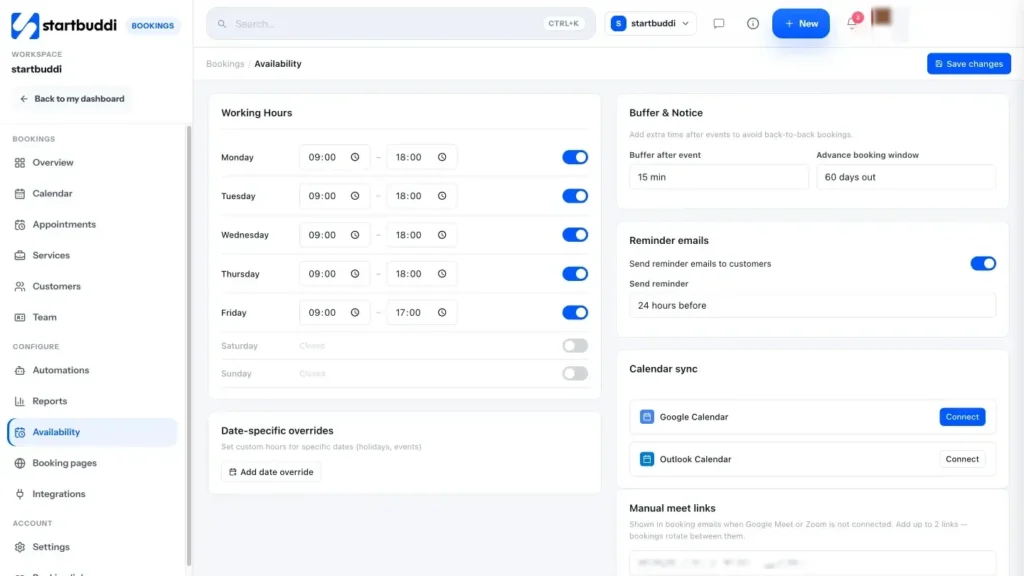
Click Availability. Under Reminder emails, switch on Send reminder emails to customers and choose a time in Send reminder: 1, 2, 4, 12, 24 or 48 hours before. That one time applies to every reminder channel. Click Save changes.
The link to pick a new time can be turned off in Reschedules, with Add a reschedule link to confirmations and reminders.
- Set who replies go to
Still in Settings, fill in Sender name and Sender email under Email sending. Booking emails still send from startbuddi, but when a customer replies to a reminder, the reply comes to you. Click Save Settings.
- Write your follow-up messages
In Follow-up messages, switch on After a no-show and After a completed booking if you want them. Edit the Subject and Message, using the tags shown to add details such as the customer's name. Leave a box empty to use the default wording, or click Reset to default. Then click Save Settings.
These emails go out when you mark a booking as a no-show or as complete.
- Add a meeting link to your emails
For online sessions, click Availability and add up to two links under Manual meet links. They are shown in booking emails when Google Meet or Zoom is not connected, and bookings rotate between them. Click Save changes.
- Send a one-off reminder
To nudge one person, open the booking and click Reminder. In Send Reminder, choose Email, edit the message if you like, and click Send.
This is handy for a first-time client, a long appointment or anyone who has missed a booking before. The Needs attention list on the Bookings overview is a good place to spot them.
- Add extra messages with an automation
For a second reminder or a different message, click Automations in the Bookings menu, then New Automation. Choose a trigger such as Booking created, then add steps like Send WhatsApp message, Send SMS or Delay / wait. WhatsApp needs a connected WhatsApp number, and SMS uses your plan's SMS allowance.
Troubleshooting
Can I change when the automatic reminders go out?
Yes. In Availability, under Reminder emails, choose 1, 2, 4, 12, 24 or 48 hours before. Each booking gets one automatic reminder at that time, on every channel you switched on, give or take a few minutes. A booking made after that point, for example 3 hours ahead when reminders go 24 hours before, gets no automatic reminder, so send a one-off reminder from the booking. For a second reminder, add a Bookings automation.
I switched on WhatsApp or SMS reminders in Settings but nothing was sent
Check that the booking has a phone number, that WhatsApp is connected for WhatsApp reminders, and that SMS is set up on a plan that includes SMS for SMS reminders. Reminders go at the time you chose in Availability, not when you switch a channel on.
A customer says they never got a reminder
Reminders only go to confirmed bookings, so check the booking is not still pending or awaiting payment. Then check the email address on the booking and ask them to look in spam. You can always send a one-off reminder from the booking.
Tiwalade Joanna Okedara-Kalu is the founder, CEO and CTO of startbuddi, the business system that brings clients, bookings, invoices, projects, marketing and the Chip AI assistant into one place. Tiwalade builds software around how service businesses really work day to day, and writes about client management, getting paid on time and why small businesses outgrow the tools they start with.
Founded startbuddi and leads its product and engineering