How to manage seats and roles in startbuddi

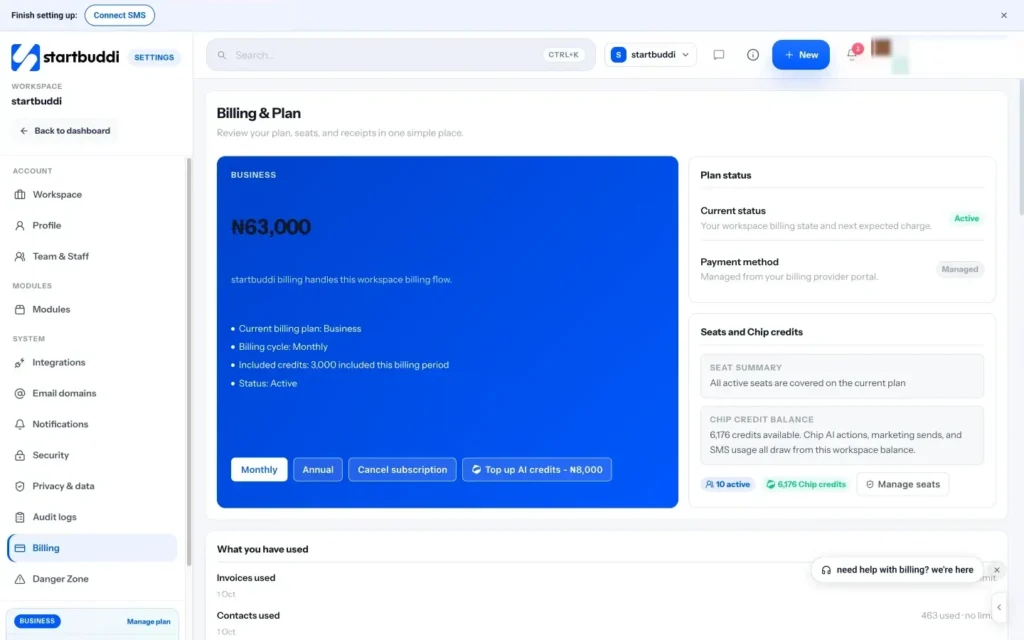
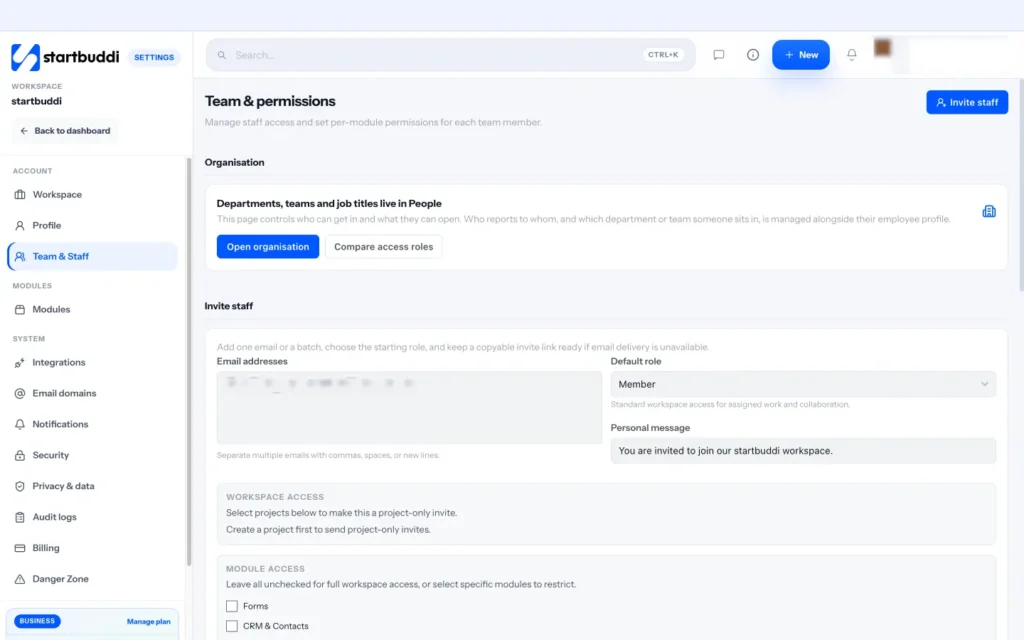
You manage seats and roles in two places. Seats, which decide how many people can be in your workspace, are in Settings, then Billing. Roles, which decide what each person can do, are in Settings, then Team & Staff.
Seats included: Free 1, Starter 2, Growth 5 and Scale 15. On any paid plan you can buy extra seats (see pricing). The owner or an admin can change seats. Only the owner can change someone’s role or remove them.
The roles
| Role | What it’s for |
|---|---|
| Owner | Full control of the workspace, billing and access changes. |
| Admin | Manages team access, settings, billing and most operations. |
| Manager | Handles delivery, clients, bookings and assigned workflows. |
| Member | Standard access for tasks, clients and bookings. Right for most teammates. |
| View only | Can look at approved data but can’t change anything. |
| Client | Someone outside your business who sees only the projects you add them to. |
Tips for keeping your team tidy
- Cancel old invites. A pending invite holds a seat until it’s accepted or deleted.
- Suspend rather than remove when someone is away for a while. Their work stays assigned to them and you can restore them in one click.
- Review roles every few months. People change jobs inside small teams quickly, and Admin access should stay with the few who run the workspace.
- Hand work over before removing someone, so no client or task is left without an owner.
Steps
- Check your seats
Open Settings, then Billing, and find the Seats card. It shows how many seats are Included in your plan, how many you Bought and how many are In use. Pending invites count as in use.
- Add extra seats
Raise the Extra seats number with the plus button. You'll see what's due now for the rest of this period and what's added to your next bill. Click add to pay and confirm.
- Remove seats you no longer need
Lower the number and click remove. Your bill goes down from your next renewal. You can't go below the seats in use, so remove a teammate or cancel a pending invite first.
- Change a teammate's role
Open Settings, then Team & Staff. In Staff permissions, pick a new role from the menu on their row. It's saved straight away. Click Compare access roles if you're unsure which to choose.
- Set module access
On the Scale plan, you can set each module to Full, View or None for a teammate, whatever their role. If they open a module they can't use, they're asked to request access and you're notified. Home, tasks and goals are always open to everyone.
- Suspend or remove someone
Use Suspend to pause a teammate's access and Restore to bring it back. To remove someone for good, choose Remove team member. You can hand their open work to a teammate or leave it unassigned. Then remove the spare seat if you don't need it.
Troubleshooting
I can't add seats on the Free plan.
Extra seats are added to a paid subscription. Unlock Starter or above first, then add seats in the Seats card.
The role menu is missing on a teammate's row.
Only the workspace owner can change roles, and nobody can change the owner's own role here. Ask the owner to make the change.
Do I get money back when I remove a seat?
No. Your bill goes down from your next renewal, and nothing already paid is refunded.
Seats say they can only be removed.
Your plan is set to end, so you can't add seats. Keep your plan in Billing first, then add seats again.
Chinedu Kalu is the co-founder and chief operating officer of startbuddi, responsible for how the company runs day to day. Chinedu writes about the operational side of a small business: registering and running the company, money, hiring and the routines that keep a team on track.
Co-founded startbuddi and runs its operations