How to configure round robin scheduling for your team

Round robin scheduling shares new bookings evenly across your team, so one person is not swamped while another sits free. In startbuddi this is called the Booking rotation. Guests pick a time, see “Next available host”, and startbuddi gives the booking to the next person in line who is free.
It suits salons, clinics, agencies and sales teams where any of several people can do the job. Clients get the earliest free slot instead of waiting for one person, and you can see at a glance that the work is shared fairly.
Before you set up round robin scheduling
- You need at least two people in your workspace. Free includes one seat, Starter two, Growth five and Scale 15.
- You need at least one bookable service. If you have not made one, start with how to set up your booking page.
- The workspace owner and admins can change who is in the rotation. Each person controls whether they are accepting bookings right now.
New to the idea? Read what round robin scheduling is for a plain explanation.
Steps
- Add your team members
Open Bookings and click Team. Click Add team member, enter their email and pick a role: Member, Manager or Admin. They get an email inviting them to join.

- Ask each person to set their hours
Each teammate clicks Set my hours on their own card and chooses the days and times they take bookings. Someone with no hours set is treated as always available, so this step matters.
Hours are per person, so a part-time teammate who only works mornings is only offered for morning slots.
- Check who is in the rotation
At the top of the Team page, Booking rotation shows who shares incoming bookings. On each card, the In the booking rotation switch adds or removes that person. If you have taken people out, Include everyone puts the whole team back.
Accepting right now lets a person pause new bookings, for example while on leave. Only they can change it for themselves.
- Choose hosts for each service
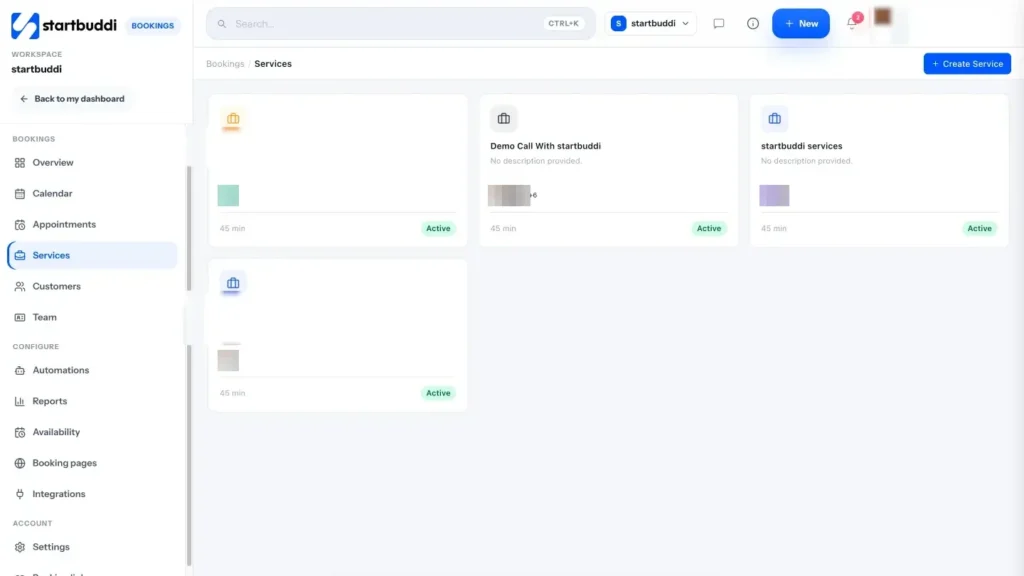
Click Services and open a service. On its Team tab, use Staff assignment to choose who can host it, then click Save changes.
A service that names its own hosts shares bookings only between them. A service with no hosts named uses the whole Booking rotation.
- Share the link and watch the spread
Share your booking link as usual. When more than one host can take a slot, guests see Next available host. Back on the Team page, the rotation card shows how many bookings each person has had this week.
For a longer view, switch Calendar to the Staff view, or open Reports and look at staff performance.
Troubleshooting
One person is getting every booking
Check the others are switched on under In the booking rotation and Accepting right now, and that they have set their hours. Also check the service's Staff assignment does not list only one host.
I see a warning that nobody is accepting bookings
Everyone in the rotation has paused. New bookings still get assigned, but to someone who is paused. Ask at least one person to switch Accepting right now back on.
A teammate was booked while busy in Google Calendar
Calendar sync sends bookings to Google Calendar, but it does not read busy times back. Block that time in Bookings with Block time on the Calendar, or adjust their hours.
I cannot add another team member
You have used the seats on your plan. Unlock more seats in Settings, then Billing.
Tiwalade Joanna Okedara-Kalu is the founder, CEO and CTO of startbuddi, the business system that brings clients, bookings, invoices, projects, marketing and the Chip AI assistant into one place. Tiwalade builds software around how service businesses really work day to day, and writes about client management, getting paid on time and why small businesses outgrow the tools they start with.
Founded startbuddi and leads its product and engineering