How to create a payment link in startbuddi

A payment link lets a customer pay a set amount without you drafting a full invoice. It suits deposits, quick jobs and sales that start in a DM. Use an invoice instead when you need line items, due dates and a fuller billing record.
Payment links are on every plan. You need Paystack or Stripe connected first, because the link opens their checkout. For more on the idea, read what a payment link is, or see all the ways to get paid in startbuddi.
When to use a payment link
- Deposits: ask for 50% before you start a job.
- Quick sales in a chat: a customer on WhatsApp or Instagram says yes, and you send a link straight away.
- Top-ups and extras: small add-ons that don’t need a full invoice.
If you sell the same things again and again, the Sell something tab on Get Paid can build a link from your products instead.
Steps
- Open Payment links
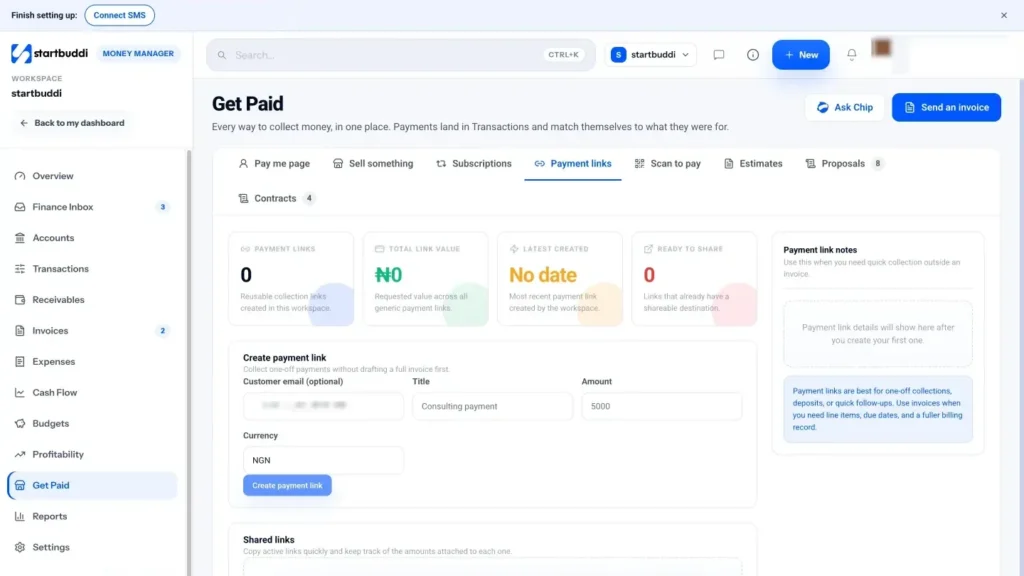
Go to Money Manager, then Get Paid, and open the Payment links tab. If no provider is connected, a banner offers Connect a provider. Do that first.
- Fill in the link details
In Create payment link, add a Title the customer will recognise (for example "Logo design deposit"), the Amount and the Currency. Customer email (optional) ties the link to a person. Click Create payment link.
- Copy and share it
Your new link appears under Shared links. Click Copy link and paste it into WhatsApp, Instagram or anywhere you talk to customers. Open link shows you the checkout page your customer will see.
- Or send it from startbuddi
Click Email link on the row. Enter the Recipient email, an optional name and note, then click Send email. If your workspace has SMS set up, you can add a phone number and click Send text instead. SMS needs the Starter plan or above.
- Print a QR code if you sell in person
Open the Scan to pay tab on Get Paid. Every active payment link has its own QR code with Copy link, Print and PNG options, so customers can scan and pay at your counter.
- Track payments and switch links off
When the customer pays, the payment lands in Transactions. If a link should no longer be paid (the price changed, or the customer paid another way), click Deactivate on its row.
Each link is for a fixed amount. If the price changes, deactivate the old link and create a new one rather than asking the customer to pay a different figure.
Next step: create a small test link, open it with Open link, and check the checkout shows your business name and the right amount before you share it with customers.
Troubleshooting
It tells me to enable payments before I can create a link.
Connect Paystack or Stripe in Money Manager, then Settings, How you get paid. The message mentions Settings and Integrations, but Money Manager settings is the right place.
I don't see a Send text button.
Text sending only shows when SMS is set up for your workspace, which needs the Starter plan or above.
A link says Provider pending.
The payment provider has not finished setting up, so there is no checkout address yet. Check your Paystack or Stripe card in Money Manager settings.
Chinedu Kalu is the co-founder and chief operating officer of startbuddi, responsible for how the company runs day to day. Chinedu writes about the operational side of a small business: registering and running the company, money, hiring and the routines that keep a team on track.
Co-founded startbuddi and runs its operations