How to add employees and build your org chart

To build your org chart, add each person to People, put them in a department, and set who they report to. The chart is drawn from each person’s manager, so there is nothing to drag around and it stays up to date when people join, move or leave.
People is on every plan. HR admins and the workspace owner can add people and change departments. Everyone you add as an employee must be a member of your workspace, and on the Free plan only the owner seat is available, so inviting teammates needs a paid plan. Starter includes 2 seats, Growth 5 and Scale 15.
Keep it simple at first. Most small teams need two or three departments at most, and one manager per person. You can add teams, locations and leadership titles later, once the basic shape is right.
Steps
- Open Team in People
Click People in the sidebar, then Team. You will see everyone in your workspace with tabs for All, Active, Setup needed, Away, Suspended and Former.
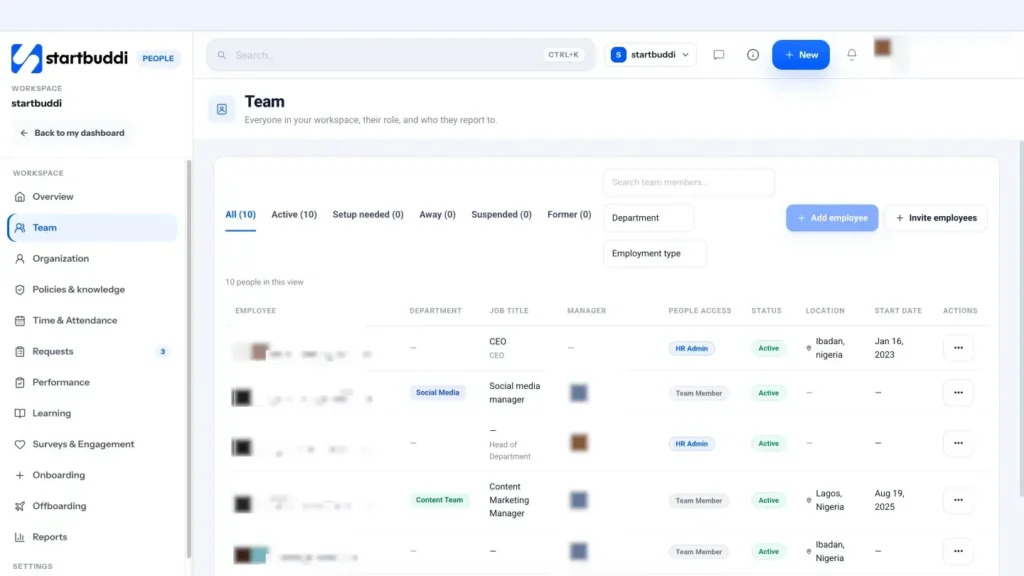
- Invite new people or add existing members
Click Invite employees to email someone who is not in startbuddi yet. For someone already in your workspace, click Add employee, pick them under Workspace member, then fill in Job title, Department, Employment type and Start date, and click Add employee.
- Set up anyone marked "Setup needed"
On the People Overview, workspace members who are not classified yet have a Set up button. It asks "How do you work together?". Choose Yes, they're part of our team, pick full-time, part-time, intern or contractor, add the job title, department and Reports to, then click Add to team. Freelancers and agencies can be marked as external collaborators instead.
- Create departments
Go to Organization and open the Departments tab. Click Add department, type the Name and a Description ("What does this group own?"), choose a Head (optional), and click Create.
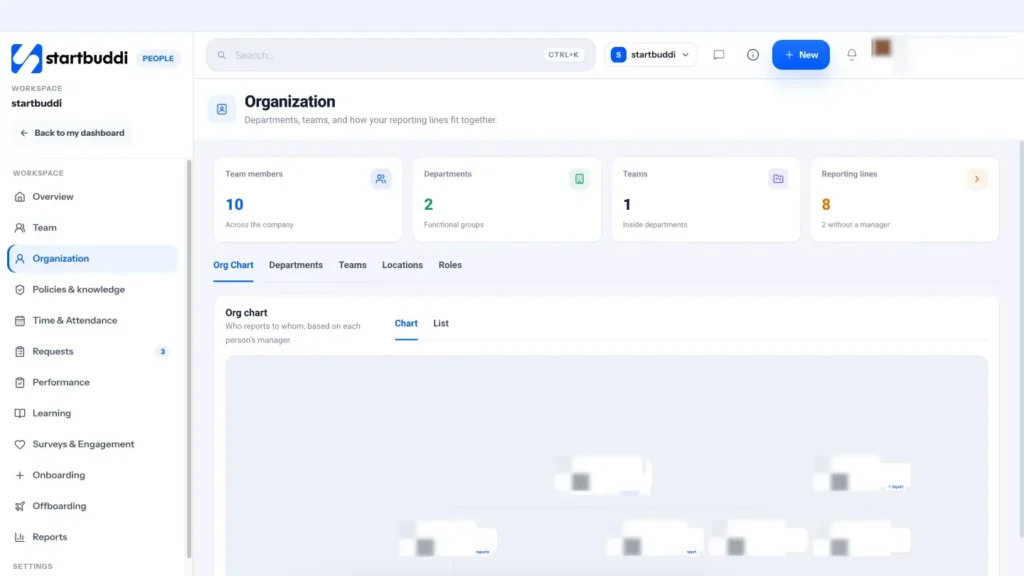
- Add teams inside departments
On the Teams tab, click Add team, name it and pick a Department (optional). For example, a Delivery department might hold a Design team and a Build team. Teams are optional; skip them until a department has more than a handful of people.
- Set each person's manager
Open a profile from Team and click Edit profile. Choose who they Reports to, and check their Job title, Department and Work location. Add a Leadership title for heads and founders so it shows on the chart.
- Check the org chart
Open Organization and the Org Chart tab. Switch between Chart and List, and collapse branches to focus on one area. The Reporting lines card says "Everyone has a manager" once every person is placed. See team directory and org chart for what else profiles hold.
Troubleshooting
The person I want is not in the Workspace member list.
Add employee only lists workspace members who are not employees yet. Invite them first with Invite employees, then add them once they have joined.
Invite employees says my plan only includes the owner seat.
The Free plan has one seat. Unlock a paid plan with more seats to invite teammates.
Someone is missing from the org chart.
The chart follows each person's manager. Open their profile, click Edit profile and set Reports to. People with no manager appear at the top level.
Chinedu Kalu is the co-founder and chief operating officer of startbuddi, responsible for how the company runs day to day. Chinedu writes about the operational side of a small business: registering and running the company, money, hiring and the routines that keep a team on track.
Co-founded startbuddi and runs its operations