How to assign tasks to team members

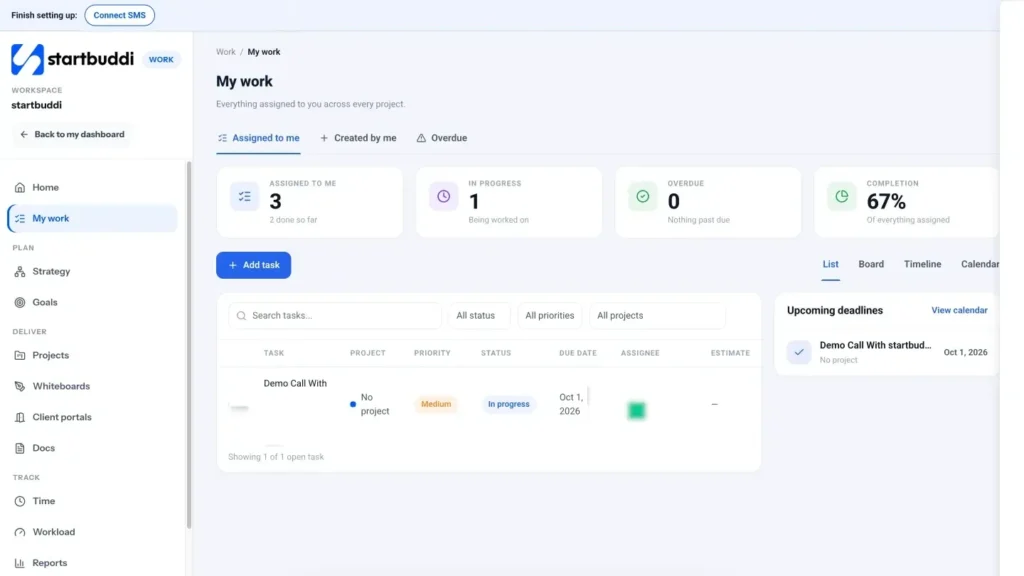
To assign tasks to team members, open the task and pick people in the Assignee field. A task can have more than one assignee, and it then shows in each person’s My work list, across every project.
Tasks are part of My work on every plan. You can only assign work to people in your workspace, so assigning to others needs a plan with more than one seat (Starter includes 2 seats, Growth 5 and Scale 15). The Workload page and Team time are for owners, admins and managers.
Clear assignments stop the classic small-team problem of two people doing the same job while a third job waits. When every task has an owner and a date, your team can plan its own week.
Steps
- Make sure your teammate is in the workspace
If the person is not in startbuddi yet, click Invite at the top of any Work page and send them an invitation. On the Free plan only the owner seat is available, so the invite asks you to unlock more seats first. Starter includes two seats, so for a team of three to five, Growth is usually the right fit. See plans and seats.
- Create the task with an assignee
Go to Work, then My work, and click Add task. In the New task window, type the Title, pick a Project, then choose one or more people under Assignee. Set a Due date and Priority (Urgent, High, Medium or Low) so they know what matters, then click Create task. Give each task one clear owner where you can: a task everyone owns tends to be a task nobody finishes.
- Change the assignee on an existing task
Click any task to open its panel. Use the Assignee field at the top to add or remove people. The change saves straight away. You can do the same from a project's Tasks tab, where the assignee filter also helps you check what one person has on.
- Explain the job in the task
Add a Description and, if it helps, an Estimate (hours). In the comments, type @ to mention the person, attach a file or link a document, then click Send.
- See what everyone is carrying
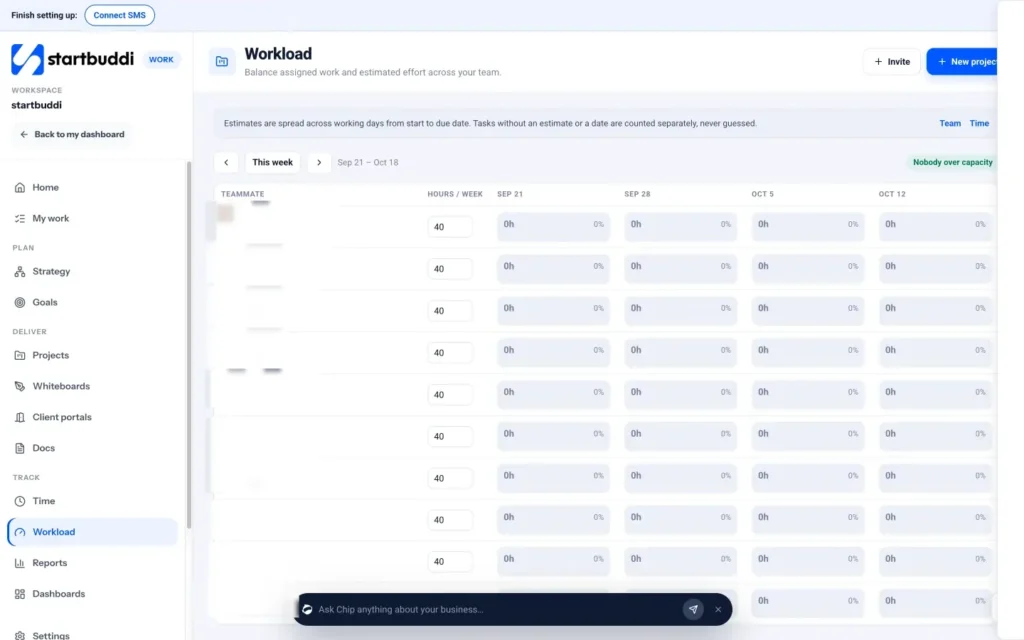
Open Workload in the Work menu. It shows each Teammate against Hours / week, using task estimates spread from start date to due date. When everyone is fine you will see "Nobody over capacity". Move between weeks with the arrows to spot a crunch before it arrives.
- Reassign work from Workload
If someone is over capacity, use Reassign… next to one of their tasks and pick another teammate. They become the assignee in place of the current person. Say why it moved in the task comments so nothing gets lost in the handover. Each person then sees everything that is theirs under My work, as a list, board or calendar.
Troubleshooting
My teammate is not in the Assignee list.
Only workspace members can be assigned. Check they accepted their invitation. For project tasks, also check they are a member of the project under Settings, then Members.
Workload says a task is not counted.
Workload needs an estimate and dates to spread the hours. Tasks without an estimate or a date are counted separately, never guessed. Add an Estimate (hours) and a due date in the task panel.
I cannot open Workload.
Team workload is available to managers, admins and owners. Everyone else can still manage the work assigned to them in My work.
Tiwalade Joanna Okedara-Kalu is the founder, CEO and CTO of startbuddi, the business system that brings clients, bookings, invoices, projects, marketing and the Chip AI assistant into one place. Tiwalade builds software around how service businesses really work day to day, and writes about client management, getting paid on time and why small businesses outgrow the tools they start with.
Founded startbuddi and leads its product and engineering