Your startbuddi dashboard: a quick tour of where everything lives


This quick tour of the startbuddi dashboard shows you where everything lives, so you know where to go for each job. Everything sits in the sidebar on the left, grouped by what it helps you do. On a phone, the bar at the bottom has Home, Chat, Work, a + button to create things, and More.
Every section below is on the Free plan except Marketing, WhatsApp and SMS, which need Starter or above; Automations on Free are limited to 2 active automations. When you first sign in, a 30-second tour also runs on Home. Click Show me around to follow it.
Where to go for common jobs
| I want to… | Go to |
|---|---|
| Send an invoice or payment link | Money Manager |
| Reply to a customer message | Customers, then Inbox |
| Let people book a time with me | Bookings |
| Collect enquiries or sign-ups | Forms |
| Build a page or sell products | Publish |
| Plan a client project | Work |
| Follow up automatically | Automations |
Steps
- Start on Home
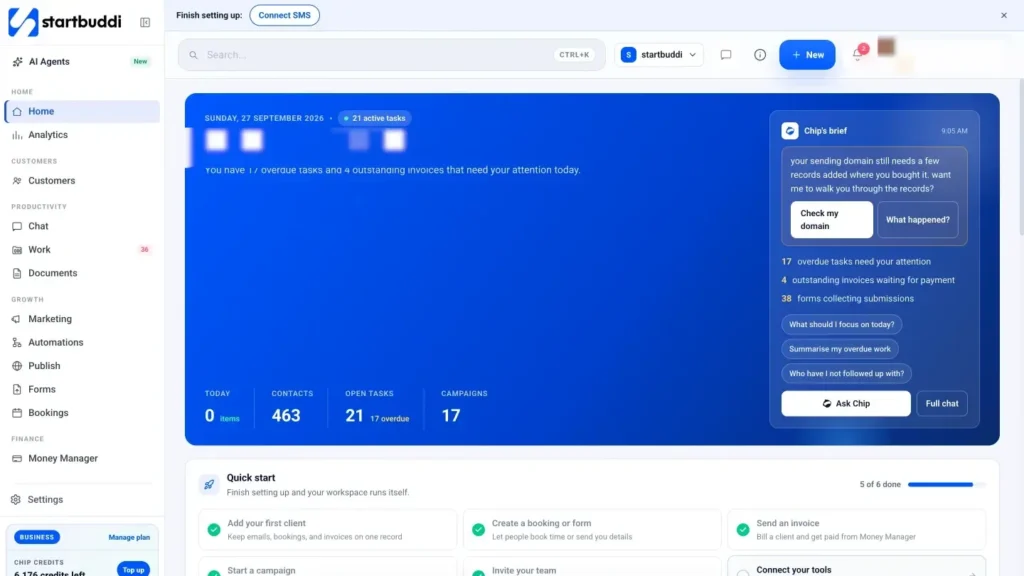
Home is your daily view: Chip's brief, what's due today, Needs you (overdue tasks and unpaid invoices) and Quick launch buttons to create a project, contact, campaign, document or invoice. Read more about the home dashboard.
- Open Customers
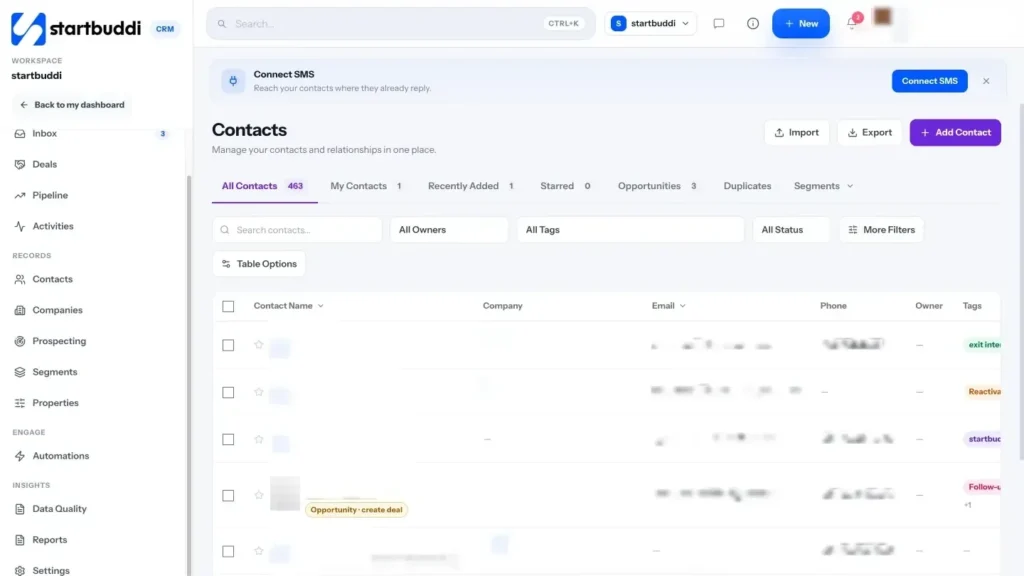
Customers holds your contacts, companies, deals and pipeline, plus the Inbox where customer messages from email, WhatsApp and social arrive. Live chat sits just below it for chats from your website.
- Open the Productivity section
Chat is for messaging your team. Work holds projects, your tasks, goals and time tracking. Documents is for proposals, notes and files. A red number on Work means you have overdue tasks.
- Open the Growth section
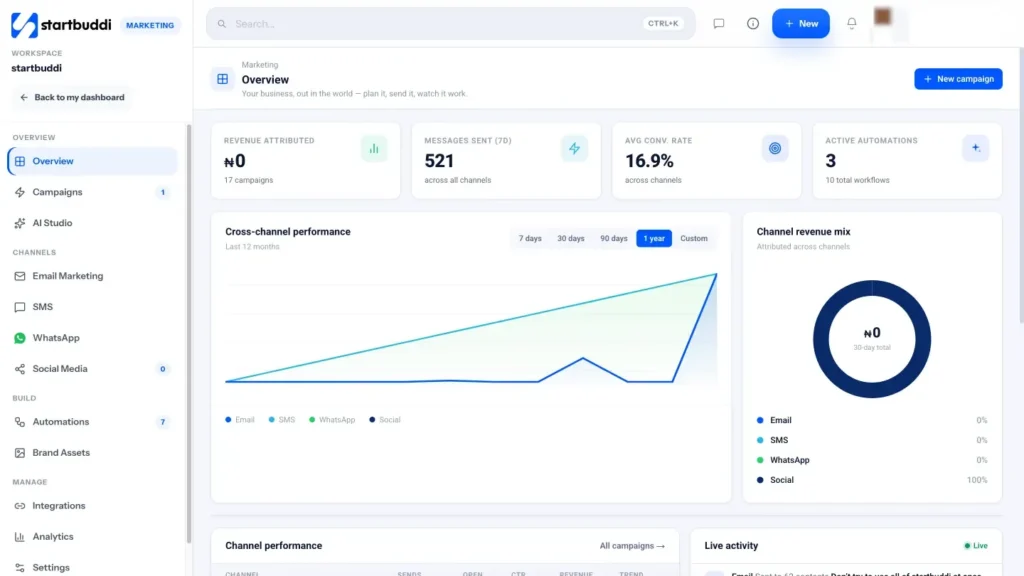
Marketing covers email, SMS, WhatsApp and social media. Automations runs your follow-ups. Publish is for landing pages, your online store, link in bio and webinars. Forms and Bookings collect enquiries and appointments.
- Open Money Manager and People
Money Manager is where you send invoices and estimates, take payments, and track expenses and cash flow. People covers your team: directory, onboarding, leave and performance. Analytics, at the bottom, brings the numbers from every section together.
- Search or jump anywhere with ⌘K
Press ⌘K (Ctrl+K on Windows) to search contacts, forms, documents, tasks, projects and invoices, or to jump to any section. Press T anywhere to quick-add a task.
- Ask Chip
Click Ask Chip in the top bar whenever you're stuck. Chip knows your data and the page you're on, so you can ask where do I send an invoice? or who haven't I followed up with?
- Visit Settings
Open Settings from your account menu for your business details, Team & Staff, Integrations, Notifications and Billing. Start with Workspace: your logo, currency, time zone and brand colour appear on the invoices, forms and booking pages your customers see, so it's worth getting them right early. The bell in the top bar shows your notifications.
Troubleshooting
I can't see Marketing or Automations in my sidebar.
Your role may not include Marketing. Ask your workspace owner to check your access in Settings, then Team & Staff.
Where did Sites or Projects go?
Sites is now called Publish. Projects, tasks and goals all live under Work. Old links take you to the right place.
How do I replay the Home tour?
The tour runs once on your first sign-in. Use this article, or ask Chip where to find something.
Is there a mobile app?
You can use startbuddi in your phone's browser, which has a mobile layout. There's no separate app to download.
Omolola Akiyode is the operations and project manager at startbuddi, leading cross-functional projects and the content that helps founders get set up. Omolola writes about projects, websites and getting found online, and turns complex ideas into clear, practical steps.
Runs operations and projects at startbuddi