How to use client portals

A client portal is a private page for one client where they can follow their projects, approve deliverables, message you and see invoices. Clients sign in with an email link. There is no password to set up, no startbuddi account to create and no seat used. They see only what you share. New to the idea? Read what a client portal is.
Plans: on Free you can set up a portal and preview it as your client, but not invite them. Starter includes 1 live portal, Growth 10 and Scale 50. Owners and admins set up the first portal; after that, people who manage project members can change a portal.
Portals save you the weekly “any update?” email. Before you invite a client, decide two things: which deliverables need their sign-off, and who on your side answers their messages. Then tell the client in your kickoff call that the portal is where updates, approvals and invoices live.
Steps
- Open Client portals
Go to Work and click Client portals in the Work menu. Every project also has a Client portal tab that lists the portals showing it.
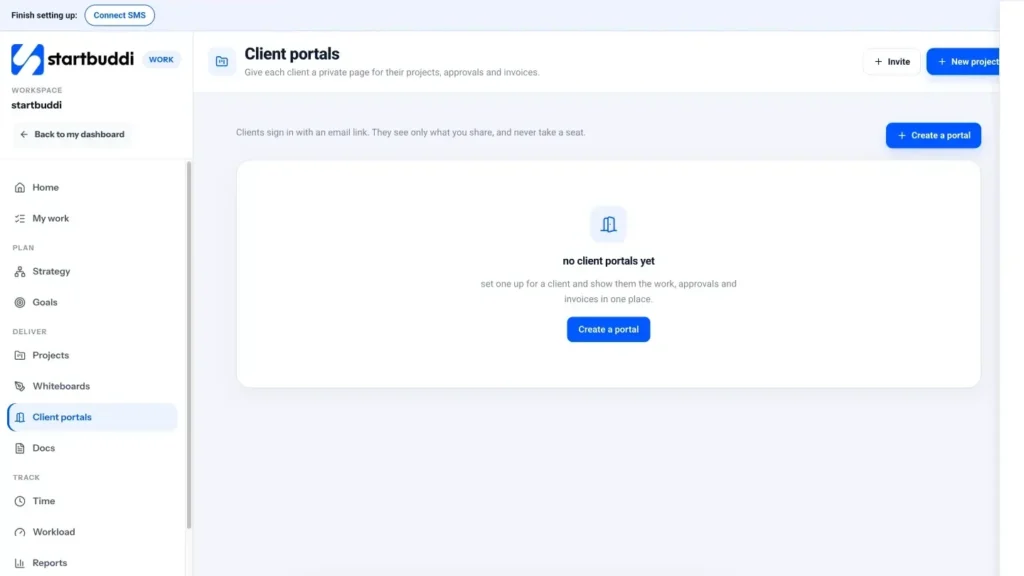
- Create the portal and brand it
Click Create a portal. Setup has three short steps: Brand, What clients see and Invite. Start with the Client contact and Company, a Portal name such as "Amaka's rebrand", your logo, Brand colour and a short Welcome message. Click Next.
- Choose what the client sees
Pick the Projects the portal links. Nothing inside them is shown until you share it. Under What the client sees, tick the modules to show, such as Projects, Milestones, Files, Messages, Invoices or Approvals, and use the arrows to order them. Under How items reach the portal, choose Only items I share with this portal or Everything in its projects marked client-visible.
- Turn on approvals if you need sign-off
Switch on Approvals so a shared deliverable cannot be marked done until the client approves it. You can also set Remind the client about approvals. Then click Create portal. If you picked a contact with an email address, startbuddi can email them the invite straight away.
- Share items with the client
Open the portal and go to Shared items. Set each task or document to Shared, or share it for approval to make it a deliverable the client must approve. Use Preview as client to check exactly what they will see.
- Invite the client and keep talking
On the People tab, click Invite someone. They get an email with a sign-in link. Replies and questions arrive in Messages, and anything they ask for lands in Requests and on the project board as a task. Activity logs invites, shares and approvals. See client portals for what your client sees.
Troubleshooting
It says "This portal is in preview."
You are on the Free plan, or you have used all the live portals on your plan. You can still build and preview it. Unlock client portals on a paid plan to invite your client.
My client cannot be invited.
The contact has no email address. Add one on their contact page, then invite them from the portal's People tab.
The client says the portal is empty.
Linking a project shares nothing by itself. Share items on the Shared items tab, or switch How items reach the portal to include items marked client-visible. Check with Preview as client.
The client's sign-in link stopped working.
Links are for one sign-in. Ask them to go back to the portal and request a new link, or click Resend invite on the People tab. Also check the portal Status is On, not Paused.
Tiwalade Joanna Okedara-Kalu is the founder, CEO and CTO of startbuddi, the business system that brings clients, bookings, invoices, projects, marketing and the Chip AI assistant into one place. Tiwalade builds software around how service businesses really work day to day, and writes about client management, getting paid on time and why small businesses outgrow the tools they start with.
Founded startbuddi and leads its product and engineering