How to set up a booking session and your booking page


To set up a booking session in startbuddi, you create a service (the session people book), set your hours and share your booking page. Your booking page is one link where clients choose a service, pick a free time, enter their details and, if you ask for it, pay. Setting it up takes three parts: a service, your working hours and your link. Once it is live, bookings land in your calendar and clients become contacts.
Clients see your services, the times you are free in your time zone, and a short form for their details. After booking they get a confirmation email with a calendar invite, and a page where they can join or cancel.
What your plan includes for your booking page
Bookings works on every plan, and the number of bookings you receive is never limited. The Free plan includes 1 live service and 1 booking page URL. Starter includes 10 services and 3 booking page URLs, Growth 25 and 5, and Scale has no limit. To take payment when people book, connect Paystack or Stripe first. See how to collect payment via Paystack.
For the bigger picture, see the Bookings overview.
Steps
- Create a service
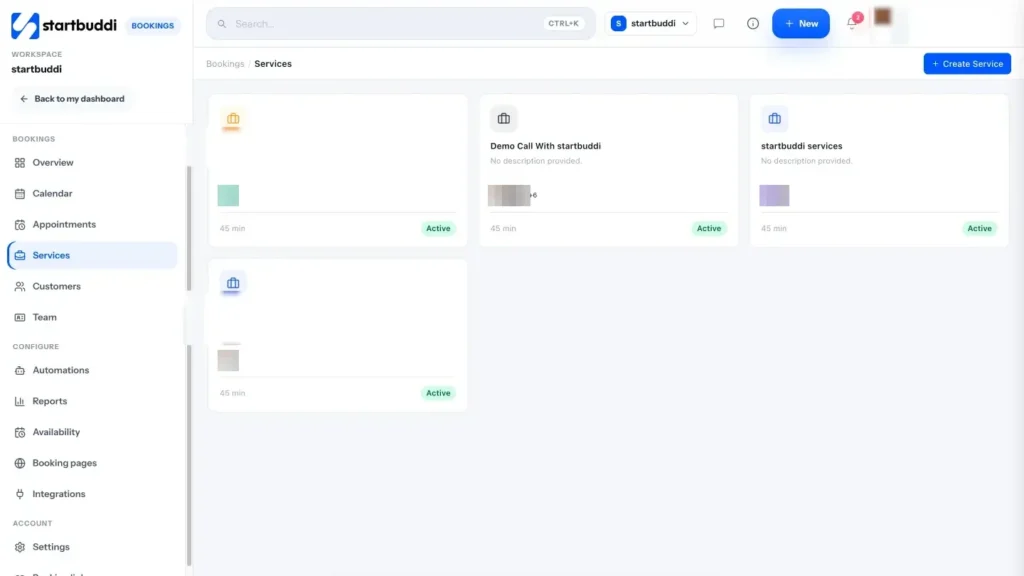
Open Bookings, click Services, then Create Service. Enter a Service name and Description, choose a Duration and a Color Code, and pick who hosts it under Assign to Staff. Click Create service.
- Add a price and questions
Open the service you just made. Under Duration & pricing, set the Price and Currency. To take money up front, switch on Require payment to book and choose under How much to take when they book whether that is the full price or a deposit.
In Booking questions, ask anything you need to know before the session. Name, email, date and time are always collected. Click Save changes.
- Set your hours
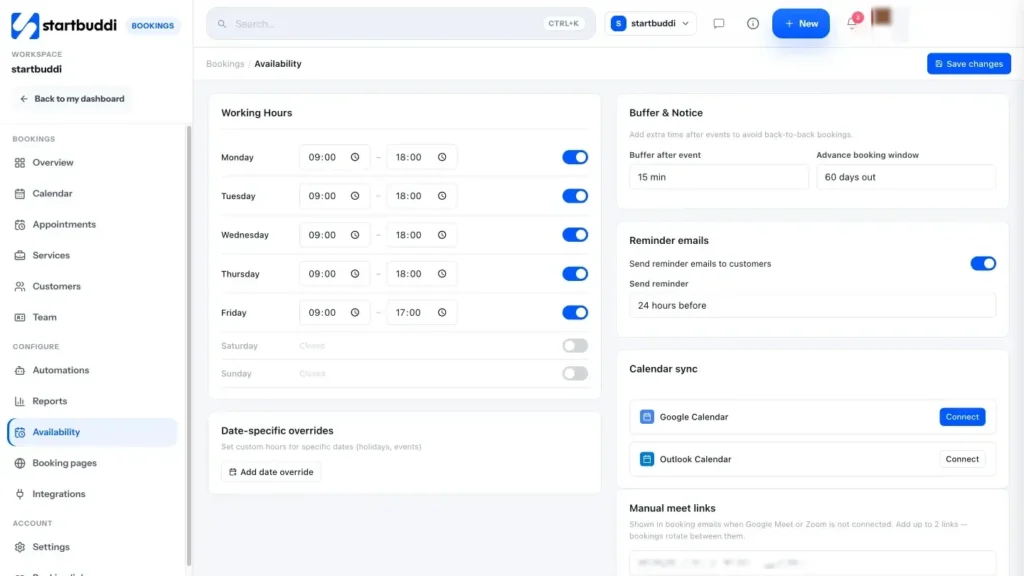
Click Availability. Set your Working Hours for each day, and under Buffer & Notice choose a Buffer after event and your Advance booking window. Click Save changes.
For a holiday or a day off, open Calendar and click Block time. Pick the Date, set the Start time and End time to cover your working hours, choose a team member or All staff, and click Block time. Add one block for each day you are away.
- Choose your link
Click Settings. Under Your booking link, type the name you want after /b/, for example your business name, and click Save link. Old links keep working after a change. Fill in Sender name and Sender email so replies come to you, then click Save Settings.
- Make the page look like you
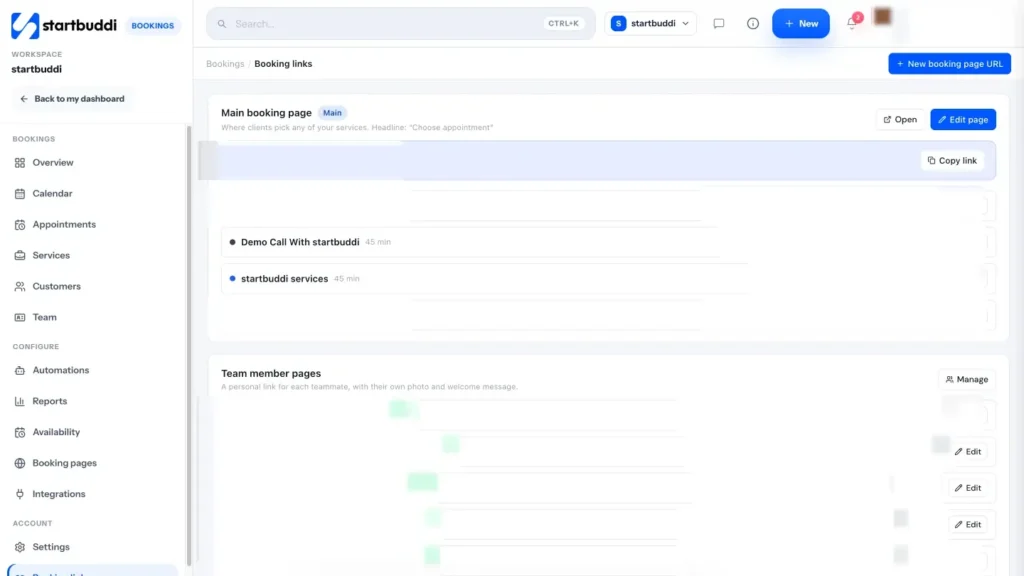
Click Booking links and edit your main booking page. Add a Headline, Intro, Logo and Accent colour, and group your services under Services and groups. Click Save changes.
- Share your booking link
On the Bookings Overview, click Share booking link to copy it or send it by WhatsApp or email. To put it on your website, open Settings and use Copy embed code under Embed & share, or download a QR code for your shop window or flyers.
Troubleshooting
My booking page shows no times
Check the service is active, that Working Hours are set for the days you expect, and that the Advance booking window reaches far enough ahead. Blocked time on the Calendar also hides slots.
I cannot create another service
You have reached the number of live services on your plan. Free includes 1 and Starter includes 10. Unlock more in Settings, then Billing, or switch an old service to draft.
Will startbuddi see busy times in my Google Calendar?
Not yet. Calendar sync adds your startbuddi bookings to Google Calendar, but it does not read other events back. Block personal time in Bookings so those slots are not offered.
A client started paying but the booking says Awaiting payment
The slot is held for 30 minutes while they pay. If payment finishes, the booking is confirmed automatically. If not, the hold runs out and the slot opens again.
Can several people book the same session, like a class?
Each booking is one client in one time slot, which suits one-on-one sessions. The Max bookings per day setting on a service limits how many bookings it takes in a day. For a workshop or class where many people sign up for the same session, a webinar or event page in Publish is usually the better fit.
Omolola Akiyode is the operations and project manager at startbuddi, leading cross-functional projects and the content that helps founders get set up. Omolola writes about projects, websites and getting found online, and turns complex ideas into clear, practical steps.
Runs operations and projects at startbuddi