How to create contact segments in startbuddi

Contact segments are saved groups of contacts that match rules you choose, such as “customers in Abuja who booked in the last 90 days” or “leads who opened a campaign but have no deal yet”. In startbuddi you set the rules once and reuse the segment anywhere contacts are picked: the contact list, email audiences and automations.
You create segments in Customers, then Segments, on every plan. Sending an email campaign to a segment uses the Marketing module, which needs the Starter plan or above.
Good contact segments to start with
- Hot leads: lead stage is Qualified and last contacted more than 7 days ago.
- Repeat customers: paid an invoice, and made a booking in the last 90 days.
- Win-back: won a deal before, but no messages in the last 6 months.
- City lists: city is Lagos, for local offers and events.
For the thinking behind grouping your audience, read what email segmentation is.
Steps
- Open Segments
Go to Customers and click Segments under Records. The page, your segments, lists every segment with how many contacts are in it.
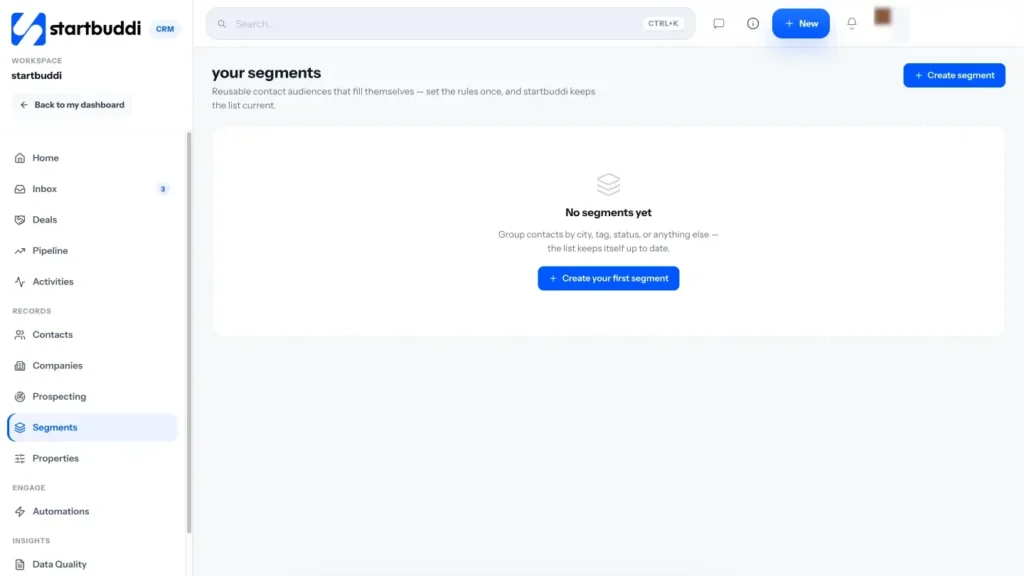
- Create a segment and name it
Click Create segment. Give it a clear name, such as "Lagos customers, booked this quarter", and optionally note what it is for. Clear names matter because you will pick this segment from lists in email and automations later.
- Add your rules
Choose Match all (every rule must be true) or Match any (one is enough). Click Add rule and pick a field. You can filter by contact details such as City, Company or Job title; by Lead stage, Tag, Owner or Lead score; and by what people have done, such as Filled in a form, Made a booking, Opened a campaign, Messaged you on WhatsApp or Has an unpaid invoice.
Need an either/or? Use Add a group: contacts match if any group matches.
- Check who matches
The right-hand side shows the Estimated size and a live Preview of matching contacts. If the number looks wrong, adjust a rule and watch it update. A segment with no matches yet is fine; it fills as contacts meet the rules.
- Save the segment
Click Save segment. You can come back to edit the rules and click Save changes, duplicate the segment as a starting point for a similar one, or delete it. Deleting only removes the segment definition: the contacts stay.
- Use the segment across startbuddi
On Contacts, open the Segments dropdown to show only that group. In Marketing, pick it as the audience for an email. In Automations, use the trigger Joins a segment or list to start a follow-up when someone qualifies.
Tip: on the Contacts page you can also set filters, open the Segments dropdown and choose Save current view as segment.
Troubleshooting
My segment shows zero contacts.
Check whether it uses Match all when you meant Match any, and that text values such as city names are spelt the way they appear on your contacts. Remove rules one at a time to find the one that excludes everyone.
Will deleting a segment delete my contacts?
No. Deleting a segment only removes the rules and the name. Every contact stays in your list.
I can't send an email to my segment.
Segments work on every plan, but sending campaigns uses the Marketing module, which needs the Starter plan or above. Every paid plan starts with a 30-day trial.
Tiwalade Joanna Okedara-Kalu is the founder, CEO and CTO of startbuddi, the business system that brings clients, bookings, invoices, projects, marketing and the Chip AI assistant into one place. Tiwalade builds software around how service businesses really work day to day, and writes about client management, getting paid on time and why small businesses outgrow the tools they start with.
Founded startbuddi and leads its product and engineering