How to set up your first email sequence in startbuddi

An email sequence is a series of emails that goes out on its own after something happens, such as a form being filled in or a new contact being added. In startbuddi you build it in Automations: pick what starts it, add a Send email step, a Wait / delay, the next email, and so on, then test it and switch it on.
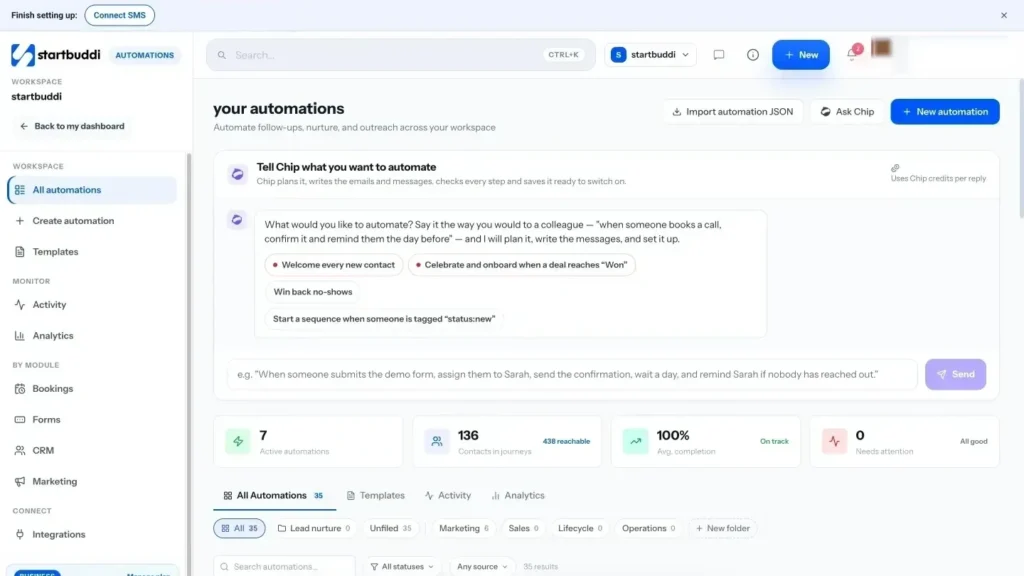
There’s no separate Sequences tab in Email Marketing. Sequences, booking reminders and invoice chasers all run on the same Automations engine. If you’d rather not build it by hand, click Ask Chip and describe what you want, for example “when someone fills in my contact form, send a thank-you email, then a follow-up two days later”. Chip plans it, writes the emails and saves it as a draft for you to check. This uses Chip credits.
Who can do this: Free includes 2 active automations, and Starter allows 10. Each contact going through an automation counts as a run (Starter 250 a month, Growth 2,000, Scale 5,000; 100, 800 and 2,000 when you pay in naira). New to the idea? Read what an email drip sequence is.
Steps
- Open Automations
Click Automations in the sidebar, or in the Marketing rail. You'll see all your automations with their status, trigger and how many people are in each one.
- Click New automation and choose a start
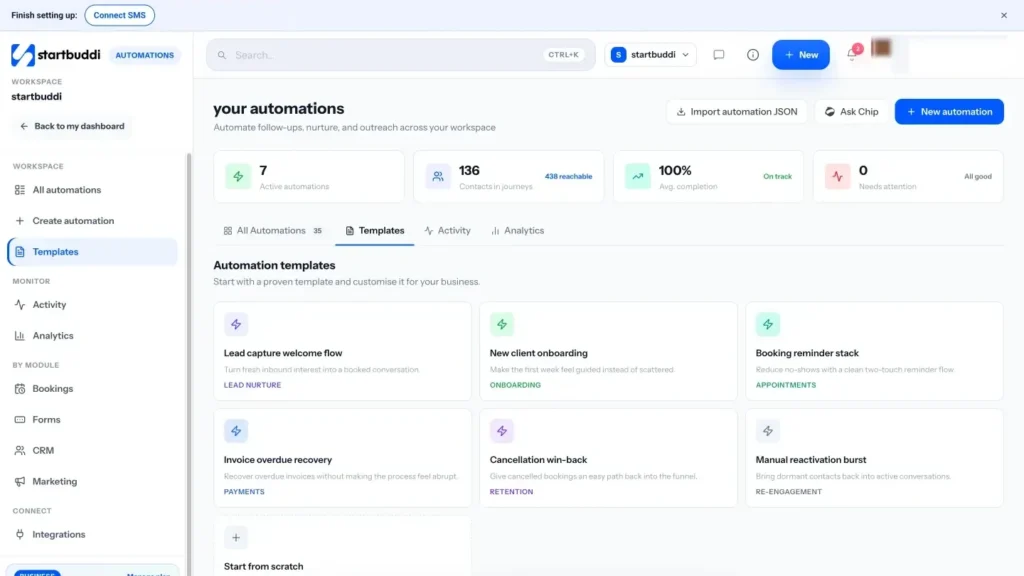
Click New automation. Choose Use a template (for example "Lead capture welcome flow", which starts when a form is submitted) or Start from scratch and answer "What starts it?", such as Form submitted or New contact added. Click Next →, type a name, then click Build automation. The canvas opens.
- Write the first email
Add or open a Send email step. Write the subject and body in the visual builder or the HTML editor, or use Write subject with Chip and Write with Chip for a first draft. Keep the first email short: thank them, say what happens next and give one clear action.
- Add a wait and the next email
Add a Wait / delay step after the first email, for example 2 days, then another Send email. Repeat for as many emails as you need. Every wait needs a time greater than zero.
- Let people leave early
Add an Exit when… step so people leave the sequence once a rule matches, such as when they get a certain tag or become a customer. Everyone else carries on. You can also use a Condition step to send different emails to different people.
- Validate and test it
Click Validate in the toolbar and fix anything under errors. Then click Test and choose Test with a contact (use yourself) or Simulate an event to preview who would enter.
- Switch it on
Click Activate. The Review before activating window checks consent and shows how many people are reachable and how many are suppressed. Click Activate automation. From now on, everyone who triggers it gets the emails in order.
Troubleshooting
Can I start a sequence on a birthday or a date?
Not yet. Date-based triggers show as "Not live yet" and can't be switched on. Use a trigger such as Form submitted, New contact added, a tag being added or a booking instead.
I edited a live sequence. What happens to people already in it?
When you save changes to a running automation, you're asked to pause and save. You're then asked whether to enrol the contacts who already match: choose Yes, enrol them or No, only new ones.
Someone didn't get the emails. How do I check?
Open the Activity view in Automations and search for the contact to see every automation they've been through and where they stopped. People who unsubscribed or are suppressed are skipped.
Olabimpe Salami is the email and outreach specialist at startbuddi. Olabimpe writes about the messages that bring customers in and back: email, WhatsApp and SMS campaigns, follow-ups, and turning enquiries into paying clients.
Runs email and outreach at startbuddi