How to create your first project in startbuddi

To create a project, open Work, go to Projects and click New project. Only the name is needed. You can start blank or from a template, then add tasks, dates and people as you go.
Before you start, jot down three things: what “done” looks like, the date it is due, and who is doing the work. That is enough for a first project. A client project with five to ten tasks is a good size to learn on; you can always add milestones, a budget or sprints once the basics are running.
Projects are part of Work, which comes with every startbuddi plan, including Free. Anyone who can use Work can start a project. Adding teammates to it needs a plan with more than one seat: Starter includes 2 seats, Growth 5 and Scale 15.
Steps
- Open Projects in Work
Click Work in the main sidebar, then Projects in the Work menu. You will see three tabs: All projects, Portfolios and Templates. Old links to Projects or Tasks bring you here too.
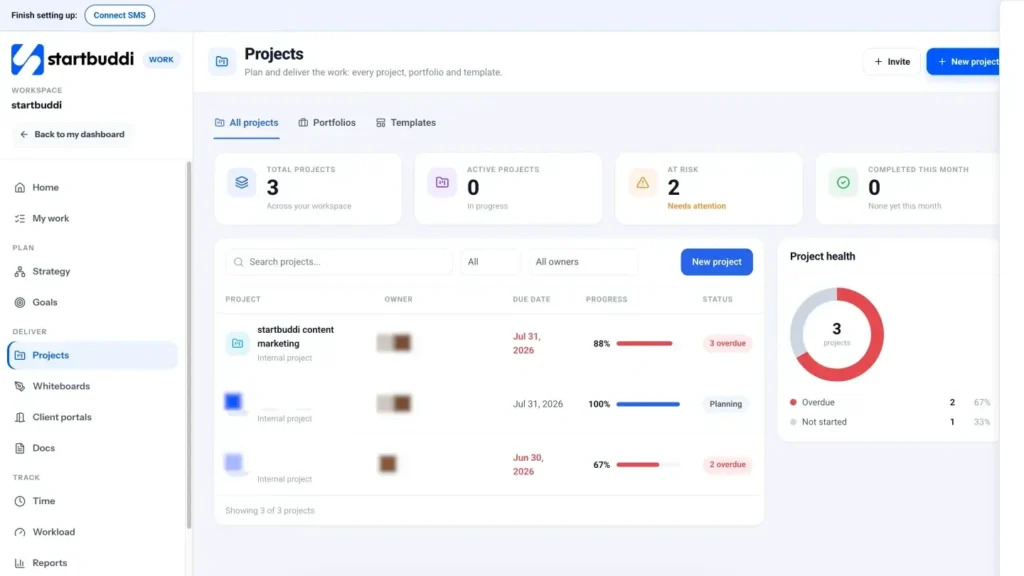
- Click New project and choose how to start
Click New project at the top right. Pick Start blank if you just want a name and an empty list, or Use a template to get ready-made milestones and tasks. Templates include Client delivery, Marketing campaign, Website project, Event planning and more. You can also browse them on the Templates tab, where the ones that match your type of business are marked Recommended.
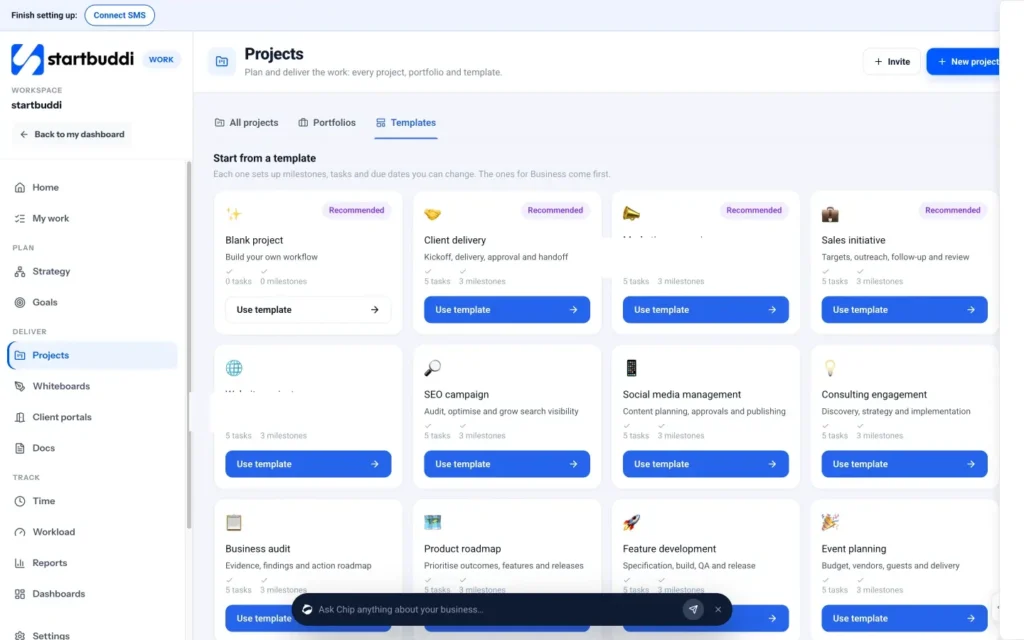
- Fill in the details and create it
Type a Project name, for example "Website redesign". Everything else is optional: a Start and Due date, Who is it for? (pick a customer, or leave it as Internal project), a Colour, and What is it for? ("A sentence is plenty."). Click Create project. If you used a template, its task dates are counted from the start date.
- Add your first tasks
Open the Tasks tab and click Add task, or use the Add menu at the top of the project and choose Task. Give each task a title, an assignee, a priority and a due date. Keep it to the next few steps: you can add more later. A good task title starts with a verb, such as "Send the first logo concepts", so anyone can tell what finished looks like.
- Bring in your team
From the Add menu choose Add member. This opens the project's Settings on Members, where you can add people from your workspace. To bring in someone new, use Invite at the top of Work first.
- Check progress on the Overview
The Overview tab shows Progress, Open tasks, Overdue items, Milestones and the team. The Timeline tab draws your dated tasks and milestones on a chart, so you can see what lands when. When you are ready to share progress with the client, open the Client portal tab. Next, learn how to give your client a private portal for approvals and updates.
Troubleshooting
I cannot see the New project button.
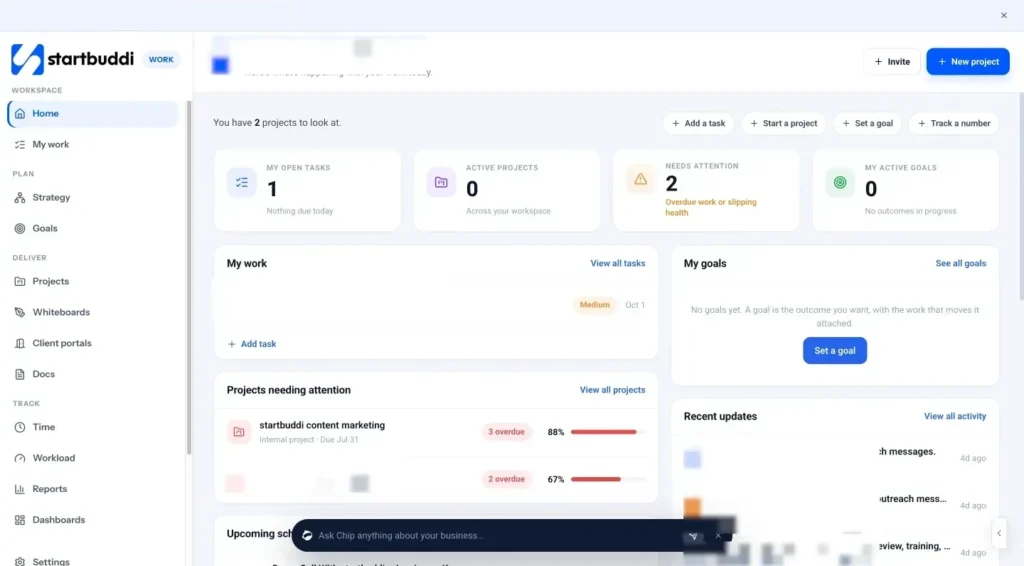
It shows on the Work home page and the Projects page. Pages such as Time, Workload and Reports do not create anything, so they have no New project button. You can also use Start a project in the Quick actions row on the Work home page.
Can I change the name, client or dates later?
Yes. Open the project, go to the Settings tab and use the General panel. You can change the name, description, owner, customer, status, dates, colour and default task view.
The template gave me dates I do not want.
Template tasks are dated from the project start date. Change the start date, or drag the bars on the Timeline tab. Every task and date stays editable.
How do I close a project I no longer need?
Open the More menu (the three dots at the top of the project) and choose Archive project. It leaves your active list but keeps its history.
Tiwalade Joanna Okedara-Kalu is the founder, CEO and CTO of startbuddi, the business system that brings clients, bookings, invoices, projects, marketing and the Chip AI assistant into one place. Tiwalade builds software around how service businesses really work day to day, and writes about client management, getting paid on time and why small businesses outgrow the tools they start with.
Founded startbuddi and leads its product and engineering