How to track goal progress week over week

To track goal progress week over week, give each goal a weekly check-in day. On that day the owner updates the key result numbers and clicks Check in to say how it is going. Each check-in is saved, so the goal builds a history you can compare week by week.
This works on any goal in Goals, on your current plan. Goal owners and admins post check-ins. Draft it for me asks Chip to write the check-in from what changed, which uses Chip credits.
The weekly habit matters more than the tool. Ten minutes on the same day each week is enough: update the numbers, say what changed, name any blocker. A goal that is only looked at at the end of the quarter is a surprise, not a plan.
Steps
- Set a weekly rhythm
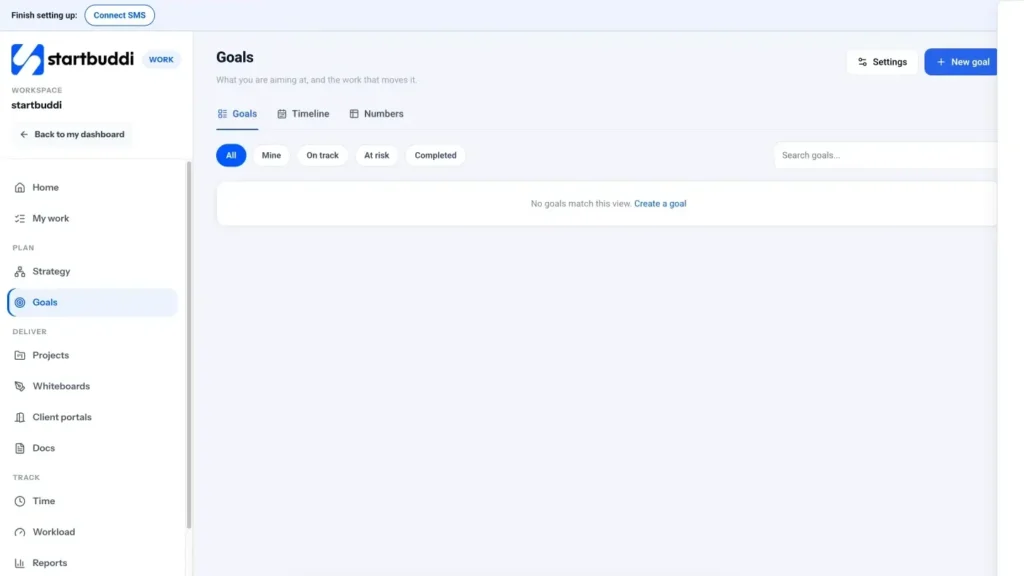
Open a goal in Work, then Goals, and go to its Settings tab. Set the reporting cadence to Weekly and pick a check-in day. To change the default for new goals, go to Goals, then Settings, and set the Default reporting cadence and Default check-in day. The goal header then shows Next check-in.
- Update the key result numbers
Open the goal's Key results tab. Click the current value (it says "edit" next to it), type the new number and click Save. Yes/No key results switch between Not complete and Complete with a click. Key results set to From linked tasks move on their own as tasks are done.
- Post your check-in
Click Check in at the top of the goal. Under How is this goal going?, pick the Health (On track, At risk or Off track), answer Will you hit it?, and write a line or two in What changed? Any blockers?. Click Submit check-in.
- Let Chip draft it
Short on time? Click Draft it for me in the check-in form. Chip drafts it from what changed since the last check-in. Read it, fix anything that is not right, then submit. Nothing is posted until you click Submit check-in.
- Compare this week with last week
On the Overview tab, the Is this improving? chart appears once the goal has at least two progress points. The Check-ins tab lists every past update in Check-in history and shows Key results over time, so you can see how each number moved.
- Review all goals together
Back on Goals, scan the cards for health and progress, or open Timeline to see which goals land when. For company numbers such as money coming in or new contacts, use the Numbers view: it fills in month by month from Money, Contacts, Forms, Email and Social where you pick them as the source. Want a refresher on the difference? Read OKRs vs KPIs.
Troubleshooting
The "Is this improving?" chart is missing.
It needs at least two progress points. Update a key result value or post a check-in, then come back next week and it will appear.
Progress did not move after I finished tasks.
Check the key result's Tracking setting on the Key results tab. It moves on its own only when set to From linked tasks and the tasks are linked to it. Otherwise choose Enter it myself and update the value.
Draft it for me did not work.
Chip needs credits to draft. Check your Chip credits in the sidebar. You can always write the check-in yourself in the same form.
Tiwalade Joanna Okedara-Kalu is the founder, CEO and CTO of startbuddi, the business system that brings clients, bookings, invoices, projects, marketing and the Chip AI assistant into one place. Tiwalade builds software around how service businesses really work day to day, and writes about client management, getting paid on time and why small businesses outgrow the tools they start with.
Founded startbuddi and leads its product and engineering