How to log calls and meetings in the startbuddi CRM

When you log calls and meetings in startbuddi, anyone on your team can open a contact and see what was said, what was promised and what happens next. You do this in Activities, which sits in the Customers menu, and on each contact’s page.
Logging activities, notes and booked calls works on every plan, including Free. Everyone who can see a contact can see its activity history.
Why log calls and meetings at all?
A logged call turns “I think she said Friday” into a dated record with an owner and a next step. It also feeds the rest of startbuddi: the Customers home screen counts your open and overdue activities, and Chip reads them when you ask who needs a follow-up. If your client details still live in your head, our guide to managing clients without chaos shows why this habit pays off.
Steps
- Open Activities
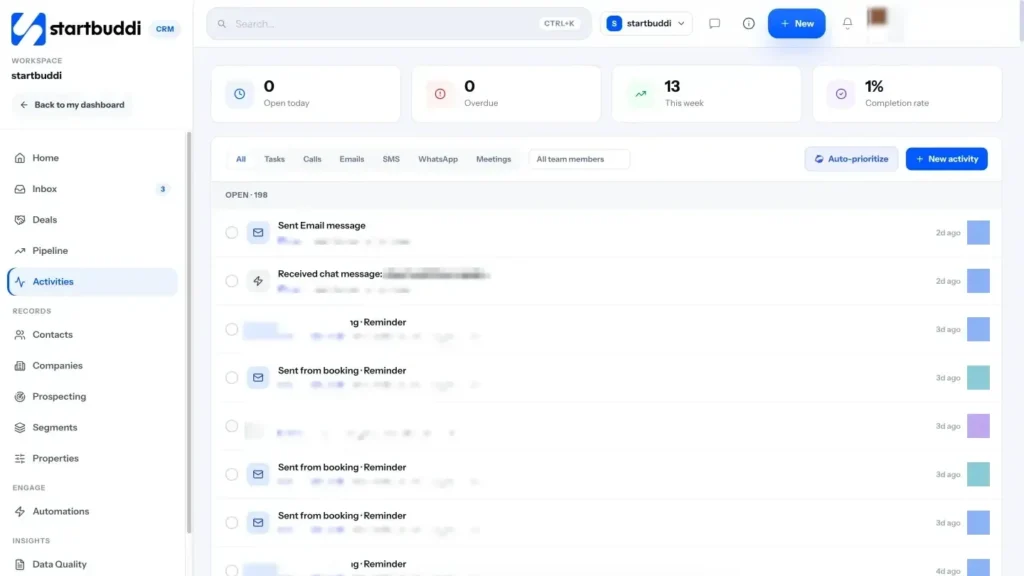
Go to Customers and click Activities. At the top you will see Open today, Overdue, This week and Completion rate. The tabs underneath filter the list: All, Tasks, Calls, Emails, SMS, WhatsApp and Meetings.
- Log the call or meeting
Click New activity. Set Activity type to Call or Meeting, give it a Title such as "Discovery call about the rebrand", and pick the Contact (this is the only required field besides the type).
Add who it is Assigned to, the Due date, a Priority if it matters, and write what was discussed in Description. Click Save activity.
- Mark it done
For a call that has already happened, tick it off straight away with Mark as done. For one you are planning, leave it open: it shows under Open today on the day it is due and turns overdue if it slips. You can switch it back with Mark as open.
- Book the next call from the contact
Open the contact, click the More actions menu and choose Book a call. Pick the Date, Time, Length and Type (Video call, Phone call or In-person), add optional notes and click Book call.
startbuddi checks for clashes with your existing bookings, then adds it to your calendar with a meeting link. For a full booking page customers can use themselves, see Bookings.
- Add notes the whole team can see
On the contact's page, open the Notes tab, or choose Add a note from the More actions menu. Notes are shared with the inbox, so a note added in either place shows in both, and contacts never see them.
- Review the history
Open the contact's Activity tab to see calls, meetings, emails and notes in date order. On the Activities page, use the team member filter to see one person's workload, or click Auto-prioritize to have the list reordered by urgency.
Troubleshooting
The Call button on a contact shows an error.
The Call button places calls through a voice number connected to your workspace. If none is connected, make the call on your own phone and log it with New activity, type Call.
I can't save a new activity.
Every activity needs a contact. If the person isn't in startbuddi yet, add them in Contacts first, then log the activity.
Book a call says it could not book that time.
The most common reason is a clash with one of your existing bookings. Pick another time, or check your bookings calendar to see what is already there.
Tiwalade Joanna Okedara-Kalu is the founder, CEO and CTO of startbuddi, the business system that brings clients, bookings, invoices, projects, marketing and the Chip AI assistant into one place. Tiwalade builds software around how service businesses really work day to day, and writes about client management, getting paid on time and why small businesses outgrow the tools they start with.
Founded startbuddi and leads its product and engineering