How to use lead scoring to decide who to follow up first


Lead scoring gives every contact in startbuddi a number from 0 to 100, so you can see at a glance who is most engaged and follow them up first. It works on every plan and needs no setup: the score is worked out from what you already record about each contact. Anyone who can see contacts can see scores.
How the lead score is worked out
The score is a fixed formula, not a prediction. It adds up four things:
- Activity, up to 40 points: how many activities are logged against the contact, such as calls, emails, meetings and notes. Ten or more earns the full 40.
- Spend, up to 30 points: how much the contact has spent with you.
- Recency, up to 20 points: how recently you were in touch. The points fade to zero over 90 days without contact.
- Deals, 10 points: whether the contact has any deal.
Because it is a simple formula, you can raise a score honestly by doing the work: logging calls, recording payments and creating deals. For the thinking behind scoring, see our guide to lead scoring for small businesses.
Steps
- Open the Lead Scoring page
The Lead Scoring page ranks your contacts by score. It isn't in the Customers menu, so open it by going to app.startbuddi.com/crm/scoring while signed in. You will see each contact's Score, Status, Activities, Deals and Last contact.
Opening this page also recalculates every contact's score and saves it, so the numbers elsewhere are up to date.
- Pick a tier
Use the chips at the top to show Hot (75 and above), Warm (50 to 74), Cool (25 to 49) or Cold contacts, or type a name into Search contacts. Click a name to open that contact.
- Check a score on a contact's page
On any contact's page, click the More actions button (three dots) and choose View lead score. You will see the score with a short note, for example "Great! This lead has a high chance of converting." for a hot lead.
- Filter your contact list by score
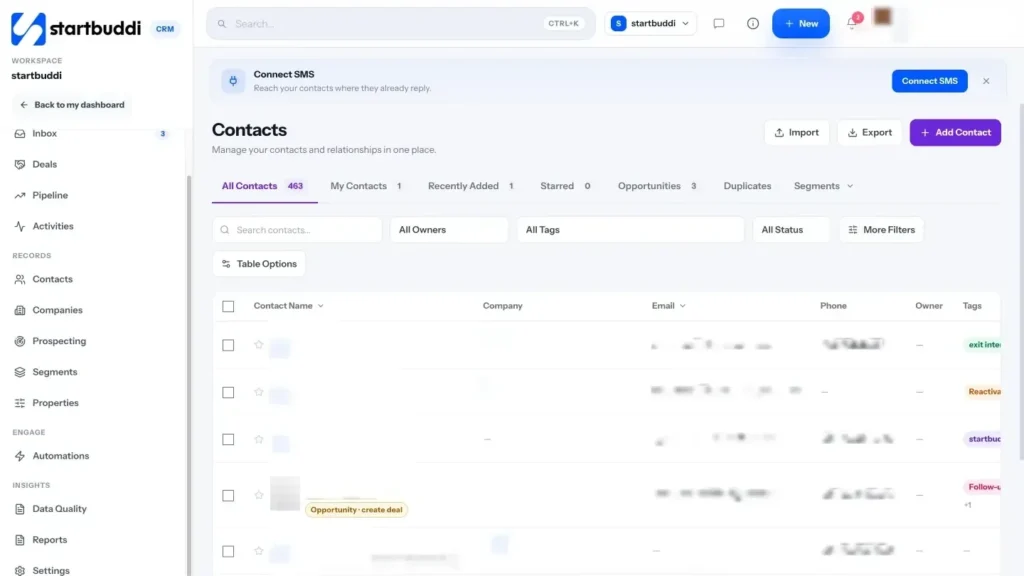
Go to Customers, then Contacts, and click More Filters. Enter a number in Lead score is at least, for example 75, and click Show to see the matching contacts. You can combine it with other filters, such as Lead status or Last contacted.
- Save it as a segment
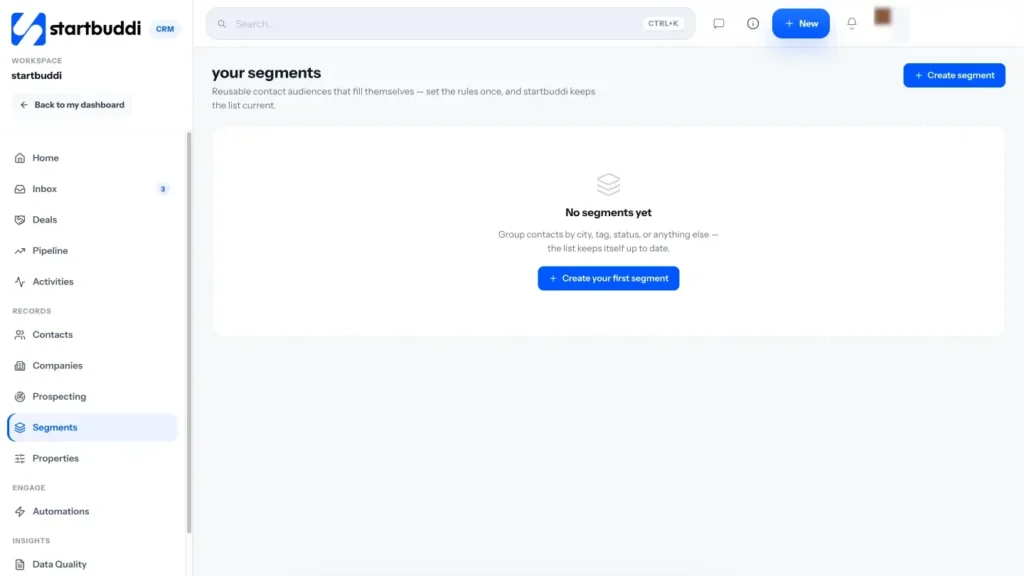
With the filter applied, open the Segments menu and choose Save current view as segment. Give it a name such as "Hot leads" and click Save segment. You can also build a segment from scratch in Segments using the Lead score rule. Segments keep themselves up to date and can be used as an audience for email.
- Act on your hot leads
Open each hot lead and pick the next step from the More actions menu: Book a call, Add a task, or Assign owner & cadence to hand them to a teammate with a follow-up reminder. For warm leads who aren't ready yet, Nurture with Chip drafts a short follow-up email sequence for you to edit and enrol them in.
Troubleshooting
A contact's score looks out of date
Scores are recalculated when the Lead Scoring page loads. Open app.startbuddi.com/crm/scoring, then go back to the contact or your filtered list.
Why is a contact Warm on their page but Cool on the Lead Scoring page?
The contact page uses three bands: Hot from 75, Warm from 45 and Cold below that. The Lead Scoring page splits the lower scores more finely: Warm from 50, Cool from 25. The number itself is the same.
Can I change how the score is calculated?
Not at the moment. The formula is fixed. To group contacts by your own rules instead, build a segment with the conditions that matter to you, such as tags, source or last contacted.
A new lead has a score of 0
New contacts start with no activity, spend or deals. Log your first call or email against them and their score will rise.
Omolola Akiyode is the operations and project manager at startbuddi, leading cross-functional projects and the content that helps founders get set up. Omolola writes about projects, websites and getting found online, and turns complex ideas into clear, practical steps.
Runs operations and projects at startbuddi