How to upload and organise your brand assets

Brand assets are the pieces that make your business look and sound like you: your logo, colours, fonts, tone of voice and the pictures and files you use again and again. In startbuddi they live in Marketing, under Brand Assets, and Chip uses them whenever it writes for you.
Who can manage brand assets
Brand Assets is part of the Marketing module, which needs the Starter plan or above. Anyone on your team with access to Marketing can add and change files. If you want the bigger picture first, read what a brand asset manager is or see the brand kit overview.
Where your brand assets are used
Set your kit once and it follows you around the app. A new email started from blank opens with your brand kit applied, and the themes under Brand styles in Publish start from the same colours and fonts. Chip reads your colours, fonts and voice and tone whenever it drafts something for you, so a first draft already sounds like your business. Every file in the library also gets its own link, which you can paste into a page, an email or a message.
Steps
- Open Brand Assets
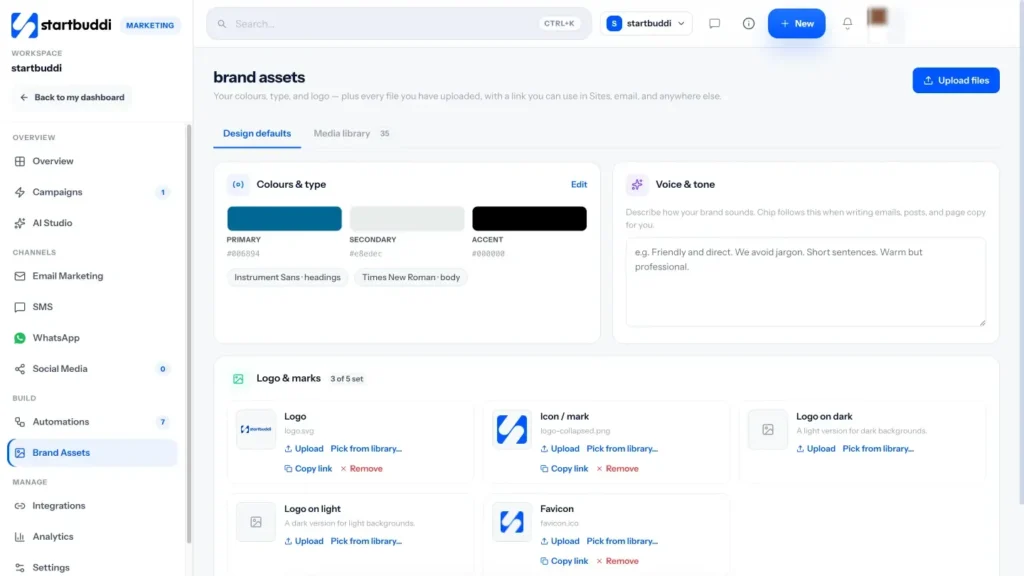
Go to Marketing and click Brand Assets in the menu. The page has two tabs: Design defaults for your brand kit and Media library for every file you upload.
- Add your logos
Under Logo & marks there are five slots: Logo, Icon / mark, Logo on dark, Logo on light and Favicon. Click Upload on a slot, or choose an image you already uploaded with Pick from library….
The counter shows how many slots are set. Your main logo is used on pages, invoices and emails.
- Set your colours and fonts
In Colours & type, click Edit. Enter your Primary, Secondary and Accent colours as hex codes or with the colour picker, then choose fonts for Headings and Body text.
Using a font that is not in the list? Paste its Font stylesheet link, for example from Google Fonts. Click Save.
- Describe your voice and tone
In Voice & tone, write a few lines about how your business sounds, such as "Friendly and direct. Short sentences. No jargon." Click Save. Chip follows this when it drafts emails, posts and page copy.
For a second opinion, click Get tips under Ask Chip. What Chip knows shows which parts of your kit Chip can use.
- Upload your files
Click Upload files at the top of the page, or open Media library and drop files onto it. Images, video, PDFs and documents up to 50 MB each are accepted.
- Organise and share them
In Media library, filter by Everything, Images, Video or Files, or type into the search box to find a file by name. Click a file's name to rename it, so it is easy to find later.
Each file has Copy link, open in a new tab and delete buttons. Paste a copied link into a page, an email or anywhere else you need it.
Troubleshooting
Can I put files into folders?
The media library does not have folders on this screen. Give files clear names, such as "Logo, white, 2026", and use the type filters and search to find them.
I removed a logo from a slot. Is the file gone?
No. Remove only clears the slot. The file stays in your Media library, and you can pick it again with Pick from library.
My upload failed
Check the file is under 50 MB and is an image, video, PDF or document. If it still fails, wait a moment and try again on a steady connection.
I cannot open Brand Assets
Marketing is not included on the Free plan. Unlock Starter or above in Settings, then Billing. Every paid plan starts with a 30-day trial.
Tiwalade Joanna Okedara-Kalu is the founder, CEO and CTO of startbuddi, the business system that brings clients, bookings, invoices, projects, marketing and the Chip AI assistant into one place. Tiwalade builds software around how service businesses really work day to day, and writes about client management, getting paid on time and why small businesses outgrow the tools they start with.
Founded startbuddi and leads its product and engineering