How to connect WhatsApp to startbuddi

To connect WhatsApp Business to startbuddi, open WhatsApp in Marketing, click Connect WhatsApp, pick your business and number in Meta’s window, then register the number and clear the setup checklist. Connecting is free, and you keep your own number and business name. Once it is connected, replies land in your inbox next to email and live chat.
Who can do this: WhatsApp sits in the Marketing module, which needs the Starter plan or above. Letting Chip answer WhatsApp on its own needs Growth or above. You also need a Meta (Facebook) business account and a phone number you can receive a code on.
Not sure how the official WhatsApp connection differs from the app on your phone? Read what the WhatsApp Business API is.
Before you start
- Have the login for the Facebook account that manages your business on Meta to hand.
- Decide which number you’ll use. It can be a new number, or the one you already use in the WhatsApp Business app.
- Keep the phone for that number nearby, in case Meta sends a code to confirm it.
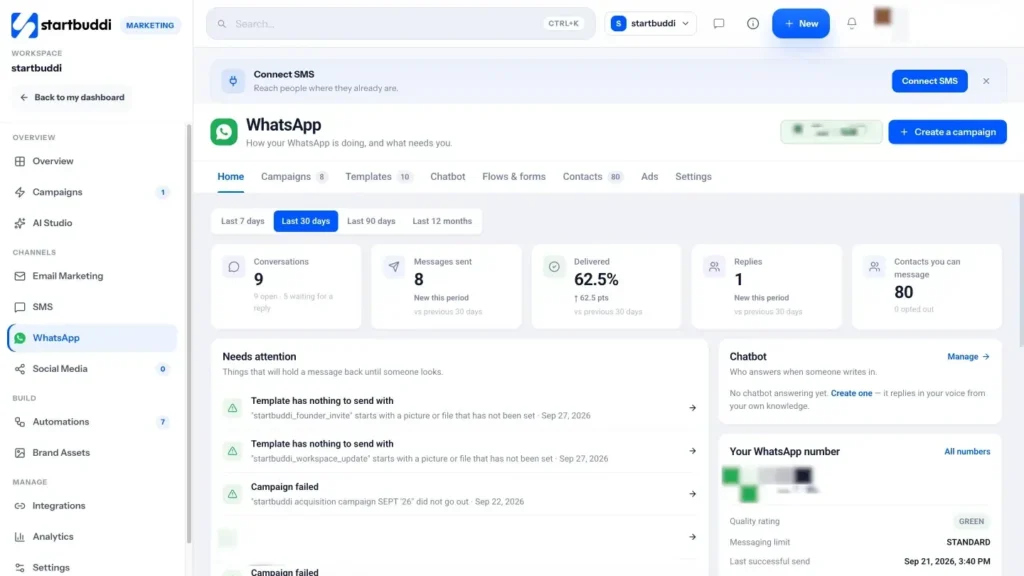
The whole thing usually takes a few minutes. When you’re done, the Home tab shows your number’s quality rating and messaging limit, and you can send your first campaign.
Steps
- Open WhatsApp in Marketing
Go to Marketing and click WhatsApp in the left rail (it shows a Setup badge until a number is ready). The Home tab shows the card "Connect your WhatsApp Business number". If you like, type your Business name (optional) first.
- Click Connect WhatsApp and pick your number
Click Connect WhatsApp. Meta's sign-up window opens in a popup: pick your business, pick or add your number, confirm, and you come back to startbuddi. Already using the WhatsApp Business app on your phone? Choose "connect your existing account" in Meta's window and the app keeps working. Your contacts and chats are imported once, up to 180 days back.
- Use the in-tab option if no popup appears
Some browsers block popups. If nothing opens, click Continue in this tab instead. It runs the same Meta sign-up in the current tab and brings you back when you're done.
- Register the number
Open the Settings tab and look at Registered with WhatsApp. If it isn't registered, click Register now. If the number already had two-step verification, enter its 6-digit PIN and click Register with this PIN.
- Clear the setup checklist
Still in Settings, work through the Setup checklist until every item is ticked: number connected, number registered, business name verified with Meta, at least one approved template, delivery updates arriving from Meta, and a healthy quality rating. Each open item has a "Fix this" link.
- Check your contacts
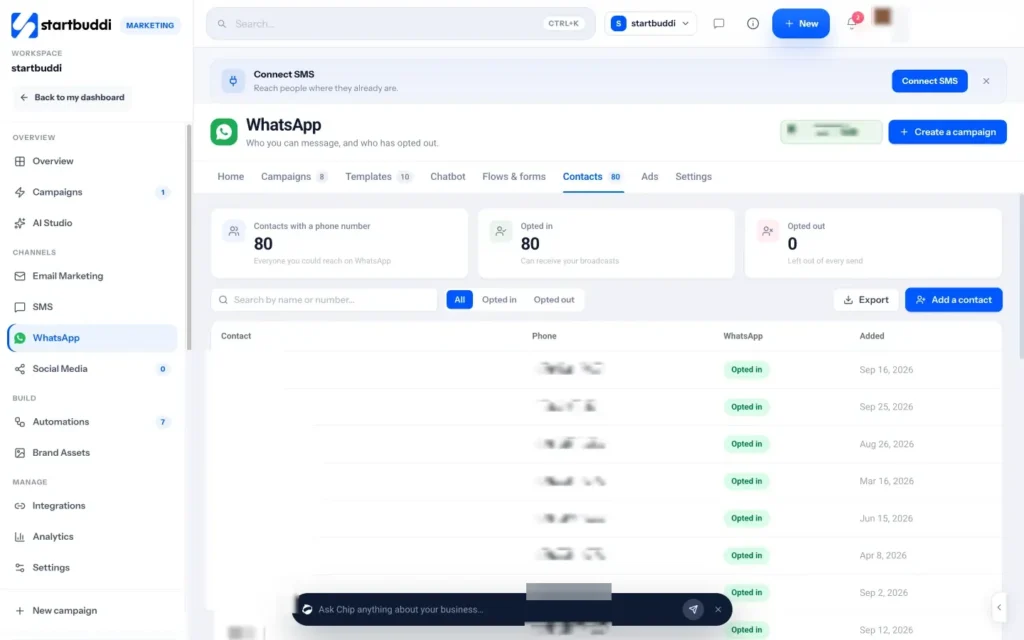
Open the Contacts tab. It shows how many contacts have a phone number, who has Opted in and who has Opted out. If you see the Numbers without a country code card, use it to fix local numbers such as 0814… so they're saved in full.
Troubleshooting
It says WhatsApp connect isn't switched on for this account yet.
Connecting is switched on account by account. Contact startbuddi support from inside the app and ask for WhatsApp connect to be turned on, then try again.
I connected a Meta test number. Why can't I send?
Meta's test (sandbox) numbers can't create templates or run campaigns. startbuddi flags them on the WhatsApp pages. Connect a real business number to send campaigns.
Can I connect more than one number?
Yes. In Settings, use Add another number. Each number sends and receives on its own, and the oldest number is the default for campaigns. The Your numbers table shows status, quality and which Chip agent answers on each one.
What happens if I disconnect?
Campaigns and automations stop sending until you connect a number again. Your contacts and past messages stay. If the number is also on the WhatsApp Business app, it keeps working there.
Olabimpe Salami is the email and outreach specialist at startbuddi. Olabimpe writes about the messages that bring customers in and back: email, WhatsApp and SMS campaigns, follow-ups, and turning enquiries into paying clients.
Runs email and outreach at startbuddi