Integrations: how to connect the tools you already use to startbuddi

With startbuddi integrations you can post to your social accounts, send bookings to your calendar and pass form responses to other apps, without copying anything by hand. Everything lives on one page: Settings, then Integrations.
You can browse the page on any plan. Some channels need a paid plan before you can use them: WhatsApp and SMS need the Starter plan or above, for example. Card payments with Paystack or Stripe are set up in Money Manager rather than on this page.
What you can connect with startbuddi integrations
- Contacts: there’s no one-click connection to another CRM or email tool yet, including HubSpot, Zoho CRM, Salesforce, Pipedrive and Mailchimp. Export your contacts as a CSV file and import it in Customers → Contacts → Import, up to 10,000 at a time.
- Marketing and social: Meta Lead Ads, Facebook, Instagram, LinkedIn, YouTube, Pinterest and X.
- Messaging: WhatsApp, SMS, Gmail and Outlook Mail.
- Calendar: Google Calendar and Outlook Calendar, which receive your bookings.
- Files: Google Drive and Docs, and Google Sheets, where an automation can add a row for each form response.
- Money: Paystack and Stripe, set up in Money Manager. There’s no QuickBooks or Shopify connection yet.
- Automation: Zapier.
If a tool isn’t listed on your page, it isn’t available for your account yet. Cards that are still being built are hidden rather than shown as broken buttons.
Tips for your first connections
- Start with what saves the most time. For most businesses that’s payments, then your calendar, then WhatsApp.
- Facebook, Instagram and WhatsApp connect through Meta once. The same connection is then used across Social, the Inbox and WhatsApp, so you don’t sign in three times.
- Calendars receive your bookings. Google Calendar and Outlook Calendar get each new booking added. They don’t send your busy times back, so keep your availability up to date in Bookings.
- Bring old lists across. From Mailchimp, HubSpot, Zoho CRM or any other tool, export your contacts as a CSV file and import it in Customers → Contacts → Import. startbuddi suggests a field for each column, and you choose whether contacts you already have are updated or skipped. Only contacts come across, not deals, workflows or templates.
Steps
- Open Integrations
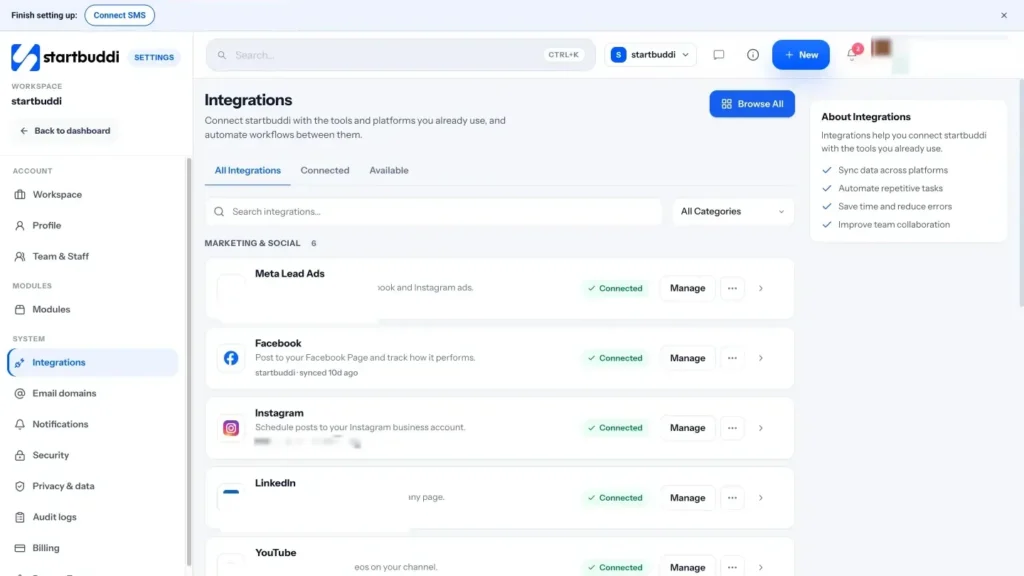
Open Settings from your account menu and choose Integrations in the System group. On a phone, it's in the More menu.
- Find the tool you want
Use the tabs to switch between All Integrations, Connected and Available. Type in the search box or pick a group from All Categories to narrow the list.
- Click Connect
Click Connect on the card. Most tools open a short window that explains what happens next. Then click Continue to followed by the tool's name.
WhatsApp and SMS are set up right inside the window instead, because they need a phone number or a sender. Our guide to WhatsApp marketing explains what you can do once it's connected.
- Sign in and approve access
Sign in to the other tool and approve the access it asks for. You come back to startbuddi and the card shows Connected. If you close the sign-in window early, nothing is saved, so just click Connect again.
- Check how the sync is going
Click Manage on a connected card. The panel shows its status, when it last synced, how many records came across and any that failed. Click View sync history to see each run.
- Pause, reconnect or disconnect
From the same panel or the card's menu, choose Pause sync to stop it for a while, Reconnect if it has stopped working, or Disconnect to remove it. Anything already in startbuddi stays when you disconnect. New syncs stop until you connect it again.
Troubleshooting
A card says Needs attention. What do I do?
The connection has usually expired or lost a permission, often after a password change on the other tool. Click Manage, then Reconnect, and sign in again. Your synced records stay where they are.
I can't find Paystack or Stripe on the Integrations page.
Card payments are set up in Money Manager. Open Money Manager, then Settings, and connect Paystack or Stripe there so invoices and payment links can take payments.
Will disconnecting delete my contacts or posts?
No. Anything already brought into startbuddi stays. Disconnecting only stops new syncs, posting and importing through that connection.
The tool I use isn't listed.
Only tools that are ready for your account are shown. You can still import contacts from a CSV file, or send events to other apps with the Zapier step in Automations.
Tiwalade Joanna Okedara-Kalu is the founder, CEO and CTO of startbuddi, the business system that brings clients, bookings, invoices, projects, marketing and the Chip AI assistant into one place. Tiwalade builds software around how service businesses really work day to day, and writes about client management, getting paid on time and why small businesses outgrow the tools they start with.
Founded startbuddi and leads its product and engineering