How to log time in startbuddi

You log time against a task. Either start a timer while you work, or type in time you already spent, like “1:30”. Every entry lands on your weekly timesheet on the Time page, and billable time shows its money value where you have set an hourly rate.
Logging as you go is far more accurate than rebuilding a week from memory on Friday. If you bill by the hour, it is also the easiest way to stop giving work away for free.
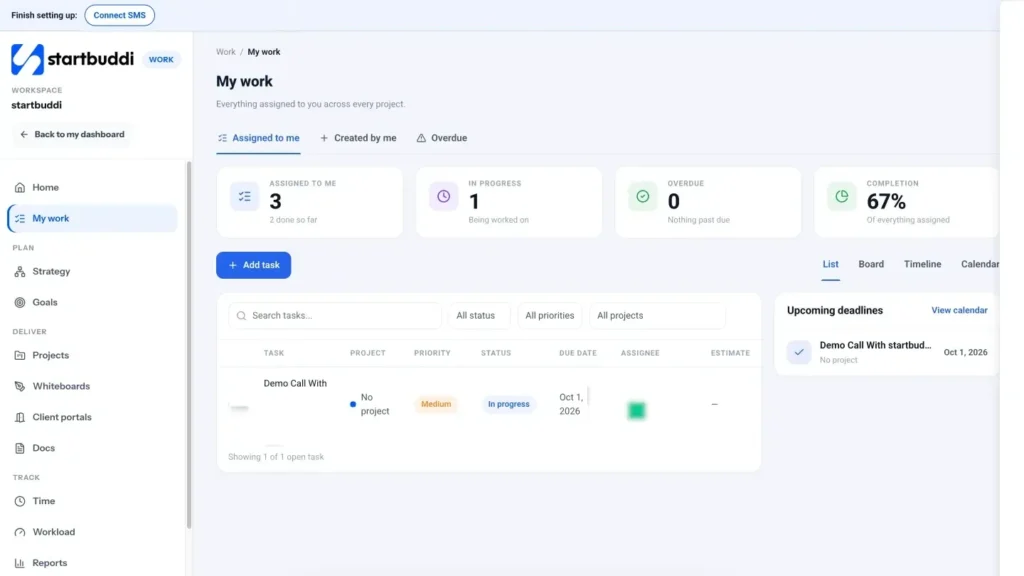
Before you begin, make sure the work has a task. If you are doing something small that is not planned yet, add a quick task for it in My work first; it takes a few seconds and keeps your hours tied to real work that your team and clients can recognise.
Time tracking is part of Work on every plan. Everyone logs their own time. Owners, admins and managers can also see Team time.
Steps
- Open Time
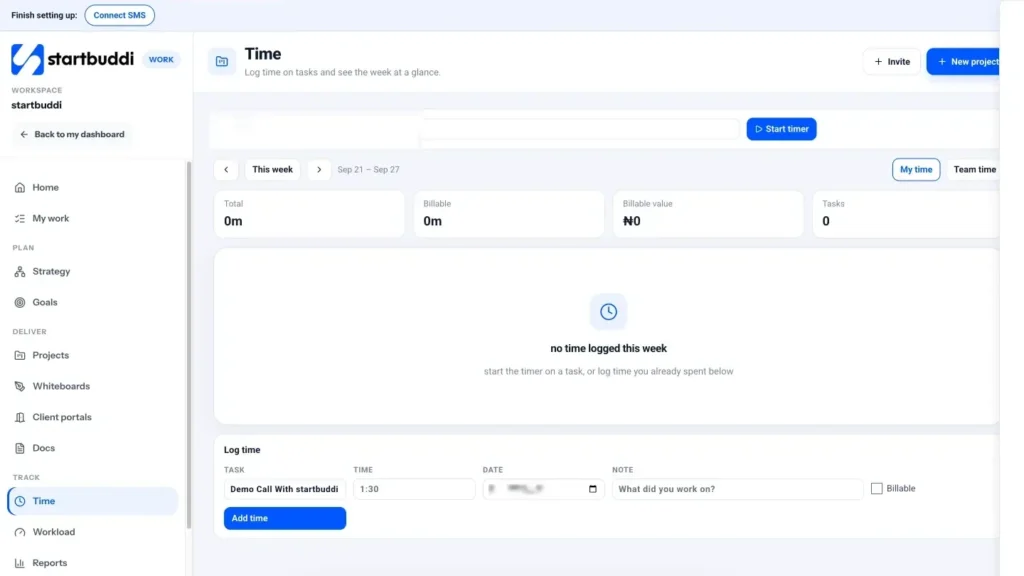
Go to Work and click Time in the Work menu. The page shows the current week, with Previous week, This week and Next week controls.
- Start a timer
In the timer bar, pick a task and click Start timer. The clock keeps running while you move around the app. Click Stop when you finish and the time is saved to that task. Only one timer runs at a time, so starting a new one is a quick way to switch jobs.
- Or log time you already spent
In the Log time form, choose the Task, type the Time (for example 1:30, 1h 30m or 45m), pick the Date and add a Note such as what you worked on. Tick Billable if you will charge the client for it, then click Add time. A short note such as "homepage copy, second round" makes the timesheet much easier to explain to a client later.
- Log time from inside a task
You can also open any task and use its Time section. Click Start timer, or type a duration in the box and click Log. If a timer is already running elsewhere, the button reads Switch timer here.
- Check your week
Back on Time, the summary shows Logged, Billable, Billable value (when rates are set) and Tasks. The grid below lists each task by day with a Day total. To remove a mistake, use the bin icon next to the entry, then log it again correctly. When you are ready to look back over a week or a project, see time tracking in Work and the related article on timesheet reports.
Troubleshooting
It says "No open tasks to time. Add a task first."
Time is always logged against an open task. Create a task in My work or a project, then come back. Finished tasks are left out of the list.
I get "Enter time like 1:30, 1h 30m or 45m."
The Time box did not understand the value. Use hours and minutes with a colon, or h and m, for example 2:15 or 2h 15m.
Billable value looks too low, or zero.
Only billable time with an hourly rate adds to the value. Open the project, go to the Budget tab, click Edit budget and set an Hourly rate. It is used for time that has no rate of its own.
Can Time turn my hours into an invoice?
Not automatically. Use the Billable total for the week when you create the invoice in Money Manager.
Tiwalade Joanna Okedara-Kalu is the founder, CEO and CTO of startbuddi, the business system that brings clients, bookings, invoices, projects, marketing and the Chip AI assistant into one place. Tiwalade builds software around how service businesses really work day to day, and writes about client management, getting paid on time and why small businesses outgrow the tools they start with.
Founded startbuddi and leads its product and engineering