Client portals: why they save service businesses hours each week
A client portal puts updates, files, approvals and invoices in one private page per client. Here's where it saves time and how to set one up.


Photo: Vantage Point Photographers / Unsplash
- A client portal gives each client one private page for progress, files, approvals, invoices and messages. It cuts the status emails, resent files and lost approvals that eat hours every week. Start with one client, share only what they need, and ask for approvals in the portal every time.
A client portal is a private, secure page where each client can see their project, files, approvals, invoices and messages in one place. For a service business, it saves hours every week because it replaces the slow parts of client work: status-update emails, “can you resend that file?” messages, approvals buried in WhatsApp, and invoices nobody can find.
This post explains where that time goes, what a good client portal includes, how to set one up so clients actually use it, and the mistakes that stop portals from working. If you run an agency, a consultancy, a design studio or any business that delivers projects for clients, it’s for you.
What is a client portal?
Think of a client portal as a shared window into your work. Instead of sending updates out through five channels, you put everything the client needs in one place and send them a single link. They sign in, see what’s happening, approve what needs approving, and message you in context.
A portal isn’t the same as giving a client access to your whole project tool. You choose what they see. Internal notes, rough drafts and your team’s chat stay private. For a fuller definition, see our glossary entry: what is a client portal?
Where the hours go without a client portal
Most service businesses don’t notice the time they lose to client admin because it arrives in small pieces. A message here, a resent file there. But the pieces add up.
Research by the McKinsey Global Institute found that people whose jobs involve a lot of interaction spend about 28% of the working week reading and answering email, and another 19% searching for information. More recently, Microsoft’s Work Trend Index reported that during core hours, employees are interrupted roughly every two minutes by meetings, emails or messages.
Client work makes this worse, because every client has their own preferred channel. Here is what a typical week looks like with and without a portal.
| Task | Without a portal | With a portal |
|---|---|---|
| Status updates | Client asks “how’s it going?”, you write a summary from memory | Client opens the portal and sees progress and milestones |
| Sharing files | Attachments scattered across email and WhatsApp, old versions everywhere | One place with the current version |
| Approvals | “Looks good” in a voice note, hard to find later | A recorded approval against the exact deliverable |
| Invoices | Client can’t find the invoice, asks you to resend | Invoices sit next to the work they pay for |
| Questions | Spread across calls, DMs and email threads | Messages attached to the project |
If each of those costs you 20 minutes per client per week, a business with eight active clients loses more than a working day, every week, to things a portal can handle.
Why a client portal saves service businesses time
Status updates answer themselves
The most common client question is some version of “where are we?”. When progress, tasks and milestones are visible in the portal, the answer is already there. You stop writing the same update three times, and clients stop feeling they need to chase you.
One source of truth for files
Version confusion is expensive. A client prints the wrong brochure, or a developer builds from last week’s design. A portal keeps the current file in one place, so “which one is final?” stops being a question.
Approvals with a paper trail
Approvals are where projects stall. A portal gives the client a clear “approve” step for each deliverable and records who approved what and when. That protects you when a client later says “I never agreed to that”, and it’s one of the simplest defences against scope creep. We cover that in more depth in how to scope a client project so it doesn’t creep.
Invoices next to the work
When the invoice sits beside the finished deliverable, paying it feels like the natural next step. The client doesn’t need to dig through their inbox, and you don’t need to resend anything.
Fewer channels to watch
Every channel you monitor is a place where something can be missed. Moving project conversation into the portal doesn’t stop clients using WhatsApp, but it gives you a calm place to point them to, and a record that the whole team can see.
It’s also about how clients feel
Time saved is only half the story. Clients judge you on how working with you feels, not just on the final result. In Salesforce’s 2022 State of the Connected Customer research, 88% of customers said the experience a company provides is as important as its products or services.
A branded portal with a friendly welcome message tells a client you’re organised. It makes a two-person studio look as dependable as a large agency, and it gives clients a reason to recommend you: “they were so easy to work with”.
Signs your business needs a client portal
- You regularly search old chats to find what a client approved.
- Clients ask for updates more than once a week.
- You’ve sent the wrong version of a file, or a client has used one.
- Invoices get “lost” and you resend them.
- A new team member can’t see the history of a client relationship.
- You’re working with more than three or four clients at the same time.
If two or more of these sound familiar, a portal will likely pay for itself in the first month.
Client portal vs shared folder vs email
Many small businesses already use a shared Google Drive or Dropbox folder and wonder whether a portal is really different. It is, because a folder only solves the file problem. It doesn’t show progress, record approvals or hold invoices.
| What you need | Email and WhatsApp | Shared folder | Client portal |
|---|---|---|---|
| Latest version of a file | Hard to find | Yes | Yes |
| Project progress at a glance | No | No | Yes |
| Recorded approvals | Buried in threads | No | Yes |
| Invoices beside the work | Separate emails | Only as PDFs | Yes |
| Conversation tied to the project | Scattered | Comments at best | Yes |
| Control over what the client sees | Manual | Folder by folder | Item by item |
A shared folder is a good first step up from email. A portal is the step after that, when you’re juggling several clients and want each of them to have one link for everything.
How to tell if your client portal is working
You don’t need a dashboard to judge this. After a month, look at three simple signals:
- Fewer “any update?” messages. If clients still ask for updates, your milestones may be too vague or out of date.
- Faster approvals. Compare how long a deliverable waited for sign-off before and after. Reminders usually shorten the wait.
- Fewer resent files and invoices. If you still resend things, check the client knows where to find them in the portal.
Ask the client too. A two-line question such as “Is the project page useful? Anything you’d like to see there?” often surfaces small fixes that make a big difference.
What to put in your client portal
Less is more. A portal crowded with every internal task is as confusing as no portal at all. Start with the pieces clients actually need.
| Section | What to share | Tip |
|---|---|---|
| Project and milestones | The big stages and their dates | Share milestones, not every small task |
| Deliverables | Drafts and finals that need a decision | Share them for approval, so the decision is recorded |
| Files and documents | Briefs, brand files, reports | Name files clearly, for example “Logo final v3” |
| Contracts | The signed agreement and scope | Handy when scope questions come up |
| Invoices | Current and past invoices | Include a way to pay online |
| Messages | Questions and answers about the project | Reply here rather than in DMs so there’s one record |
How to set up a client portal clients actually use
A portal only saves time if clients open it. These steps help make it a habit from day one.
- Start with one client. Pick a friendly, current client and a project with a few weeks left. Learn what works before rolling it out to everyone.
- Decide what they see. Turn on only the sections from the table above that matter for this project.
- Write a short welcome message. Tell them what the portal is for and what you’ll need from them.
- Introduce it on a call or in your kickoff meeting. Share your screen and show them the approve button and the messages area. It takes two minutes. Our guide on how to run a project kickoff meeting shows where this fits.
- Send the invite with context. Explain why you’re using it and what’s in it for them.
- Redirect, kindly. When a client sends feedback on WhatsApp, thank them and add it to the portal yourself. After a few weeks, most clients go straight to the portal.
- Review after a month. Ask the client what they find useful and what’s missing.
Here is a welcome message you can adapt:
Hi Amaka, welcome to your project page. This is where you’ll see progress on your rebrand, approve designs, find every file and pay invoices. If you have a question, send it here so the whole team sees it. We’ll let you know by email when something needs your approval.
And an invite you can send by email or WhatsApp:
Hi Amaka, to keep everything for your rebrand in one place, we’ve set up a private project page for you. You’ll get an email with a sign-in link, no password needed. From there you can see where we are, approve designs and message us. It should save you a few “where are we?” messages.
Run this from one workspaceClients, projects, money and marketing, connected instead of spread across five apps.See how it works
If you’re also improving how new clients start with you, pair the portal with our free client onboarding checklist.
Common client portal mistakes
- Making clients create an account and password. Every extra step lowers the chance they’ll come back. Email sign-in links work far better for busy clients.
- Sharing too much. Clients don’t need to see your internal to-do list. Too much detail invites micromanagement.
- Letting it go stale. A portal with a two-week-old status is worse than none. Update milestones as you finish them.
- Keeping approvals in chat. If approvals still happen in DMs, the portal loses its main benefit. Ask for sign-off in the portal every time.
- Using a separate tool that doesn’t talk to your projects. If you have to copy updates from your project tool into a portal by hand, you’ve just created more admin.
How startbuddi helps
In startbuddi, client portals live in Work, next to your projects, and connect to your contacts, documents and invoices, so there’s nothing to copy across.
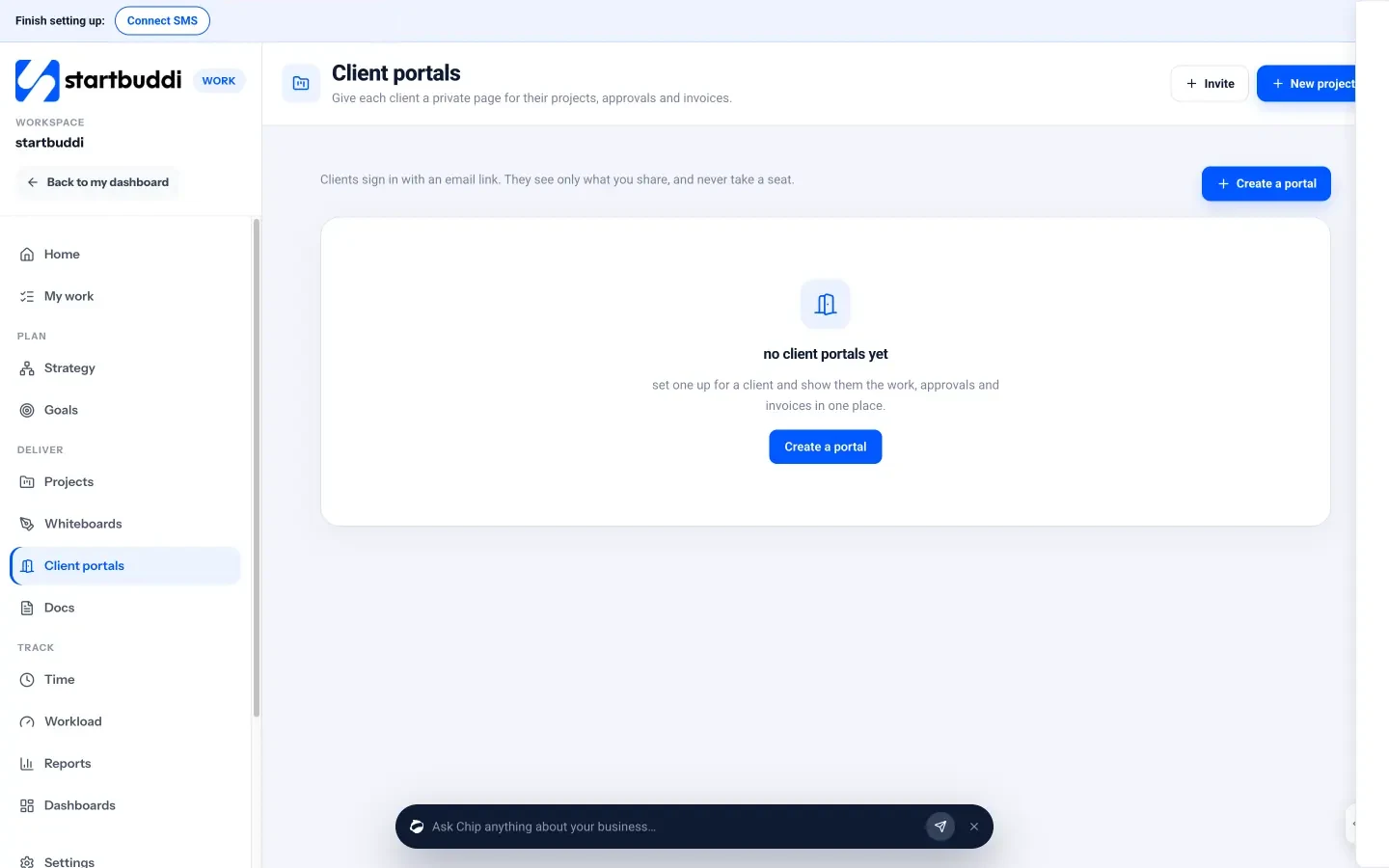
- One portal per client. Open Work, then Client portals, and create a portal. Pick the client contact, name it (for example “Amaka’s rebrand”), link the projects, add your brand colour, logo and a welcome message.
- You choose what they see. Tick the sections the client sees, such as projects, milestones, deliverables, files, documents, contracts, invoices, approvals and messages, and put them in the order you want. Items reach the client only when you share them, or when you choose to show everything in the linked projects that’s marked client-visible.
- No passwords, no seats. Invite someone by email and they get a one-time sign-in link. They don’t need a startbuddi account and they never take a paid seat.
- Approvals that count. Share a deliverable for approval. With approvals switched on, it can’t be marked done until the client approves, and you can set reminders about pending approvals.
- Onboarding checklists and shared logins. Start a checklist from the new client onboarding template: the client books the kick-off call, uploads files, answers questions and shares logins. Logins are encrypted before they are saved, only named people can see them and every view is logged.
- Messages and an activity log. Chat with the client inside the portal, and see invites, shares, approvals and requests in the activity log.
- Preview as client. Check exactly what your client will see before you invite them.
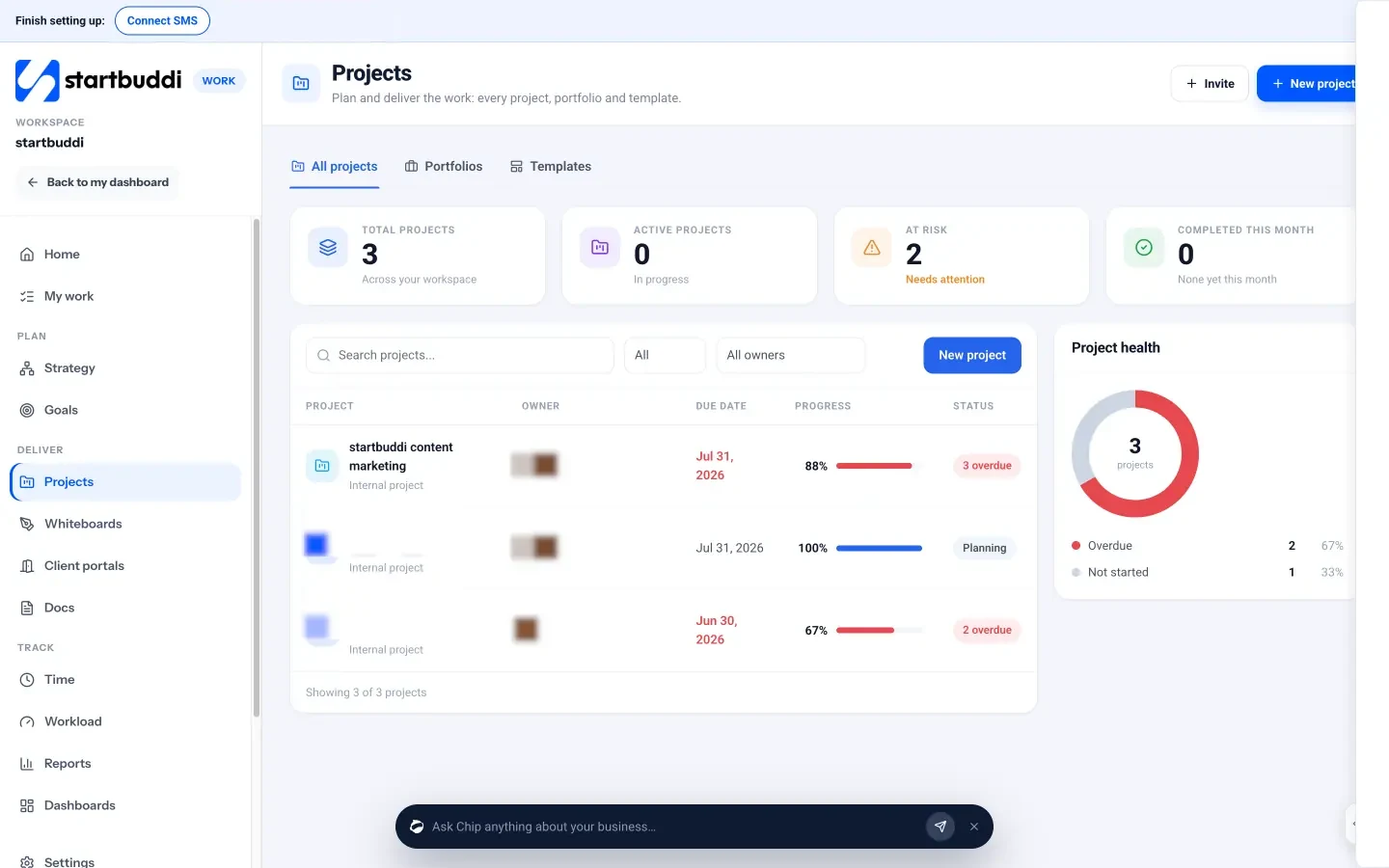
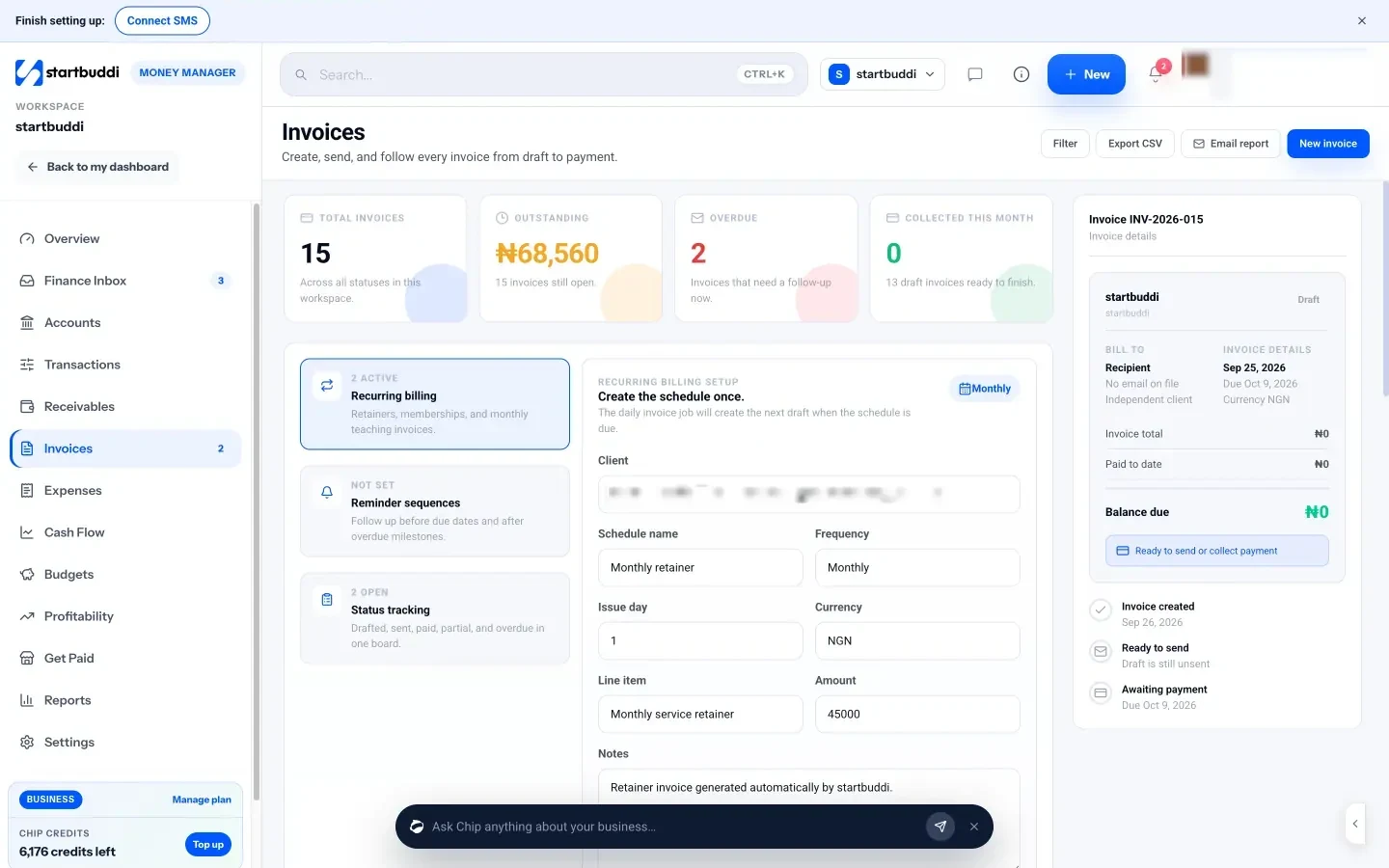
Because portals sit on top of your projects, progress updates as your team finishes work. Contracts and files come from Documents, and invoices come from Money Manager invoicing, where clients can pay online by Paystack or Stripe.
On the Free plan you can build a portal and preview it as your client. Inviting clients in starts on Starter (1 live portal), with 10 on Growth and 50 on Scale. Every paid plan comes with a 30-day trial. For more ideas on keeping client work calm, read how to manage freelance clients professionally.
Your next step
Pick one client this week and give them a portal for their current project. Share the next deliverable for approval there instead of on WhatsApp, and count how many “any update?” messages you get over the following month. To try it with a real client, compare the plans on our pricing page and start your 30-day trial.
Sources
- McKinsey Global Institute: The social economy (2012)
- Microsoft Work Trend Index: Breaking down the infinite workday (2025)
- Salesforce: State of the Connected Customer research (2022)
Frequently asked questions
Do clients need a password to use a client portal?
Not in startbuddi. Clients sign in with a one-time link sent to their email, so there's no password to forget and no account to create.
Will a client portal replace WhatsApp with my clients?
Not completely, and it doesn't need to. Keep WhatsApp for quick chats, but put approvals, files and invoices in the portal so there's one record.
Is a client portal only for agencies?
No. Consultants, freelancers, builders, event planners and any business that delivers work in stages for a client can use one.
Does each client portal cost a seat?
No. In startbuddi, clients invited to a portal never take a paid seat. Your plan sets how many live portals you can have.
Tiwalade Joanna Okedara-Kalu is the founder, CEO and CTO of startbuddi, the business system that brings clients, bookings, invoices, projects, marketing and the Chip AI assistant into one place. Tiwalade builds software around how service businesses really work day to day, and writes about client management, getting paid on time and why small businesses outgrow the tools they start with.
Founded startbuddi and leads its product and engineering