WhatsApp automation sequences: a simple setup guide for your business
How WhatsApp automation works under Meta's rules, and five sequences to set up: enquiry greeting, booking reminders, quote follow-ups, after-purchase check-ins and win-backs.


Chinonye wrote this while on the startbuddi team. The product has changed since, so the team updated it on .
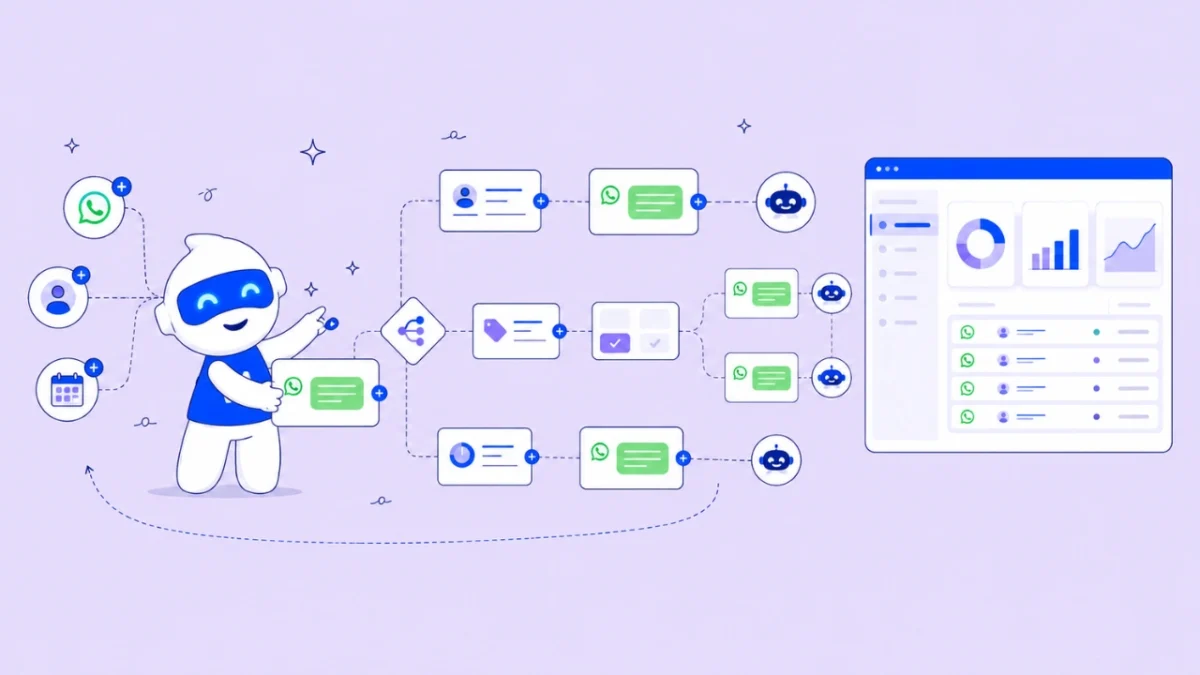
- WhatsApp automation needs the Business Platform, opted-in customers, Meta-approved templates for anything outside the 24-hour window, and a clear handover to a person. Start with one sequence, such as an enquiry greeting or booking reminder, test it on your own number, and watch replies and opt-outs.
A WhatsApp automation sequence is a series of messages that sends itself when something happens: a customer writes in, books a slot, asks for a quote or hasn’t ordered in a while. To set one up, you need the WhatsApp Business Platform (the API, usually through a tool built on it), customers who opted in, message templates approved by Meta for anything sent outside the 24-hour reply window, and a clear path to a real person.
This guide explains how WhatsApp automation actually works under Meta’s rules, then walks through five sequences most small businesses can use, with timings and example wording. It’s written for businesses anywhere WhatsApp is popular, from Lagos and Nairobi to São Paulo, London and Mumbai.
WhatsApp Business app vs the platform: what can be automated
The free WhatsApp Business app on your phone has a few simple automations: a greeting message, an away message and quick replies. To set an auto reply there, open the app’s settings, go to Business tools and switch on the greeting and away messages; each takes a minute to write. They’re useful, but they can’t wait three days and follow up, branch on an answer, or send a reminder the day before a booking.
Real sequences need the WhatsApp Business Platform (often called the WhatsApp Business API). You don’t need to be a developer; most businesses connect through a tool that handles the technical side. For the full comparison, read what the WhatsApp Business API is. Some tools, including Meta’s own coexistence option, let you keep using the phone app on the same number while the platform handles automation.
The four rules every WhatsApp automation must follow
WhatsApp is stricter than email or SMS, and for good reason: people treat it as personal. Build your sequences around these four rules from the start.
1. Opt-in first
The WhatsApp Business Messaging Policy says you may only contact people who have given you their number and have opted in to receive messages from you. You must also respect every request to stop, whether it arrives on WhatsApp or anywhere else. Collect opt-in on your forms, checkout and booking pages with clear wording, and keep a record of it.
2. The 24-hour customer service window
When a customer messages you, a 24-hour window opens. Inside it, you can send free-form replies. Outside it, you can only start a conversation with a pre-approved template. This single rule shapes every sequence: anything that waits more than a day, such as a reminder or a follow-up, has to use a template.
3. Templates are approved by Meta and categorised
Each template must be categorised as marketing, utility or authentication and approved before you can send it, according to Meta’s template documentation. Utility templates cover things like booking confirmations and order updates; marketing covers offers and announcements. Put a promotion inside a “utility” template and Meta may reject or recategorise it. Our post on WhatsApp message templates that get replies has 20 examples to start from.
4. Automation must offer a way to a human
The same policy requires businesses using automated replies to provide prompt, clear and direct escalation paths, such as a handover to a person in the chat, a phone number or an email. Every sequence you build should include “reply AGENT to talk to a person” or similar, and someone must actually answer.
What it costs and how many you can send
Since 1 July 2025 Meta charges per delivered template message, with rates that depend on the category and the recipient’s country. Free-form replies inside the 24-hour window are free, and so are utility templates sent inside an open window, according to Meta’s pricing page. Check the current rate card for your customers’ countries before you plan a large campaign.
New business accounts also have a messaging limit: at first you can message 250 unique people in a rolling 24 hours outside the service window. Verifying your business, or sending enough high-quality messages, raises it to 2,000 and beyond, as Meta’s messaging limits guide explains. Plan big sends around that limit.
How to design a WhatsApp automation sequence
Use the same five questions for every sequence:
- What starts it? A message received, a form submitted, a booking made, a payment received, a tag added.
- What’s the goal? A booking, a reply, a payment, a review. One goal per sequence.
- Which messages are inside the 24-hour window? Those can be free-form. Everything after needs a template.
- What stops it? The customer replies, books, pays, or says stop.
- Where does a human take over? Decide the exact point.
Draw it on paper first as boxes and arrows. If it doesn’t fit on one page, split it into two sequences.
Five WhatsApp automation sequences worth setting up
1. New enquiry: greet, qualify, route
Starts when: someone messages your number for the first time, or taps a click-to-WhatsApp ad.
- Immediately: “Hi {first name}, thanks for messaging Ada Cakes. What can we help with? 1) Order a cake 2) Prices 3) Delivery 4) Talk to a person”
- On their answer: send the price list, the order form or the delivery details; for 4, notify a team member.
- If no reply in 2 hours: one gentle nudge while the window is still open.
- Stops when: they place an order or a person takes over.
This one runs entirely inside the 24-hour window, so it needs no templates.
2. Booking confirmation and reminder
Starts when: a booking is made.
- Immediately: a utility template confirming the date, time and address, with a reschedule link.
- The day before: a reminder template: “See you tomorrow at 2pm, {first name}. Reply 1 to confirm or 2 to reschedule.”
- Stops when: the booking is cancelled.
Reminders like this are one of the most effective ways to cut no-shows; our post on how to reduce no-shows covers timing and wording in more detail.
3. Quote follow-up
Starts when: you send a quote or a customer requests one.
- Day 2: “Did the quote make sense? Happy to adjust anything.” (a template, since the window may have closed)
- Day 5: a task for you to call, not another automated message.
- Stops when: they reply, accept or say no.
4. After a purchase: thank, check, review
Starts when: an invoice is paid or an order is delivered.
- Same day: a thank-you with the receipt.
- 3 to 5 days later: “How’s everything? Anything we can fix?”
- If they reply positively: ask for a Google review with a direct link.
5. Win-back for quiet customers
Starts when: you add a tag such as “lapsed” to customers who haven’t bought in a few months, or run it manually for a list.
- Message 1: a marketing template with a genuine reason to come back, such as a new product or a returning-customer offer.
- If they reply: hand over to a person.
- If no reply: stop. Don’t send a second promotion the same week.
If a customer doesn’t respond to one genuine offer, leave them alone for a while. A second or third promotion in quick succession is how numbers get blocked.
Scripted flow, chatbot or in-chat form: which to use
Automated WhatsApp replies come in three shapes, and picking the right one matters more than the wording.
| Type | Best for | Watch out for |
|---|---|---|
| Scripted flow (menu and branches) | Predictable journeys: order, book, check prices, reach a person | Too many menu levels; keep it to two taps before something useful happens |
| AI chatbot | Questions that vary: opening hours, delivery areas, “do you do…?” | It must only answer from what you’ve told it, and hand over when unsure |
| In-chat form | Collecting details: a booking date, a quote brief, feedback | Keep it short; three to five questions |
Many businesses combine them: a scripted greeting that routes to a form for bookings and to a chatbot or a person for everything else. If you only set up one, make it the one that answers your most common question.
Common WhatsApp automation mistakes
- Blasting a whole contact list. Phone contacts are not opted-in subscribers. Start with people who asked to hear from you.
- No human behind the bot. If “talk to a person” leads nowhere, customers stop trusting the whole channel.
- Forgetting the window. A follow-up planned for day three will fail if it’s free text instead of an approved template.
- Stale variables. A reminder that says the wrong time is worse than no reminder. Make sure the data behind your templates is current.
Writing messages that feel human
- Short. Two to four lines. WhatsApp is a chat, not an email.
- Named. Use the customer’s first name and sign off with a real name where you can.
- Buttons over typing. Quick-reply buttons (“Confirm”, “Reschedule”) get more responses than “reply with 1 or 2”.
- No surprises. If someone opted in for booking updates, don’t start sending weekly promotions.
- Easy to stop. Marketing messages should say how to opt out, and your automation must honour it.
Test, launch and measure your WhatsApp automation
Before you switch anything on, run each sequence on your own number: trigger it, answer each branch, and let a timer run out. Check that templates are approved, variables fill in correctly (no “Hi {first name}”), and the handover reaches a person.
Once it’s live, watch these numbers each week:
| Metric | What to look for |
|---|---|
| Delivered and read | Low delivery can mean bad numbers or a messaging limit |
| Reply rate | The best sign your message is useful |
| Goal reached | Bookings made, quotes accepted, reviews left |
| Opt-outs and blocks | Rising numbers hurt your quality rating with Meta |
| Handover time | How long customers wait for a person after asking |
Meta gives each business number a quality rating based on how people respond to your messages. Blocks and reports drag it down and can limit how many people you can reach, so treat opt-outs as a warning light, not a statistic.
How startbuddi helps with WhatsApp automation
startbuddi’s WhatsApp marketing runs on Meta’s official WhatsApp Business Platform. You connect your number through Meta’s own signup window, and you can keep using the WhatsApp Business app on the same number. Replies from customers land in the shared customer inbox.
Three ways to answer, in one place
The Flows and forms tab explains the three options and when to use each: a chatbot that answers freely from what you told it, a step-by-step reply that follows the exact path you draw, and a form that opens inside the chat to collect details such as a booking or quote request.
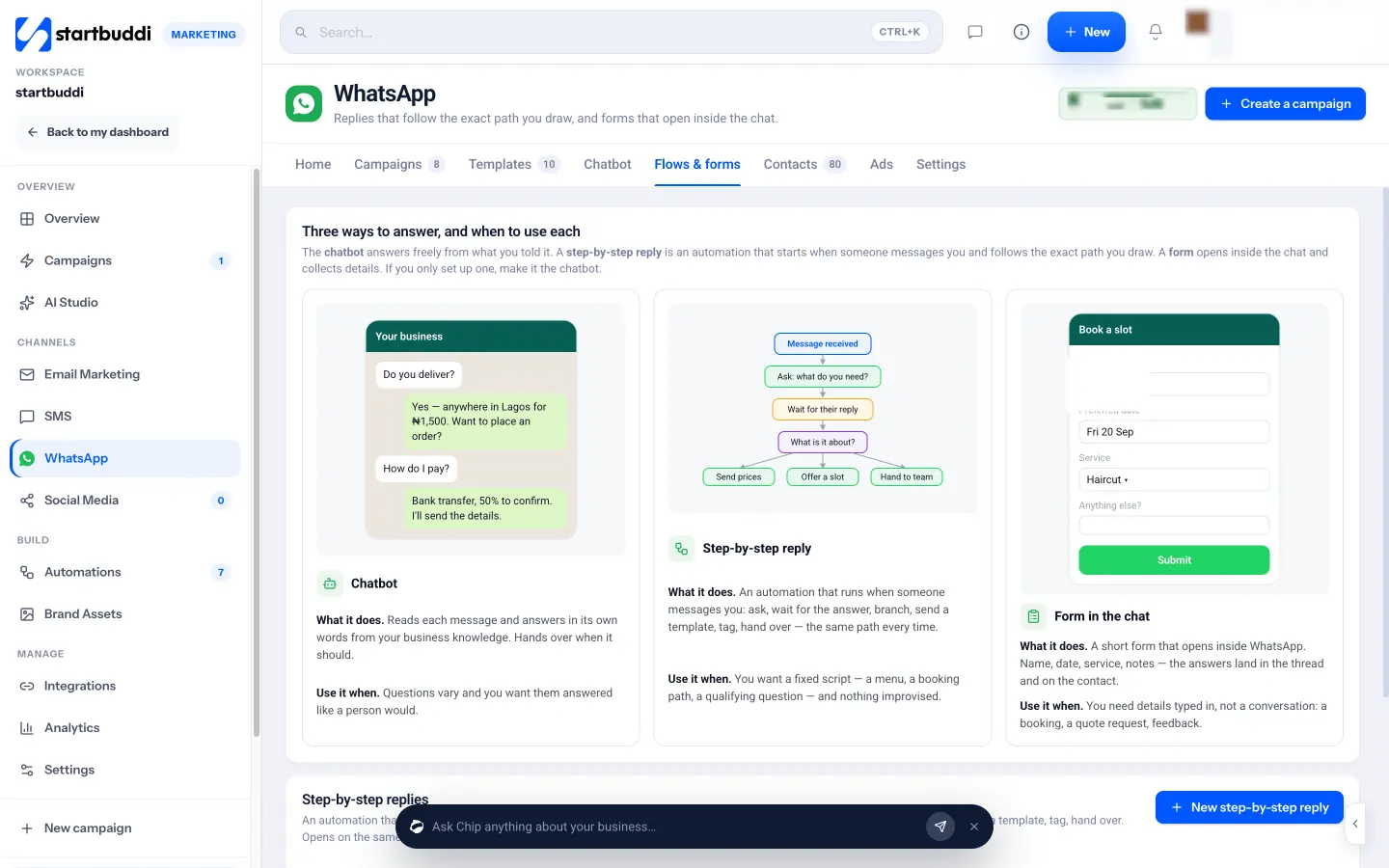
Step-by-step replies are built on the same automation canvas as the rest of startbuddi. They start when someone messages you (optionally only when they use certain keywords) and can ask a question, wait for the answer, branch, send a template, add a tag and hand over to your team. Automations elsewhere in startbuddi can also send a WhatsApp message (an approved template, free text or a form) when a booking is made, a form is submitted or an invoice is paid. The editor warns you if a step would send free text outside the 24-hour window.
Templates and opt-in
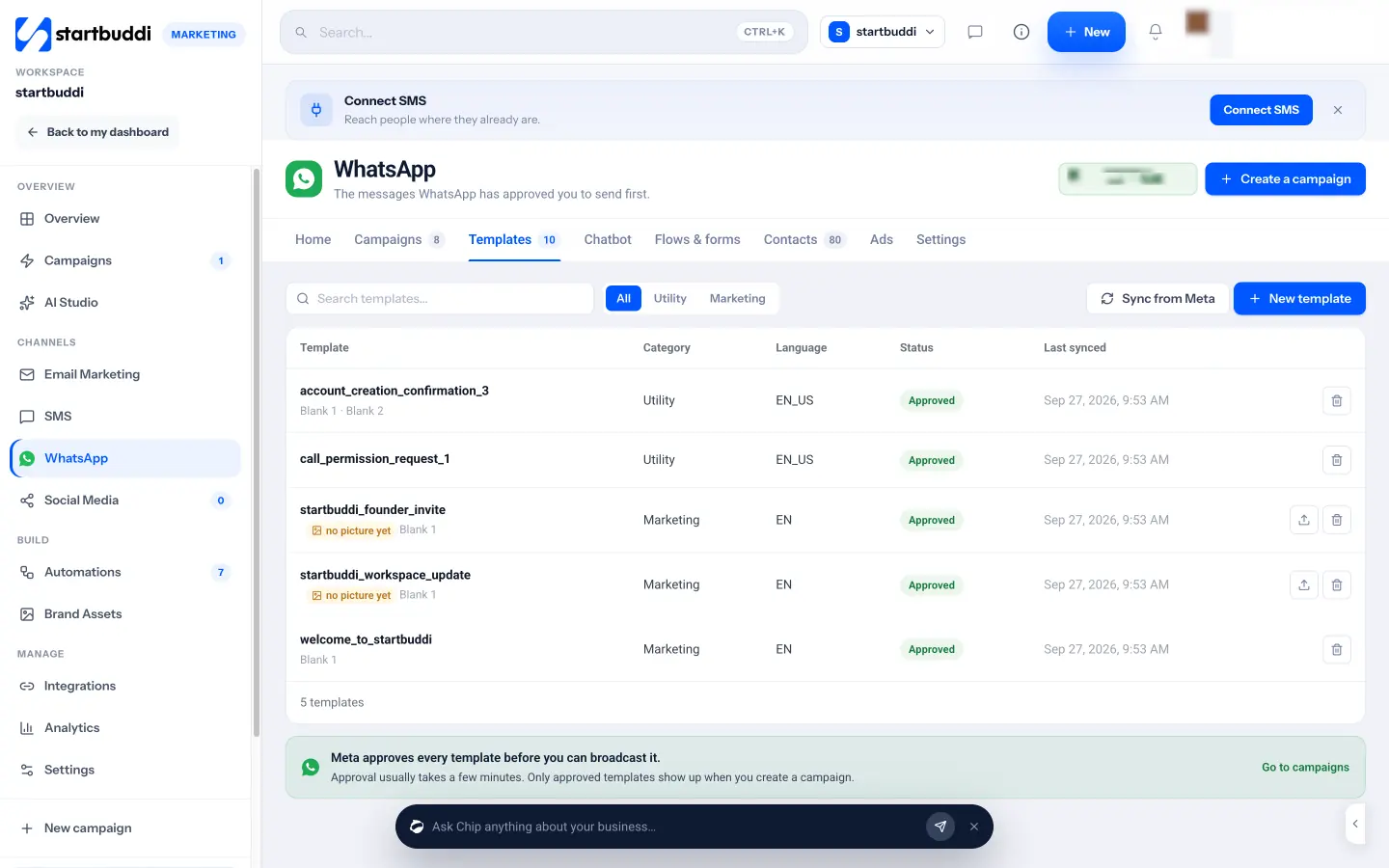
You can write your own templates and send them to Meta for review, or pick pre-approved ones from Meta’s library. Marketing templates only go to contacts who opted in; the Contacts tab shows who has opted in or out.
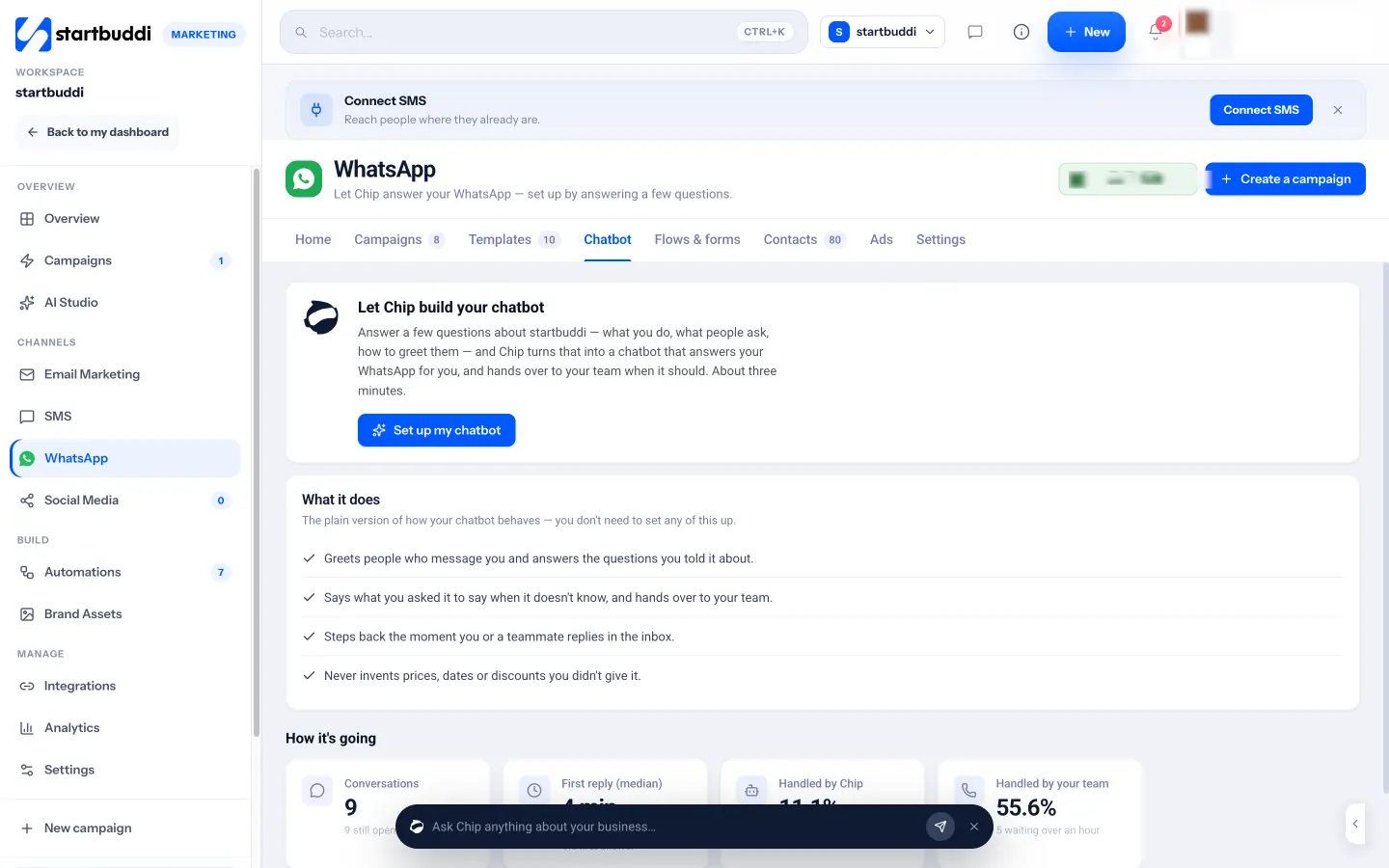
A chatbot set up by answering questions
Chip can build a WhatsApp chatbot from a short interview about your business, top questions, greeting and what it should never promise. It steps back as soon as you or a teammate replies in the inbox.
Plans and limits
WhatsApp is part of the Marketing module, which needs the Starter plan or above. On Starter you can build a chatbot, but switching it on to answer customers automatically needs Growth or above. Meta’s own message charges are billed to your WhatsApp Business account, and a Meta test number can’t run campaigns. The help article on setting up WhatsApp automation flows shows each screen.
Your next step
Pick the one sequence that would save you the most time this week, usually the new-enquiry greeting or the booking reminder. Draw it on one page with its trigger, goal, stop rule and handover point, then get any templates approved before you build. If you’d like it connected to your contacts, bookings and invoices, see WhatsApp automation sequences in startbuddi or compare the plans.
Sources
- WhatsApp Business Messaging Policy
- Meta for Developers: WhatsApp Business Platform pricing
- Meta for Developers: Message templates
- Meta for Developers: Messaging limits
Frequently asked questions
Can I automate WhatsApp with the free Business app?
Only a little: greeting messages, away messages and quick replies. Timed follow-ups, branching and reminders need the WhatsApp Business Platform, usually through a tool built on it.
Do I need templates for WhatsApp automation?
Yes, for any message sent more than 24 hours after the customer last wrote to you. Inside that window you can reply freely.
Is WhatsApp automation free?
Meta charges per delivered template message, by category and country. Free-form replies inside the 24-hour window are free. Your automation tool may charge separately.
Will automated WhatsApp messages get my number banned?
Not if customers opted in, your messages are relevant and people can easily stop them or reach a person. Many blocks and reports lower your quality rating and can limit sending.
What is the best first WhatsApp sequence to build?
For most businesses, an instant greeting for new enquiries or a booking confirmation and reminder. Both save time straight away.
SEO Copywriter| Email growth Specialist| I help businesses increase revenue with strategic SEO content & high-converting email funnels.