WhatsApp message templates that get replies (20 examples)
What WhatsApp message templates are, the rules Meta applies, and 20 ready-to-copy templates for bookings, orders, invoices, follow-ups and offers.

Photo: SAUVIK BOSE / Unsplash
- WhatsApp message templates are Meta-approved messages you need to start a chat or message someone after 24 hours. Keep them short and personal, pick the honest category (utility or marketing), and end with one quick-reply button. Only message people who opted in.
WhatsApp message templates are pre-approved messages that let a business start a conversation, or restart one after 24 hours of silence, on the WhatsApp Business Platform. The ones that get replies are short, personal, useful to the reader and end with one easy action, usually a quick-reply button. Below you’ll find the rules Meta applies, a simple formula, and 20 ready-to-adapt WhatsApp message templates for reminders, payments, follow-ups and offers.
If you only use the free WhatsApp Business app on your phone, you can type anything you like to anyone who messages you. Templates matter once you send from the API (through a tool like startbuddi), broadcast to many people, or want to message someone who hasn’t written to you in the last day. If you’re unsure which side you’re on, our glossary entry on what the WhatsApp Business API is explains the difference in plain words.
What a WhatsApp message template is (and when you need one)
On the WhatsApp Business Platform, a conversation has two modes. When a customer messages you, a 24-hour customer service window opens. Inside that window you can reply with normal free-form messages. Outside it, or when you are the one reaching out first, you must use a template that Meta has reviewed and approved. Meta’s pricing documentation describes this window and confirms that non-template messages are not charged.
In practice you need a template to:
- Send a broadcast (one message to many opted-in contacts).
- Remind someone about an appointment, a delivery or an unpaid invoice when they haven’t messaged you recently.
- Follow up with a lead who went quiet two days ago.
- Restart a chat after the 24-hour window has closed.
Every template goes through review. Meta’s message templates documentation says templates are reviewed automatically when created or edited, and that review can take up to 24 hours. Only approved templates can be sent.
The three template categories, and why the category matters
Meta sorts every template into one of three categories. The category decides what you can say, who you can send it to and what you pay.
| Category | What it’s for | Examples |
|---|---|---|
| Utility | Non-promotional messages about something the customer already did or asked for | Booking confirmations, order updates, payment receipts, invoice reminders |
| Marketing | Anything that promotes, persuades or builds awareness | Offers, new products, event invitations, “we miss you” messages |
| Authentication | One-time passcodes for logging in or verifying an account | “Your code is 482913” |
The line between utility and marketing is stricter than most people expect. Meta’s template category guidelines say utility templates must be non-promotional, and that mixed content, such as an order update with a promo tucked at the end, counts as marketing. If a utility template contains promotional intent, WhatsApp recategorises it as marketing, either at review or in later audits.
So keep them separate. Write a clean utility template for the receipt and a separate marketing template for the discount. It is also better for the customer: one message, one job.
What each category costs
Since 1 July 2025, Meta charges per delivered template message rather than per conversation. Rates depend on the category and the recipient’s country code, and utility templates sent inside an open customer service window are free. That is one more reason to reply quickly: if a customer writes to you and you send the receipt within 24 hours, it costs nothing.
The anatomy of a template
A template can have up to four parts. Meta’s components reference sets these limits:
- Header (optional): text of up to 60 characters, or an image, video or document.
- Body (required): up to 1,024 characters, with variables such as the customer’s first name.
- Footer (optional): up to 60 characters of plain text, often used for “Reply STOP to opt out”.
- Buttons (optional): up to 10 in total, with button labels of up to 25 characters. You can have up to two link buttons and one call button.
Variables are the blanks you fill in when you send, written as {{1}} or a named placeholder like {{first_name}}. You must give Meta an example value for each one when you submit. Good examples help your template get approved, because the reviewer can see exactly what the finished message will say.
A simple formula for templates that get replies
Most templates that get ignored share the same problems: they are long, vague, and ask the reader to do something hard. Templates that get replies follow a pattern you can remember as who, why, what, one tap.
- Who: use their name and yours. “Hi Amaka, it’s Tolu from Bloom Studio.” People open messages from people.
- Why now: say why you are writing today. “Your appointment is tomorrow at 10am.”
- What they get: one useful detail, not a paragraph. The address, the amount, the new date.
- One tap: end with a single action, ideally a quick-reply button like “Confirm” or “Reschedule”. Tapping a button is easier than typing, so more people do it.
Small things that make a big difference
- Keep it to three short lines. The limit is 1,024 characters, but on a phone screen anything past a few lines looks like work.
- Write like you talk. “Your order’s on its way” beats “Please be informed that your order has been dispatched.”
- Don’t start or end on a variable. “{{1}}, your order is ready” reads oddly if the name is missing. “Hi {{1}}, your order is ready” is safer.
- Use one emoji, at most. A single ✅ or 📅 helps scanning. A row of them looks like spam.
- Make the opt-out easy. A footer such as “Reply STOP to stop these messages” costs you nothing and protects your number’s quality rating.
20 WhatsApp message templates you can copy
Each template below shows the category it belongs to. The numbered blanks are variables: when you submit, give Meta an example for each, and fill them from your contact list when you send. Suggested buttons are in italics.
Appointments and bookings (utility)
- Booking confirmation: “Hi {{1}}, you’re booked in with {{2}} on {{3}} at {{4}}. See you then!” Buttons: Get directions, Reschedule
- Day-before reminder: “Hi {{1}}, a quick reminder that your appointment is tomorrow at {{2}}. Can you still make it?” Buttons: Yes, I’ll be there / I need to reschedule
- Running late notice: “Hi {{1}}, {{2}} is running about 15 minutes behind today. Sorry for the wait. Your slot is still held.”
- After the visit: “Thanks for coming in today, {{1}}. If anything isn’t right, just reply here and we’ll sort it.”
Reminders like number 2 are the single most useful template for service businesses, because a quick “yes” or “reschedule” tap gives you time to fill a gap. If missed appointments cost you money, the no-show cost calculator shows how much.
Orders and deliveries (utility)
- Order received: “Hi {{1}}, we’ve got your order {{2}}. We’ll message you as soon as it’s on its way.”
- Out for delivery: “Good news, {{1}}: order {{2}} is out for delivery today. The rider will call when close.”
- Ready for pickup: “Hi {{1}}, your order is ready to collect at {{2}}. We’re open until {{3}} today.”
- Delay notice: “Hi {{1}}, order {{2}} is delayed by a day. New delivery date: {{3}}. Sorry about this.” Button: Contact us
Payments and invoices (utility)
- Invoice sent: “Hi {{1}}, your invoice {{2}} for {{3}} is ready. You can view and pay it here.” Button: View invoice
- Friendly reminder: “Hi {{1}}, just a reminder that invoice {{2}} for {{3}} is due on {{4}}. Reply if you have any questions.” Button: Pay now
- Overdue follow-up: “Hi {{1}}, invoice {{2}} was due on {{3}} and is still open. Could you let us know when to expect payment?” Buttons: Paying today / Need more time
- Payment received: “Thanks, {{1}}! We’ve received {{2}} for invoice {{3}}. Your receipt is attached.”
For more wording ideas, the payment reminder generator writes reminders in different tones.
Leads and follow-ups (marketing)
- Enquiry follow-up: “Hi {{1}}, it’s {{2}} from {{3}}. You asked about {{4}} last week. Is it still something you’re looking at?” Buttons: Yes, tell me more / Not right now
- Quote follow-up: “Hi {{1}}, did you get a chance to look at the quote we sent? Happy to adjust anything.” Buttons: Let’s go ahead / I have questions
- Re-engagement: “Hi {{1}}, it’s been a while! We’ve added {{2}} since your last visit. Want a quick look?” Button: Show me
- Review request: “Hi {{1}}, thanks for choosing {{2}}. Would you leave us a short review? It really helps a small business like ours.” Button: Leave a review
Offers and announcements (marketing)
- New product: “Hi {{1}}, our new {{2}} just landed. You’re one of the first to know. Want to see it?” Button: See it
- Limited offer: “Hi {{1}}, this week only: {{2}} off {{3}}. Ends {{4}}.” Buttons: Shop now / Not interested
- Event invite: “Hi {{1}}, we’re hosting {{2}} on {{3}}. Free for our customers. Can we save you a seat?” Buttons: Count me in / Can’t make it
- Welcome message: “Welcome to {{1}}, {{2}}! You’ll hear from us about new stock and offers, never more than once a week. Reply STOP any time.”
Notice the “Not interested” and “Can’t make it” buttons on the marketing ones. Giving people an easy no feels counter-intuitive, but a polite no is far better for your number than a block or a spam report.
How to get your templates approved first time
Rejections are common and usually easy to avoid. Before you submit, check each template against this list.
- Pick the honest category. If a message sells, call it marketing. Mislabelling slows you down and can be reclassified anyway.
- Give real example values. “Amaka” and “INV-013” are better than “test” or “xxx”.
- Don’t stack variables. “{{1}} {{2}} {{3}}” with no words between them looks like a message that could say anything, which reviewers dislike.
- Avoid vague or threatening wording. “Final warning” on an invoice reminder reads badly to a reviewer and to a customer.
- Check spelling and formatting. Typos and broken links are a quick way to get rejected.
- Use a clear name. Template names are lowercase with underscores, such as invoice_reminder_friendly. You’ll thank yourself when you have thirty of them.
If a template is rejected, read the reason, edit and resubmit. Once approved, keep an eye on its quality. Meta rates active templates as high, medium or low quality based on how people respond, and a template with too much negative feedback can be paused or disabled.
Opt-in, opt-out and staying on WhatsApp’s good side
The fastest way to lose your WhatsApp number’s reach is to message people who didn’t ask to hear from you. The WhatsApp Business Messaging Policy says you may only contact people who gave you their number and opted in to receive messages from you, and that you must respect every request to stop, whether it comes through WhatsApp or anywhere else.
Good ways to collect opt-in:
- A checkbox on your booking or contact form: “Send me updates on WhatsApp.”
- A “Chat with us on WhatsApp” link on your website or link in bio, where the customer messages you first.
- Asking in person at checkout and noting it on the customer’s record.
Never buy lists or add numbers from a group chat. Apart from breaking the rules, strangers block and report, and that damages your quality rating for everyone else you message. Our WhatsApp marketing guide for Nigerian businesses covers list-building in more depth, and WhatsApp vs SMS helps if you’re choosing a channel.
How startbuddi helps
With WhatsApp marketing in startbuddi, you connect your own business number through Meta’s signup window, and you can keep using the WhatsApp Business app on your phone at the same time. Templates, broadcasts and replies then live in one place.
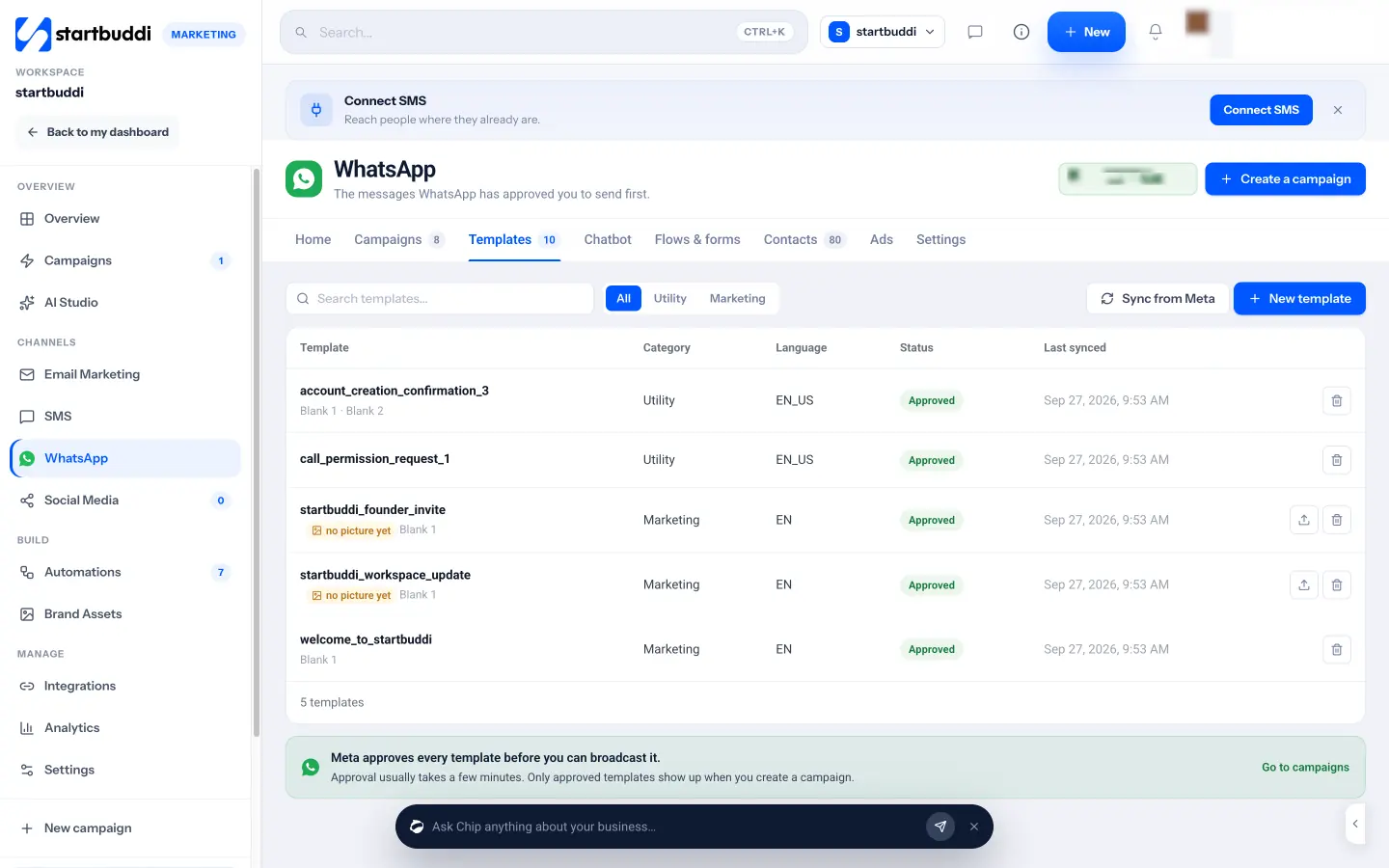
- Write templates with a live preview. Click New template, choose Utility or Marketing, pick a language (including Yoruba, Hausa, Igbo and Swahili), add variables with one click, then Send to Meta for review. You can also pick a pre-approved template from Meta’s library.
- See approval status at a glance. The Templates tab shows what’s approved, waiting on Meta or rejected, and syncs with Meta automatically.
- Send campaigns in five steps. Choose your audience, pick an approved template, fill the blanks from contact fields such as first name, then send now or schedule. Marketing templates only go to contacts who opted in.
- Reply from one inbox. Replies land in the customer inbox next to email and live chat. When the 24-hour window closes, the reply box switches to your templates so you don’t break the rules by accident.
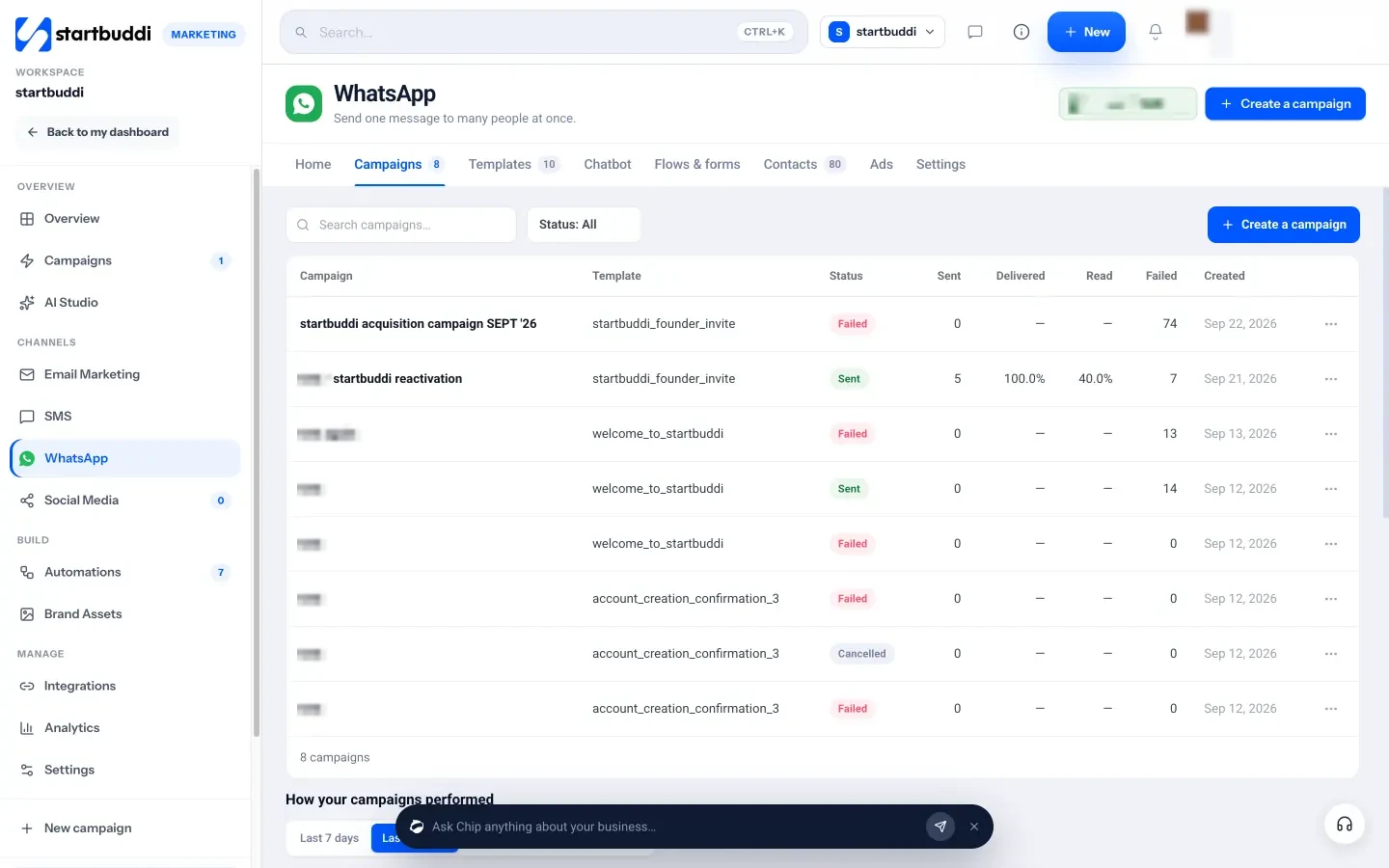
The step-by-step help article on sending a WhatsApp campaign walks through the whole flow. WhatsApp is part of the Marketing module, which is available on the Starter plan and above. Meta’s own message charges are billed to your WhatsApp account.
Your next step
Pick the three templates from the list above that match the messages you send most often, usually a booking reminder, an invoice reminder and a lead follow-up. Rewrite them in your own voice, keep each one to three lines with one button, and submit them this week. If you’d like to send and track them from one place, start a 30-day trial on the Starter plan or above.
Sources
- Meta for Developers: Message templates
- Meta for Developers: Template components
- Meta for Developers: Template category guidelines
- Meta for Developers: WhatsApp Business Platform pricing
- WhatsApp Business Messaging Policy
Frequently asked questions
Do I need templates if I only use the WhatsApp Business app?
No. The phone app lets you type freely. Templates are a WhatsApp Business Platform (API) rule for starting conversations or messaging someone more than 24 hours after their last message.
How long does Meta take to approve a template?
Many are approved within minutes, but Meta says review can take up to 24 hours. Templates picked from Meta's own library are pre-approved.
Can I edit a template after it is approved?
Yes, but an edited template goes back through review, so plan changes before a big send rather than on the day.
Why was my utility template changed to marketing?
Meta treats any promotional wording, even one line at the end of a receipt, as marketing. Remove the offer and send it as a separate marketing template.
Olabimpe Salami is the email and outreach specialist at startbuddi. Olabimpe writes about the messages that bring customers in and back: email, WhatsApp and SMS campaigns, follow-ups, and turning enquiries into paying clients.
Runs email and outreach at startbuddi