How to Host a Webinar: From Idea to Follow-Up
How to host a webinar step by step: pick a format and platform, set roles, test your kit, run the session on time and follow up. With a run sheet to copy.


Photo: Jonathan Farber / Unsplash
Here is how to host a webinar: pick one topic and format, choose where it runs, give each person a job and test your sound, slides and links the day before. On the day, open the room 15 minutes early, start on time, follow a run sheet and send the recording and a next step within 24 hours.
Key takeaways
- Most of the work in hosting a webinar happens before the session: format, platform, roles, rehearsal and reminders.
- Sound matters more than video. A cheap wired microphone and a quiet room beat a new camera.
- Never host alone if you can help it. A co-host who watches the chat and fixes problems keeps you on track.
- Write a minute-by-minute run sheet and rehearse the hand-overs, not just the slides.
- The webinar isn’t over until everyone who registered has heard from you again.
This guide covers the hosting side: setting up, running the session and closing it out. If your main goal is to sell from a webinar, our guide on webinar marketing that turns attendees into customers goes deeper into topics, promotion and the offer.
What you need before you start
- One topic and one promise. “How to price a cleaning job in Lagos without losing money” beats “Everything about pricing”.
- A date, time and length. 45 to 60 minutes, including questions, suits most small-business sessions.
- A platform. A webinar room, or a meeting tool your audience already knows.
- A registration page that collects names and emails, plus reminder emails.
- Your kit: a laptop on mains power or a charged backup, a wired headset or USB microphone, a stable internet connection and a backup (a phone hotspot with data).
- Slides or a demo, kept simple, with large text that reads on a phone.
- At least one helper for the chat and technical problems.
- A next step for attendees, such as a booking link, a lead magnet or an offer.
How to host a webinar in 8 steps
1. Choose the format
Pick the shape of the session before you pick software, because the format decides what the platform needs to do.
| Format | What happens | Best for | What the platform must do |
|---|---|---|---|
| Talk with Q&A | One presenter, slides, questions at the end | Coaches, consultants, trainers | Screen share, Q&A or chat |
| Live demo | You show your product or process on screen | Software, agencies, salons showing a technique | Clear screen share, good audio |
| Panel or interview | Two to four speakers in conversation | Industry events, partnerships | Several people on camera at once |
| Workshop | Attendees do an exercise, often in small groups | Training, team sessions | Breakout rooms, attendee audio |
| On demand | A recorded session people watch any time | Evergreen training, onboarding | Registration and a replay page |
A workshop with 40 people needs breakout rooms and attendee microphones. A talk to 300 people needs the opposite: attendees muted, with questions typed in.
2. Pick where it runs
There are two kinds of tool. A meeting room lets everyone speak and show video. A webinar room keeps attendees muted, with only the hosts and speakers on camera.
Zoom’s own comparison puts it plainly: in a Zoom webinar, attendees “join in listen-only mode”, only hosts and panelists can turn on video, and Q&A is a standard feature, while a standard Zoom meeting allows up to 100 participants unless you add capacity (Zoom support, comparing meeting and webinar licences, checked on 1 October 2026).
YouTube Live is free to stream on, but your channel must be verified and must have had no live streaming restrictions in the past 90 days (YouTube Help, live streaming requirements, checked on 1 October 2026). Set it up at least a day ahead. Google Meet can live stream only on certain Google Workspace editions, and streams stop automatically after 8 hours (Google Meet Help, live streaming, checked on 1 October 2026).
A quick way to decide:
- Under 50 people who will talk: a meeting room is fine.
- 50 or more, mostly listening: a webinar room, or a meeting room where you mute everyone on entry.
- A big public audience: YouTube Live, with your registration page and reminders handled elsewhere.
Whatever you choose, test it with someone outside your business. Your client in Accra might be on a slow connection and a phone; your colleague in London is on fibre and a laptop.
3. Give everyone a role
Even a two-person team should split the jobs. One person presenting and moderating at once usually means a missed question or an unnoticed frozen screen.
| Role | Before the session | During the session |
|---|---|---|
| Host | Owns the run sheet, opens the room, starts recording | Welcomes people, keeps time, introduces speakers, closes |
| Presenter | Prepares slides or demo, rehearses | Teaches, answers questions passed on by the moderator |
| Moderator or co-host | Prepares answers to likely questions, saves links | Watches chat, groups questions, mutes noise, shares links |
| Tech backup | Checks settings, keeps a second device logged in | Fixes audio, takes over screen share if the presenter drops |
In a small business, the founder is often host and presenter. That works if the moderator is someone else.
4. Set up registration and reminders
People forget. Send a confirmation straight after they register, then reminders the day before, an hour before and 15 minutes before, each with the joining link. Put the date and time in the attendee’s own time zone where your tool allows it, because a session at 6pm WAT is 5pm in London in winter and noon in Toronto.
Keep the registration page short: name, email and, if useful, one question such as “What do you most want answered?” Those answers make good material for your talk. If you’d rather not design a page from scratch, our webinar page templates give you a registration, thank-you and replay page to start from.
5. Test your kit and rehearse
Run a full rehearsal at least a day before, on the same platform, laptop and connection you’ll use live.
Check:
- Audio: record 30 seconds and play it back. Echo or hum usually means the wrong microphone is selected or there’s a fan nearby.
- Light: face a window or a lamp, never sit with a window behind you.
- Screen share: share one window, not your whole screen, so notifications and other tabs stay private. Turn on do not disturb.
- Slides: check the text is readable on a phone screen.
- Links: open every link you plan to paste in the chat.
- Power and internet: plan for a power cut or a dropped connection. Keep the laptop charged, a hotspot ready and the co-host able to take over.
- Hand-overs: practise passing between speakers and into the Q&A. This is where most webinars wobble.
6. Prepare a run sheet
A run sheet is a minute-by-minute plan that everyone on your side can see. Copy this one for a 45-minute session:
| Time | What happens | Who |
|---|---|---|
| T minus 15 | Open the room, start the waiting music or slide, check audio with the co-host | Host, co-host |
| 0:00 | Welcome, what they’ll learn, how to ask questions, recording notice | Host |
| 0:03 | Quick poll or chat question: “Where are you joining from?” | Co-host |
| 0:05 | Main content, part 1 | Presenter |
| 0:18 | Main content, part 2, with a short demo or example | Presenter |
| 0:30 | Next step: the offer, booking link or resource | Host |
| 0:33 | Q&A, grouped by the moderator | Presenter, co-host |
| 0:43 | Recap, repeat the next step, thank people | Host |
| 0:45 | End for everyone, stop recording | Host |
7. Run the live session
Open the room 15 minutes early and start on time, even if numbers are low. Some people always arrive in the first few minutes, and those who came on time notice when you wait.
During the session:
- Say you’re recording at the start, and tell people how to ask questions.
- Mute everyone on entry for anything over about 15 people.
- Look at the camera when you make an important point, not at your own face.
- Let the moderator read questions out, so you aren’t scanning the chat mid-sentence.
- Repeat each question before you answer it, for people watching the replay.
- Give one clear call to action, and paste the link in the chat at the same time.
- End on time. If questions are still coming, offer to answer them by email.
If something breaks, say so calmly and keep going. “My slides have frozen, so I’ll talk you through this part” is fine. The co-host can share the backup copy.
8. Follow up within 24 hours
Send two different messages: one to people who attended, with the recording, the slides and the next step; one to people who registered but missed it, with the replay and a short summary. Then look at the numbers: how many registered, how many came, how long they stayed and how many took the next step.
A worked example: a 45-minute webinar for a cleaning business
These numbers are illustrative.
Ada runs a home cleaning company in Lekki, Lagos. She hosts “How to keep your home clean when you work long hours” to promote a monthly cleaning plan.
- Format: talk with Q&A. Platform: a webinar room with attendees muted.
- Roles: Ada hosts and presents; her operations manager moderates.
- Registrations: 120. Attended live: 54, so 45% of registrants came.
- Next step: a booking link for a free home assessment. Bookings within a week: 9 from 120 registrants, or 7.5%.
The 66 people who missed it get the replay. If 4 of them book after watching, Ada has 13 assessments from one session. That’s why the follow-up to non-attendees matters as much as the live hour.
Common mistakes when hosting a webinar
- Hosting alone. You can’t present, watch the chat and fix a muted speaker at the same time.
- Testing on a different setup. A rehearsal on office Wi-Fi tells you nothing about the home connection you’ll use on the day.
- Waiting for latecomers. Start on time and add a 30-second recap at the 5-minute mark instead.
- Too many slides. Twenty slides for 30 minutes of teaching is plenty.
- No reminder an hour before. It’s the one that catches people who simply forgot.
- One follow-up for everyone. Attendees and no-shows need different messages.
- Forgetting the recording notice. Tell people when you’re recording, and say what you’ll do with it.
How to host a webinar in startbuddi
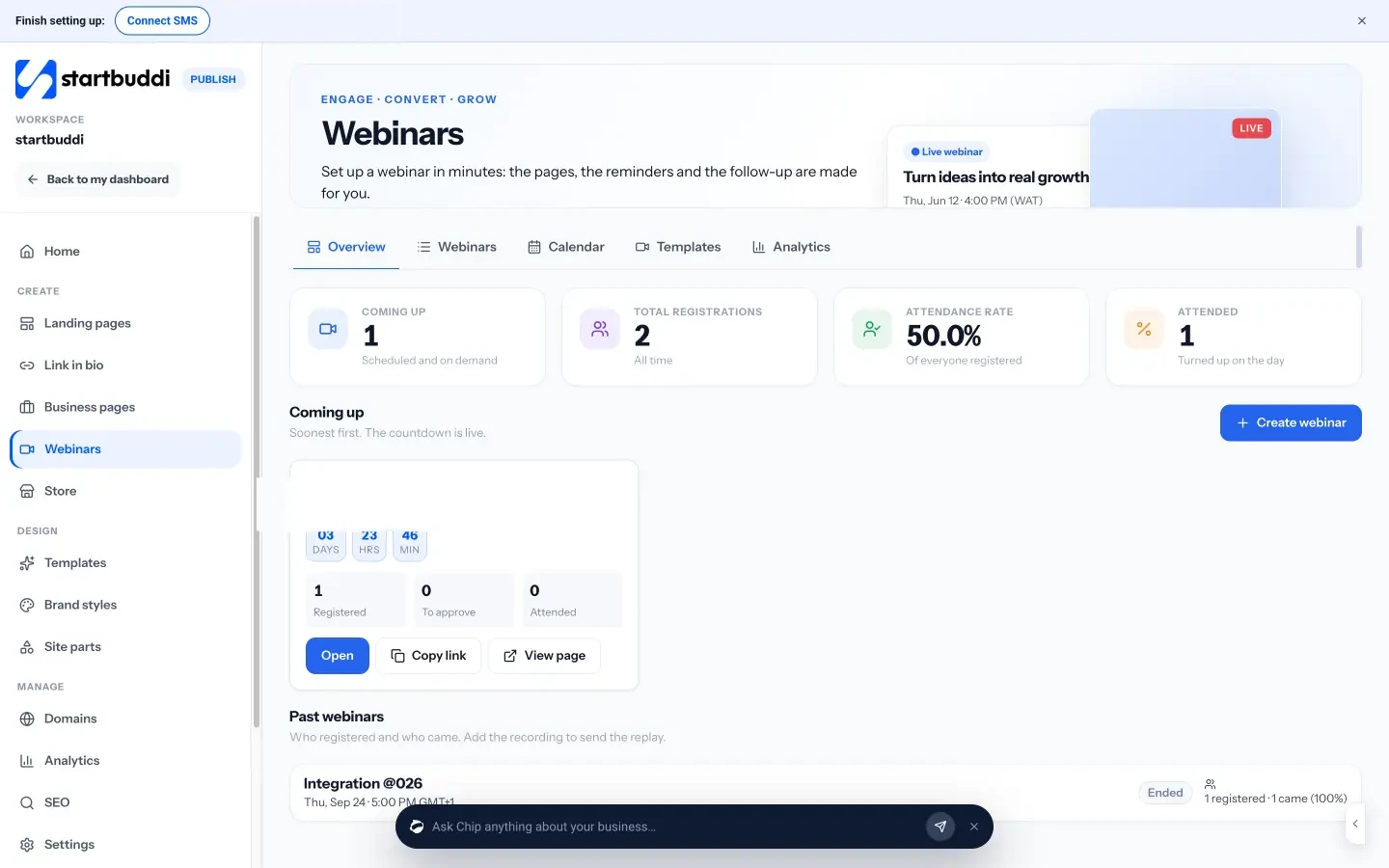
Webinars in startbuddi start on the Starter plan. startbuddi handles the parts around the session and can host the room itself.
- In Publish → Webinars, create a webinar from a template, a blank start or a sentence for Chip. The registration, thank-you and replay pages are made for you.
- Under Sessions → Edit details, choose where it happens: startbuddi Live (Starter and up), or paste your own Zoom, Google Meet or YouTube Live link. Both start on the Starter plan; the Free plan doesn’t include webinars.
- Press Publish all, copy the registration link and share it. Everyone who registers becomes a tagged contact, and a prep project with a checklist appears in Work.
- Confirmation and reminder emails (the day before, an hour before and 15 minutes before) go out on their own, each with the person’s own join link.
- On startbuddi Live, press Go live. Each registrant’s link opens their seat muted, with no lobby, and co-hosts get host controls: mute everyone, lower all hands, breakout rooms and end for everyone. Rooms hold up to 30, 100 or 300 attendees on the Starter, Growth and Scale plans; see pricing.
- Afterwards, add the recording link so the replay email goes out, and check who attended, for how long and where people left.
Read more on the webinars page, see the meeting tools in startbuddi Live, or follow the step-by-step webinar setup in the help centre. If you run courses or coaching, startbuddi for coaches shows how webinars fit with bookings and payments. For the bigger picture on turning sessions into enquiries, see our guide to lead generation for small business.
Host your next webinar in one place
Set up the pages, reminders and follow-ups for your next session, and run it in startbuddi Live or your own Zoom, Meet or YouTube Live link. Webinars start on the Starter plan; see pricing.
Frequently asked questions
How do I host a webinar for free?
You can host a webinar for free on YouTube Live once your channel is verified, or on a free meeting plan if your audience is small. You'll still need a registration page and reminders. startbuddi builds those from the Starter plan, and the session can run on your Zoom, Meet or YouTube Live link or in startbuddi Live. Check each platform's limits on attendees and session length before you promote the date.
What equipment do I need to host a webinar?
You need a laptop, a wired headset or USB microphone, a stable internet connection with a backup, and good light in front of you. A webcam built into a modern laptop is usually enough. Spend money on the microphone first, because poor sound loses viewers faster than poor video.
How long should a webinar be?
Most small-business webinars run 45 to 60 minutes, including about 10 to 15 minutes of questions. Workshops with exercises can run 90 minutes with a short break. Whatever the length, put it on the registration page and finish on time.
What is the difference between a webinar and a meeting?
In a meeting, everyone can usually speak and share video. In a webinar, attendees mostly watch and listen, and only hosts and speakers are on camera, which keeps large sessions orderly. Many small businesses run webinars in a meeting room and simply mute everyone on entry.
Can I host a webinar on my own?
You can, but it's harder. A second person to watch the chat, pass on questions and fix technical problems lets you focus on presenting. If you must host alone, turn off chat during the talk and take questions in one block at the end.
Should I record my webinar?
Yes, in most cases. Many people who register can't make the live time, and the replay gives them a second chance to watch. Tell people at the start that you're recording and how you'll use the recording.
Olabimpe Salami is the email and outreach specialist at startbuddi. Olabimpe writes about the messages that bring customers in and back: email, WhatsApp and SMS campaigns, follow-ups, and turning enquiries into paying clients.
Runs email and outreach at startbuddi