Information Technology Onboarding Checklist: Step-by-Step List + Free Template
An information technology onboarding checklist for new hires: accounts, laptop, access and security from offer to day 30, plus an access template to copy.


Photo: Ales Nesetril / Unsplash
An information technology onboarding checklist lists every IT step needed to get a new hire working safely: decide what they can access, create their accounts, prepare and secure their device, set up sign-in protection, walk them through the tools on day one and review access after 30 days. Start it the day the offer is accepted.
Key takeaways
- IT onboarding is the technical half of employee onboarding: accounts, devices, access and security.
- Decide access by role before you create anything. Give people what the job needs, not a copy of the founder’s access.
- Create accounts and prepare the laptop at least two working days before the start date; some services take up to 24 hours to switch on.
- Turn on two-step verification or passkeys for every account from day one, and keep admin rights separate.
- Every item you give on the way in becomes an item to take back on the way out, so record it.
What IT onboarding covers
For a small business without an IT department, IT onboarding usually falls to the founder, an office manager or an outside IT support company. It covers four things:
| Area | What it includes | Who usually does it in a small team |
|---|---|---|
| Accounts | Work email, file storage, chat, the business apps the role uses | Founder or office manager |
| Devices | Laptop or desktop, phone, headset, chargers | Office manager or IT support provider |
| Access | Shared drives, client folders, finance and admin tools, Wi-Fi, building access | The manager who knows what the role needs |
| Security | Passwords or passkeys, two-step verification, device encryption and updates, basic training | IT support provider or founder |
It sits alongside the HR side (contract, policies, payroll details), which our guide on how to onboard a new employee covers. Who owns each part is a question for your HR operating model.
The complete information technology onboarding checklist
Copy this list into a document or task list and tick items off for each new hire. Leave out anything your business doesn’t use.
Phase 1: As soon as the offer is accepted
Phase 2: Two to five working days before day one
Phase 3: Day one
Phase 4: First week
Phase 5: Day 30
For remote and hybrid hires
Our guide to managing a remote team covers the people side of working apart.
Free template: role-based access
This is the template that makes the checklist quick. Fill in one row per role once, then copy it for each new hire in that role. The example rows are for an illustrative 15-person IT support company.
| Role | Email and groups | Files and folders | Business apps | Admin rights | Device |
|---|---|---|---|---|---|
| Support engineer | Own mailbox; support@ group | Client documentation (read and write); finance (none) | Ticketing, remote support tool, password manager (shared vault: clients) | Local admin on test machines only | Laptop, headset |
| Account manager | Own mailbox; sales@ group | Proposals and contracts | CRM, invoicing (create, not approve) | None | Laptop, phone |
| Office manager | Own mailbox; accounts@ and info@ | Finance and HR (read and write) | Invoicing, payroll portal (view), HR system (admin) | Business app admin only | Laptop |
| Founder | Own mailbox | Everything | Everything | Separate admin account for changes | Laptop, phone |
Two columns matter most. “Admin rights” stops everyone getting admin by default. The NCSC’s guidance on securing important online accounts (checked on 1 October 2026) recommends standard accounts for daily work, admin access only for system changes, two-step verification where passkeys aren’t available, and reviewing who has access to important accounts every few months. “Device” tells you what to collect when someone leaves.
Worked example: planning one new hire’s IT setup
A 15-person IT support company in Accra is hiring a support engineer to start on a Monday. The office manager plans the IT onboarding using the template above. These figures are illustrative.
| Task | When | Time needed | Owner |
|---|---|---|---|
| Fill in access row (already exists for this role) | Offer accepted | 10 minutes | Office manager |
| Order headset; reassign a spare laptop | Offer accepted | 20 minutes | Office manager |
| Create email, groups and app accounts | Wednesday before | 45 minutes | Office manager |
| Wipe, update, encrypt and set up laptop | Thursday before | 2 hours | Senior engineer |
| Day-one sign-in, two-step verification, walkthrough | Monday | 1.5 hours | Senior engineer |
| First-week access check | Friday | 15 minutes | Manager |
| Day-30 access review | Day 30 | 20 minutes | Manager and office manager |
| Total | 5 hours 20 minutes |
Spread across two weeks, just over five hours is manageable. Squeezed into the Monday morning, it means the new engineer spends their first day watching someone else set up their laptop, and the senior engineer misses client calls. The plan also shows where the time goes: the device setup is the largest single task, so a standard build saved as a written list is the next improvement.
Common mistakes
- Copying someone else’s access. “Give her what Tunde has” also gives her everything Tunde was granted over three years.
- Starting on day one. Accounts that need a day to activate and laptops that need updates turn the first morning into waiting.
- Shared logins. One “office” password for a tool means you can’t tell who did what or remove one person’s access.
- No record of equipment. When someone leaves, you can’t collect what you didn’t write down. Every line here feeds your employee offboarding checklist.
- Admin by default. Everyday accounts with admin rights turn one phishing click into a business-wide problem. Our small business cybersecurity checklist covers the wider basics.
Run your IT onboarding checklist in startbuddi
startbuddi People turns the checklist into steps with owners and due dates, so IT tasks don’t depend on someone remembering. It doesn’t create Google or Microsoft accounts or configure laptops itself; it makes sure the right person does each step on time.
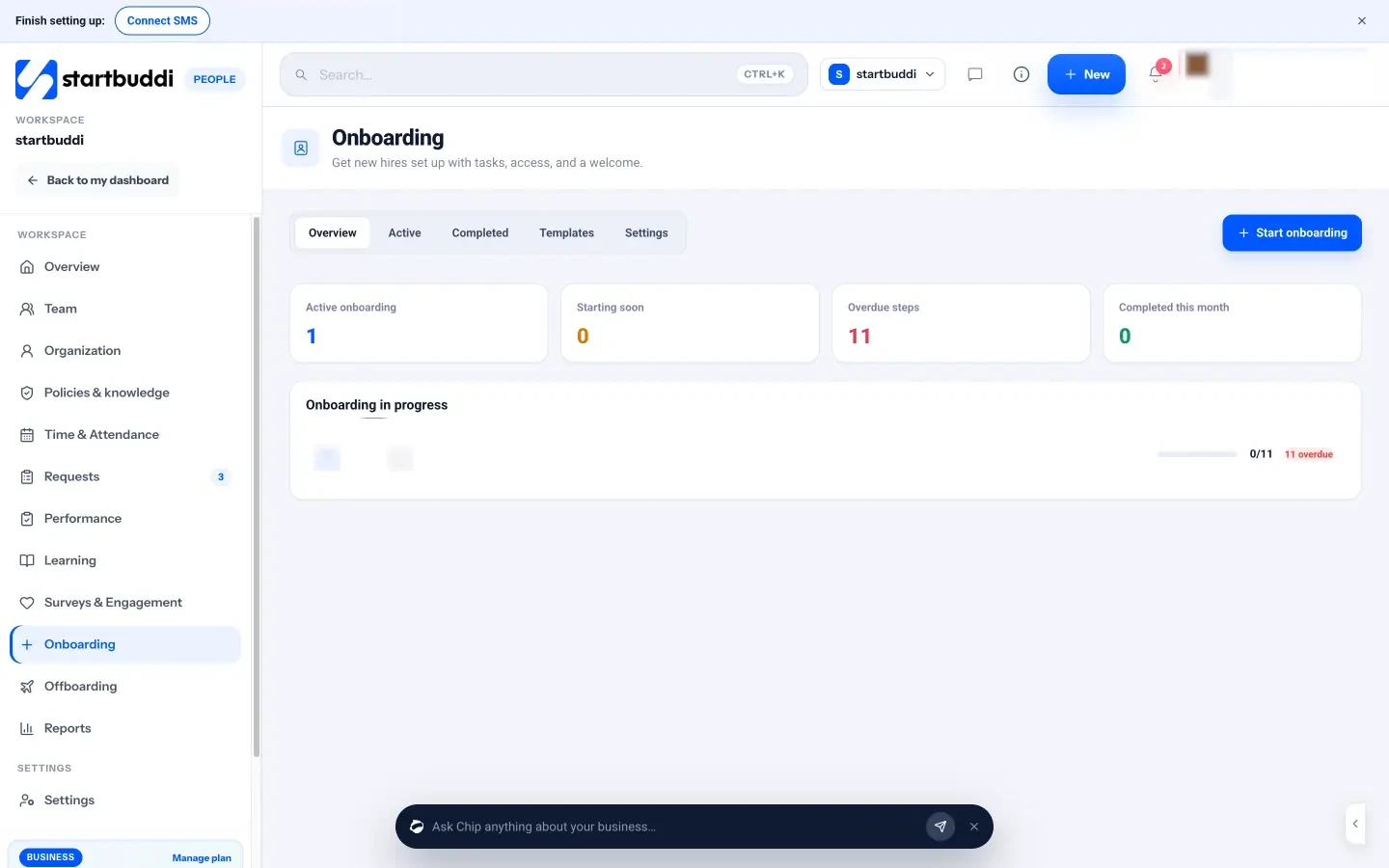
- Build an onboarding template. In People, open Onboarding, then Templates. Add your IT steps grouped by when they’re due (for example “Before day one”, “Day 1”, “Week 1”), and set the step owner to IT / Admin, Manager, HR or New hire. The built-in “Company onboarding” template already includes steps to prepare a laptop and provision workspace access.
- Add equipment and access requests. Templates can include equipment and access requests. These are raised for the workspace owner or an admin to approve, and nothing is granted automatically.
- Start onboarding for the hire. Click Start onboarding, choose the person, add their job title, department, manager and start date (due dates count from it) and pick your template. Every step owner is notified when a step is assigned to them.
- Chase what’s late. The onboarding page shows progress and overdue steps; use Send reminder on anything slipping, then Complete onboarding once every step is done.
People records don’t need a seat, but inviting a new hire to sign in to startbuddi needs a paid plan. A free plan is available; see pricing, employee onboarding in startbuddi or startbuddi for IT teams.
Turn the checklist into tasks
Copy the checklist and the access template, fill in your roles once and reuse them for every hire. Our HR for small business guide covers the rest of onboarding, and you can start free with startbuddi to give every step an owner and a due date.
Frequently asked questions
What should be on an IT onboarding checklist?
An IT onboarding checklist should cover role-based access, work email and app accounts, the device and its security settings, two-step verification, a day-one walkthrough of tools and file storage, and a review of access after the first month. Record every device and account so they can be removed when the person leaves.
When should IT onboarding start?
Start as soon as the offer is accepted. Hardware may need ordering, and accounts should be created two to five working days before day one, because some services take up to a day to activate and devices need updates before use.
Who is responsible for IT onboarding in a small business?
Usually the founder, an office or operations manager, or an outside IT support company. What matters is that one person owns the checklist and each step has a named owner, even if several people help.
How do you onboard a remote employee's IT?
Prepare and secure the device in advance, courier it with tracking, send sign-in details separately from the username, and do the day-one setup together on a video call. Agree what home equipment you'll provide and how they'll work securely away from the office network.
Should new employees get admin rights on their laptop?
Generally no. Give everyday accounts standard user rights and keep admin access for the people who make system changes, ideally on a separate account. It limits the damage if an account is compromised.
What is the difference between IT onboarding and employee onboarding?
Employee onboarding is the whole process of welcoming a new hire, from paperwork to training and first goals. IT onboarding is the technical part: accounts, devices, access and security. Both should run from the same checklist so nothing falls between HR and IT.
Omolola Akiyode is the operations and project manager at startbuddi, leading cross-functional projects and the content that helps founders get set up. Omolola writes about projects, websites and getting found online, and turns complex ideas into clear, practical steps.
Runs operations and projects at startbuddi