How to Create a Booking Page in 15 Minutes
How to create a booking page in 15 minutes: set up services, hours, buffers, questions and deposits, then share one link on WhatsApp, Instagram and email.


Photo: Jonas Leupe / Unsplash
Here is how to create a booking page: list the services people can book with a length and price for each, set the hours you’re available, add a buffer between appointments, choose the questions you need answered and whether to take a deposit, then publish and share the link. With prices and hours decided beforehand, it takes about 15 minutes.
Key takeaways
- Decide your services, prices and hours before you open any tool. That’s what makes 15 minutes realistic.
- Keep the first version short: two or three services, a handful of questions and one clear link.
- A buffer after each appointment and blocked personal time stop most clashes before they happen.
- Taking a deposit at booking is the simplest way to cut no-shows for longer or high-value services.
- Test the page by booking yourself before you share it anywhere.
What you need before you start
Gather these first. Most of the 15 minutes is typing, not deciding.
- A list of two or three services, each with a name, length and price. For example: “Consultation, 30 minutes, free”, “Knotless braids, 2 hours, ₦35,000”, “Remote IT support, 45 minutes, £60”.
- Your weekly hours, day by day, including the days you’re closed.
- How long you need between appointments for travel, cleaning or notes.
- The questions you must ask before a session, such as hair length, device type or what the client wants to cover.
- Your deposit rule, if you want one: the full price, or a fixed deposit.
- A logo and one brand colour, if you have them.
- A payment account (Paystack, Stripe or similar) if you’ll take money at booking.
How to create a booking page: step by step
These steps work in most booking tools. The names of the buttons differ; the decisions don’t.
1. Name your services clearly (3 minutes)
Use the words your clients use. “Silk press” beats “Service A”, and “Laptop health check” beats “Diagnostic package”. Put the length and price where clients can see them, because “how long?” and “how much?” are the two questions you’d otherwise answer by WhatsApp all day.
Start with the services people ask for most. You can add the long tail later. A page with twelve options makes people hesitate; a page with three gets bookings.
2. Set your working hours (2 minutes)
Enter the hours you actually want to work, not every hour you could. If you only take bookings until 4pm on Fridays, say so now. It’s easier to open more slots later than to cancel bookings you didn’t want.
If you work across time zones, set your business time zone so clients see times converted correctly.
3. Add a buffer and a booking window (1 minute)
A buffer time after each appointment gives you time to travel, clean up or write notes, so the next client isn’t kept waiting. Ten to fifteen minutes suits most studio and remote work; on-site jobs often need 30 minutes or more.
Then choose how far ahead people can book. Thirty to sixty days is common. Further than that, and plans change and no-shows creep up.
4. Block the time you’re not available (1 minute)
Lunch, school runs, the weekly team meeting, a holiday next month: block them now so they’re never offered. Most double booking in small businesses comes from slots that looked free in one place but weren’t.
5. Ask only the questions you need (3 minutes)
Name, email, date and time are collected by almost every booking tool. Add only what changes how you prepare: “What device is the problem on?”, “Is this your first visit?”, “Any allergies we should know about?”.
Every extra question loses a few people, and personal data comes with duties. The UK’s data protection regulator, the ICO, explains the principle of data minimisation (checked on 1 October 2026): collect what you need for your purpose and no more. Nigeria’s data protection rules are overseen by the Nigeria Data Protection Commission (checked on 1 October 2026). If you ask about health, keep it to what the service genuinely needs.
6. Decide on deposits (2 minutes)
A deposit turns a casual “I’ll see if I can make it” into a commitment. It suits longer services, first-time clients and anything where a missed slot can’t be resold at short notice. Free consultations usually work better without one.
Write down what happens to the deposit if the client cancels late or doesn’t show, and put that on the page. A no-show policy template gives you wording to start from, and our glossary explains what counts as a no-show appointment.
7. Make the page look like your business (2 minutes)
Add your logo, one accent colour and a one-line headline that says what people are booking: “Book a hair appointment in Yaba” or “Book remote IT support”. Pick a short link, ideally your business name, because you’ll be typing and saying it often.
8. Test it, then share it (1 minute, then ongoing)
Open the link on your phone and book yourself. Check the times, the confirmation email and the reminder. Cancel the test booking afterwards.
Then put the link everywhere clients already find you:
- your WhatsApp Business profile and quick replies;
- your Instagram bio and Google Business Profile;
- your email signature;
- a QR code at your front desk or on flyers (our free booking link QR code tool makes one).
Worked example: a 15-minute setup
Here is how Ada, who runs a two-chair braiding studio in Lagos, might spend her 15 minutes. The prices are illustrative.
| Minutes | What she sets up | Her choice |
|---|---|---|
| 0 to 3 | Services | Consultation, 15 min, free; Knotless braids, 2 hours, ₦35,000; Cornrows, 1 hour, ₦15,000 |
| 3 to 5 | Hours | Tuesday to Saturday, 09:00 to 18:00; closed Sunday and Monday |
| 5 to 6 | Buffer and window | 15 minutes after each booking; bookable up to 30 days ahead |
| 6 to 7 | Blocked time | Lunch, 13:00 to 14:00, every day |
| 7 to 10 | Questions | “Hair length now?”, “Bringing your own extensions?” |
| 10 to 12 | Deposit | ₦10,000 on braids, nothing on consultations |
| 12 to 14 | Look | Logo, gold accent colour, headline “Book braids in Yaba” |
| 14 to 15 | Test and share | Books herself, then pins the link in her WhatsApp status |
The deposit maths is simple. If a ₦35,000 braids client doesn’t show, Ada keeps ₦10,000 and doesn’t lose the whole afternoon for nothing. On the day, the client pays the remaining ₦25,000.
A remote IT consultant in Toronto would make the same decisions with different answers: one 45-minute “Remote support session” at C$90, a 10-minute buffer, a question about the device and operating system, and full payment at booking.
Common mistakes when creating a booking page
- Too many services. Start with the few people ask for most.
- No buffer. Back-to-back slots look efficient and make you late by the afternoon.
- Hidden prices. If people have to message to ask, many won’t.
- Taking bookings in two places. If phone and WhatsApp bookings live in a diary while the page takes online bookings, clashes follow. Add every booking to the same calendar.
- No reminder. People forget. Automatic reminders are one of the cheapest ways to reduce missed appointments; see how to automate appointment reminders.
- Never testing on a phone. Most clients will book on one.
How to create a booking page in startbuddi
startbuddi Bookings follows the same steps. The help article on setting up a booking session has the full detail; here’s the short version.
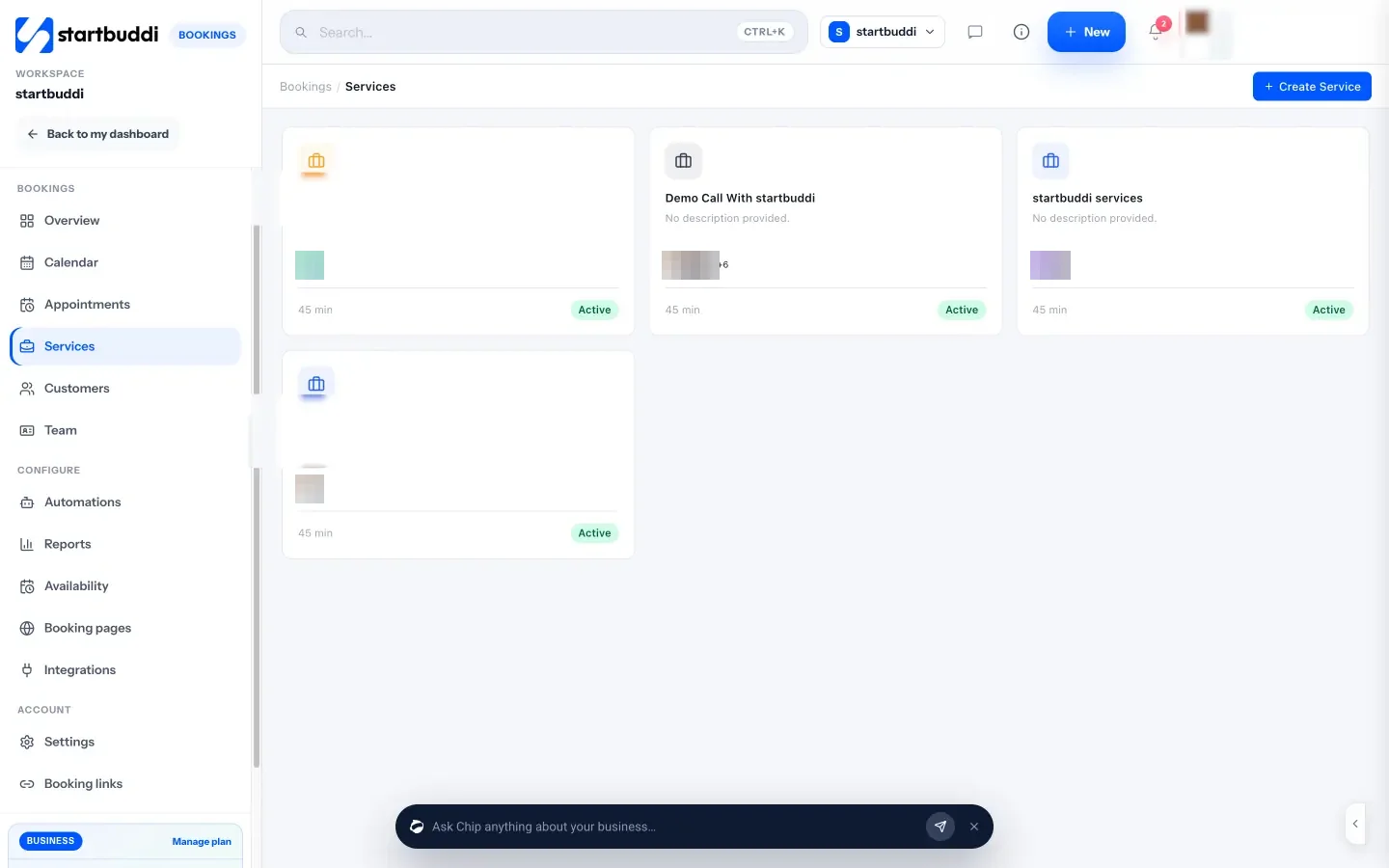
- Create a service. Open Bookings, click Services, then Create Service. Enter a service name and description, choose a duration and colour, pick who hosts it under Assign to Staff, and click Create service.
- Add a price, questions and a deposit. Open the service. Under Duration & pricing, set the price and currency (naira, dollars, pounds, euros, shillings, rand and cedis are available). To take money up front, switch on Require payment to book and choose the full price or a deposit; clients pay through Paystack or Stripe, which you connect first. Under Booking questions, add short or long answers, choices or a rating, and Chip can suggest questions for you to keep or delete. Click Save changes.
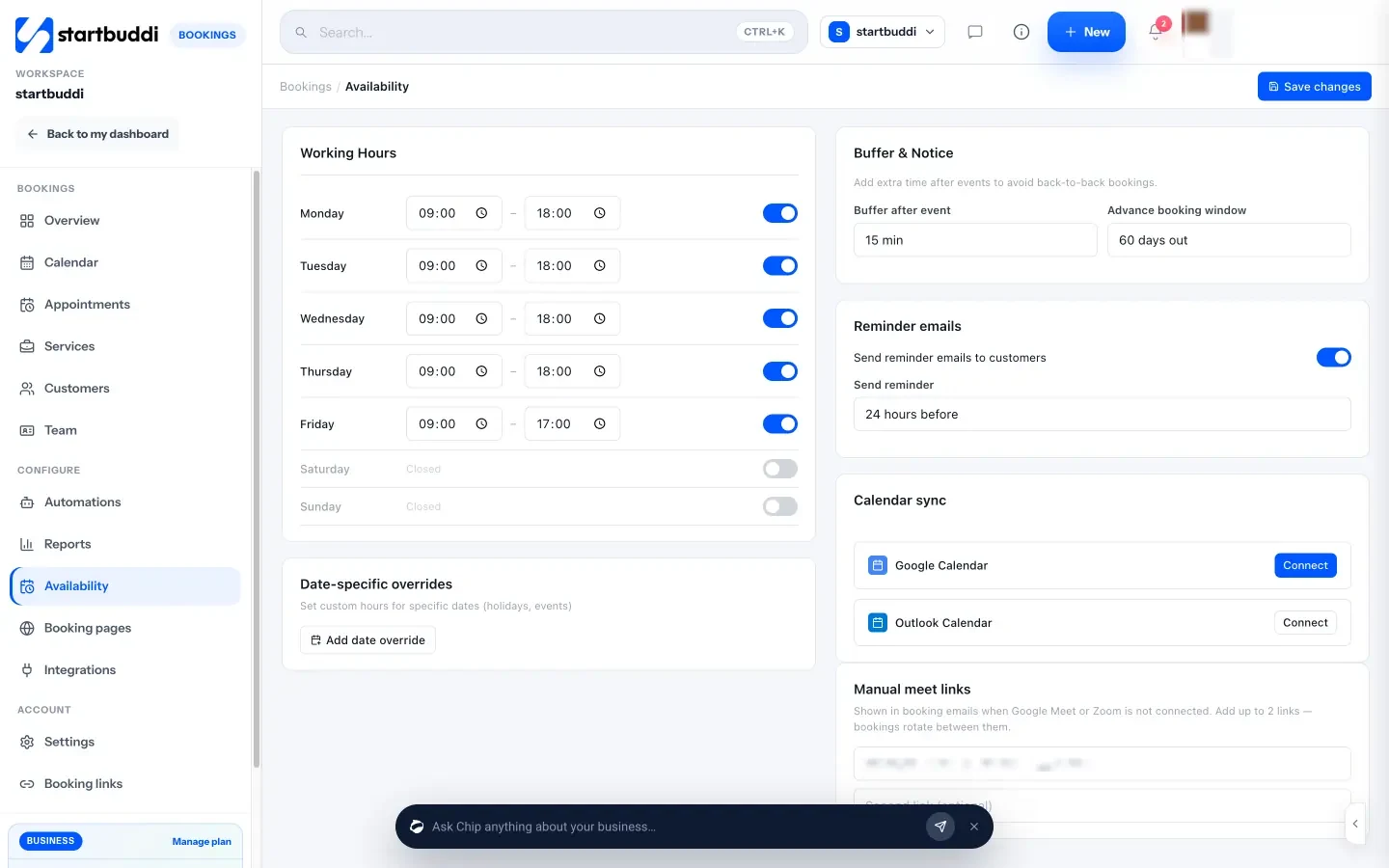
- Set your hours and buffer. Click Availability. Set Working Hours for each day, then under Buffer & Notice choose a Buffer after event and your Advance booking window. Click Save changes. For lunch, holidays or training, use Block time on the Calendar.
- Choose your link. Click Settings. Under Your booking link, type the name you want after /b/, such as your business name, and click Save link. Old links keep working if you change it later. Set your default time zone and fill in Sender name and Sender email so replies come to you, then click Save Settings.
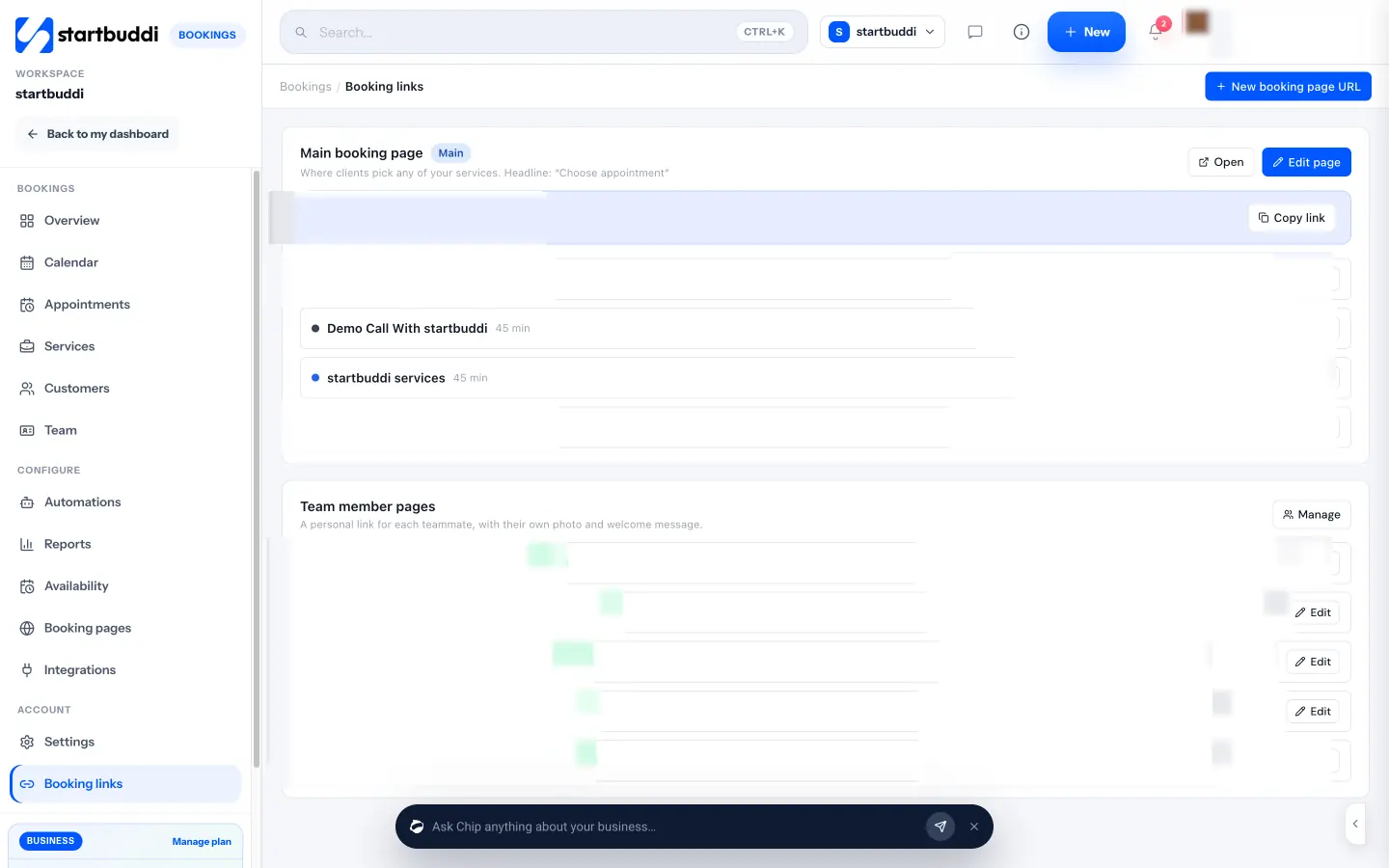
- Make the page look like you. Click Booking links and edit your main booking page. Add a headline, intro, logo and accent colour, and group your services under Services and groups. Click Save changes.
- Share it. On the Bookings Overview, click Share booking link to copy it or send it by WhatsApp or email. In Settings, under Embed & share, use Copy embed code for your website or download a QR code.
When a client books, they choose a service, pick a free time, enter their details and confirm. If you asked for a deposit, they go to checkout and the slot is held for 30 minutes while they pay. They get a confirmation email with a calendar invite and a page where they can join or cancel, a reminder goes out at the time you choose before the session (by email, or by WhatsApp or SMS once those are set up), and they’re added to your contacts automatically.
Two honest notes. Calendar sync adds your startbuddi bookings to Google Calendar but doesn’t read other events back, so block personal time in Bookings. And each booking is one client in one slot, which suits one-to-one sessions; for classes and workshops, an event or webinar page is a better fit.
The Free plan includes one live service and one booking page link, and bookings received are never limited. See pricing for what each plan includes, read more about startbuddi Bookings and appointment scheduling software, or compare options in our list of the best booking software. If you’re also setting up your website and social profiles, our guide to getting your business online covers the rest.
Your booking page, live today
Write down your services, hours and deposit rule, then give it 15 minutes. Start free with startbuddi to create your booking page and take your first online booking today.
Frequently asked questions
How do I create a free booking page?
Pick a booking tool with a free plan, add your services with lengths and prices, set your working hours and share the link it gives you. Most free plans limit the number of services or pages rather than bookings. startbuddi's Free plan includes one live service and one booking page link.
What should a booking page include?
A booking page should show each service with its length and price, the times you're free in the client's time zone, a short form for contact details and any essential questions, and your cancellation or deposit policy. A logo, a clear headline and a confirmation email make it feel trustworthy.
Should I take a deposit when clients book?
A deposit makes sense for long or high-value appointments, first-time clients and slots you can't refill at short notice. It reduces no-shows because the client has already committed money. Free consultations and short repeat visits often work fine without one.
Can I use a booking page without a website?
Yes. A booking page has its own link, so you can share it on WhatsApp, Instagram, Google Business Profile, email or a printed QR code. If you have a website later, you can link to it or embed it there.
How do I stop people booking at times I'm not available?
Set your working hours accurately, block lunch, holidays and other commitments, and add a buffer after each appointment. Keep every booking, including phone and WhatsApp ones, in the same calendar so the page always knows which slots are taken.
How do I share my booking link on WhatsApp?
Copy your booking link and add it to your WhatsApp Business profile, a quick reply and your status. When someone asks "are you free on Saturday?", reply with the link so they can see real availability and book straight away.
Tiwalade Joanna Okedara-Kalu is the founder, CEO and CTO of startbuddi, the business system that brings clients, bookings, invoices, projects, marketing and the Chip AI assistant into one place. Tiwalade builds software around how service businesses really work day to day, and writes about client management, getting paid on time and why small businesses outgrow the tools they start with.
Founded startbuddi and leads its product and engineering