How to set up a Google Business Profile and get reviews
Set up your Google Business Profile step by step, get through verification, fill in the details that matter, and collect genuine reviews with templates you can copy.


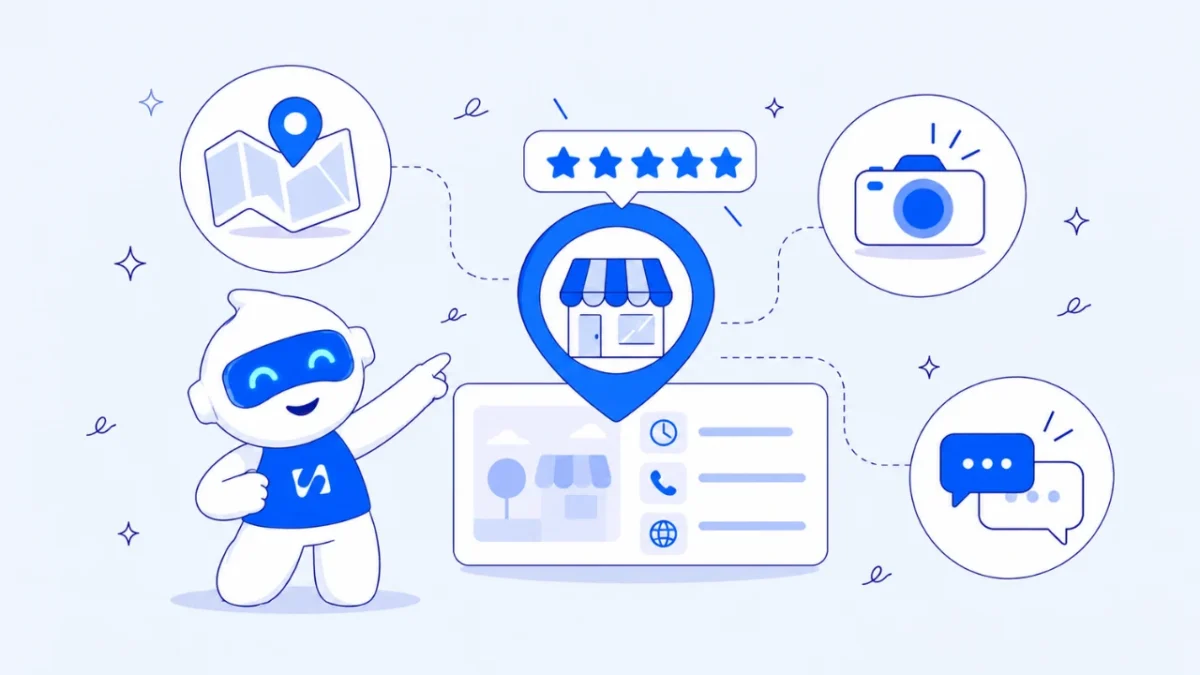
- A Google Business Profile is the free listing that puts your business on Google Search and Maps. Add it at business.google.com, verify it, fill in every field, then ask every happy customer for a review using your review link or QR code. Reply to reviews, never pay for them, and keep your details up to date.
A Google Business Profile is the free listing that shows your business on Google Search and Google Maps, with your hours, phone number, photos and reviews. To set one up, go to business.google.com/add, enter your business details, and complete the verification Google offers you. Then fill in every field and start asking happy customers for reviews using the review link Google gives you.
That’s the short version. Below is the full process: what to prepare, each setup step, how verification works, what to fill in so people choose you, and how to collect and reply to reviews without breaking Google’s rules.
What a Google Business Profile is, and who can have one
When someone searches for “pharmacy near me” or your business name, Google often shows a panel or a map pin with the business’s details. That’s a Business Profile. It’s often the first thing a customer sees about you, before your website or social media.
Not every business qualifies. Google’s guidelines for representing your business expect you to meet customers in person, either at a real location during your stated hours or by travelling to them. A shop, salon, restaurant, clinic, plumber or cleaning company fits. A purely online business with no face-to-face contact usually doesn’t.
Setting up a profile is free. The help page on adding or claiming your business covers both a brand-new listing and one Google already created from public information.
What to prepare before you start
Having everything ready turns a frustrating hour into a 20-minute job. Gather these first.
| What you need | Why | Tip |
|---|---|---|
| A Google account | You manage the profile with it | Use a business email your team can access, not a personal one you might lose |
| Your exact business name | It must match your signage and paperwork | No extra keywords or slogans |
| Address or service areas | Decides where you appear | Service businesses can hide their address and list areas instead |
| Main category | Tells Google what you are | Search Google for a competitor and note the category they use |
| Phone number and website | How customers reach you | A number that’s answered during your hours |
| Opening hours | Shown on Maps and Search | Include hours for public holidays |
| Photos | Help people recognise and trust you | Storefront, interior, team, finished work |
How to set up a Google Business Profile step by step
- Check whether a profile already exists. Search your business name and area on Google Maps. If a listing shows up with “Claim this business”, choose that and select “Manage now” instead of creating a duplicate.
- Start a new profile. If nothing exists, go to business.google.com/add and choose to add your business.
- Enter your business name and category. Start typing your category and pick the closest match from Google’s list.
- Add a location or service area. Choose whether customers visit you. If they don’t, add the towns or areas you serve.
- Add contact details. Your phone number and website. If you don’t have a website yet, you can add one later.
- Verify. Google shows the verification options available for your business. More on this below.
- Complete the rest. Hours, description, services, photos and attributes. A profile that’s only half filled in gives customers fewer reasons to pick you.
How verification works
Verification proves you’re allowed to manage the business. Until it’s done, your changes may not show and you can’t reply to reviews. According to Google’s help page on verifying your business, the available methods depend on your business type, location and the information Google already has. You can’t pick any method you like: Google offers the ones that apply to you.
| Method | How it works |
|---|---|
| Phone call or text | Google sends a code to your business number |
| A code or link is sent to a business email address | |
| Video recording | You record and upload a short video that shows your business, following Google’s instructions |
| Live video call | You show the same things to a Google support person in real time |
| Postcard | A code is posted to your address. Google says most arrive within 14 days |
After you submit, Google may take up to five business days to review your information, and codes expire after 30 days. If you’re offered video, read Google’s on-screen instructions before you press record and plan the shot: it usually needs to show where you are, your business signage or equipment, and proof that you manage the business. One continuous take is easier than trying again after a rejection.
Fill in your profile so people choose you
A verified profile is a start. A complete one is what gets calls. Work through these sections.
Description
You have room for a few sentences. Say what you do, who for and where, in plain words. For example: “Family-run bakery in Surulere making birthday and wedding cakes to order since 2019. We deliver across mainland Lagos and take orders by phone and WhatsApp.”
Services or products
List your main services with a short description and a price or starting price where you can. People compare before they call, and prices save you from enquiries that were never going to buy.
Photos
Google’s tips on improving your local ranking recommend adding photos and keeping your information complete and accurate. Add your logo and a cover photo, then real pictures: outside so people can find you, inside so they know what to expect, and your work so they can judge the quality. Add new ones regularly.
Hours and special hours
Nothing loses a customer faster than turning up to a closed door that Google said was open. Set special hours ahead of public holidays and your own closures.
How to get Google reviews the right way
Reviews matter to customers. In BrightLocal’s Local Consumer Review Survey 2026 of 1,002 US adults, 97% said they read reviews for local businesses, and 68% want to see at least four stars. Google’s own guidance also says more reviews and positive ratings can help your local ranking.
The rules you must follow
Google’s policy on fake engagement lets you ask customers for honest reviews. It does not allow you to:
- offer a discount, gift, payment or free service in exchange for a review
- ask staff, family or friends to review you
- pressure people to write a review while they’re on your premises
- ask for reviews that include specific wording
- post reviews yourself, or have one person post from several accounts
In the US, the FTC’s rule on fake reviews adds legal penalties for buying reviews or suppressing honest ones. This is general information, not legal advice.
Get your review link and QR code
Google’s help page on creating a review link or QR code explains the steps: open your Business Profile, select Read reviews, then Get more reviews. Copy the link, or save the QR code image. At the time of writing, the QR code can only be created from a computer browser.
When to ask
Ask at the moment the customer is happiest, and make it one tap. Here’s when that moment usually comes for different businesses.
| Business | Best moment to ask | How |
|---|---|---|
| Salon or barber | Right after the appointment | WhatsApp message with the link that evening |
| Restaurant or café | With the bill | QR code on the table card or receipt |
| Cleaner or plumber | When the job is signed off | Text or WhatsApp with the link |
| Online shop with pickup | A day after collection | Email with the link |
| Consultant or agency | After a project milestone the client praised | Personal email from you |
Review request templates
WhatsApp or text:
Hi Tunde, thanks for bringing your car to us today. If you’re happy with the service, a quick Google review would really help other drivers find us: [review link]. Thank you!
Email:
Subject: How did we do, Aisha?
Hi Aisha, thank you for choosing Bloom Events for your daughter’s party. We hope everyone had a lovely time. If you have two minutes, we’d be grateful for an honest review on Google. It helps other families decide: [review link]. Thank you, Ronke
In person: “We’re a small business and Google reviews really help us. If you’re happy, the link is on your receipt.” Then leave it there. No pressure, no incentive.
How to reply to reviews
Once you’re verified you can reply to reviews from your profile by opening Read reviews and choosing Reply, as Google’s help page on managing customer reviews describes. The reviewer is notified, and your reply shows publicly as the business. In the BrightLocal survey, 89% of consumers said they expect a response and 50% saw generic, templated replies negatively, so use the templates below as a starting point, not a copy-paste script.
Positive review
Thank you, Chioma! We’re so glad the jollof tray was a hit at your office lunch. See you next time.
Mixed review
Thanks for the honest feedback, Musa. We’re glad you liked the haircut and sorry about the wait. We’ve changed how we book Saturday slots so it doesn’t happen again.
Negative review
We’re sorry, Grace. This isn’t the experience we want for anyone. Please call us on [number] or message us so we can put it right.
Reply calmly, take the details offline, and never argue in public. If a review breaks Google’s policies, for example spam or a review about a different business, you can report it from Read reviews. Google’s page on reporting inappropriate reviews says evaluation usually takes several days, and a review isn’t removed just because it’s negative.
Keep your profile fresh after setup
A Business Profile isn’t a one-off job. Ten minutes a month keeps it accurate and gives customers a reason to trust it.
- Monthly: check your hours, phone number and website link still work, and add two or three new photos of recent work.
- Weekly: read and reply to new reviews, and answer any questions people have asked on your profile.
- Before holidays: set special hours so Google doesn’t show you as open when you’re closed.
- When anything changes: a new address, a new number or a new main service should be updated the same day, everywhere your details appear.
Print your review QR code and put it where customers wait or pay. If you also take bookings, a printed booking link QR code next to it lets people book their next visit while they’re still in the chair.
Mistakes that get profiles suspended or ignored
- Adding keywords, locations or slogans to your business name.
- Using a virtual office, a PO box or an address where you don’t meet customers.
- Creating more than one profile for the same location.
- Offering discounts or gifts in return for reviews.
- Letting your hours and phone number go out of date.
- Never replying to reviews, good or bad.
Once your profile is live, it becomes the centre of your wider local SEO work, which covers your website, consistent details and local links.
How startbuddi helps you get more Google reviews
startbuddi doesn’t connect to your Google Business Profile or post to it. What it does is make the two things around it easier: a good page for your profile to link to, and asking every customer for a review without having to remember.
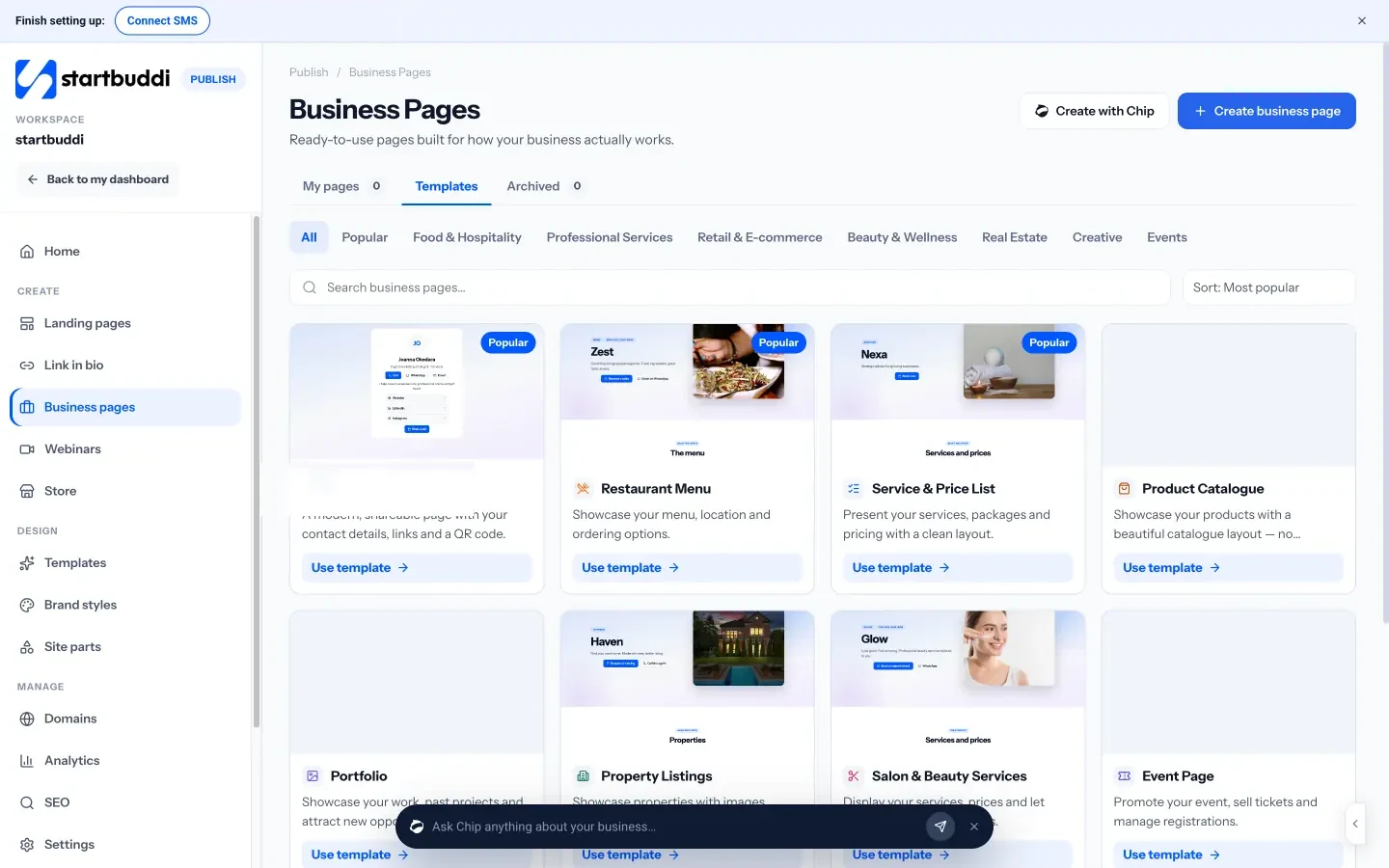
Business pages give you a ready-made page built for your type of business, such as a salon price list, a restaurant menu, a service list or a digital business card. It can include your hours and location, a Directions button that opens Google Maps, and buttons to book, call or chat on WhatsApp. Put its link in the website field of your profile.
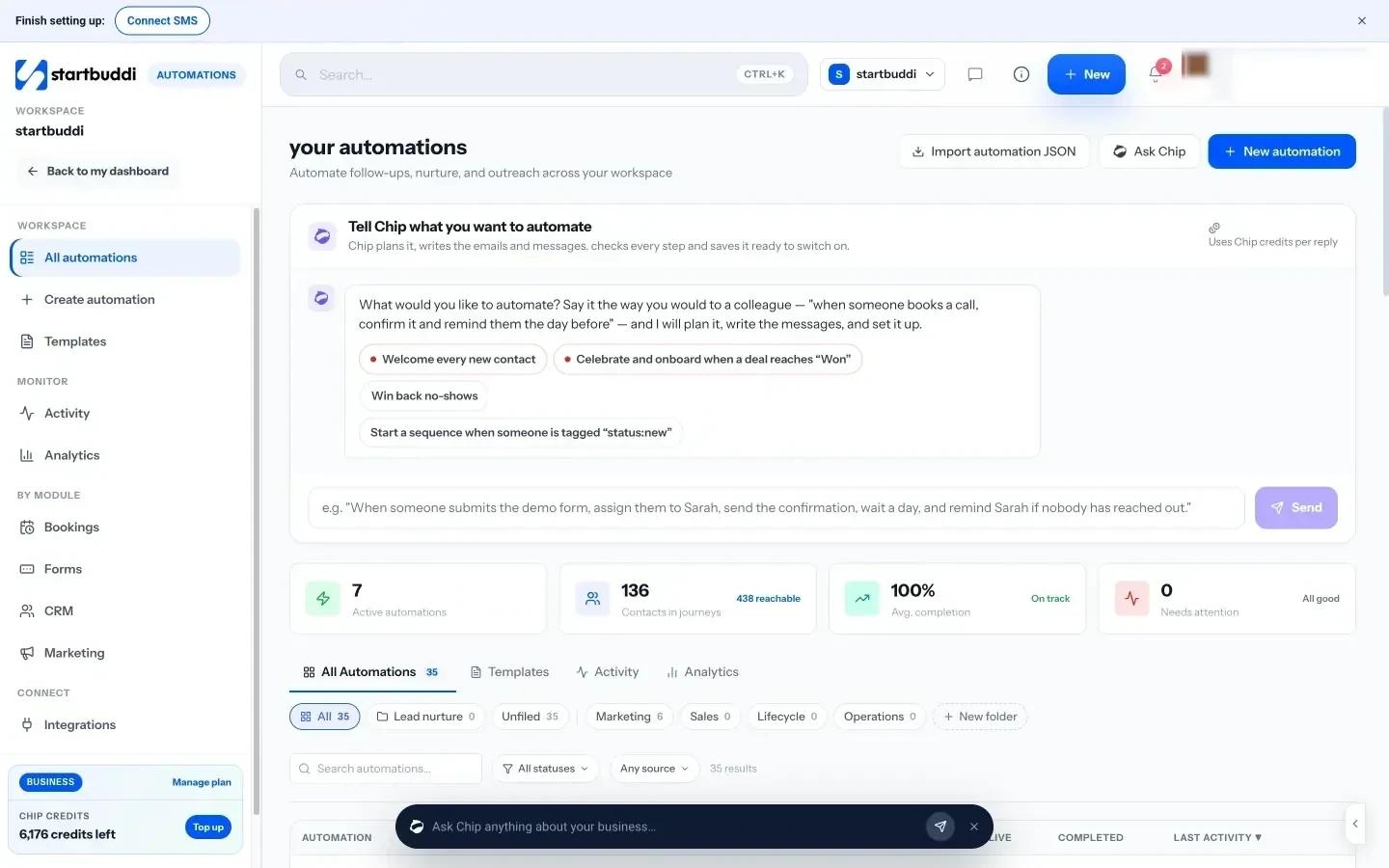
If you take appointments with Bookings, you can set up an automation that starts when a booking is marked completed and sends the customer a short thank-you email with your review link. “Ask for a review after every completed booking” is one of the free suggestions Chip offers in Automations. You can also describe what you want to Chip in plain words, and it saves the automation as a draft for you to check before you switch it on.
For customers who bought before you had a profile, you can pick a group from your contacts, such as everyone who paid an invoice this year, and send one friendly email campaign asking for a review. Their replies land in your shared inbox.
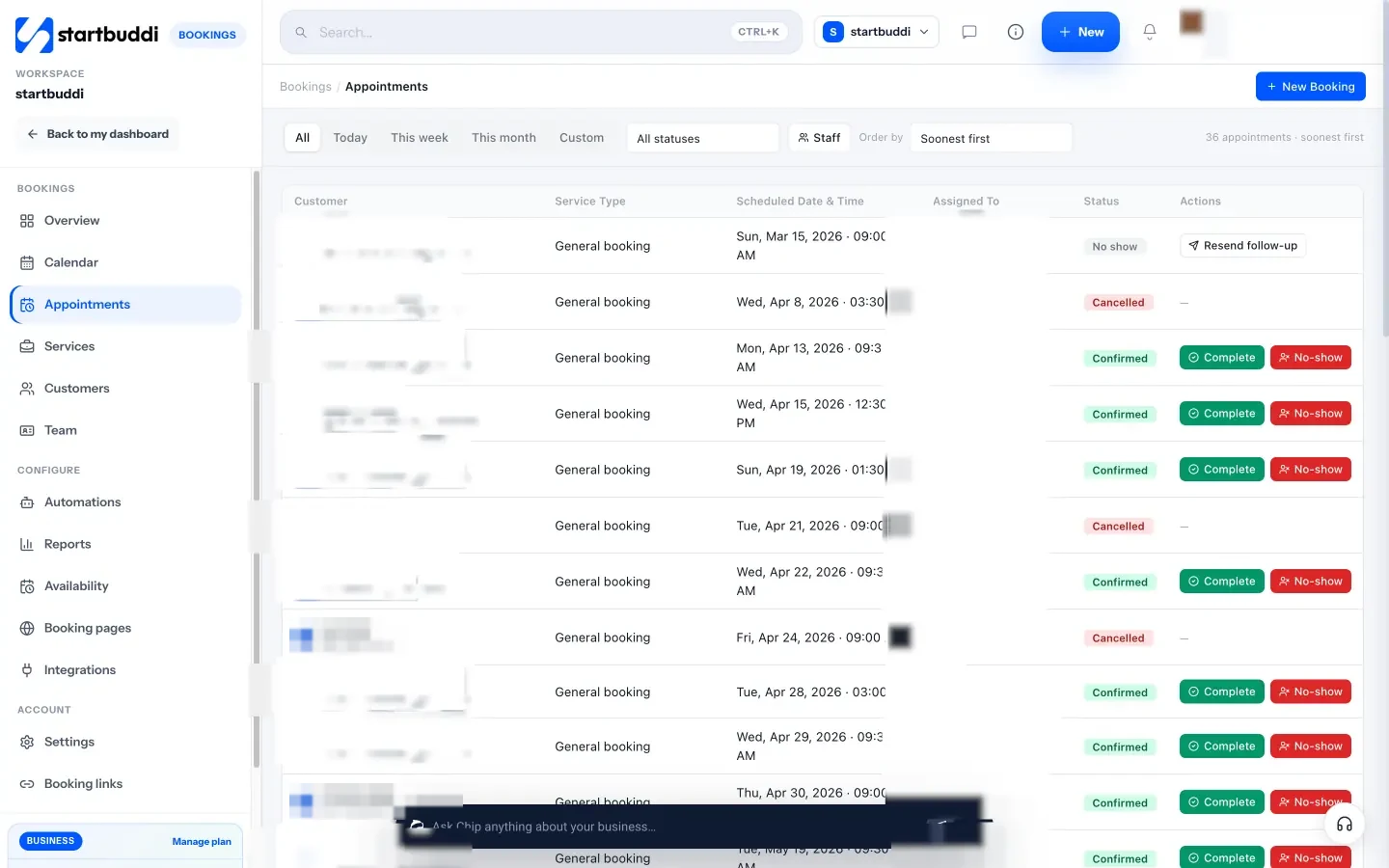
Automations and email campaigns are included in every paid plan from Starter up, and every paid plan starts with a 30-day trial.
Your next step
Search your business on Google Maps today. If a listing exists, claim it; if not, add it at business.google.com/add and start verification. Then copy your review link and send it to your five happiest recent customers. When you want those requests to go out by themselves, see the plans on our pricing page.
Sources
- Google Business Profile Help: Add or claim your Business Profile
- Google Business Profile Help: Verify your business
- Google Business Profile Help: Guidelines for representing your business
- Google Business Profile Help: Tips to improve your local ranking
- Google Business Profile Help: Create a Google link or QR code to request reviews
- Google Business Profile Help: Manage customer reviews
- Google Business Profile Help: Report inappropriate reviews
- Google Maps: Fake engagement policy
- BrightLocal: Local Consumer Review Survey 2026
- FTC: Final rule banning fake reviews and testimonials
Frequently asked questions
Does a Google Business Profile cost anything?
No. Creating, verifying and managing a Business Profile is free. Be wary of anyone charging you to be listed or promising a top ranking.
Can I have a profile without a shop?
Yes, if you meet customers in person by travelling to them. Set up a service-area profile, hide your home address and list the areas you cover.
Can I delete bad reviews?
You can't delete a customer's review. You can reply to it, and report it if it breaks Google's policies, such as spam or fake content. Google decides whether to remove it.
How many reviews do I need?
There's no magic number. Aim for a steady flow of recent, genuine reviews by asking every happy customer, rather than a burst once a year.
Tiwalade Joanna Okedara-Kalu is the founder, CEO and CTO of startbuddi, the business system that brings clients, bookings, invoices, projects, marketing and the Chip AI assistant into one place. Tiwalade builds software around how service businesses really work day to day, and writes about client management, getting paid on time and why small businesses outgrow the tools they start with.
Founded startbuddi and leads its product and engineering