CRM vs Excel: when spreadsheets start slowing your business down
CRM vs Excel from the Excel side: formulas that stretch a workbook further, where sharing and versions break, the signs you've outgrown it, and how to move over.


Chinonye wrote this while on the startbuddi team. The product has changed since, so the team updated it on .

- Excel is a fine client list for one person and a few dozen contacts, especially with a status drop-down and a next-step date column. Once several people share the file, versions multiply and follow-ups slip, a CRM earns its place. Clean the workbook, save it as CSV and import it.
CRM vs Excel comes down to this: Excel stores your customer list, a CRM runs it. Excel is excellent at rows, formulas and quick analysis, and it’s a perfectly good client list while one person manages a few dozen contacts. A CRM (customer relationship management software) adds what Excel can’t do on its own: a history of every conversation, reminders that fire without you opening a file, one live copy the whole team shares, and a pipeline that updates as deals move. Switch when Excel starts costing you follow-ups, not when a salesperson tells you to.
This post looks at the question from the Excel side: the formulas and tricks that stretch a workbook further, where sharing and versions break down, the signs you’ve outgrown it, and how to move your workbook into a CRM without losing anything. If you use Google Sheets or want the wider comparison for agencies, read our companion piece on CRM vs spreadsheet.
CRM vs Excel at a glance
| Excel | CRM | |
|---|---|---|
| What it’s built for | Calculating and analysing data | Managing relationships and follow-ups |
| Cost | Often already paid for in Microsoft 365 | Monthly subscription, often with a free plan |
| History | Whatever you type into a notes cell | Every email, message, call and note on a timeline |
| Reminders | Only if you open the file and look | Tasks and notifications that come to you |
| Sharing | Co-authoring in the cloud, or copies by email | One shared system with owners and permissions |
| Pipeline | A status column, filters and maybe a pivot table | A board you drag deals across, with values |
| Connections | Copy and paste from forms, inbox and invoices | Forms, bookings, inbox and invoices write to the record |
| Analysis | Excellent: formulas, pivots, charts | Built-in reports; exports to Excel for deeper work |
The short version: a spreadsheet stores data, a CRM tracks a relationship. A cell can say “Called, no answer”. It can’t tell you that was three weeks ago, who made the call, or what happened before.
When Excel is still fine as a CRM
Plenty of businesses run happily on a workbook for their first year or two. Excel is enough when:
- You have fewer than roughly 30 active leads and clients at any time.
- One person handles every conversation and nobody else needs to update the list.
- You don’t need automatic follow-ups, reminders or a pipeline board.
- Most of your work is repeat business from a handful of clients.
- You’re still testing an idea and don’t want another subscription yet.
If that’s you, spend ten minutes making the workbook better instead of switching.
How to make an Excel client list work harder
- Turn the range into a table (Insert, then Table). Filters, banded rows and formulas extend automatically as you add clients.
- Use data validation for status. A drop-down list (New, Contacted, Quoted, Won, Lost) stops “quoted”, “Quote sent” and “QUOTED” becoming three different statuses.
- Add a “Next step date” column with conditional formatting. A rule that turns the cell red when the date is before TODAY() gives you a crude reminder system.
- Use XLOOKUP or VLOOKUP to pull client details into a quote or invoice sheet instead of retyping them.
- Build one pivot table showing the value of deals by status. It’s the closest Excel gets to a pipeline view.
- Freeze the header row and keep one row per client. Notes about each call go in a separate “Log” sheet with date, client and note, not in ever-longer cells.
A simple Excel CRM layout you can copy
| Column | Type | Tip |
|---|---|---|
| Client name | Text | One row per person or company |
| Email and phone | Text | Phone with country code, e.g. +44 or +234 |
| Source | Drop-down | Website, referral, Instagram, WhatsApp, repeat |
| Status | Drop-down | New, Contacted, Quoted, Won, Lost |
| Value | Currency | Your best estimate of the deal |
| Next step | Text | A verb: “Send quote”, “Call about start date” |
| Next step date | Date | Red when overdue, amber when due today |
| Owner | Drop-down | Only if more than one person sells |
| Last contacted | Date | Update every time you speak to them |
Sort by “Next step date” every morning and work from the top. If you do nothing else, that one habit will save deals.
These tricks buy time. They don’t fix the underlying problem: Excel only helps when someone opens it.
Where Excel breaks down as a CRM
1. Formulas are fragile and errors are invisible
One sorted column that didn’t include its neighbours, one lookup pointing at the wrong range, one hard-typed number over a formula, and your totals are wrong without any warning. Researcher Ray Panko, who spent years studying the subject, concluded in What We Don’t Know About Spreadsheet Errors Today that errors are rare per cell but that large spreadsheets are very likely to contain at least one wrong bottom-line figure, and that people are overconfident about finding them. A client list with a revenue forecast bolted on is exactly the kind of file where this happens.
2. Sharing turns into version chaos
Excel can be shared properly: Microsoft’s co-authoring lets several people edit at once when the file lives on OneDrive or SharePoint Online. In practice, small teams often don’t work that way. Someone downloads a copy, someone emails “Clients_final_v3.xlsx”, someone updates the copy on their laptop, and a week later there are three versions with different phone numbers and nobody knows which is right.
3. No memory of who did what
If a status changes from “Quoted” to “Lost”, Excel won’t tell you who changed it, when, or why. In a team, that makes it impossible to trust the file or hand a client over cleanly.
4. Reminders depend on opening the file
Your red conditional-formatting cells only help if you look at them. On a busy week you won’t, and that’s the week leads go cold.
5. Everything arrives by copy and paste
Enquiries come in through your website form, WhatsApp, Instagram and email. Every one has to be typed into the workbook by hand. Each copy is a chance to mistype an email address or forget the row altogether.
6. Personal data is hard to control
A workbook emailed to a freelancer, saved to a personal laptop and synced to a phone is a copy of your customers’ personal data in places you don’t control. General information, not legal advice: data protection laws such as the UK and EU GDPR expect you to know what personal data you hold and to keep it secure, so check the rules where you work.
7. Size limits (rarely the real problem)
An Excel worksheet holds up to 1,048,576 rows by 16,384 columns, so small businesses almost never hit the limit. Workbooks do get slow with heavy formulas long before that, but for most people the problems above bite first.
What an Excel CRM really costs
Excel looks free because you already pay for it. The real cost is in time and missed work. A quick example: say your average job is worth $800 and one lead a quarter slips through because a follow-up date passed unseen. That’s $3,200 a year, before counting the hours spent retyping enquiries and reconciling copies. Run the same sum with your own numbers. If the answer is bigger than the cost of a CRM, the spreadsheet is the expensive option. If it’s close to zero, keep the spreadsheet.
Signs you’ve outgrown Excel
The trigger is rarely a number of rows. It’s a change in how the file behaves. If two or more of these are true, it’s time:
- You’ve heard “wait, who followed up with them?” more than once this month.
- Two people give different answers about the same client.
- There’s more than one copy of the client workbook.
- You’ve lost a deal because a follow-up date passed unnoticed.
- Updating the sheet takes longer than acting on it.
- Building a simple “what’s in the pipeline” report takes more than half an hour.
- More than one person needs to update client records every day.
What a CRM does that Excel can’t
- Keeps a timeline per client. Emails, messages, calls, notes, bookings and invoices appear in order on one page.
- Brings reminders to you. Tasks with due dates show up on your dashboard and in notifications, whether or not you open a file.
- Lets enquiries create records. Forms, booking pages and chat add contacts automatically.
- Automates routine follow-ups. A thank-you email after a form, a reminder before a call, a task when a deal goes quiet.
- Shows a pipeline you can drag deals across, with values and win rates.
- Gives each person the right access and records who changed what.
And you don’t lose Excel. Most CRMs export to CSV or Excel, so you can still build pivot tables and charts on a clean, current copy of the data whenever you want deeper analysis.
What a CRM won’t do for you
Be realistic about the switch. A CRM won’t make the calls, write the proposals or decide who deserves your time. If nobody updates Excel today, nobody will update a CRM tomorrow unless the habit changes too. The difference is that a CRM makes the habit easier: records fill themselves from forms and messages, reminders arrive without opening a file, and the next step is always one click away. Pick one person to own the setup, agree two or three rules for the team (every lead gets a next step, every call gets a note), and review the pipeline together once a week for the first month.
How to move your Excel client list into a CRM
For most small businesses this is a day’s work, not a project.
- Pick one master workbook. Merge any other copies into it and delete the rest.
- Clean it. Remove duplicates (Data, then Remove Duplicates), fix obvious typos in emails and phone numbers, and split “Full name” into first and last name if your CRM asks for both.
- Standardise columns. One column per field: name, email, phone, company, source, status, next step, next step date, notes. Put phone numbers in one format with country codes.
- Save as CSV (File, then Save As, then CSV UTF-8). Most CRMs import CSV files rather than .xlsx workbooks.
- Import and map columns to the CRM’s fields. Test with 20 rows first, check them, then import the rest.
- Add your open deals to the pipeline with a value and a next step each.
- Freeze the workbook. Rename it “ARCHIVE, do not edit” so nobody keeps updating the old copy.
Our guide on moving your business off spreadsheets covers invoices and projects too, and how to create a customer database helps you decide which fields to keep.
How startbuddi handles the move from Excel
If you decide to switch, here is how it works in startbuddi.
Import. In Contacts, the import takes a CSV file of up to 10,000 contacts at a time. You map each column to a field (or choose not to import it), decide whether to update or leave alone contacts that already exist, and can tag everyone in the batch. Past imports are listed so you can check what happened.
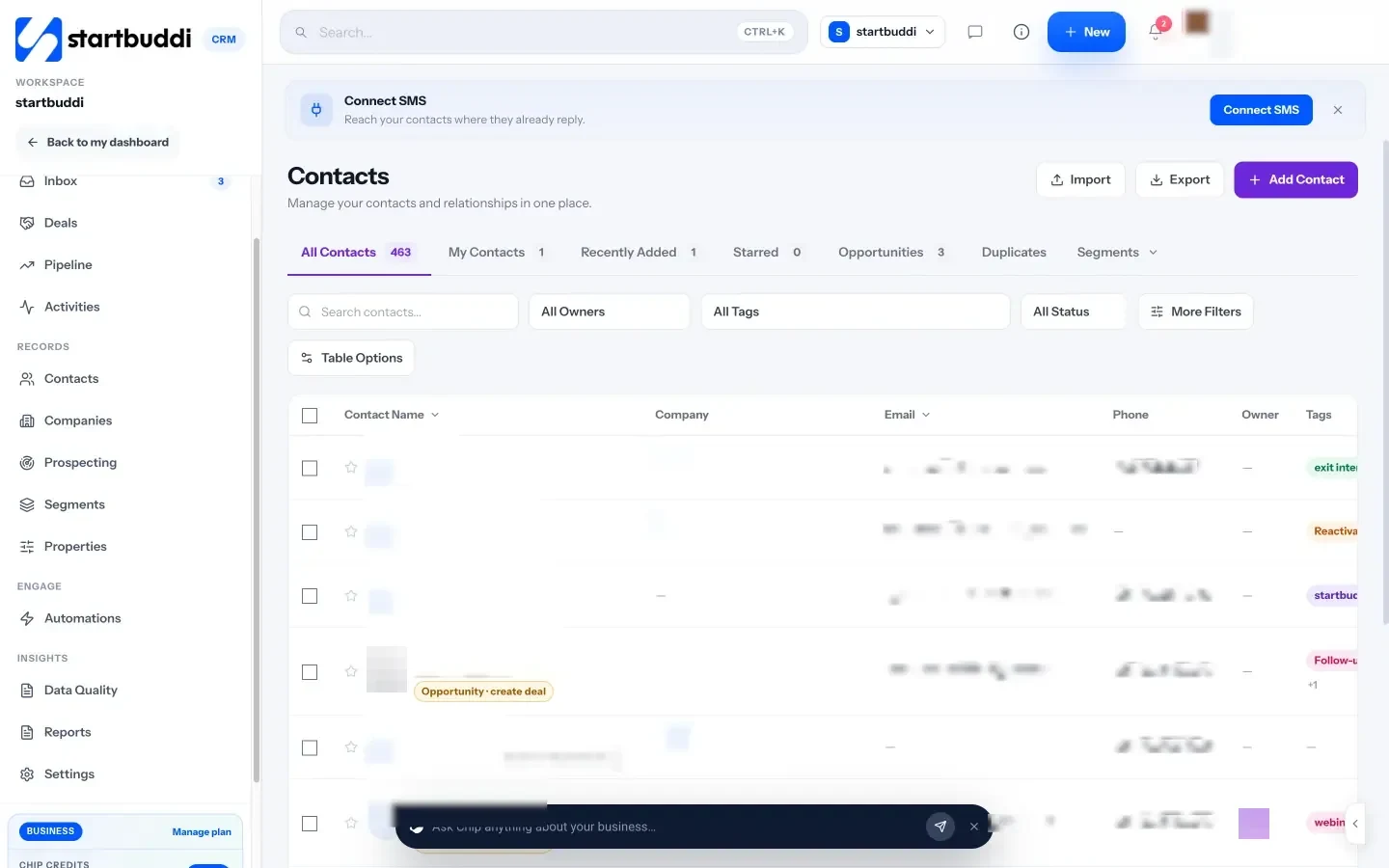
Your columns become properties. Custom columns from your workbook, such as “Package” or “Renewal date”, can be set up as your own properties with types like dropdown, number, money or date, and then used in filters, forms and messages.
A real pipeline. The sales pipeline replaces your status column with a board. Replies and paid invoices can move deals forward for you.
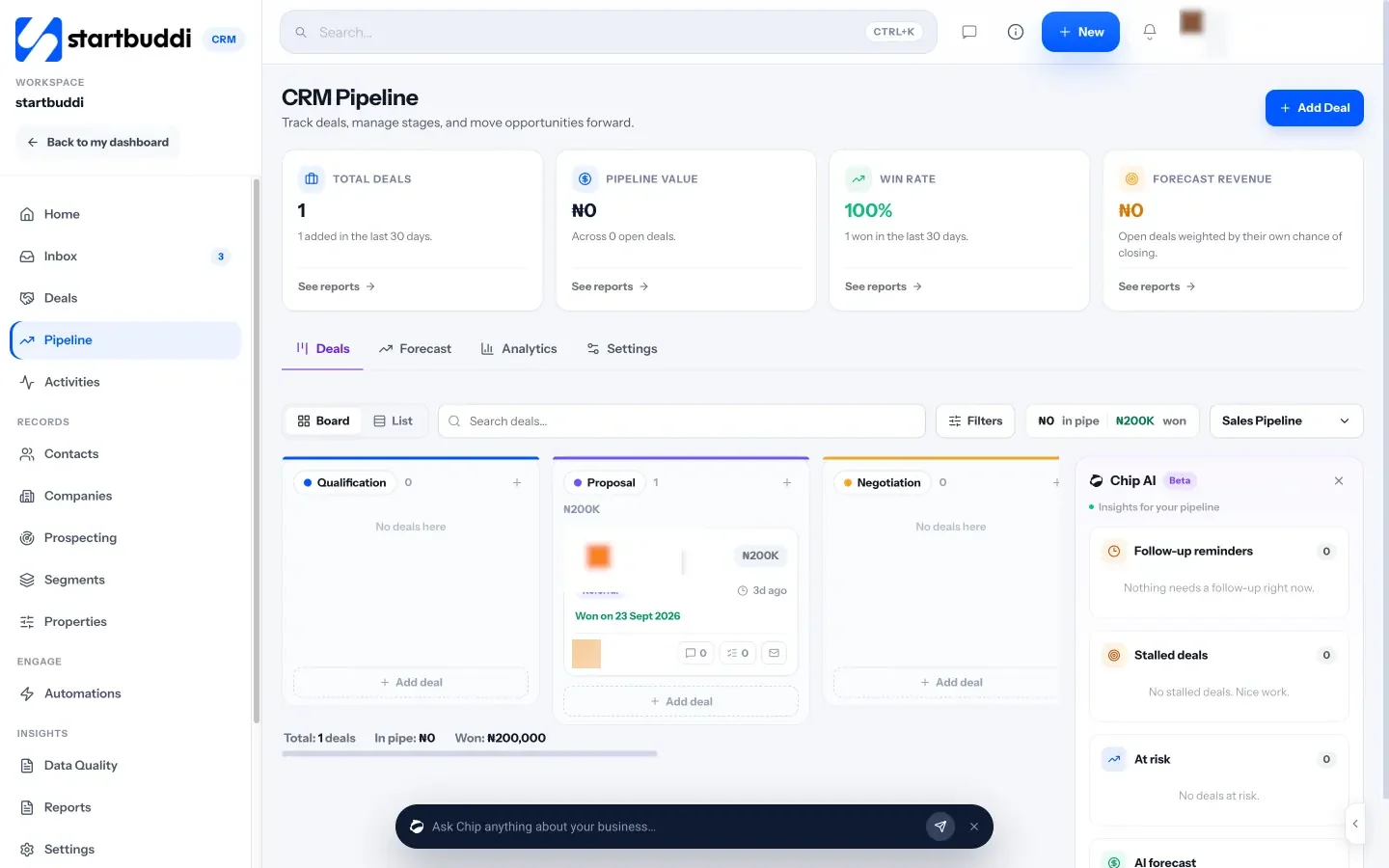
Reminders and follow-ups. Activities hold calls, emails and follow-ups with due dates and owners. Automations (Starter plan and above) can send the routine messages for you.
Excel is still there when you want it. You can export contacts to CSV or Excel at any time, straight to your device or by email.
The Free plan includes up to 250 contacts; Starter holds up to 2,500, with a 30-day trial (see pricing). See pricing for the full list.
Your next step
Open your client workbook and run the “outgrown” checklist above. If fewer than two apply, add a status drop-down and a red “next step date” rule and carry on. If two or more apply, spend an hour cleaning the file this week and import it into a CRM. Either way, pick one master copy today.
Sources
- Microsoft Support, Excel specifications and limits
- Microsoft Support, Collaborate on Excel workbooks at the same time with co-authoring
- Ray Panko, What We Don’t Know About Spreadsheet Errors Today
Frequently asked questions
Can I use Excel as a CRM?
Yes, at the start. A table with a status drop-down, a next-step date and conditional formatting works for one person and a few dozen contacts. It struggles once several people share it or follow-ups need to happen on time.
What is the main difference between a CRM and Excel?
Excel stores data you type in and only helps when you open it. A CRM keeps a history of every interaction, sends you reminders and lets forms, bookings and messages update records automatically.
Can I import my Excel file into a CRM?
Yes. Clean the workbook, save it as CSV UTF-8 and use the CRM's import tool to map columns to fields. Test with a small batch first.
Will I still be able to use Excel after switching to a CRM?
Yes. Most CRMs export to CSV or Excel, so you can keep using pivot tables and charts on a clean, up-to-date copy of your data.
SEO Copywriter| Email growth Specialist| I help businesses increase revenue with strategic SEO content & high-converting email funnels.