How to automate your small business: what to automate first and how to do it
A four-part guide to automating a small business: find the tasks worth automating, automate follow-ups and marketing, automate admin, then test and maintain it all.


This guide shows you how to automate your small business step by step: how to find the work worth automating, how to automate follow-ups and marketing without annoying anyone, how to automate the admin behind the scenes, and how to test and look after your automations so they keep working. It is for owners and small teams who repeat the same tasks every week and suspect a computer could do some of them.
Each chapter starts with the thinking, with examples, templates and worked numbers, and ends with how to build it in startbuddi. By the end you will have a list of your top five automations, the first three running, and a monthly habit that keeps them healthy.
How to automate your small business: find the tasks worth automating
- What automation actually is
- Why it matters for a small business
- What not to automate
Most small businesses do not need more software. They need fewer repeated clicks. The welcome email you type from memory, the reminder you forget to send, the spreadsheet row you copy into your invoice tool: each one takes a few minutes, but together they fill whole afternoons. Automation means setting up a rule once so those steps happen by themselves.
Here is the short answer to how to automate your small business. List the tasks you repeat, work out how much time each one costs you a month, pick the ones that are frequent, predictable and low risk, write down the steps, then build them one at a time as "when this happens, do that" rules, test them with real examples and check them every month. Start with customer follow-ups, because they save time and bring in money at the same time.
How to automate your small business: start with the right tasks
What automation actually is
Every automation has the same three parts:
- A trigger: the event that starts it. Someone fills in a form, books an appointment, pays an invoice, or a deal moves to "won".
- Steps: what happens next. Send an email, wait two days, create a task, add a tag, notify a teammate.
- Conditions: rules that change the path. Only if they have not replied; only if the order is over $500; stop if they unsubscribe.
That is all a workflow is. You already run these rules in your head: "when a new enquiry comes in, I reply, then I send the price list, then I call if I hear nothing." Automation simply writes the rule down so software can follow it. The glossary entry on workflow automation explains the idea in more depth.
Why it matters for a small business
Time is the scarcest thing a small business owner has. Asana's Anatomy of Work research found that knowledge workers spend about 60 per cent of their time on "work about work", such as chasing updates, searching for information and switching between apps, rather than the skilled work they were hired for. A small business owner is rarely a pure knowledge worker, but the pattern will feel familiar: much of the week goes on moving information around rather than serving customers.
Automation also improves consistency. A human forgets to send the reminder on a busy Friday. A rule does not. Customers notice when every enquiry gets a reply within minutes and every booking gets a reminder, even if they never think about why.
Find your repeat tasks: a one-week audit
Before you build anything, spend one normal week writing down every task you do more than once. Do not judge them yet; just list them. Keep a note on your phone or a sheet of paper on your desk. For each task, write:
- What starts it (a new enquiry, the end of the month, a payment).
- What you do, step by step.
- How long it takes.
- How often it happens in a month.
At the end of the week, multiply minutes by frequency to get the monthly cost of each task. Here is an example for a small design studio with two people:
| Task | Minutes each | Times a month | Hours a month |
|---|---|---|---|
| Reply to new enquiries with prices and a booking link | 8 | 60 | 8.0 |
| Send booking reminders by message | 3 | 80 | 4.0 |
| Chase unpaid invoices | 10 | 20 | 3.3 |
| Set up a new client project with standard tasks | 30 | 6 | 3.0 |
| Copy form answers into the contact list | 4 | 45 | 3.0 |
| Ask happy clients for a review | 5 | 10 | 0.8 |
| Total | 22.1 |
Twenty-two hours a month is more than half a working week. If the owner values their time at $50 an hour, that is about $1,100 a month of effort. Even if automation removes only two-thirds of it, the studio gets back around 15 hours every month, which is time to do paid work, sell or rest.
Score each task before you automate it
Not every repeated task should be automated. Score each one from 1 to 3 on four questions:
| Question | Score 3 if... | Score 1 if... |
|---|---|---|
| How often does it happen? | Daily or several times a week | A few times a year |
| How predictable are the steps? | The same every time | It depends on judgement |
| What happens if it goes wrong? | Little harm, easy to fix | Money, legal or reputation risk |
| Does it touch customers or money? | Yes, and speed helps | Only internal, nobody waits for it |
Automate the highest scores first. In the studio example, enquiry replies, booking reminders and form-to-contact copying score highly. Chasing invoices scores well too, but the wording and timing need more care, so it comes after the first wins.
What not to automate
- Decisions that need judgement: pricing a custom job, handling a complaint, deciding whether to work with a difficult client.
- Things you do rarely: a yearly task is quicker to do by hand than to automate and test.
- Anything you have not done manually yet: if you do not know what good looks like, a rule will just produce bad results faster.
- Messages that must feel personal: a thank-you after a large project, a condolence, an apology. Use a template to save typing if you like, but send it yourself.
The four levels of automation
It helps to think of automation as a ladder rather than a switch. Most businesses climb it one rung at a time, and each rung saves time on its own.
- Templates: you still do the task, but you stop typing from scratch. Saved replies, invoice templates, a standard proposal. This takes an afternoon and saves minutes every day.
- Checklists: the steps are written down, so anyone can follow them and nothing is forgotten. This is where processes become consistent.
- Rules: software follows the checklist for you when something happens. "When a booking is made, send the confirmation." This is what most people mean by automation.
- Assisted decisions: an AI assistant drafts replies, suggests next steps or builds rules from a description, and a person approves them.
Do not skip rungs. A rule built on a process that was never written down tends to break on the first unusual case. If you only have time for one thing this week, turn your three most common replies into templates. That alone is a start.
Get your team on board
If other people work with you, involve them in the audit. They know which tasks annoy them and where things get dropped. Explain that the goal is to remove boring work, not to watch them or replace them. Ask each person to name the one repeated task they would most like to lose, and build at least one of those early. People support automations they asked for, and they will tell you quickly when one misbehaves.
Examples by type of business
The best first automations depend on how you make money. Some starting points:
- Service business (salon, clinic, trades, coach): booking confirmations and reminders, a follow-up after no-shows, a review request after completed visits.
- Agency or freelancer: reply to new enquiries, create a project with standard tasks when a proposal is accepted, chase unpaid invoices.
- Online shop: welcome new subscribers, thank first-time buyers, win back customers who have not ordered for 90 days.
- Consultant or trainer: send a questionnaire when someone books a discovery call, then a summary and proposal link after the call.
For more ideas, see our list of business workflow automation examples.
A quick checklist before you build anything
- You have done the task by hand at least ten times and know what good looks like.
- You can name the trigger in one short sentence.
- You know what should happen when the person replies, books or pays.
- You know who will check the automation and how often.
- You know how you will tell whether it worked.
If any line is a "no", spend another week doing the task manually and making notes. It is quicker than rebuilding an automation that was set up on guesswork.
Write the steps down before you build
The biggest time-saver in automation is writing the process down first. If you cannot describe the steps in plain words, software cannot follow them. Use this simple template for each automation:
When: someone submits the "Get a quote" form.
Then: send the "Thanks, here is what happens next" email straight away. Add the tag "quote request". Create a task for Tolu to call them within one working day.
Wait: two days.
If: they have not booked a call, send a short follow-up with the booking link.
Stop if: they book, reply or unsubscribe.
This is also the start of a standard operating procedure. If you want a fuller format for processes that stay manual, use the SOP template.
What automation costs
Automation is rarely free, but it is usually cheap compared with the time it saves. Count three costs:
- The tool: a monthly subscription, often priced by contacts, messages or runs.
- Messages: SMS and WhatsApp messages often cost per message on top of the tool; email usually does not, up to a limit.
- Your setup time: an hour or two per automation to plan, write, build and test.
Worked example: if a tool costs $19 a month, setup takes eight hours in the first month, and the automations save 13 hours a month from then on, you are ahead by the second month even if you value your time at only $20 an hour. The same maths in naira or rand works the same way; just use your own hourly value.
If you only remember one thing from this chapter, make it this: the audit is the work. The building is the easy part once you know exactly what to build and why.
Common mistakes at the start
- Building ten automations in a weekend. Build one, run it for two weeks, then build the next.
- Automating a broken process. If your enquiry reply is confusing, automating it sends confusion faster.
- Using too many tools. Chaining five apps together means five places for things to break, and five bills to pay.
- Forgetting the stop rule. Every sequence needs a way out when the person replies, books or buys.
- No owner. Someone must be responsible for checking each automation, even if that someone is you.
Finding your first automations in startbuddi
startbuddi has one Automations hub for the whole business. Booking reminders, form follow-ups, invoice chasers and marketing journeys all run on the same engine, so you do not need a separate automation tool connected to five other apps. Automations are available on the Starter plan and above.
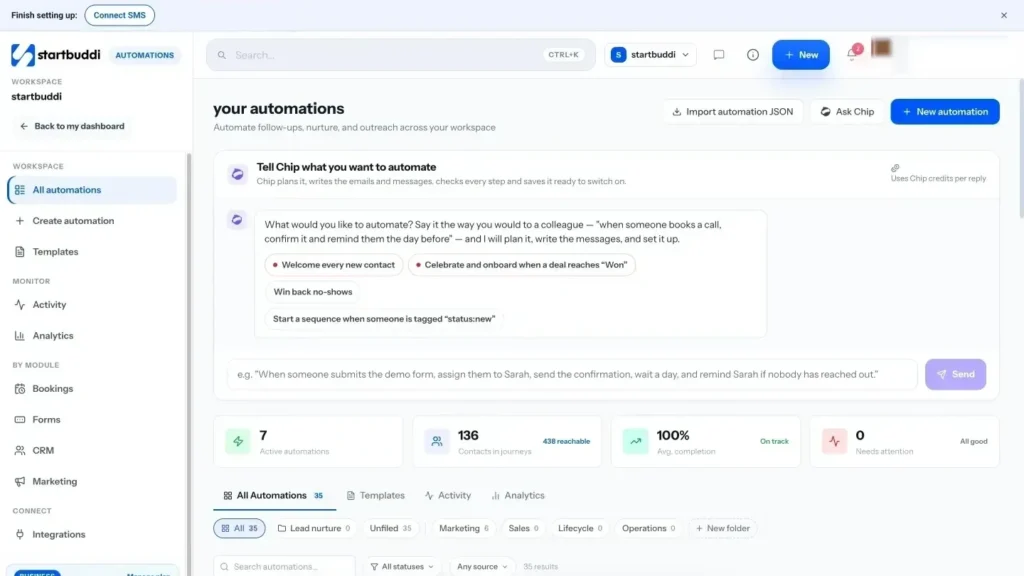
1. Open Automations and look at the summary. The hub shows how many automations are active, how many contacts are in them and whether anything needs attention. You can filter by source, such as Forms, Bookings, Invoices, Payments or CRM, to see what already runs in each part of the business.
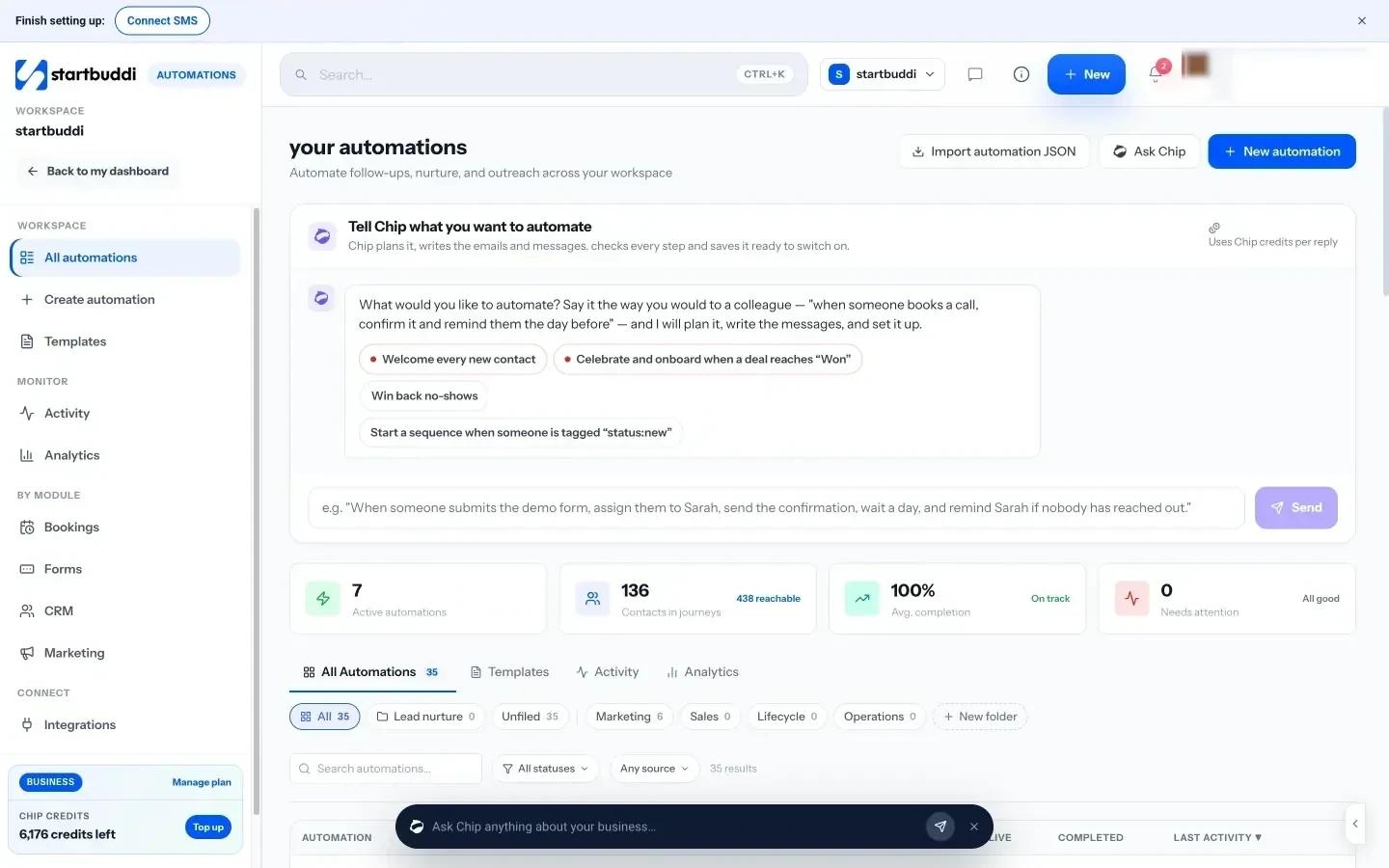
2. Check the free suggestions. Chip suggests common automations based on what is in your workspace, such as "Reply the moment someone fills in" a named form, "Confirm and remind every booking" or "Chase overdue invoices politely". These suggestions are rule-based and cost no Chip credits. Treat them as a checklist against your own audit.
3. Match your audit to triggers. Look at your top-scoring tasks and find their trigger in the list: Form submitted, New booking made, Booking completed, Booking no-show, Payment succeeded, New contact added, Tag added to contact, Deal created and more. If a task has a clear trigger in startbuddi, it is a good candidate for your first build.
4. Know your limits. Each plan includes a number of automation runs a month: 250 on Starter, 2,000 on Growth and 5,000 on Scale. A run is one contact going through one automation, so a booking reminder for 80 bookings uses 80 runs. Check your audit numbers against the plan you choose on the pricing page.
In the next chapter we build the customer-facing automations first: replies, reminders and follow-ups.
Automate customer follow-ups and marketing
- 1. The instant reply to a new enquiry
- 2. Booking confirmation and reminders
- 3. The no-show and cancellation follow-up
- 4. The review request after a completed job
- 5. The quiet quote nudge
- A welcome series you can copy
- Group people so messages fit
- Which channel for which message
- When to send each follow-up
- Measure what your follow-ups achieve
- Do not forget existing customers
Customer follow-up is where automation pays back fastest. Replies that arrive in minutes instead of hours win more work. Reminders cut no-shows. A polite nudge after a quiet quote brings back sales you had written off. And because these messages are the same every time, they are perfect for automation.
This chapter covers the follow-ups every small business should automate, how to write messages that sound human, the consent rules you must respect, and how to choose marketing automation tools for small business if you are comparing options.
The five follow-ups to automate first
1. The instant reply to a new enquiry
When someone fills in your form or messages you for the first time, they are often contacting two or three businesses at once. The one that replies first, with something useful, has an advantage. An instant reply should thank them, say what happens next and when, and give them one easy next step, such as a booking link or a price list.
Hi Priya, thanks for getting in touch about a new website. I have your details and will reply personally by tomorrow lunchtime. If you would like to talk sooner, you can pick a 20-minute call here: [booking link]. Speak soon, Kemi
2. Booking confirmation and reminders
A confirmation right away and a reminder a day before remove most no-shows. For longer bookings or first visits, add a second reminder an hour or two before, with directions or what to bring. Our post on automating client bookings with reminders goes into detail.
3. The no-show and cancellation follow-up
People who miss or cancel an appointment are not lost customers; many simply had a bad day. A kind message with a rebooking link, sent the same day, brings a good share of them back. Keep it free of blame: "Sorry we missed you today. Life happens. Here is a link to pick a new time."
4. The review request after a completed job
Ask while the customer is happy, the same day or the day after the work is finished. One short message with a direct link to your review page. Do not ask twice in the same week, and do not offer rewards for reviews, which many review platforms forbid.
5. The quiet quote nudge
When a proposal or quote gets no reply, send a short, helpful message after three days and a final one after ten, then stop. Most people are grateful for the reminder, and some will say no, which is also useful information.
Marketing automation for small business
Beyond one-to-one follow-ups, marketing automation sends the right message to groups of people based on what they do. For a small business, three journeys cover most needs:
- Welcome series: three to five emails over two weeks for new subscribers or customers: who you are, what you do best, a helpful tip, a customer story and an offer to book or buy.
- Nurture for undecided leads: useful content every week or two for people who enquired but did not buy yet, with a clear way to get in touch.
- Win-back: a message to customers who have not bought or booked for 90 days or more, with a reason to come back.
The glossary pages on marketing automation and email drip sequences explain the terms if they are new to you.
A welcome series you can copy
Here is a simple five-email welcome series for a service business. Adjust the timing to how quickly your customers usually decide.
| When | Goal | |
|---|---|---|
| Straight away | Thanks and what happens next | Set expectations and give one next step |
| Day 2 | The problem you solve, told through a typical customer | Show you understand them |
| Day 5 | A useful tip they can use today | Give value before asking for anything |
| Day 9 | Answers to the three questions people always ask | Remove doubts about price, time or process |
| Day 14 | A clear invitation to book or buy | Ask for the decision, kindly |
Keep each email under 150 words. Stop the series as soon as they book or buy, and move them to your customer journey instead.
Group people so messages fit
One message for everyone is rarely right for anyone. Tag or group contacts by what they asked about, how they found you and whether they have bought. Then a person who asked about wedding cakes does not get the corporate catering newsletter. You do not need dozens of groups; three to five based on your main services and customer types is plenty to start. The glossary entry on email segmentation explains more.
Which channel for which message
| Channel | Best for | Watch out for |
|---|---|---|
| Welcome series, longer updates, receipts, newsletters | Spam folders; set up your sending domain properly | |
| SMS | Short reminders and urgent updates | Cost per message and character limits |
| Reminders and conversations where customers already use it | Business rules on templates and timing (see below) | |
| Internal task or notification | Anything a human must do next | Too many alerts get ignored |
When to send each follow-up
| Follow-up | Suggested timing |
|---|---|
| Enquiry reply | Within a minute of the form or message |
| Booking confirmation | Straight away |
| Booking reminder | 24 hours before, plus 1 to 2 hours before for first visits |
| No-show message | The same day, within a few hours |
| Review request | Same day or next morning after the job |
| Quote nudge | Day 3 and day 10, then stop |
| Win-back | After 90 days without a booking or order |
These are starting points. Look at your own results after a month and move the timings if replies come in at a different point.
One more rule of thumb: never send an automated marketing message you would be embarrassed to have read aloud to the customer. If it would feel pushy in person, it is pushy in their inbox too.
Consent and the rules you must follow
Automated messages are still marketing messages, and most countries regulate them. The general principles are the same almost everywhere: have permission, say who you are, and make it easy to stop.
- United Kingdom: the ICO's guidance on electronic mail marketing says you generally need consent to send marketing emails or texts to individuals, with a limited "soft opt-in" for your own existing customers who were given a chance to opt out.
- United States: the FTC's CAN-SPAM compliance guide requires honest subject lines, a physical address and a working opt-out that you honour within 10 business days.
- WhatsApp: Meta's rules allow free-form replies only within the 24-hour customer service window after a customer messages you. Outside that window, you must use an approved message template.
Other countries, including Nigeria, Kenya and South Africa, have their own data protection laws. Check your national data protection authority's guidance.
Personal, not creepy
Using someone's name and what they booked makes a message feel attentive. Using details they did not expect you to have, or reminding them of every page they looked at, feels like being watched. A good test: would it feel normal if a friendly shop assistant said the same thing in person? "Hope the new boiler is keeping you warm" passes. "We noticed you looked at our prices page four times last night" does not.
Also watch frequency. Decide on a maximum number of automated messages a person can receive in a week, across every automation, and design your journeys to stay under it. Two or three is plenty for most small businesses.
If you work in more than one language, as many businesses in Nigeria, Kenya, India and Canada do, write each automated message in the language the customer used with you, and keep a note of their preference on their record.
Write automated messages that sound like you
- Write as one person to one person. "I" and "you", not "our valued customers".
- Keep it short. One idea per message, one clear action.
- Use their name and context. "Thanks for booking your Tuesday cut" beats "Thanks for your booking".
- Say when a human will follow up. Automation should set expectations, not pretend to be a person.
- Read it on a phone. Most people will.
Measure what your follow-ups achieve
For each follow-up, pick one number that shows whether it works: replies to the enquiry message, no-show rate after reminders, rebookings after the no-show message, reviews gained per month, quotes won after the nudge. Write down the number for the month before you switch the automation on, then compare after a month. If nothing changes, rewrite the message or change the timing before you give up on it.
Do not forget existing customers
Most marketing automation advice focuses on new leads, but your existing customers are usually more valuable. An automated check-in 30 days after a project ends, a reminder when a service is due again, or a thank-you on the anniversary of their first order all cost little and bring in repeat work. Build at least one journey for customers, not just prospects.
Marketing automation tools for small business: what to look for
If you are comparing tools, here is what matters most for a small team:
- Triggers from the places your customers actually come from: forms, bookings, payments, messages, not only email opens.
- Channels you use: email alone may be enough; if your customers live on WhatsApp or SMS, check those are built in rather than bolted on.
- One contact record: the automation should know if the person has already booked or paid, which is hard when data sits in separate apps.
- Simple building: templates and a clear visual editor, so you do not need a specialist.
- Testing and history: a way to test before going live and see who went through each step.
- Consent handling: unsubscribes and suppression respected automatically.
- Pricing that fits your volume: check limits on contacts, sends and runs.
Our researched lists of AI automation software and Zapier alternatives compare options, and our post on marketing automation versus manual outreach helps you decide how much to automate.
Building follow-ups in startbuddi
In startbuddi, customer follow-ups and marketing journeys live in the same Automations hub, triggered by the same forms, bookings and payments your customers use. The Marketing module, WhatsApp and SMS need the Starter plan or above, and Free includes 2 active automations against 10 on Starter.
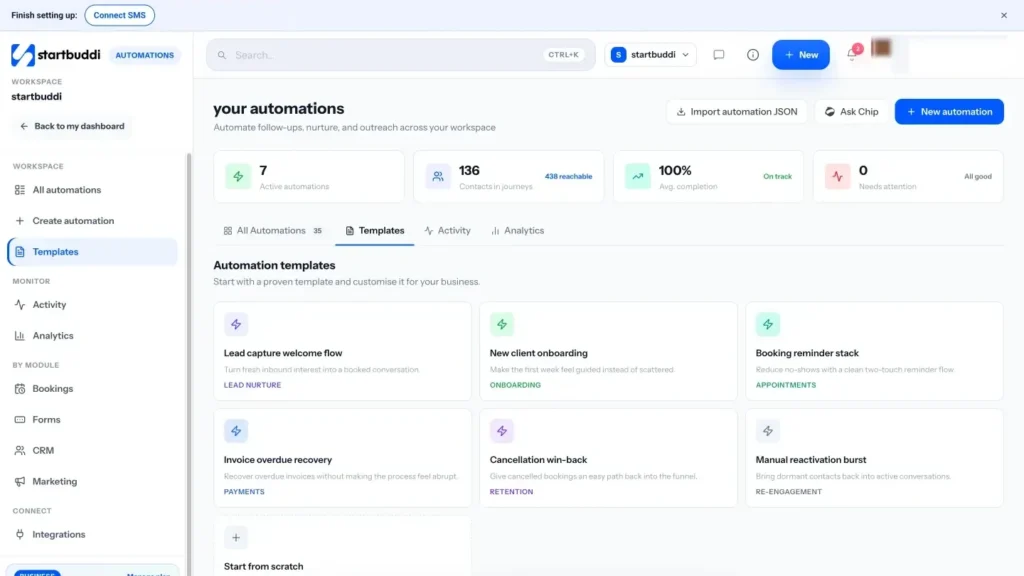
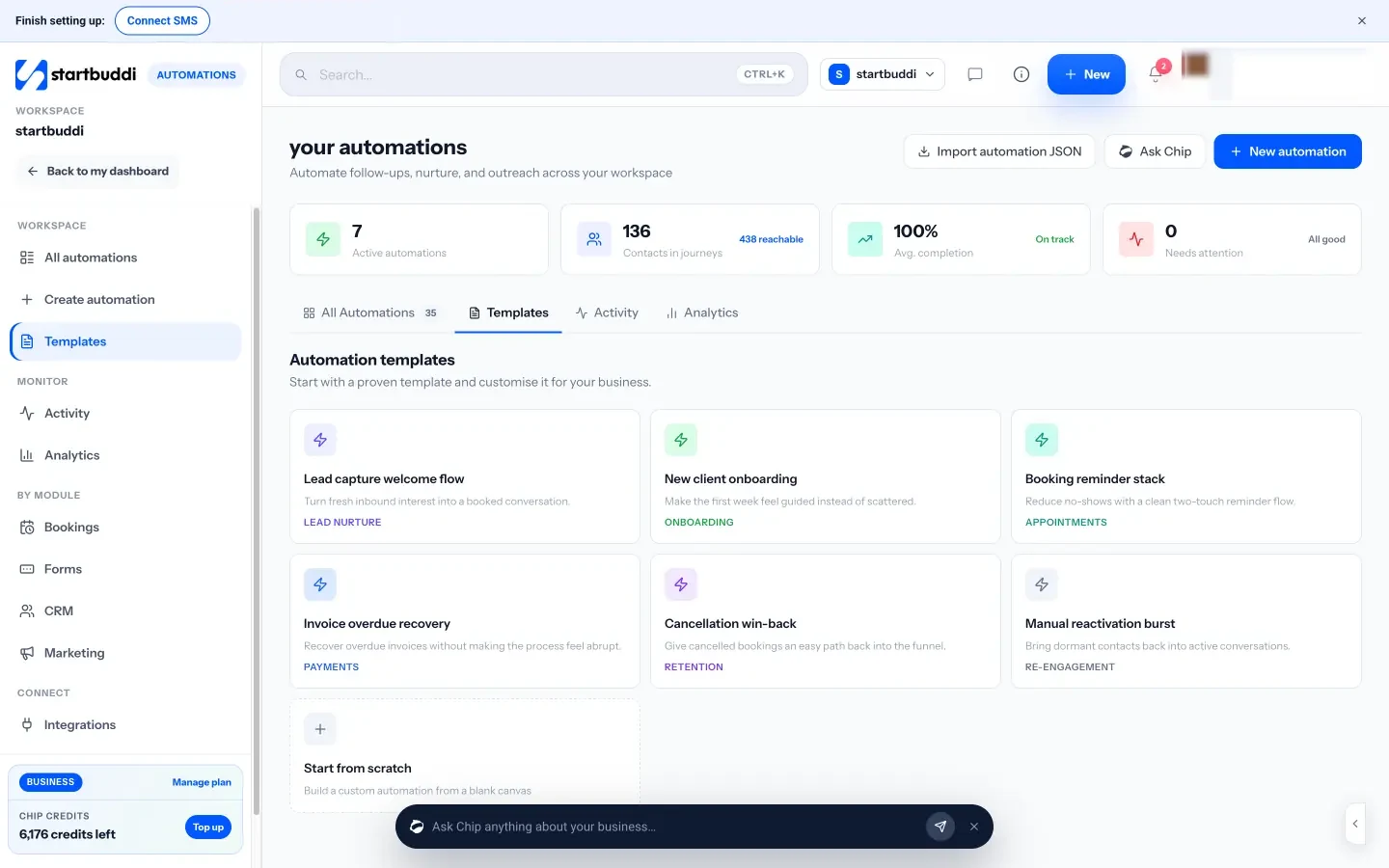
1. Start from a template. Click New automation and choose Use a template. There are six to start from: Lead capture welcome flow, New client onboarding, Booking reminder stack, Invoice overdue recovery, Cancellation win-back and Manual reactivation burst. Pick the one closest to your first automation, name it and build it.
2. Or tell Chip what you want. Choose Tell Chip what you want and describe it in plain words, for example "When someone books a meeting, send them a confirmation and remind the owner." Chip plans the steps, writes the messages and saves the automation as an inactive draft. Nothing goes live until you review it and switch it on. Chip builds use Chip credits.
3. Add steps and exit rules. On the canvas, add steps such as Send email, Send SMS, WhatsApp message, Wait / delay, Wait for their reply, Condition and Add tag. Add Exit when... so people leave the flow early if a rule matches, such as when they book. The email step has a visual builder and a Write with Chip button for drafting.
4. Check reach and consent before you activate. When you click Activate, startbuddi shows a review: total contacts, how many are reachable, how many are suppressed and why. If a WhatsApp step uses free text, validation warns you that it only reaches people who messaged in the last 24 hours and suggests an approved template.
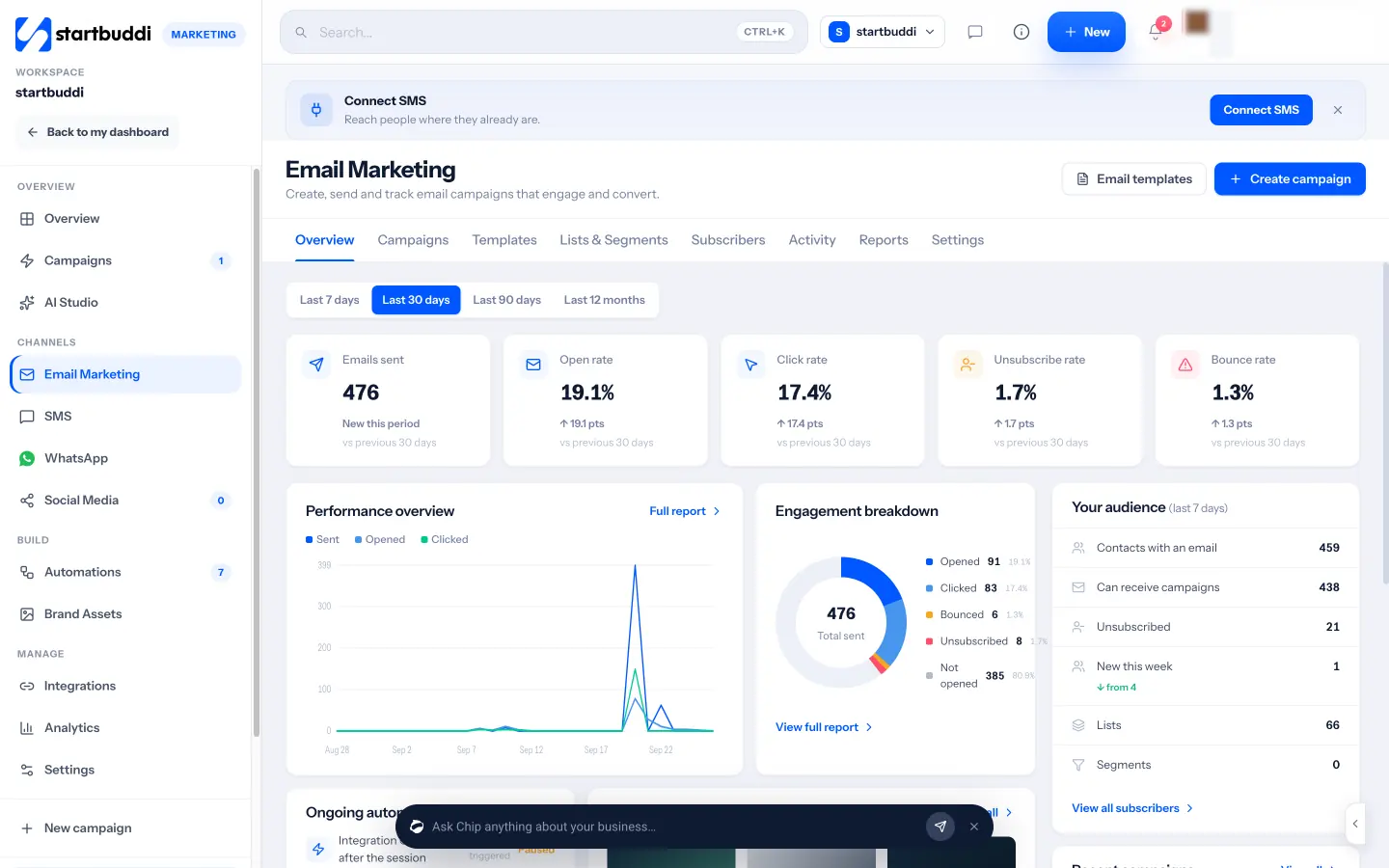
5. Send one-off campaigns from Marketing. For newsletters and seasonal offers, the Email section of Marketing handles campaigns, templates and subscribers, while automations handle the ongoing journeys.
The help article on building an automation sequence walks through the canvas step by step. Next, we move from customers to the admin that happens behind the scenes.
Automate admin and operations behind the scenes
- Create work automatically
- Keep records up to date
- Hand work between people
- Money admin
Customer follow-ups are the visible side of automation. The other side is the admin nobody sees: setting up projects, handing work between people, updating records, telling the team what happened. This work rarely makes money directly, but when it slips, customers feel it. This chapter covers how to automate operations using business process management ideas, without needing a business process management app built for large companies.
Business process management, in plain words
Business process management (BPM) sounds like a large-company idea, and the software that carries the name often is. The idea itself is simple and useful at any size: write down how work flows through your business, make it consistent, then improve and automate the steps. A process is just a repeatable sequence with a start, an owner and an end.
For a small business, the processes that matter most are usually:
- Lead to customer: enquiry, reply, call or quote, decision.
- Customer onboarding: welcome, paperwork, deposit, kickoff.
- Delivery: the work itself, broken into standard steps.
- Billing: invoice, payment, receipt, reminder if late.
- Offboarding and repeat: handover, review request, rebooking.
You do not need a special tool to map these. A whiteboard or a sheet of paper will do. What you need is the discipline to draw each one once and agree on it with anyone else who does the work.
Map one process in 30 minutes
Pick the process that causes the most dropped balls. For many service businesses, it is onboarding a new client. Draw it as boxes and arrows, and for each step answer four questions:
- What starts this step?
- Who does it?
- What do they need to do it?
- What does "done" look like?
Here is an example for a small bookkeeping practice onboarding a new client:
| Step | Trigger | Owner | Can it be automated? |
|---|---|---|---|
| Send welcome and checklist of documents needed | Proposal accepted | Automation | Yes: a welcome email |
| Create the client's project with standard tasks | Proposal accepted | Automation | Yes: create project from template |
| Take the first month's fee | Proposal accepted | Owner | Partly: send a payment link |
| Book a kickoff call | Payment received | Client | Yes: email with booking link |
| Review documents and set up the client's accounts | Documents received | Bookkeeper | No: needs judgement |
| Tell the team the client is live | Kickoff done | Automation | Yes: team notification |
Four of the six steps can be automated fully or partly. The two that stay human are the ones that need judgement and care, which is exactly where you want your people's attention.
A whole customer lifecycle, automated where it helps
To see how the pieces join up, here is a hair salon's lifecycle with the automated steps marked. The stylist still does the creative work and the conversations; the rules handle the reminders and records around them.
- Enquiry: a message on Instagram or the website. Automated: instant reply with the booking link and price list.
- Booking: the client books online and pays a deposit. Automated: confirmation, a questionnaire for first visits, a reminder the day before.
- Visit: the appointment itself. Human.
- After the visit: Automated: thank-you message the next morning with a review link and aftercare tips; tag as "coloured" or "cut" for later messages.
- Rebooking: Automated: a reminder six weeks later suggesting the next appointment.
- Lapsed client: Automated: a friendly win-back message after 90 days with no booking. Human: a personal call for long-standing clients.
Only one step in six needs the stylist's time, and it is the one clients pay for.
Admin automations worth building
Create work automatically
- When a form asks for a quote, create a task for the right person with a due date.
- When a deal is won, create a project from your standard template.
- When a booking is made for a complex service, create a preparation task.
Keep records up to date
- When someone pays, tag them as a customer and update their status.
- When someone unsubscribes, remove them from marketing lists straight away.
- When a form is submitted, save the answers to the contact record rather than retyping them.
Hand work between people
- Assign new enquiries to whoever covers that service or area.
- Notify the team channel when a large deal is won or a key client complains.
- When one step finishes, tell the next person it is their turn.
Money admin
- Send a payment link as soon as a proposal is accepted.
- Thank customers and send next steps when a payment succeeds.
- Remind yourself to review overdue invoices every Monday.
Money deserves extra care. Automating a thank-you after payment is low risk. Automating chasers is useful but needs friendly wording and a human check for important clients. Never automate refunds or anything that moves money out of the business without a person approving it.
Approvals and sign-offs
Some steps should not happen until a person says yes: a discount above a certain size, a refund, a purchase over a set amount, a proposal to a large client. Automation can still help by collecting what the approver needs and asking at the right moment. The rule becomes "when a discount over 20 per cent is requested, notify the owner with the details and wait". The decision stays human; the chasing does not.
Keep approval chains short. In a small business, one approver with a named backup for holidays is usually enough. Long chains slow everything down and teach people to work around the process.
Internal notifications that people read
Notifications are the most overused automation. When every form, booking and payment sends a ping to everyone, people mute the channel and miss the one that mattered. Use three levels:
- Act now: sent to one named person, for things that need action today, such as a complaint or a large new enquiry.
- Good to know: a daily or weekly summary, such as new customers this week.
- Record only: logged on the customer's record with no notification at all.
Most events belong in the last group. If you are unsure, start with fewer notifications and add one only when someone misses something that mattered.
Connecting to the tools you keep
Few small businesses run everything in one app, and that is fine. Accounting, payroll and specialist industry software often stay separate. Automation can pass information to those tools so you do not retype it:
- Spreadsheets: add a row to a shared sheet when something happens, for a simple log or a report your accountant can use.
- Team chat: post a message when a deal is won or a form arrives.
- Connector tools: services such as Zapier connect thousands of apps and pass events between them.
- Webhooks: a technical way to send an event to any system that can receive one; ask a developer if you need this.
The more tools you chain together, the more places a process can break silently. Where possible, keep the core of each process in one system and use connections only for the edges. Our small business tool stack guide covers how to decide which tools to keep.
Measure your processes, not just your automations
Once a process is mapped, measure how long it takes from start to finish, and where work waits. For client onboarding, that might be days from "proposal accepted" to "kickoff held". For billing, days from "work finished" to "invoice paid". These end-to-end times tell you whether automation is helping the business, not just whether a rule ran. If onboarding drops from ten days to four, you have freed up a week of every new client's patience.
Business process management apps: do you need one?
Dedicated business process management apps are built for organisations with many departments, approval chains and compliance needs. They model complex processes, route approvals and produce audit trails. If you are a team of 1 to 20, you probably need something lighter: a place where your customer records, tasks, projects and money live together, with automation rules that can act across them.
When comparing options, ask:
- Can one event (a form, a payment, a won deal) trigger work in more than one area?
- Are standard projects and checklists easy to reuse as templates?
- Can the team see who owns each step and what is overdue?
- Is there a history of what ran and what failed?
- Can non-technical people change a process without breaking it?
Finally, remember that processes change as you grow. A step that one person did in their head at five customers needs writing down at fifty. Revisit your process map whenever you add a service, hire someone or change a tool.
Keep access and data safe
Automations often have wide access: they can read contacts, send messages and create records. Treat them like a member of staff. Connect them with an account that belongs to the business rather than one person's login, remove access for tools you no longer use, and never paste passwords or card details into automated messages or spreadsheets. When someone leaves the team, check which automations used their accounts and move them over.
Documents and paperwork
Paperwork is another quiet time sink: proposals, contracts, onboarding packs and reports. You can rarely automate the thinking, but you can automate the starting point. Keep templates for your common documents, fill in names, dates and prices from the customer record, and send them from the same place you track the deal. When a contract is signed, let that event trigger the next step, such as the deposit invoice or the kickoff booking, instead of waiting for someone to notice.
Common mistakes with admin automation
- Automating before agreeing. If two people do a process differently, agree one way first.
- Too many notifications. If everything pings, nothing gets noticed. Notify only for events someone must act on.
- Nobody owns the exceptions. Decide who handles the cases the rule does not cover.
- Letting templates go stale. Review project templates every quarter as your service changes.
Automating operations in startbuddi
Because customers, bookings, forms, money, projects and tasks share one workspace in startbuddi, one trigger can start work across all of them. Here is how to set up the admin automations from this chapter.
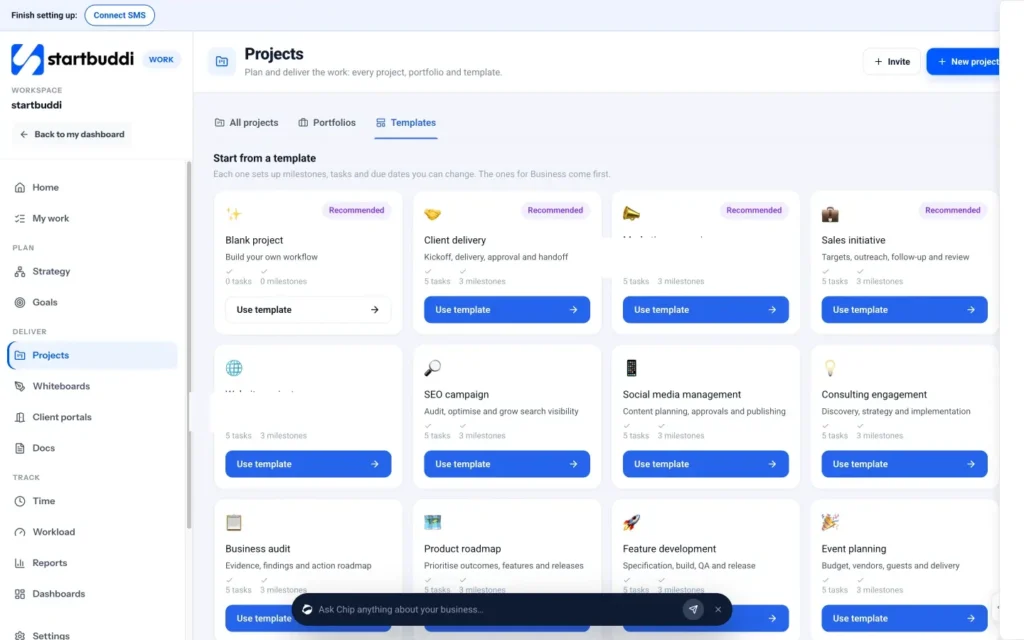
1. Turn your standard process into a project template. In Work, open Projects and go to the Templates tab. Templates set up milestones, tasks and due dates you can change, and you can start from a ready-made one or save your own. Your onboarding checklist from the mapping exercise becomes a template here.
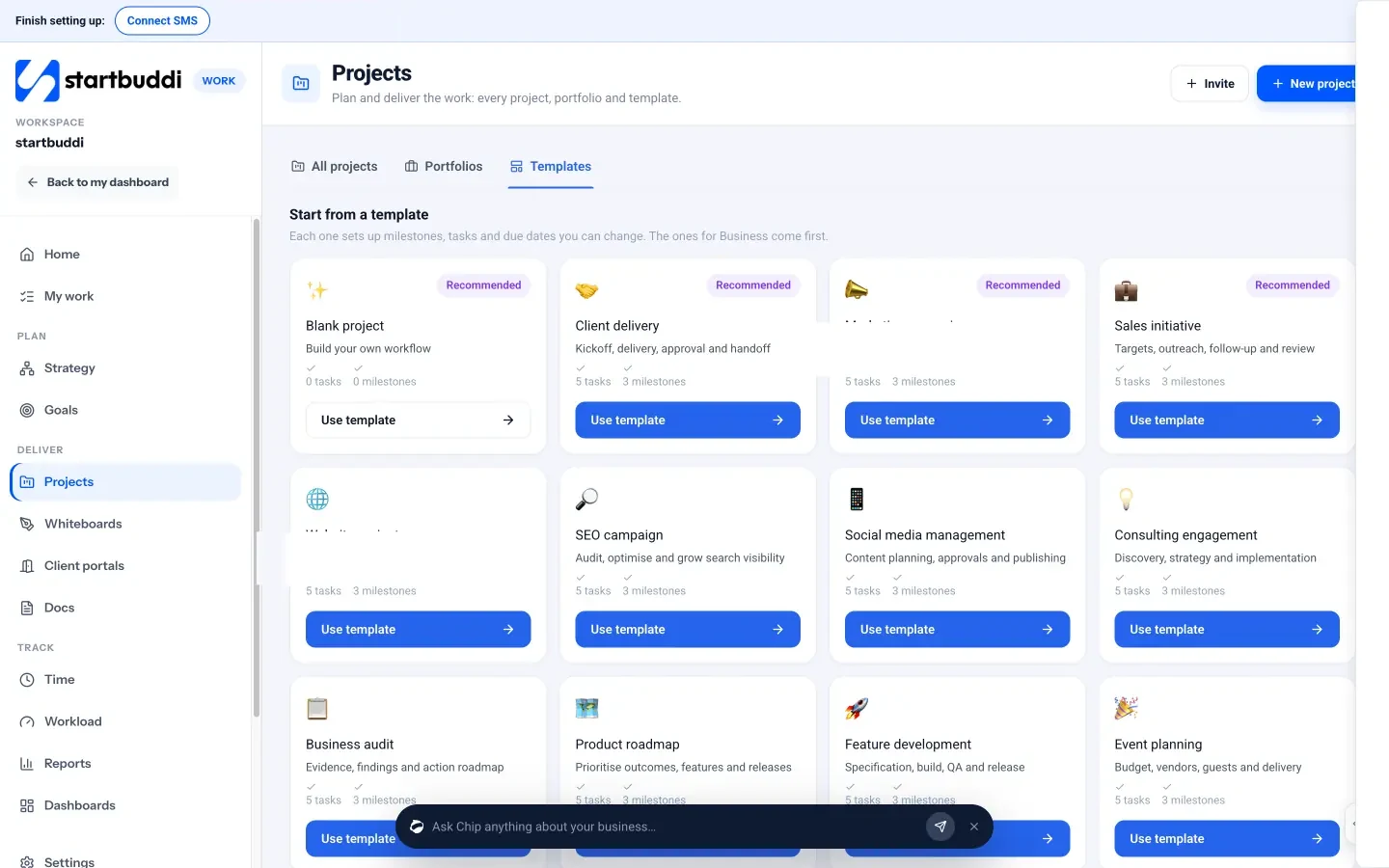
2. Create work from triggers. In Automations, start from scratch with a trigger such as Form submitted or Deal created, or use the Something happens in startbuddi triggers such as a deal won or a client sending a request from their portal. Add actions such as Create task, Create project, Assign to teammate and Notify the team.
3. Keep records clean. Use Add tag, Update contact status, Update contact detail and Add to list or segment steps, triggered by events such as Payment succeeded or Invoice paid. The Unsubscribe contact step and the built-in suppression keep marketing lists honest.
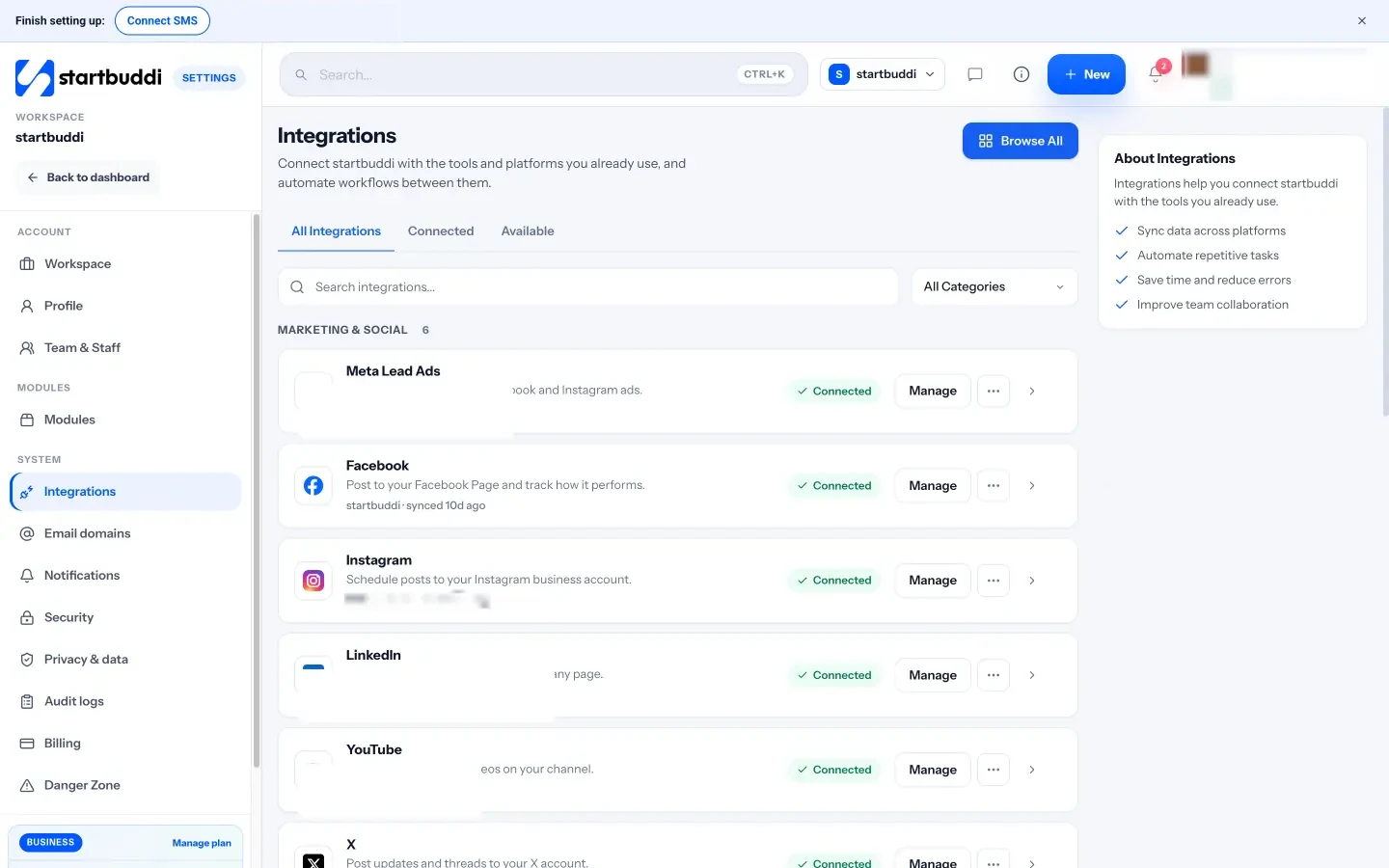
4. Pass events to your other tools. Automation steps include Add spreadsheet row for Google Sheets, Send to Zapier and Webhook. Connect the apps first from Settings, then Integrations, which also lists Google Calendar, Outlook Calendar and more. The integrations overview explains the options.
5. Use the module views. The Automations side menu has views for Bookings, Forms, CRM and Marketing automations, so the person who runs bookings can see and change only the booking rules. Read more about CRM-side rules in our glossary entry on CRM automation.
A note on what is not ready yet: date-based triggers, task overdue triggers and some project milestone triggers are marked "Not live yet" in the builder and cannot be switched on. Plan those processes as manual reminders for now. Next, we look at how to test, launch and look after everything you have built.
Test, launch and look after your automations
- Use real examples, not ideal ones
- A launch checklist
- What to check each week
- Measure the time you saved
- Review every automation each quarter
An automation that nobody checks is a small risk that grows quietly. The welcome email with last year's prices, the reminder that fires for cancelled bookings, the chaser that goes to a client who paid by bank transfer: each one is a little embarrassing, and together they undo the goodwill automation should build. This chapter covers how to test before you launch, how to monitor what runs, how AI fits in, and a 30-day plan to get your first automations live.
Test before you switch anything on
Use real examples, not ideal ones
Every automation works for the perfect customer who fills in every field and does exactly what you expect. Test it with messy ones too:
- A contact with no first name, or a name in capitals.
- Someone who books, cancels and rebooks in the same hour.
- A customer who pays part of an invoice by bank transfer.
- Someone who has unsubscribed from marketing but still books appointments.
- A person who replies halfway through a sequence.
Send each test to yourself or a teammate first. Read every message on a phone. Check the timing, the links and the merge fields, such as the first name, the booking time and the amount.
A launch checklist
- The trigger is the right one, and it fires only when it should.
- Every wait has a sensible length.
- Every message has been read aloud and checked on a phone.
- There is an exit rule for replies, bookings, payments and unsubscribes.
- Consent is right for every marketing message.
- Someone owns the automation and knows it has gone live.
- You know how to pause it quickly if something goes wrong.
Monitor what runs
What to check each week
For the first month after launching an automation, look at it every week. After that, a monthly check is usually enough. Look at:
- How many people entered and finished it. A sudden drop may mean the trigger stopped firing.
- Failures. Bounced emails, undelivered messages or steps that errored.
- Results. Did bookings, replies or payments go up after it started?
- Replies. Read what people write back. It tells you if a message confused or annoyed anyone.
Measure the time you saved
Go back to your audit from chapter 1. For each task you automated, estimate the minutes you no longer spend. In the studio example, automating enquiry replies, reminders and form copying saved about 13 of the 15 hours those tasks took each month. At $50 an hour, that is roughly $650 a month of time returned, against the cost of the tool. Keep this simple sum; it is the best way to decide what to automate next.
Review every automation each quarter
Once a quarter, list every live automation and ask: is it still needed, is the wording still true, and is it still the best way? Prices change, services change, staff change. Archive automations you no longer need rather than leaving them half-used.
Where AI fits in
AI tools can now draft messages, suggest steps and even build whole automations from a description. Used well, they save the slowest part of automation, which is writing and planning. Used carelessly, they send confident nonsense to your customers.
A sensible split for a small business:
| Let AI do | Keep a human on |
|---|---|
| Draft the first version of emails and messages | Approving anything that goes to customers |
| Suggest an automation plan from a plain description | Deciding whether the process is right for your business |
| Summarise what happened in a conversation | Complaints, refunds and sensitive situations |
| Answer routine questions from your own approved information | Quoting custom prices or making promises |
The key is a review step. Any AI that sends, publishes, charges or deletes something on your behalf should show you what it will do and wait for your yes. If you want to see how an AI assistant can work alongside your automations, our post introducing Chip, the AI assistant that knows your business covers the basics, and the Chip and AI agents page has the details.
Name and document every automation
Six months from now, "New flow 3" will mean nothing to you or anyone else. Give each automation a name that says what starts it and what it does, such as "Quote form: reply and call task" or "Booking completed: review request". Add a short note: who owns it, when it was last checked, and what number shows it is working. Keep a one-page list of every live automation. When something odd happens, that list is the first place you look.
When something goes wrong
Sooner or later an automation will send the wrong thing: a reminder for a cancelled booking, a message with a broken link, a chaser to someone who paid. Handle it calmly:
- Pause it. Stop more people receiving the problem while you look.
- Find who was affected. Use the automation's history to list everyone who got the wrong message.
- Put it right with them. A short, honest note: "Sorry, you received a reminder by mistake. Your booking is cancelled as you asked." Most people shrug it off when you are quick and clear.
- Fix the cause. Add the missing exit rule or condition, correct the link, and test with the exact case that failed.
- Write down what happened. One line in your automation list, so the same mistake is not repeated when someone builds the next one.
Signs an automation is doing more harm than good
- Unsubscribes or "stop" replies rise after it starts.
- Customers reply with confusion: "Which booking is this about?"
- Your team keeps working around it or undoing what it did.
- The number it was meant to improve has not moved after two months.
Any of these means it is time to rewrite, retime or switch it off. Switching off an automation that does not help is not failure; it is maintenance.
When staff change
Automations often belong to whoever built them, and nobody else understands them. When a person leaves or changes role, hand over their automations like any other responsibility: walk through each one with the new owner, update the owner in your list, and move any connected accounts. Build this into your offboarding checklist.
Keep a human way in
However good your automations are, some customers will want a person. Make that easy at every step. Put a real reply address on automated emails, not a "no-reply" one. Include a phone number or a way to message you. When a customer writes back to an automated message, route the reply to someone who can answer it that day. Automation should shorten the path to a person, never block it. Customers forgive a clumsy template; they do not forgive being unable to reach anyone when something has gone wrong.
Mistakes that break automations later
- Editing a live automation without thinking about people already in it. Someone halfway through a sequence may get a step twice or skip one.
- Duplicate rules. Two automations with the same trigger send two messages. Check before you build a new one.
- Old wording. Prices, opening hours and staff names in messages go out of date.
- Silent failures. A disconnected email account or payment provider stops messages without warning. Check the failure count.
- Too much at once. A new customer who gets a welcome email, a WhatsApp message, an SMS and a survey in one afternoon will unsubscribe from all of them.
When to add more
Add a new automation when the audit shows a task that is frequent, predictable and costing real time, and when your existing automations are stable. Resist the urge to automate everything at once. A business with six automations that everyone understands is in better shape than one with forty that nobody dares touch.
A 30-day plan to automate your small business
| Week | What to do | Done when |
|---|---|---|
| 1 | Run the one-week task audit and score each task | You have a ranked list of five automations |
| 2 | Build and test the instant enquiry reply | Every new enquiry gets a helpful reply in minutes |
| 3 | Build booking reminders or the quote nudge, whichever scored higher | No-shows or silent quotes start to drop |
| 4 | Build one admin automation, such as creating a project from a won deal; review weeks 2 and 3 | Three automations live, each with an owner and a check date |
Keep the pace gentle. One new automation a week, properly tested, is far better than five rushed ones that you then have to untangle. If a week gets busy, skip the build and do the review instead.
After 30 days, go back to your list and pick the next two. Most small businesses find that five to ten well-built automations cover almost all of their repeated work.
A monthly automation review, in 20 minutes
Put a recurring 20-minute slot in your calendar for the first Monday of each month. Work through the same short list every time:
- Open your list of live automations. Is anything missing or no longer needed?
- For each one, check entries, completions and failures for the last month.
- Read a sample of replies to automated messages.
- Check that every connected account, such as email, WhatsApp, payments and calendar, still shows as connected.
- Note one improvement to make this month, and do it before the slot ends if it takes under ten minutes.
That is all it takes to keep a small set of automations healthy. The businesses that get burned by automation are almost always the ones that set things up once and never looked again.
Tell customers what to expect
Automation works best when customers know what is coming. Say in your booking confirmation that a reminder will follow, and in your welcome email how often you will write. Tell people how to reach a person quickly if they need one. When an automated message invites a reply, make sure a human reads the replies. Few things annoy customers more than answering a message and hearing nothing back.
Testing and monitoring in startbuddi
1. Validate and test before activating. In the automation canvas, click Validate to see errors that must be fixed, warnings to review and suggestions, such as a delay step with no wait time. Then click Test and choose Test with a contact to run it on one real person, or Simulate an event to preview what would happen for up to five contacts without sending anything.
2. Review reach before going live. The activation review shows how many contacts can be reached and why others are suppressed, before you confirm with Activate automation. If you edit a running automation, startbuddi asks you to pause and save, then whether to enrol contacts who already match or only new ones.
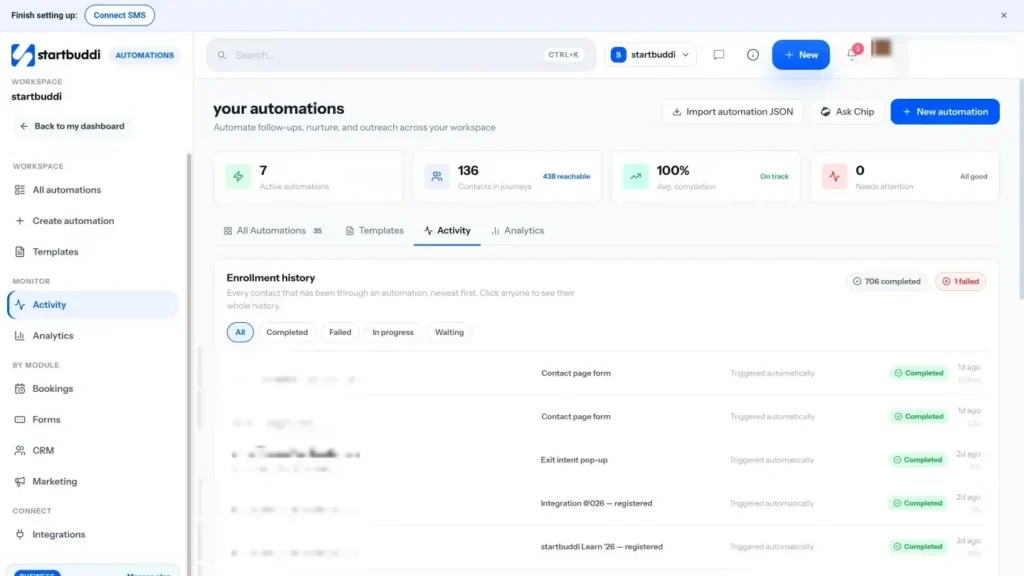
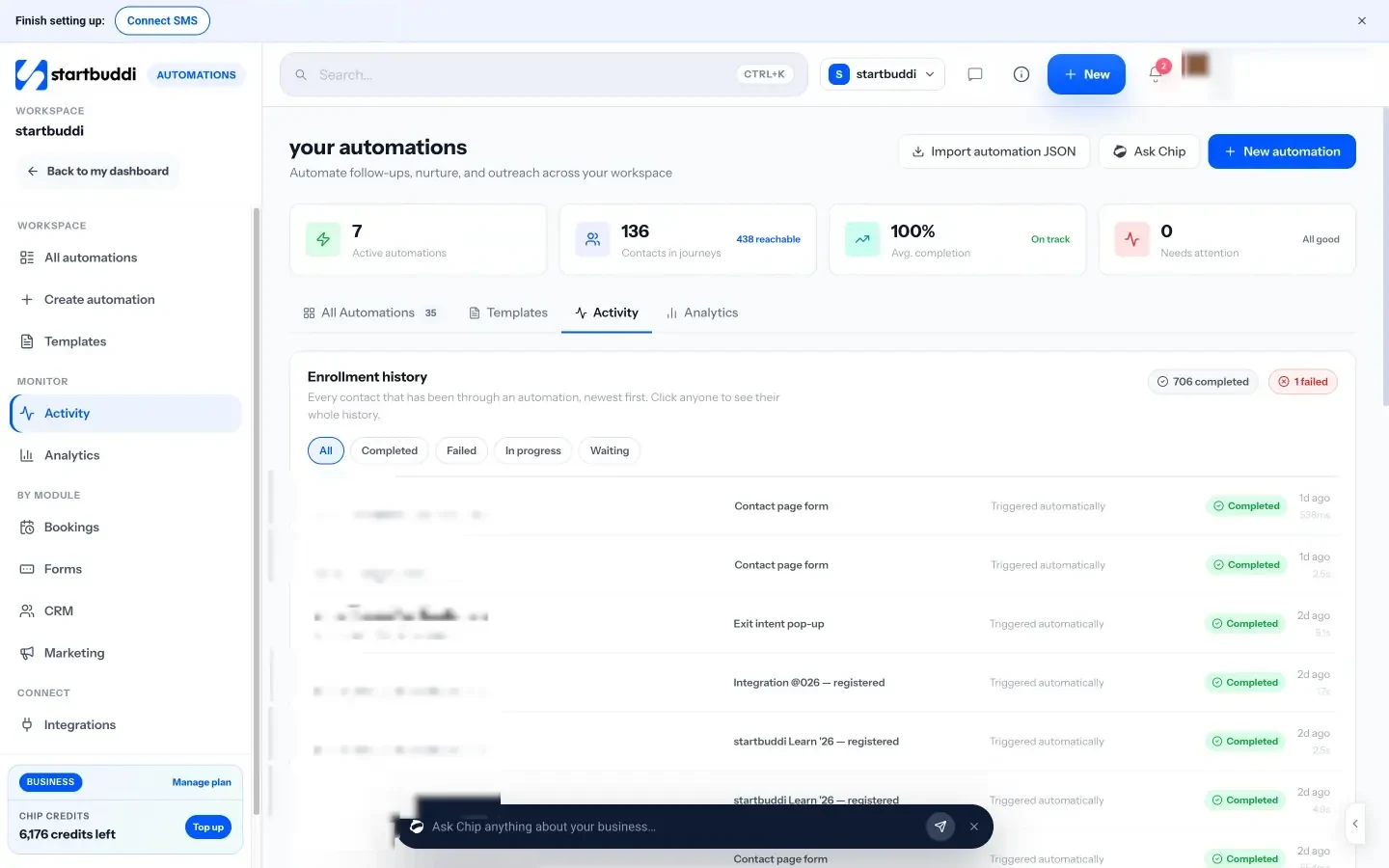
3. Watch the history. The Activity view lists every contact that has been through an automation, newest first. Search anyone to see their whole history and, if needed, enrol them again. The Analytics view shows total enrolments, completion and email performance, such as delivered, opened, clicked and bounced, for each automation.
4. Let Chip draft, and you decide. Chip can plan an automation from a sentence and write the messages, but it always saves its builds as inactive drafts, and switching an automation on is a confirm-first action. Anything Chip does on your behalf appears in What Chip did, with what was asked, whether it was confirmed and what actually happened.
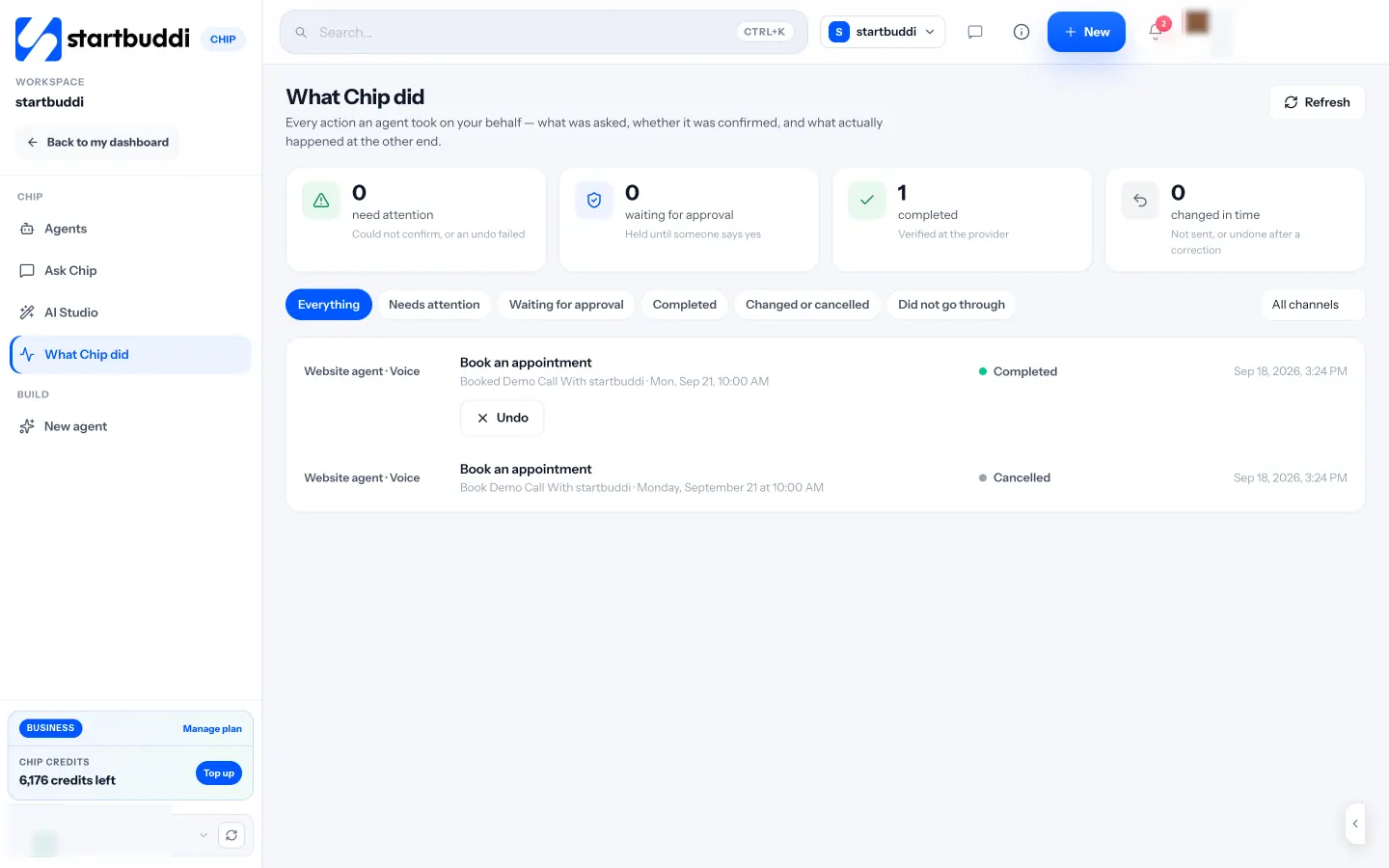
5. Keep an eye on runs. Your plan includes a monthly number of automation runs, and the Automations analytics help you see which flows use the most. If you are near the limit, check for duplicate rules before you move to a bigger plan.
Ready to build your first one? Start on the Automations page to see what is included, then try it on the Starter plan with a 30-day trial.
Tiwalade Joanna Okedara-Kalu is the founder, CEO and CTO of startbuddi, the business system that brings clients, bookings, invoices, projects, marketing and the Chip AI assistant into one place. Tiwalade builds software around how service businesses really work day to day, and writes about client management, getting paid on time and why small businesses outgrow the tools they start with.
Founded startbuddi and leads its product and engineering