The small business tool stack: every app you need, and how to run them from one place
Which business tools a small business needs at each stage, how to choose them on cost, overlap and data, and how to connect, automate and audit your stack.


This guide covers the business tools for small business that you actually need, at each stage, and how to run them as one connected system instead of a pile of logins. It is for solo founders, freelancers, service businesses and small teams anywhere in the world who want fewer tools, lower bills and less copying between apps.
The short answer: most small businesses need tools for about ten jobs (getting found, capturing enquiries, talking to customers, a customer list, bookings, invoicing and payments, bookkeeping, delivering work, running a team, and security). Cover each job once, keep one home for your customer data, automate the repetitive steps, and review the whole stack every quarter.
Over four chapters you will map your jobs to tools by stage, choose tools on cost, overlap, integrations and data (with a worked cost table for a one-person and a five-person business), connect your stack and set up your first automations, and keep it lean and secure. Each chapter ends with how to do it in startbuddi, and is honest about what startbuddi does not do: it is not accounting software, payroll or a point of sale system.
Business tools for small business: what you need at each stage
- Start with jobs, not apps
- How much technology do small businesses really use?
- Stage 1: just starting (your first customers)
- Stage 2: steady customers (solo or two people)
- Stage 3: a small team (three to ten people)
- The categories at a glance
- What you can safely skip for now
- Where startbuddi fits, and where it does not
Ask ten small business owners which business tools they use and you will get ten different lists. One runs everything from WhatsApp and a notebook. Another pays for fourteen subscriptions and still keeps a spreadsheet "just in case". Neither is wrong, but both are paying a price: one in missed follow-ups, the other in money and logins.
This chapter gives you a simpler way to think about business tools for small business. Instead of starting with apps, start with the jobs your business has to do every week. Then match the tools to your stage: just starting, getting steady, or running a small team. By the end you will know what you need now, what can wait, and where a connected system like startbuddi fits (and where it does not).
Start with jobs, not apps
Every business, whether it is a bakery in Leeds, a physiotherapy clinic in Perth or a design studio in Lagos, does roughly the same ten jobs. The tools are just different ways of getting those jobs done.
- Get found. People need a way to discover you and check you are real: a page, a listing on Google, a social profile.
- Capture enquiries. When someone is interested, their details need to land somewhere you will see them: a form, a booking link, a chat.
- Talk to customers. Email, WhatsApp, SMS, Instagram messages, phone calls.
- Keep a customer list. Who they are, what they bought, where they came from and what happens next. This is what a CRM (customer relationship management) tool does.
- Book time. Appointments, calls, consultations, classes.
- Quote, bill and get paid. Estimates, invoices, payment links, card payments.
- Keep the books and handle tax. Recording income and expenses properly, filing returns, paying staff.
- Deliver the work. Tasks, projects, documents, files.
- Run the team. Chat, who does what, leave, onboarding new people.
- Stay secure. Passwords, access, backups.
Write these ten jobs on a page and, next to each one, note what you use today. Most owners find three things straight away: some jobs have no tool at all (usually follow-ups), some have two or three tools doing the same thing (usually messaging and contact lists), and some are done in a spreadsheet that only one person understands.
That page is your starting point. You are not trying to buy an app for every job. You are trying to make sure every job has one clear home.
How much technology do small businesses really use?
If you feel behind, you are not alone, but the direction of travel is clear. The US Chamber of Commerce's 2025 small business technology study found that nearly all small businesses now use at least one technology platform, and that 58% say they use generative AI, up from 40% in 2024 (US Chamber of Commerce, Empowering Small Business 2025). That is a US survey, but the pattern is the same in most markets: the question is no longer whether to use software, but how much of it, and how well it fits together.
The answer is rarely "more". The best small business stacks are small. They cover every job, they share the same customer list, and the owner can explain the whole setup in two minutes.
Stage 1: just starting (your first customers)
At this stage you have an idea, maybe a few customers, and very little time or money. Your stack should be almost free and take an afternoon to set up. Think of it as the minimum that makes you look professional and stops you losing people.
- One place people can find you. A single page with what you do, your prices or a "from" price, and one button (book, enquire, or buy). You do not need a full website yet.
- A business phone line or WhatsApp Business number separate from your personal chats.
- Email on your own domain (hello@yourbusiness.com rather than a free address), usually through an office suite such as Google Workspace or Microsoft 365 Business Basic, which Microsoft lists at $7 per user a month on an annual subscription.
- One customer list. Even a simple one. Every enquiry goes in, with where it came from and the next step.
- A way to invoice and take payment. A clean invoice and a payment link beat "send me a transfer when you can".
- A to-do list you trust. Paper works. So does an app. What matters is that follow-ups are written down.
Worked example. Picture a freelance brand designer in Toronto, three months in, with six clients from referrals. A sensible stack: a one-page site with a "Start a project" form, email on their own domain, a contact list with six names and their stage, and invoices with a card payment link. Total cost: the office suite plus whatever the payment provider charges per transaction. There is no need yet for email marketing, a project tool or automations. The jobs that matter are replying fast and invoicing on time.
The common mistake at this stage is buying tools for the business you hope to have in two years. A 20-person project management setup will not win you client number seven.
Stage 2: steady customers (solo or two people)
Now enquiries come in every week, you have repeat customers, and things start slipping. You forget to follow up on a quote. A customer books by WhatsApp and you double-book them. You realise at month end that three invoices were never paid. This is the stage where the right tools pay for themselves, because the cost of disorganisation becomes real money.
Add, in roughly this order:
- Online booking if you sell time, so people can pick a slot without ten messages back and forth. See our list of booking software for the category.
- A proper pipeline in your customer list: new enquiry, quote sent, won, lost. This is where a CRM earns its place. Our guide on how to organise your customers covers the setup.
- Email or WhatsApp marketing to past customers: a monthly update, a seasonal offer, a "we have space next week" message.
- Bookkeeping software so your income and expenses are recorded the way your tax authority expects. This is a separate category from invoicing, and it matters more as you grow.
- Your first automations: an instant reply when someone fills in your form, a booking reminder, a polite chaser when an invoice is overdue.
Worked example. Picture a mobile hair and beauty business in Nairobi with one assistant and about 60 bookings a month, mostly through Instagram and WhatsApp. The usual leaks are no-shows and customers who come once and never return. The fixes are a booking page that takes a deposit, a reminder before each appointment, and a "we miss you" message to anyone who has not booked in eight weeks. Do the sum for your own business: if one no-show costs you the price of an appointment, the tools only need to prevent one or two a month to pay for themselves.
Stage 3: a small team (three to ten people)
Once other people are involved, the problems change. It is no longer "did I remember?" but "who is dealing with this?" and "where is the latest version?". The tools you add now are about sharing work safely.
- A shared customer inbox so WhatsApp, email and website chat messages are visible to the team and assigned to one person.
- Projects and tasks with owners and due dates, so client work does not live in one person's head.
- Team chat that is separate from customer conversations.
- Roles and permissions, so a new junior can see the projects they work on without seeing every invoice.
- Payroll, which is country-specific and regulated. In the UK, for example, employers running their own payroll need software that reports to HMRC, and GOV.UK keeps a list of HMRC-recognised payroll software. In the US, providers such as Gusto handle payroll and filings.
- Basic HR: an employee directory, onboarding checklists, leave requests and a handbook.
- A password manager and two-step sign-in for every account. We cover this in chapter 4.
Worked example. Picture a five-person digital agency in Bengaluru where client requests arrive by email, WhatsApp and team chat, and nobody is sure who owns each one. The fix is not more tools. It is one customer inbox with an owner for every conversation, one project per client (ideally with a client portal so the client sees progress without chasing), and team chat kept for internal talk only. The tool count barely changes; what changes is that every request has one home.
The categories at a glance
Here is the whole map in one table. The examples are well-known tools in each category, linked to their own sites. They are there to help you recognise the category, not as recommendations. For researched shortlists, see our linked /best/ lists.
| Category | The job it does | Well-known examples | You usually need it from |
|---|---|---|---|
| Office suite and email | Email on your domain, documents, file storage | Google Workspace, Microsoft 365 | Stage 1 |
| Website or page | Get found, explain what you sell | See website builders | Stage 1 |
| CRM (customer list and pipeline) | Who your customers are and what happens next | HubSpot (free CRM); see CRM software | Stage 1 (simple) to 2 (pipeline) |
| Booking | Let people pick a time | Calendly; see booking software | Stage 2 if you sell time |
| Invoicing and payments | Bill customers and collect money | Stripe, Paystack; see invoicing software | Stage 1 |
| Accounting and bookkeeping | Proper books, tax returns, reconciliation | Xero, QuickBooks, Wave | Stage 2 |
| Email and messaging marketing | Stay in touch with past and future customers | Mailchimp; see email marketing software | Stage 2 |
| Point of sale (POS) | Take payments in person, track stock at a till | Square, Shopify POS | Only if you sell face to face |
| Projects and tasks | Deliver work on time | Trello; see project management software | Stage 2 to 3 |
| Team chat | Internal conversation | Slack | Stage 3 |
| Payroll | Pay staff and report to the tax authority | Gusto (US); HMRC-recognised software (UK) | Your first employee |
| Automation | Move data and trigger steps between tools | Zapier; see automation software | Stage 2 |
| Password manager | Store and share logins safely | Bitwarden | Stage 1 |
What you can safely skip for now
Some categories sound important but rarely pay off for a business under ten people:
- ERP systems (enterprise resource planning), built for manufacturers and large distributors.
- Enterprise CRMs with weeks of setup. If you need a consultant to configure it, it is too early.
- Business intelligence tools for building custom dashboards. Most small businesses need five numbers, not fifty. Pick the handful that tell you whether the business is healthy and watch those.
- Several social media tools at once. One scheduler is plenty.
- Specialist SEO suites before you have a site worth optimising.
A useful rule: if you cannot name the weekly job a tool does for you, cancel the trial.
Where startbuddi fits, and where it does not
This is where startbuddi fits: it is built to be the connected middle of this map: the jobs that all revolve around one customer record. Inside one account you get:
- Customers: contacts and companies, a sales pipeline, and an inbox that brings WhatsApp, email, SMS, website chat, Instagram and Facebook messages together.
- Getting found and capturing enquiries: landing pages, link in bio, an online store and business pages in Publish, plus Forms and Bookings.
- Marketing: email, SMS, WhatsApp and social media campaigns (paid plans).
- Money Manager: estimates, invoices, payment links, subscriptions, expenses, cash flow and a profit and loss report.
- Work: tasks, projects, goals, time tracking and client portals, plus Documents and team Chat.
- People: a team directory, onboarding, leave, performance reviews and a handbook.
- Automations and Chip, the AI assistant, working across all of it.
Just as important is what it is not. It is not accounting or bookkeeping software: it does not do bank reconciliation, a general ledger or tax filing, so you will still want an accountant or a tool like Xero, QuickBooks or Wave for your books. It does not run payroll or produce payslips. It is not a point of sale system for a shop counter. And it is not your office suite, so you will still have email and documents from Google or Microsoft. A good stack for most small businesses is startbuddi in the middle, plus those few specialist tools around it.
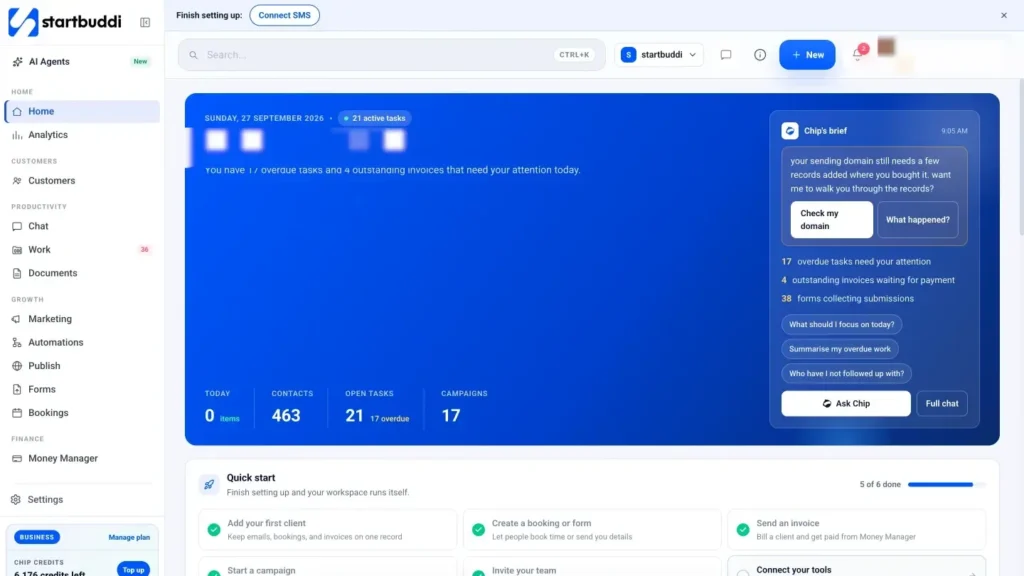
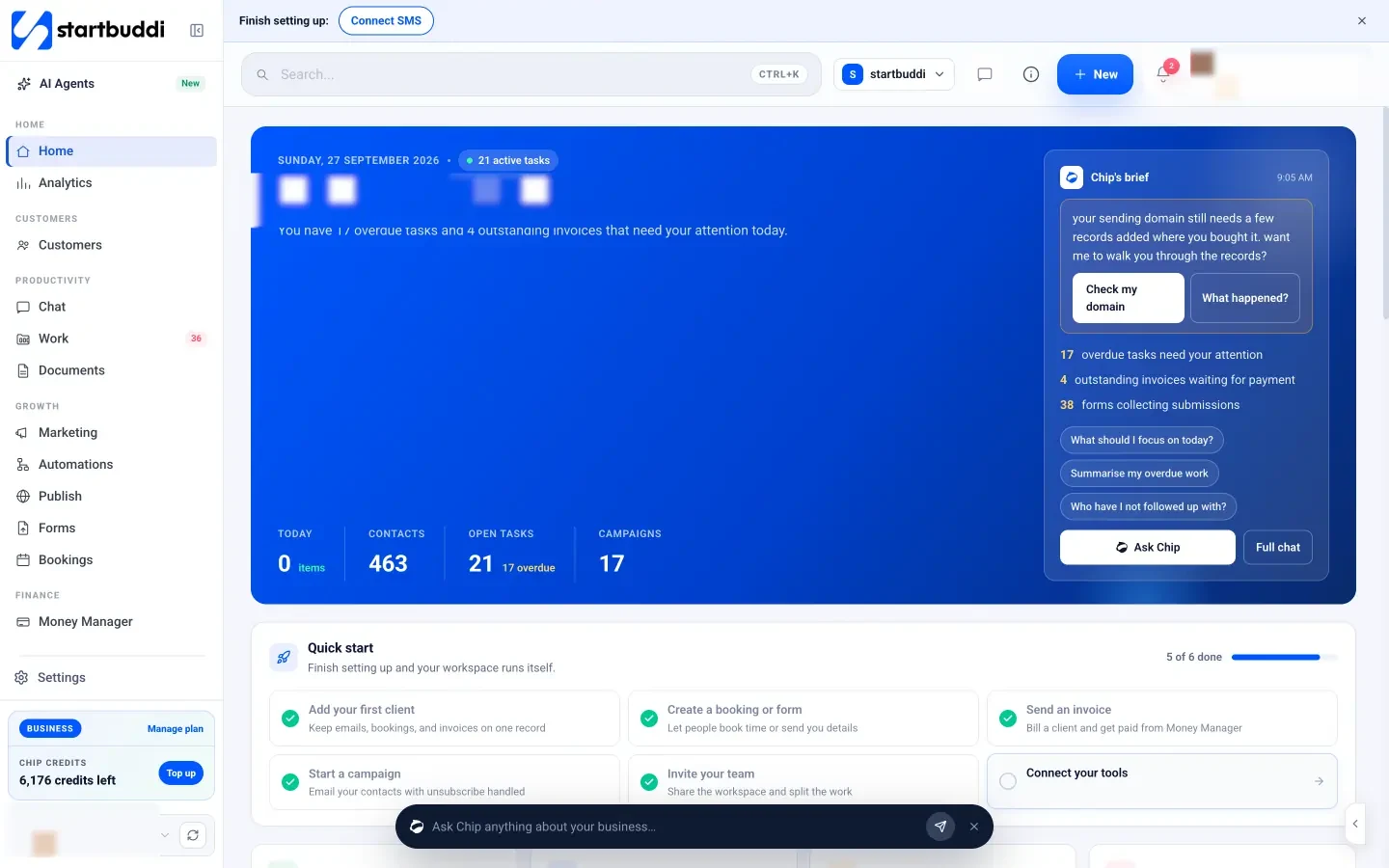
Home is where it comes together. When you log in you see what is due today, which invoices are unpaid and who is waiting on you, with Chip's brief on top and a Quick start card that ticks itself off as you set things up.
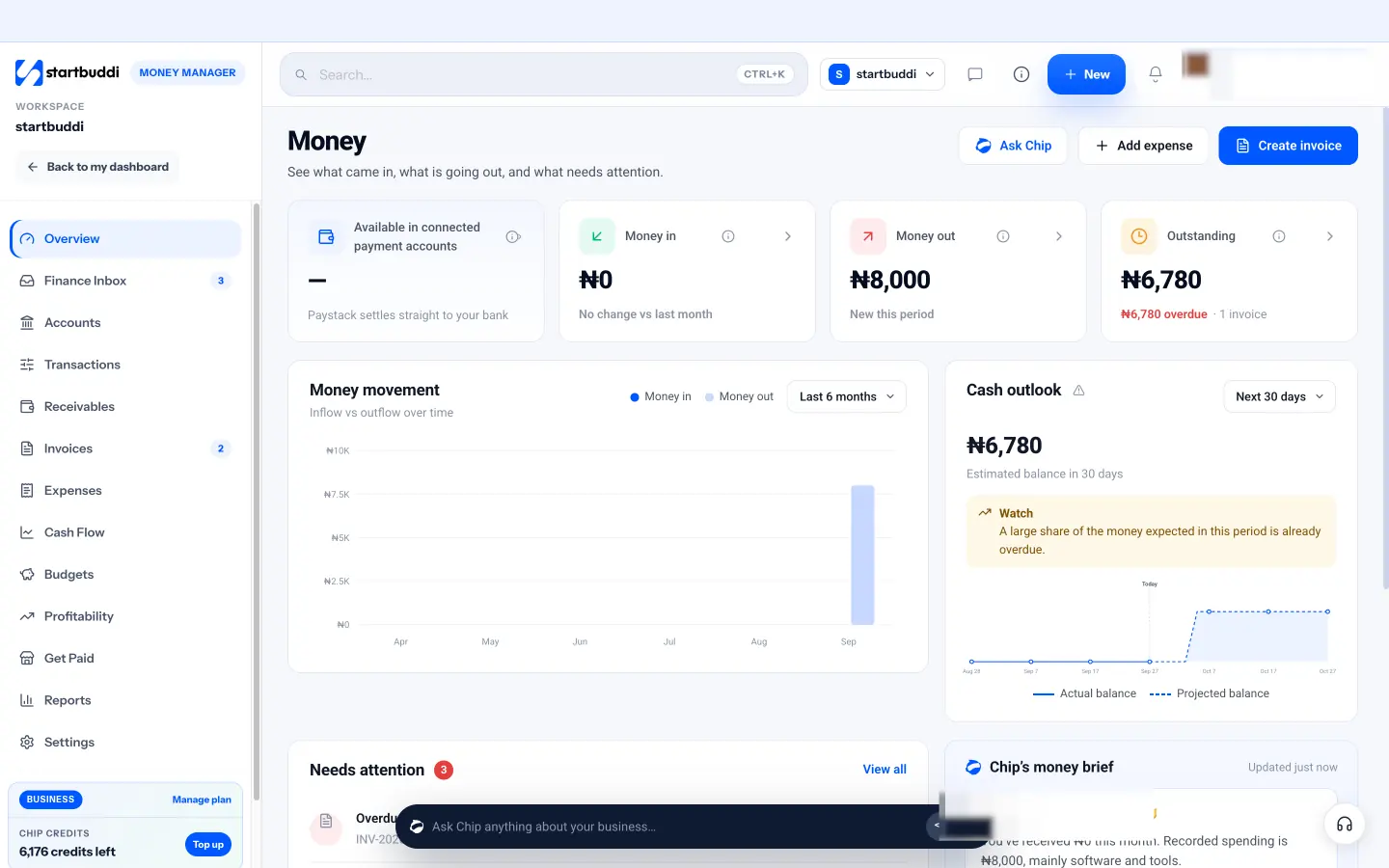
Money Manager shows the other side: what came in, what went out and what is still owed. It is a clear picture of your cash, not a replacement for your accountant's books, which is exactly why the reports export to CSV for them.
Before you move on, finish your ten-jobs page: for each job, write the tool you use now and the stage you are at. In the next chapter we will use it to choose tools on cost, overlap, integrations and data.
Choosing tools: cost, overlap, integrations and your data
- Write the job statement first
- Count the real cost, not the sticker price
- A worked cost example: one person and five people
- Spot the overlap before you pay twice
- Check how the tools connect
- Ask what happens to your data
- All-in-one or best of breed?
- Comparing CRM tools and marketing tools for small business
- Checking this in startbuddi
Once you know which jobs need a tool, the next question is which tool. This is where most small businesses lose time: reading "top 10" lists, starting five free trials, and ending up with the one that had the nicest homepage. This chapter gives you a calmer way to choose, built on four checks: what it really costs, whether it overlaps with something you already pay for, how well it connects to the rest of your stack, and what happens to your data.
Write the job statement first
Before you open a single pricing page, write one sentence for the job the tool must do. Be specific about who, what and how often. For example:
- "When someone fills in the quote form on my site, I want them in my customer list with the service they asked about, and I want a reminder to call them the same day."
- "Every Friday I want to see which invoices are unpaid and send a polite reminder without writing each one from scratch."
- "My two assistants need to see today's bookings on their phones, but not my income."
A job statement stops you being dazzled by features you will never use. It also becomes your test script: in every free trial, try to do exactly that job, start to finish. If you cannot do it in the first hour, that tells you more than any review.
Count the real cost, not the sticker price
The price on the pricing page is only the start. When you compare tools, add up five things:
- Per-user pricing. Many tools charge per person. A $10 tool is $50 for a team of five.
- Tiers and limits. Contacts, emails a month, bookings, automation runs. A cheap plan that caps you at 500 contacts gets expensive the month you pass it.
- Monthly versus annual. Annual billing is usually cheaper, but it locks you in. Microsoft, for example, lists Microsoft 365 Business Basic at $7 per user a month paid yearly, or $8.40 on a monthly subscription (Microsoft). Trello lists its Standard plan at $5 per user a month billed annually and $6 billed monthly (Trello).
- Transaction fees. Payment tools usually charge per sale rather than per month. Stripe, for instance, lists 2.9% + 30¢ per successful transaction for domestic cards in the US, with no monthly fee (Stripe). Fees differ by country and provider, so check your own.
- Your time. Every separate tool needs setting up, learning, logging into and keeping in sync. If you copy the same customer details into three places, that is a cost, even if it never shows on a bill.
Watch for introductory prices too. Mailchimp, for example, was showing its Essentials plan from $13 a month with a 50% discount for the first 12 months when we checked (Mailchimp), and Google Workspace offers introductory pricing to new customers for their first year. Budget for the full price, not the first-year one.
A worked cost example: one person and five people
Here is a realistic stack built from separate, well-known tools, using list prices as each company published them on its own site in September 2026 (US dollars, per month, annual billing where offered). It is an example to show the maths, not a recommendation, and prices change, so check the links before you rely on them.
| Job | Example tool and published price | 1 person | 5 people |
|---|---|---|---|
| Email and documents | Microsoft 365 Business Basic, $7 per user | $7 | $35 |
| Customer list and pipeline | HubSpot free CRM, $0 | $0 | $0 |
| Booking | Calendly Standard, $10 per seat (2 seats for the team) | $10 | $20 |
| Email marketing | Mailchimp Essentials, from $13 | $13 | $13 |
| Invoicing and bookkeeping | Wave Pro, $19 (US and Canada) | $19 | $19 |
| Projects and tasks | Trello Standard, $5 per user | not needed | $25 |
| Team chat | Slack Pro, $7.25 per user | not needed | $36.25 |
| Connecting the tools | Zapier Professional, $19.99 | $19.99 | $19.99 |
| Password manager | Bitwarden Teams, $4 per user | $4 | $20 |
| Total a month | Plus card fees on every payment | $72.99 | $188.24 |
Now the same jobs with a connected system in the middle. On startbuddi, the Starter plan includes two seats, Growth five and Scale 15 (see pricing for what each costs where you are). It covers the customer list, booking, email marketing, invoicing and payment links, projects, team chat and automations. It does not replace your office suite, your bookkeeping or your password manager, so those stay.
| Job | Connected stack | 1 person | 5 people |
|---|---|---|---|
| Customers, bookings, marketing, invoices, projects, chat, automations | startbuddi Starter (1 person) or Growth (5 people) | See pricing | See pricing |
| Email and documents | Microsoft 365 Business Basic | $7 | $35 |
| Bookkeeping | Wave Pro (or your accountant's choice) | $19 | $19 |
| Password manager | Bitwarden Teams | $4 | $20 |
| Total a month | Plus card fees on every payment | $30 plus startbuddi | $74 plus startbuddi |
Three honest lessons from these tables:
- Free tiers can carry a solo business a long way. HubSpot, Calendly, Mailchimp, Trello, Slack, Zapier and Wave all publish free plans with limits. If cash is the only constraint, you can start close to $0 and pay with your time instead.
- The saving is not only the bill. The bigger gain from a connected stack is one customer record, one login and no copying between tools. That is hard to put in a table, but you feel it every day.
- Limits matter more than prices. Compare contacts, email sends and automation runs at your real volume, not the headline price. The Growth plan on startbuddi, for example, includes 15,000 contacts, 10,000 email sends and 2,000 automation runs a month.
A note on other currencies. Many tools price in local currency, and not always by converting from dollars. Google, for example, shows Workspace prices in euros to European visitors. Always read the pricing page in your own currency, and remember that VAT or GST may be added on top.
For a deeper version of this comparison, see our post on whether an all-in-one workspace or five separate tools costs more.
Spot the overlap before you pay twice
Overlap is the quiet budget killer. It happens because every tool wants to grow into its neighbours. Your email marketing tool adds a contact list. Your booking tool adds payments. Your CRM adds email campaigns. Before long you have customer details in four places and nobody knows which one is right.
Look for these common overlaps:
- Contact lists in the CRM, the email tool, the booking tool and the accounting software.
- Email sending from the CRM, the email marketing tool and the invoicing tool.
- Forms in the website builder, a form tool and the CRM.
- Payments in the store, the booking tool and the invoicing tool, each with its own fees and payout schedule.
The fix is to decide, for each type of data, which tool is the source of truth. Customers live in one place. Money records live in one place. Everything else reads from those or sends data to them.
Check how the tools connect
An integration is a connection that moves data between two tools without you copying it. Not all integrations are equal, so ask four questions:
- Is it built in or bolted on? A native integration is built by one of the two companies. A connector tool such as Zapier links apps that do not talk to each other directly; Zapier's free plan includes 100 tasks a month (Zapier), and busy stacks soon need a paid plan.
- Which way does data flow? One-way sync (bookings pushed to your calendar) is not the same as two-way sync (changes in either place update the other).
- What exactly moves? Just name and email, or also tags, notes, amounts and dates?
- What happens when it breaks? Do you get told, or do records silently stop arriving?
Test the integration during the trial with one real example.
Ask what happens to your data
Your customer list and money records are the most valuable things your business owns after your reputation. Before you commit to a tool, find out:
- Can you export everything, in a common format such as CSV or Excel, whenever you want, without contacting support?
- Who can see it, and can you give each person only the access they need?
- Does it support two-step sign-in (a code or app as well as a password)?
- Where is it stored, and does the company explain how it handles personal data?
If you hold data about customers in the UK or EU, data protection law also gives those people rights over their data. For example, the UK regulator explains that the right to data portability lets individuals receive personal data they have provided in a structured, commonly used and machine-readable format (ICO). Tools that export cleanly make those requests easy to handle. This is general information, not legal advice; check the rules where you operate.
All-in-one or best of breed?
This is the big decision, and there is no single right answer.
- Separate specialist tools make sense when one job is the heart of your business and needs depth, for example a restaurant's POS, an online shop's inventory, or an accountant's practice software. You pay in integrations and logins.
- An all-in-one system makes sense when your jobs revolve around the same customers: enquiry, booking, invoice, follow-up. You trade some depth in each area for one record, one login and fewer things to break. See our researched list of all-in-one business software.
Most small businesses end up with a hybrid: one connected system in the middle, and two or three specialist tools around it for the jobs it does not do.
Comparing CRM tools and marketing tools for small business
Two categories cause more confusion than any other, because they overlap so much: CRM tools and marketing tools. Here is what to compare in each.
For CRM tools, look at:
- How contacts get in. Can forms, bookings, WhatsApp chats and emails create or update a contact on their own, or will you type everything in?
- A pipeline you can read at a glance, with stages that match how you actually sell.
- Next steps with dates, so every open deal has a follow-up, and something tells you when one is overdue.
- A timeline per customer showing messages, bookings, invoices and notes in one place.
- Mobile use, because many owners update their customer list between jobs, not at a desk.
For marketing tools, look at:
- The channels your customers use. Email is universal, but in many markets WhatsApp or SMS gets read faster. Check what each channel costs to send.
- Where the list comes from. If your marketing tool keeps its own copy of your contacts, you will spend time syncing it with your CRM.
- Consent and unsubscribes handled for you, so you stay on the right side of spam and privacy rules.
- Sending from your own domain, which looks more trustworthy and helps your emails reach the inbox.
- Simple reporting: who opened, who clicked, and whether anyone bought or booked afterwards.
If a CRM tool and a marketing tool share one contact list, most of the overlap problems in this chapter disappear. That is the main argument for keeping them in the same system. The CRM and email marketing lists linked in chapter 1 are a good place to start a shortlist.
Checking this in startbuddi
If you are weighing startbuddi as your connected middle, run the same four checks. Every paid plan has a 30-day trial, so use it to test your job statements with real data. The Free plan covers contacts, tasks, invoices, one form and one booking page; the Marketing module, WhatsApp and SMS need Starter or above, and Free includes 2 active automations against 10 on Starter.
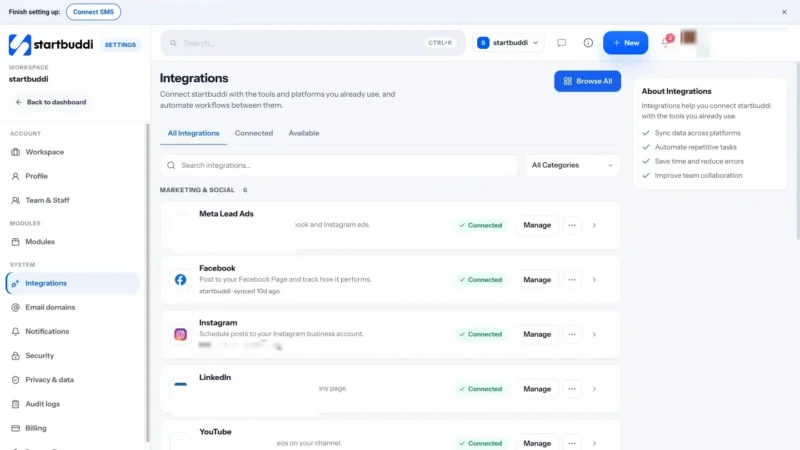
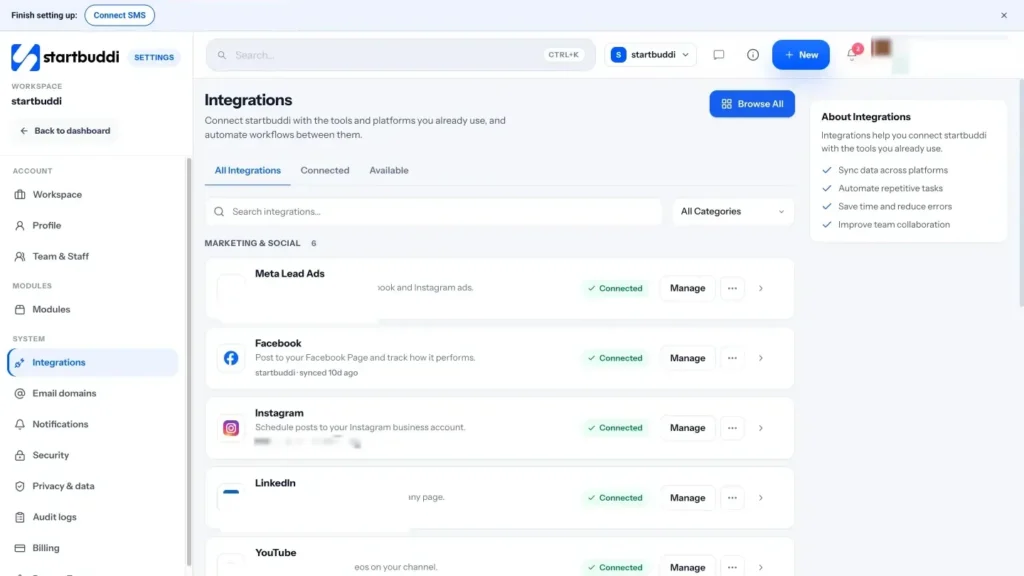
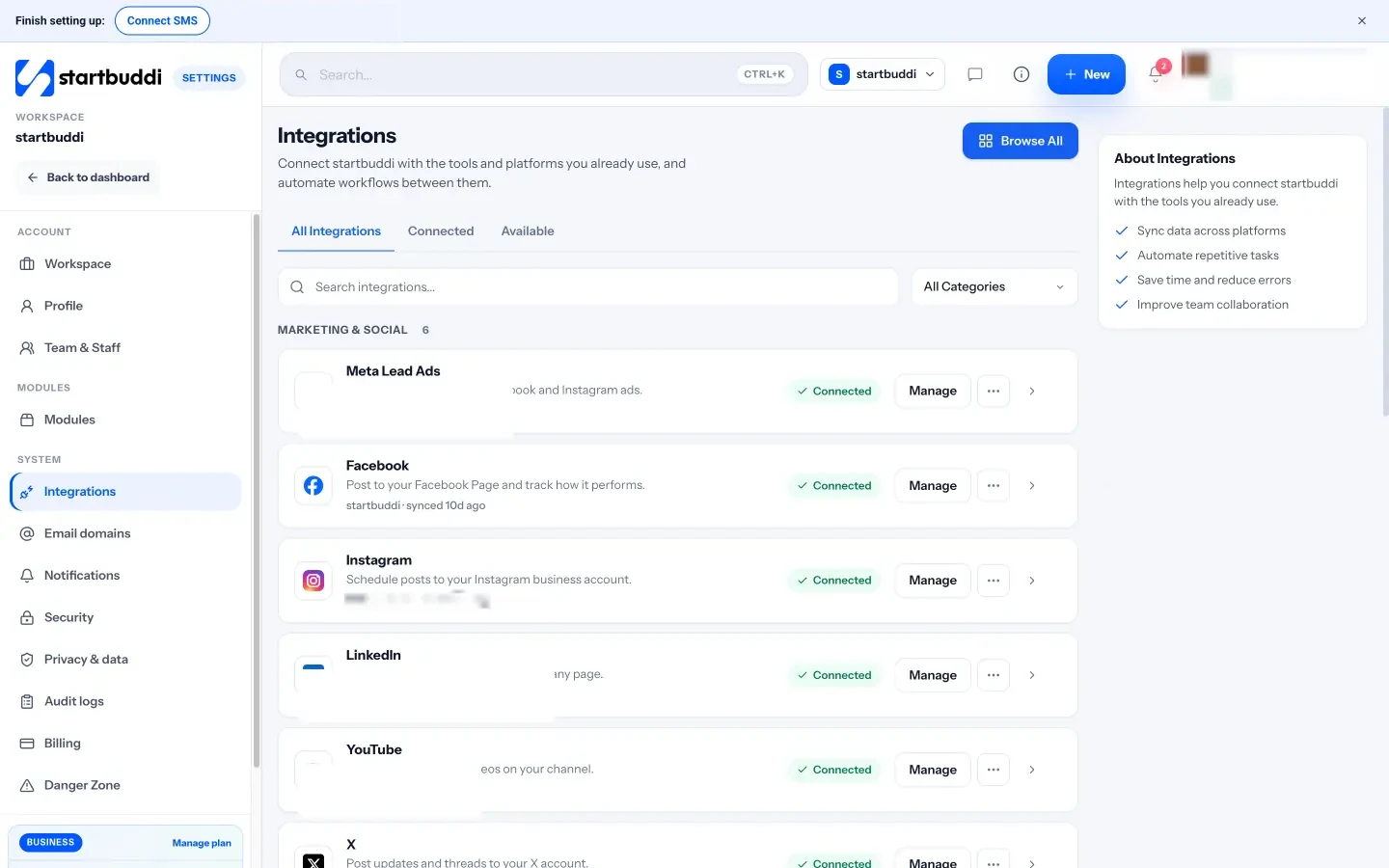
For connections, open Settings, then Integrations. You can import contacts from a CSV (including a contacts export from HubSpot, Zoho CRM, Salesforce, Pipedrive or Mailchimp), connect Facebook, Instagram, LinkedIn, YouTube, Pinterest and X for social posting, take payments with Paystack or Stripe, send bookings to Google or Outlook Calendar, and link out to thousands of other apps through Zapier. Our help article on integrations lists the details.
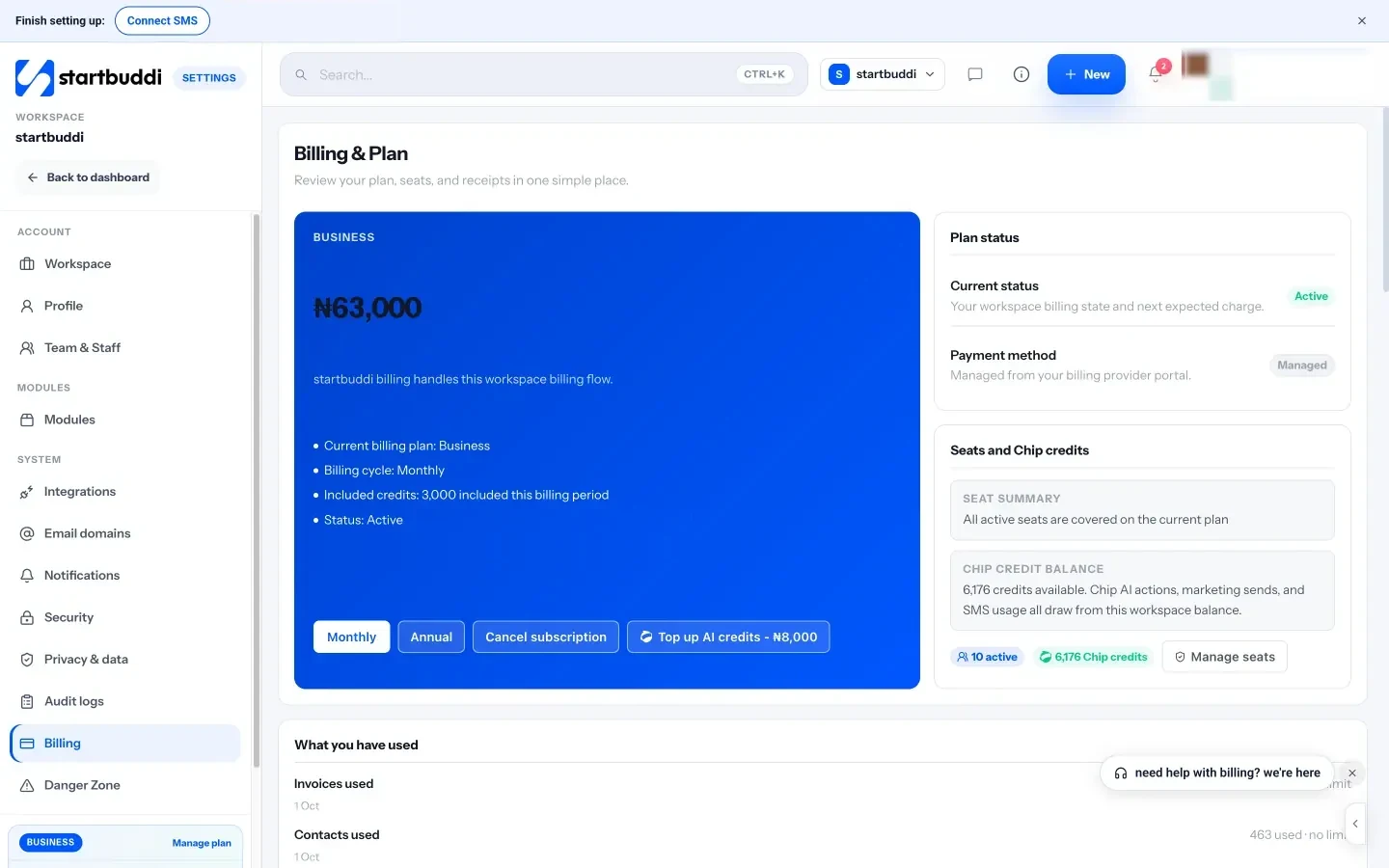
For cost, Settings, then Billing, shows your plan, seats, Chip credits and what you have used this month, so you can see how close you are to each limit before it becomes a surprise.
Your homework for this chapter: take your ten-jobs page from chapter 1, pick a source of truth for customers and for money, and write one job statement for each gap. In the next chapter we will connect it all and automate the busywork.
Set up a connected stack and automate the busywork
- Pick your home base
- Map the customer journey on one page
- Set up in the right order
- Agree names, fields and tags before you automate
- The first automations worth setting up
- Rules that keep automations safe
- A worked automation: from enquiry to paid
- Using AI to save setup time, carefully
- Connecting to tools outside your home base
- How to do it in startbuddi
Choosing good tools is half the work. The other half is wiring them together so that information flows on its own and the repetitive jobs happen without you. A connected stack means a new enquiry becomes a contact, gets a reply, turns into a booking or a quote, becomes an invoice, gets paid, and triggers a thank-you, and you only step in where a human is needed.
This chapter shows you how to plan that flow, set it up in a sensible order, and add your first automations without creating a tangle you are afraid to touch.
Pick your home base
Every connected stack has a centre: the place where your customer record lives. Everything else either sends data into it or reads from it. For most service businesses the home base is the tool that holds contacts, because almost every job (bookings, invoices, marketing, support) is about a customer.
Choose your home base using three questions:
- Which tool do you (or your team) open first every morning?
- Which tool already holds the most complete customer information?
- Which tool can the others connect to most easily?
Once you have chosen, make it a rule: if a customer detail changes, it changes in the home base first. Other tools are copies.
Map the customer journey on one page
Before you connect anything, draw the path a typical customer takes, from first hearing about you to paying and coming back. Keep it to one line of boxes. Here is an example for a physiotherapy clinic in Sydney:
- Finds the clinic on Google or Instagram, lands on a page.
- Books a first assessment online and pays a deposit.
- Gets a confirmation straight away and a reminder the day before.
- Attends; the physio adds notes and a follow-up plan.
- Gets an invoice for the balance and pays by card.
- Gets a check-in a week later, and a nudge to rebook if they have not.
- Is asked for a review after the course of treatment ends.
Now mark each box with the tool that handles it and whether a person has to do something. The boxes where someone copies data by hand, or where nothing happens unless someone remembers, are your automation candidates. In this example, steps 3, 6 and 7 are pure admin. They need to happen every time, and nobody enjoys doing them.
Do the same for a product business. For a small online candle shop in Cape Town, the path might be: sees a post, visits the store, buys, gets an order confirmation, gets a "how are you finding it?" message two weeks later, and gets a restock reminder after two months.
Set up in the right order
The order you set things up in matters, because each layer depends on the one before. Here is a sequence that works for most small businesses, spread over a week of short sessions:
| Day | What you set up | Why now |
|---|---|---|
| 1 | Accounts, two-step sign-in, password manager, your business details and branding | Everything else inherits these |
| 2 | Import your contacts and tidy them: one list, consistent fields, tags for where they came from | Automations are only as good as the data they run on |
| 3 | Your page, forms and booking links, pointing into the home base | New enquiries start landing in the right place |
| 4 | Invoices, payment links and your payment provider | So you can bill as soon as work is agreed |
| 5 | Email sending from your own domain, WhatsApp and your social accounts | Messages come from your business, not a no-reply address |
| 6 | Two or three automations, tested on yourself first | Only now is there clean data to automate |
| 7 | Invite your team with the right roles | They arrive to a working system, not a half-built one |
Agree names, fields and tags before you automate
Automations run on rules like "if the contact has the tag new lead" or "when the stage changes to won". If one person types "New Lead", another "new-lead" and a third "Lead (new)", the rules quietly miss people. Spend 20 minutes agreeing a small vocabulary:
- Stages for your pipeline: for example, New enquiry, Quote sent, Won, Lost. Four to six is plenty.
- Sources: where each contact came from (website form, Instagram, referral, walk-in).
- A few tags for things you will filter on: service type, VIP, needs follow-up.
- Required fields: the details you always need (name, phone or email, source).
Write the list down and share it. It is the least exciting part of the setup and the one that saves the most pain later.
The first automations worth setting up
An automation is simply "when this happens, do that". You do not need dozens. Start with the ones that protect revenue or save the most repeated effort:
- Instant reply to enquiries. When someone fills in your form, send a friendly confirmation that says what happens next and when. Replying quickly is one of the simplest ways to stop an enquiry drifting to the next business on the list.
- Booking confirmation and reminder. Confirm straight away, remind the day before, and include how to reschedule. This is the simplest defence against no-shows.
- Welcome for new contacts. A short introduction, what you do and one useful link.
- Overdue invoice chaser. Run a test with one small invoice first and check Activity, so you know the overdue check is running for your account before you rely on it. A polite reminder when an invoice passes its due date, then a firmer one a week later.
- Review request. After a completed booking or a finished project, ask for a review while the experience is fresh.
- Win-back. When someone cancels, or has not bought in a while, send an easy way back.
For more ideas by business type, see our post on seven automations every service business should set up in week one.
Rules that keep automations safe
Automations are great until one sends the wrong message to 400 people on a Sunday night. These rules keep you out of trouble:
- One at a time. Switch on one automation, watch it for a week, then add the next.
- Test on yourself. Use your own email and phone as the test contact before any customer sees it.
- Add exits. If someone replies, books or pays, they should leave the reminder flow. Nothing annoys a customer more than a payment reminder for an invoice they paid yesterday.
- Respect consent. Marketing messages need permission, and every marketing email needs an unsubscribe link. WhatsApp has its own rules on templates and when you can message people first.
- Keep a human in the loop for anything that costs money, promises a price, or goes to everyone at once.
- Review them monthly. Open each live automation once a month and ask: is it still sending the right message, to the right people, at the right time? Prices, opening hours and offers change, and an automation will keep repeating last season's wording until someone updates it.
- Name them clearly, such as "Booking reminder, day before, email", so anyone on the team knows what each one does.
A worked automation: from enquiry to paid
Here is how the pieces fit for a hypothetical home cleaning company in Johannesburg that quotes for deep cleans. Each line is either an automation or a human step.
- Trigger: quote form submitted. The contact is created with the source "website form" and the tag "deep clean".
- Automation: send an instant email or WhatsApp reply: "Thanks, we will send your quote within two working hours."
- Automation: create a task for the owner, "Call and quote", due today, and move the contact to the stage "New enquiry".
- Human: call, agree the price, send the estimate. The stage moves to "Quote sent".
- Automation: if there is no reply after three days, send a short follow-up. Exit the flow the moment they reply.
- Human: book the clean and send the invoice with a payment link.
- Automation: when the invoice is paid, send a thank-you; if it goes overdue, send a polite reminder.
- Automation: after the clean, ask for a review, and tag them for a "time for your next deep clean?" message in a few months.
Notice the balance. The owner still does the two things that need judgement: pricing the job and booking the team. Everything else, the replies, reminders and chasers that usually get forgotten on a busy week, happens on its own. That is what a good automation plan looks like: fewer dropped balls, not fewer humans.
Using AI to save setup time, carefully
AI assistants are now good at the boring parts of setup: drafting the wording for a reminder, suggesting the steps for a flow, or turning "when someone books, confirm and remind them" into a plan. Use them to get a first draft quickly, then check every message yourself before it goes to a customer. Keep three rules: never let AI invent prices, dates or promises; read every message aloud once to check it sounds like you; and keep a person approving anything that goes to everyone at once.
Connecting to tools outside your home base
Some jobs will stay in specialist tools, such as your bookkeeping software or your office suite. There are three common ways to connect them:
- Native integrations built into one of the tools. These are the most reliable. Check which direction data flows.
- A connector such as Zapier, which links apps through triggers and actions. It is flexible but adds another bill and another thing to monitor, and each step counts towards your task allowance.
- Scheduled exports, such as a monthly CSV for your accountant. Unglamorous, but perfectly fine for jobs that only happen once a month.
Watch for two classic problems. Duplicates happen when two tools both create the same contact; decide which one is allowed to create records. Loops happen when tool A updates tool B, which updates tool A, and so on; avoid two-way connections you do not strictly need.
How to do it in startbuddi
In startbuddi, the home base is built in: Customers holds one record per person, and forms, bookings, invoices, inbox conversations and automations all read and write that same record. You do not have to connect your booking tool to your CRM, because they are the same system.
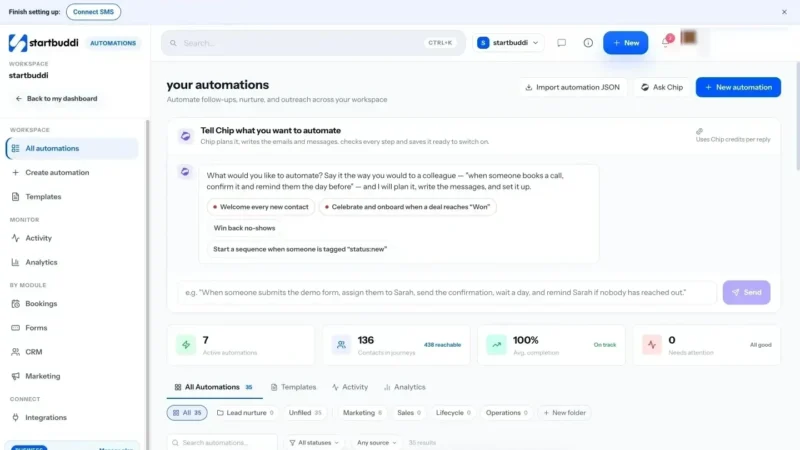
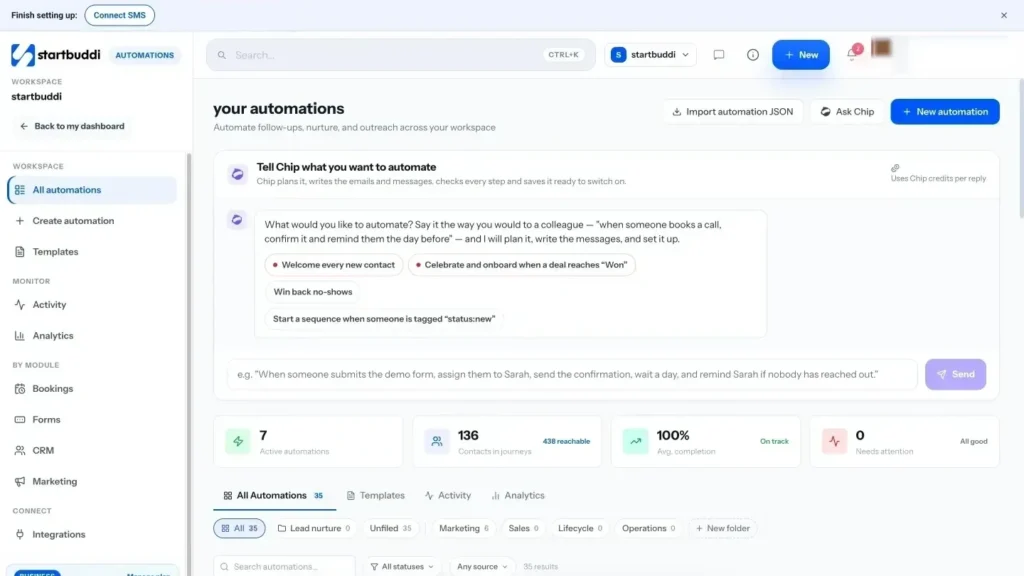
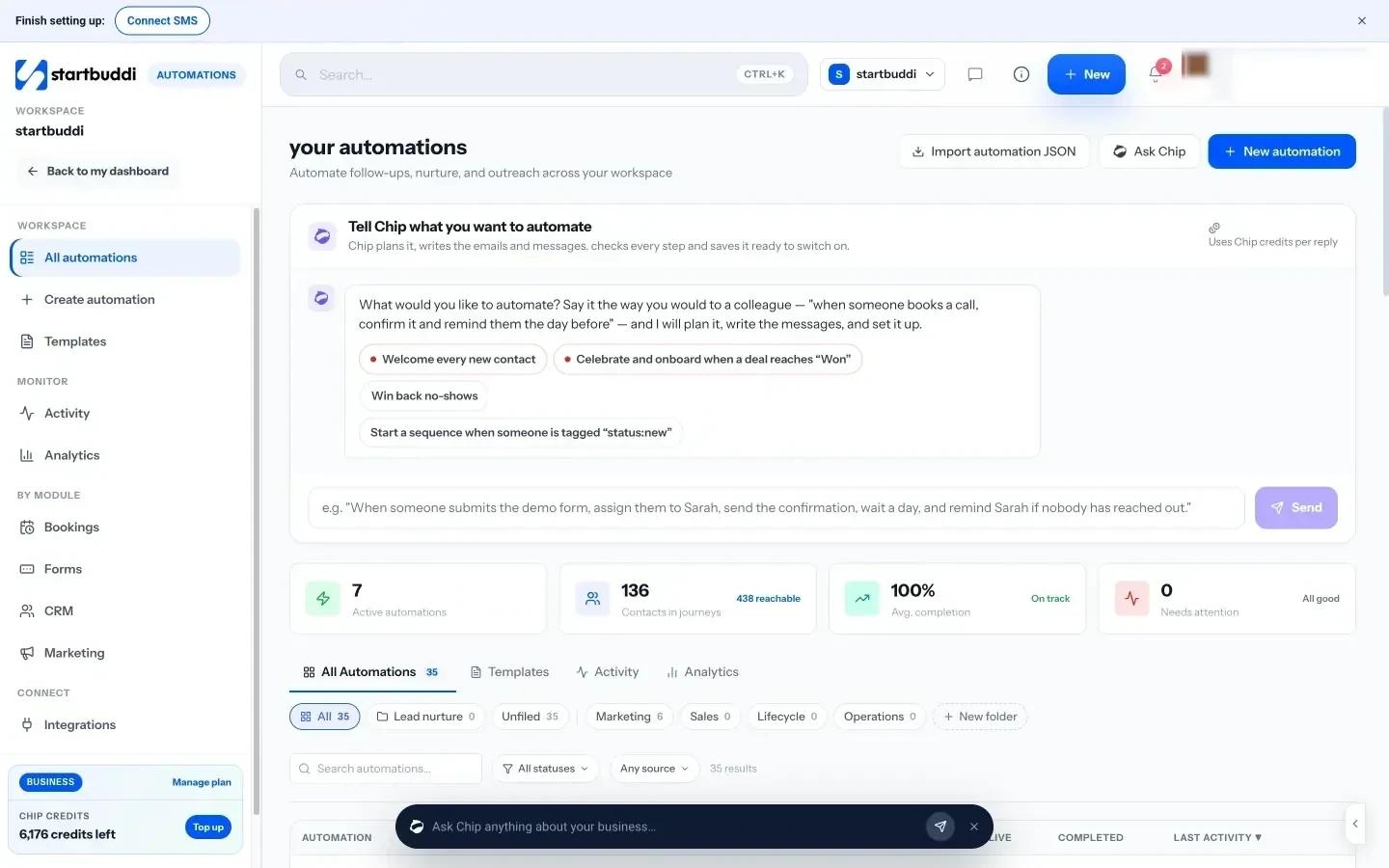
Automations live in one hub, reached from Automations in the sidebar. Free includes 2 active automations and Starter 10, with no limit on Growth and Scale, and each plan includes a set number of automation runs a month (250 on Starter, 2,000 on Growth, 5,000 on Scale). One engine runs everything: form follow-ups, booking reminders, invoice chasers and marketing journeys.
You have three ways to create one:
- Tell Chip what you want. Type something like "When someone books a call, confirm it and remind them the day before". Chip plans the flow, writes the messages and saves it as a draft for you to check and switch on. This uses Chip credits.
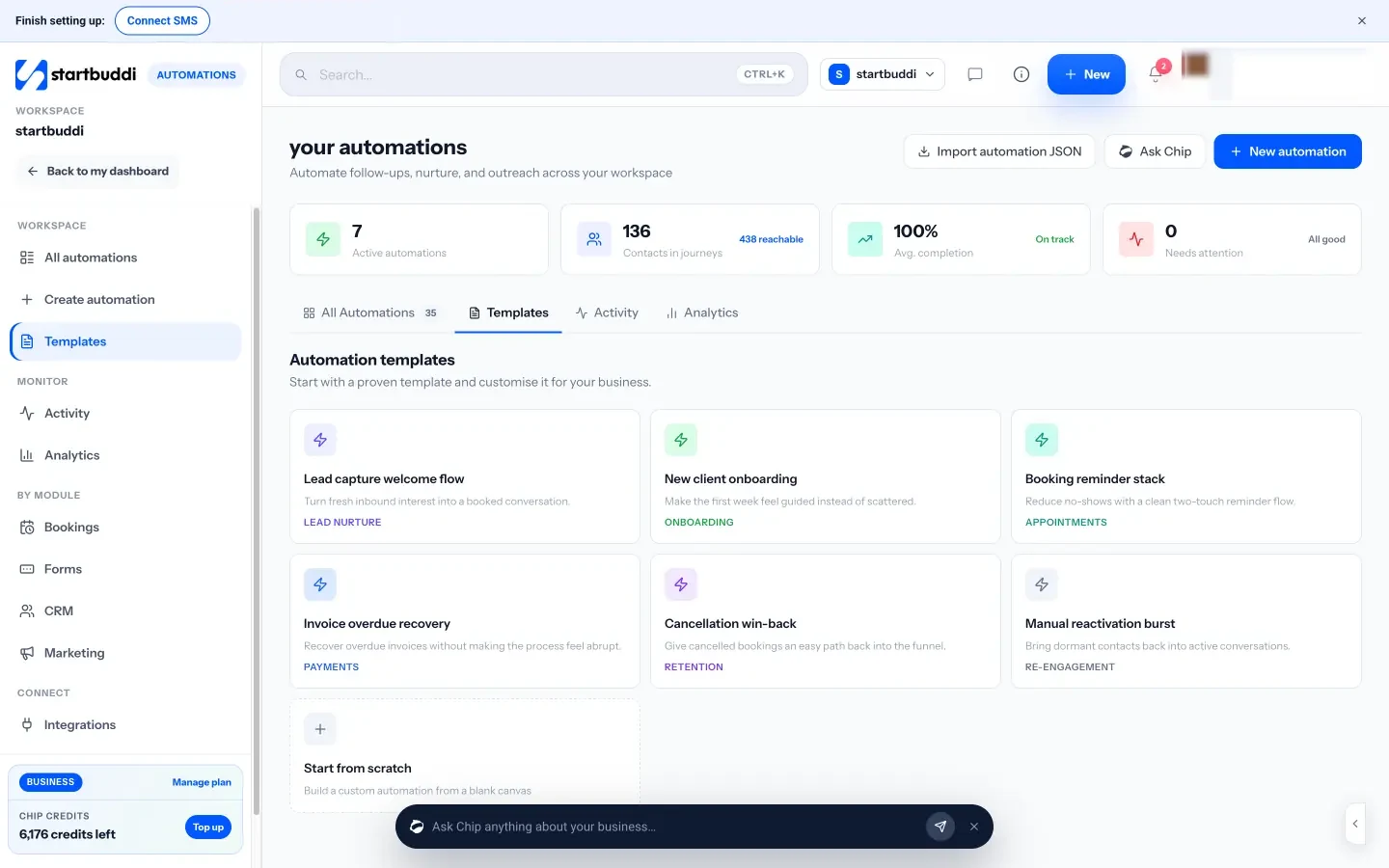
- Use a template. Ready-made flows you customise.
- Start from scratch. Pick what starts it, then add steps on a canvas.
The templates cover most of the first automations in this chapter: Lead capture welcome flow, New client onboarding, Booking reminder stack, Invoice overdue recovery (test it with one invoice before you rely on it), Cancellation win-back and Manual reactivation burst.
Triggers include form submitted, new contact added, tag added, stage changed, new booking, booking cancelled or completed, no-show, invoice paid, invoice overdue and payment succeeded, plus WhatsApp, Facebook and Instagram messages. Steps include sending an email, SMS or WhatsApp message, waiting, branching on contact data, waiting for a reply, adding tags, creating a task, assigning to a teammate, and exiting early when a rule matches. For outside tools, there are steps to add a row to Google Sheets or send the event to Zapier.
Before anything goes live, use Test to run it with a contact or simulate an event, and Validate to catch mistakes such as a delay with no wait time. When you activate, a review shows how many contacts can be reached and how many are excluded (for example, because they unsubscribed), so consent is checked before the first message goes out.
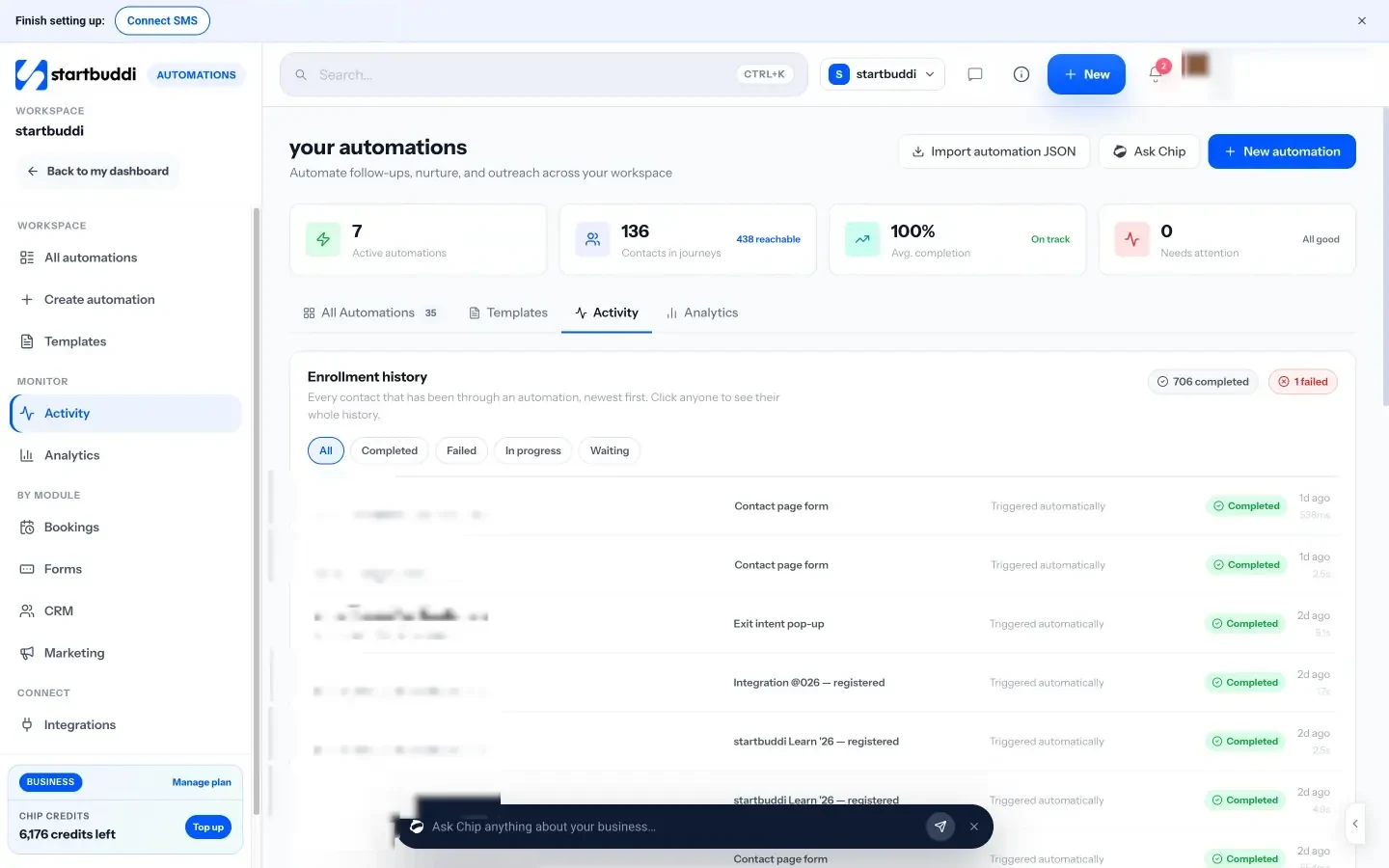
Afterwards, the Activity tab shows every contact that has been through an automation, newest first, with its status: completed, failed, in progress or waiting. Search for any contact to see their whole history.
For a step-by-step walkthrough, see our help article on building an automation sequence, or the Automations product page.
Your task for this chapter: draw your customer journey, circle the three most repetitive steps, and switch on one automation for the first of them this week.
Keep it lean: audits, costs, security and when to switch
- Run a quarterly tool audit
- Cut costs without cutting corners
- Security basics for a small business stack
- Keep records for as long as the law asks
- When to switch tools (and when not to)
- When a business management app makes sense
- How to switch without losing anything
- Draw a one-page stack map for your team
- Signs your stack is healthy
- Keeping it lean in startbuddi
- Your next step
A tool stack is like a garden. Leave it alone for a year and it gets overgrown: trials that turned into subscriptions, seats for people who left, two tools doing the same job, and passwords shared in a group chat. None of it is dramatic, but together it costs money, slows you down and leaves doors open.
This final chapter gives you a simple routine to keep your stack lean: a quarterly audit, ways to cut costs without cutting corners, the security basics every small business should have, and a clear way to decide when to switch tools and how to do it without losing data.
Run a quarterly tool audit
Once a quarter, block out an hour and list every tool the business pays for or relies on. Your bank and card statements are the best source, because they catch the subscriptions nobody remembers. Build a simple table with these columns:
| Column | What to write |
|---|---|
| Tool | Name and what it is for, in one line |
| Job | Which of the ten jobs from chapter 1 it does |
| Owner | The one person responsible for it |
| Cost | Monthly cost, in your currency, including all seats |
| Renewal date | When it renews, and whether it is monthly or annual |
| Seats | How many you pay for, and how many are actually used |
| Last used | When someone last did real work in it |
| Data inside | Customer data, money records, files, or nothing important |
| Verdict | Keep, reduce, merge or cancel |
Worked example. Picture a three-person marketing studio in Manchester running this audit for the first time. Their list shows 11 paid tools. Two are trials that quietly converted to paid plans. One is a scheduling tool nobody has opened since the founder started using a different one. Three tools each hold a copy of the client list. And the design tool has five seats for a team of three, because two freelancers left in the spring. None of that is unusual. The fix takes an afternoon: cancel two, remove two seats, and pick one home for the client list.
Ask the same four questions about every line:
- Is it doing a job we still have?
- Does another tool we pay for already do this job?
- Are we paying for more seats or a higher tier than we use?
- If it disappeared tomorrow, what would break?
Cut costs without cutting corners
Once you have the list, these moves usually save the most:
- Remove unused seats the same day someone leaves. Per-user pricing means every idle seat is money out every month.
- Move stable tools to annual billing. If you are certain you will keep a tool, annual plans are often cheaper. Zapier, for example, lists its Professional plan at $19.99 a month billed annually against $29.99 billed monthly (Zapier). Keep newer or uncertain tools on monthly billing.
- Drop to a lower tier if you are not using the features you pay for. Check your usage page first.
- Put renewal dates in your calendar two weeks before they hit, so you decide rather than default.
- Watch introductory prices ending. A tool that cost half price in year one will cost the full price in year two.
- Merge overlapping tools. Three tools holding your customer list is two too many.
What not to cut: backups, your password manager, and the tool your bookkeeping lives in. Saving a few dollars a month is not worth losing your records or your accounts.
Security basics for a small business stack
Every tool you add is another account that can be broken into. Small businesses are real targets: Verizon's 2025 Data Breach Investigations Report found that the share of breaches involving a third party doubled, that credential abuse was one of the leading ways attackers got in, and its launch announcement notes that at smaller organisations ransomware was present in 88% of breaches (Verizon). You do not need a security team to cover the basics:
- Turn on two-step sign-in everywhere, starting with email, banking, payments and your main business system. The US Cybersecurity and Infrastructure Security Agency advises small businesses that strong passwords alone are no longer enough and to start with admin accounts and people who handle sensitive data (CISA).
- Use a password manager instead of a shared spreadsheet or group chat. Business plans let you share logins with the team without revealing them, and remove access in one step. Bitwarden, for example, lists its Teams plan at $4 per user a month, billed annually.
- Give people only the access they need. A freelancer on one project does not need to see your invoices.
- Offboard properly. When someone leaves, remove them from every tool on your audit list the same day, and change any shared passwords.
- Back up what matters. The UK National Cyber Security Centre's Small Business Guide puts backing up your data first on its list, alongside protecting devices, securing accounts and spotting scams.
- Review your third parties. Every connected app and connector can read some of your data. Remove connections you no longer use.
Keep records for as long as the law asks
Leaving a tool does not mean you can delete what was in it. Tax authorities expect you to keep business records for years. In the UK, HMRC says self-employed people must keep records for at least five years after the 31 January submission deadline of the relevant tax year (GOV.UK). In the US, the IRS's general rule is three years, and at least four years for employment tax records (IRS). Other countries have their own rules. This is general information, not tax advice: check with your tax authority or accountant before you cancel any tool that holds invoices, receipts or payroll records, and export a copy first.
When to switch tools (and when not to)
Switching costs time and a little risk, so do it for the right reasons. Good reasons to switch:
- You are copying the same data by hand between tools every week.
- The tool cannot do a job you now need, and a workaround takes longer than the job.
- You have outgrown its limits, and the next tier costs more than a better-fitting alternative.
- The team avoids using it, so the data inside it is out of date.
- It fails your security or data checks: no two-step sign-in, no export, no way to restrict access.
Poor reasons to switch:
- A competitor's advert or a new feature you will not use weekly.
- A tool that works but that one person dislikes.
- The middle of your busiest season.
If you are comparing options, start from the researched category lists linked in chapter 1 rather than from adverts.
When a business management app makes sense
A common reason to switch is consolidation: replacing four or five separate tools with one business management app that holds customers, bookings, invoices, tasks and messages together. It tends to make sense when most of your tools revolve around the same customers, when you are paying for a connector just to keep them in sync, or when your team keeps asking "which app is that in?".
It makes less sense when one specialist job is the heart of your business. A restaurant still needs a proper till, a shop with thousands of products may need dedicated inventory software, and every business with employees needs payroll that meets local rules. In those cases, consolidate the customer and admin side, and keep the specialist tool for its one job.
How to switch without losing anything
Most switching horror stories come from rushing. Follow these steps:
- Export everything from the old tool, in CSV or Excel where possible, and store a copy somewhere safe.
- Map the fields. Match each column in the old tool to a field in the new one. Decide what to do with anything that has no match (usually a note or a tag).
- Clean before you import. Remove duplicates, fix obvious typos, and drop contacts you have no right or reason to keep.
- Import a small batch first, check it looks right, then import the rest.
- Run both in parallel for a short, fixed period, such as two weeks, with new work going only into the new tool.
- Redirect the inputs: update forms, booking links, payment links and email signatures to point at the new system.
- Cancel the old tool only after its renewal date is in your calendar and your export is safely stored.
Tell your customers only if something changes for them, such as a new booking link or a new way to pay.
Draw a one-page stack map for your team
Once your audit is done, turn it into a single page anyone on the team can read. It needs four parts:
- The home base in the middle: where customer records live and where new enquiries land.
- The specialist tools around it: bookkeeping, office suite, payroll, POS if you have one, each with the job it does and its owner.
- The arrows between them: what data moves where, and whether it is automatic or a monthly export.
- The rules: "customers are created only in the home base", "invoices are issued only from one place", "everyone uses the password manager".
Pin it in your team chat or handbook and update it at every audit. A new starter can then learn your whole business system in ten minutes, and nobody signs up for a new app without seeing where it would fit.
Signs your stack is healthy
You do not need a perfect setup. You need one that passes these checks most weeks:
- Every enquiry gets a reply on the same working day, without anyone having to remember.
- You can answer "who owes us money?" in under a minute.
- Each customer exists once, not in three tools with three spellings.
- Nobody copies data by hand between tools more than once a month.
- Leavers lose access the same day, and every account has two-step sign-in.
- You know your total monthly tool bill and it does not surprise you.
- You could leave any tool tomorrow with an export of your data.
If three or more of these fail, go back to your audit list and start with the check that costs you the most money, usually replies or unpaid invoices.
Keeping it lean in startbuddi
If startbuddi is the middle of your stack, most of the routine in this chapter lives in one place.
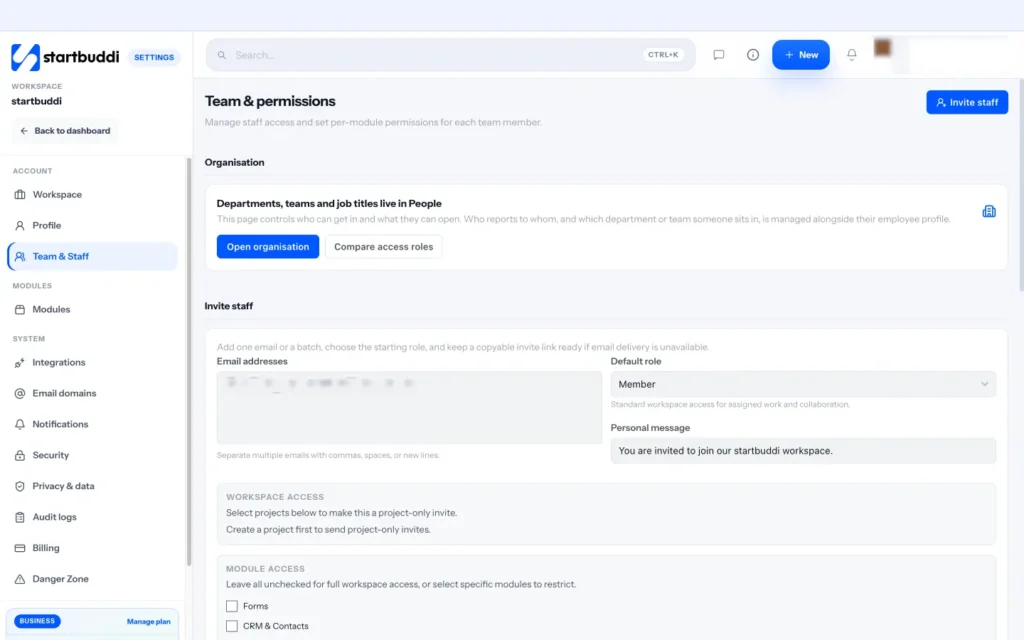
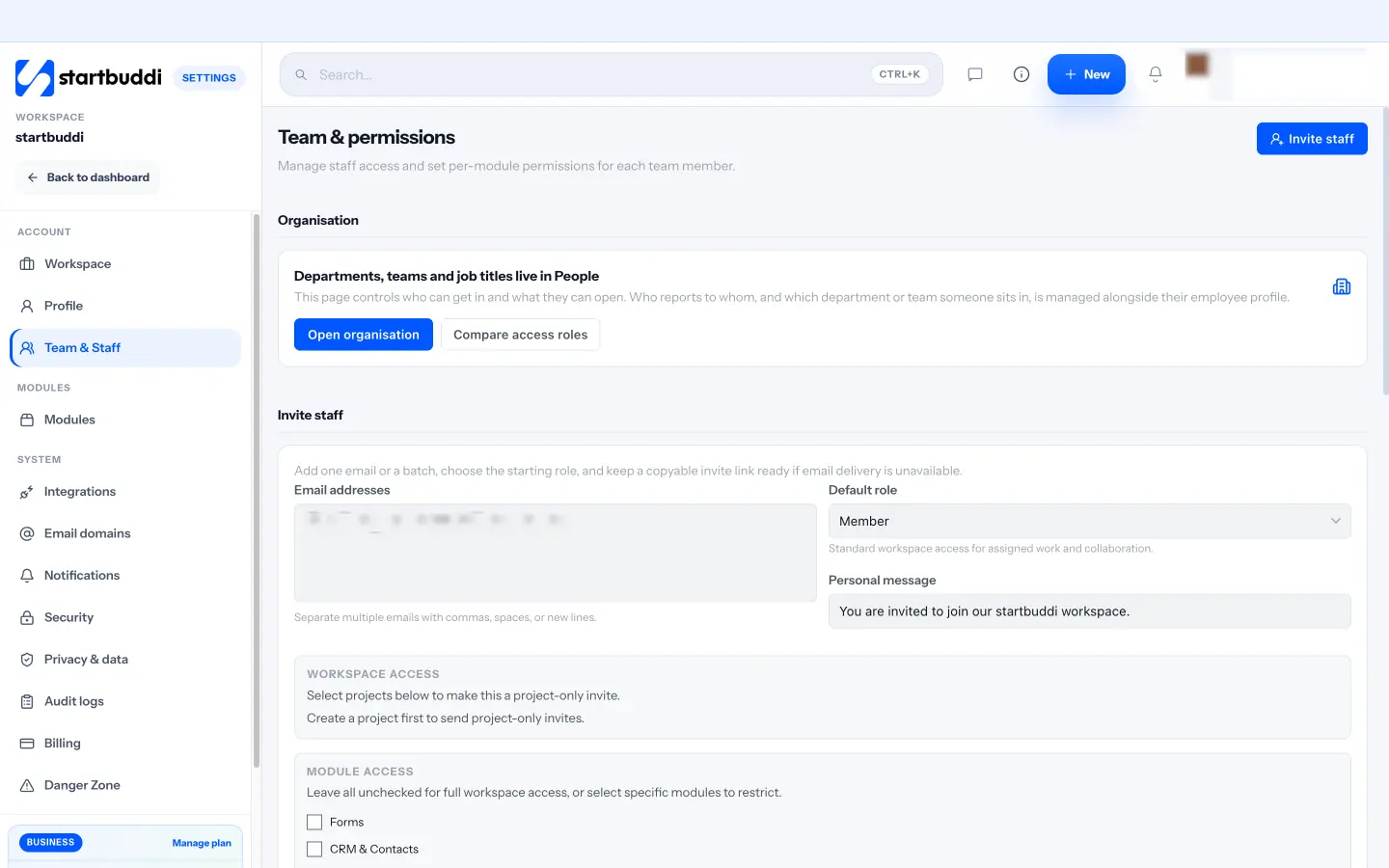
Access and roles. In Settings, then Team & Staff, you invite people with a starting role (Owner, Admin, Manager, Member, View only or Client) and can limit which modules they can open. You can also send project-only invites, so a freelancer sees only the project they work on.
Security. Two-factor sign-in and automatic idle sign-out are not available yet, so use strong, unique passwords and a password manager for everyone on the team. Audit logs, available to owners and admins, record who changed what and when for privacy, security, billing and ownership events.
Your data. Contacts export to CSV or Excel, Money Manager reports export to CSV for your accountant, and the Danger Zone in Settings lets you export your workspace data. That makes the "can I leave?" check easy to pass, and it gives your accountant clean numbers to work with in whatever bookkeeping tool they use.
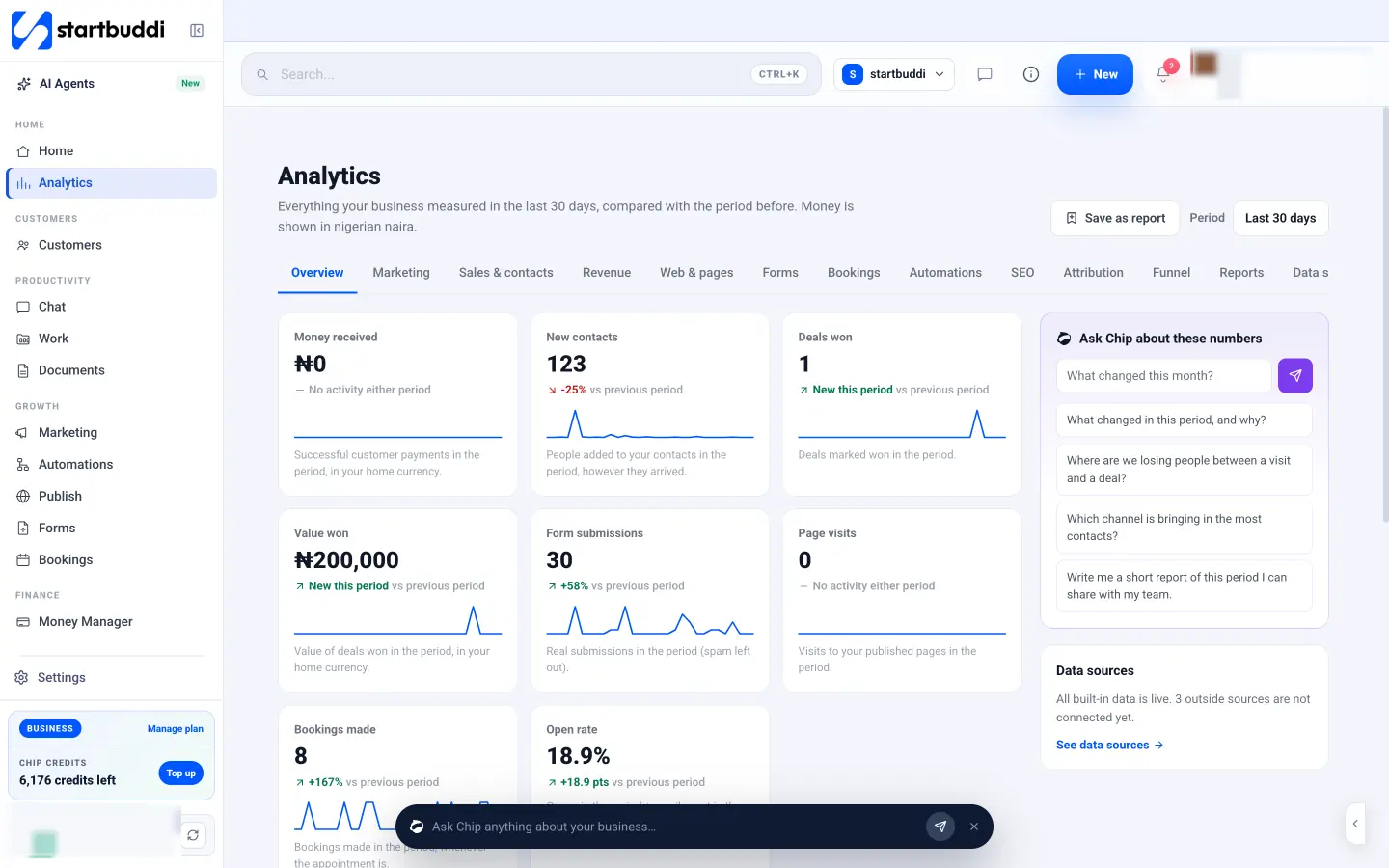
Your numbers. Analytics puts money received, new contacts, deals won, form submissions, page visits, bookings and email opens on one screen, each compared with the period before. It is a quick way to check whether the tools you are paying for are actually bringing in customers, and you can ask Chip what changed.
Costs. The Billing page shows your plan, seats, Chip credits and usage, so your quarterly audit of startbuddi itself takes a minute.
Your next step
Put a 60-minute "tool audit" in your calendar for the first week of next quarter, and do a quick version today: list every tool from your bank statement, mark each one keep, reduce, merge or cancel, and turn on two-step sign-in wherever it is off. If you want a connected middle for customers, bookings, marketing, invoices and work, you can start on the Free plan or try any paid plan free for 30 days. See startbuddi pricing for the details.
Tiwalade Joanna Okedara-Kalu is the founder, CEO and CTO of startbuddi, the business system that brings clients, bookings, invoices, projects, marketing and the Chip AI assistant into one place. Tiwalade builds software around how service businesses really work day to day, and writes about client management, getting paid on time and why small businesses outgrow the tools they start with.
Founded startbuddi and leads its product and engineering