How to run your business from one app: choosing and using an all in one business management app
A four-part guide to running your business from one app: when an all in one business management app makes sense, how to choose one, how to move in and how to run your week.


This guide is about running your business from one app: what an all in one business management app is, when it makes sense and when it does not, how to choose one, how to move in without disrupting customers, and how to run your week from it once you have. It is for owners of small businesses and small teams who are juggling a CRM, a spreadsheet, an invoicing tool, a booking tool, WhatsApp and a notes app, and wondering whether there is a simpler way.
Each chapter starts with the business thinking, with checklists, worked numbers and mistakes to avoid, and ends with how it looks in startbuddi. We are a single-app system ourselves, so we have tried to be fair about the trade-offs, including the jobs one app should not try to do. By the end you will know whether consolidating suits you, have a shortlist method, a migration plan and a simple daily and weekly routine.
When an all in one business management app makes sense
- The switching cost
- The copying cost
- The gap cost
- The subscription cost
Most small businesses do not choose their software. It accumulates. A free CRM here, an invoicing app there, a booking link from one company, an email tool from another, a spreadsheet to hold it all together, and WhatsApp for everything else. Each tool made sense on the day it was added. Together they mean customer details in six places, the same information typed three times and nobody quite sure which list is right.
Here is the short answer. An all in one business management app puts the core jobs of a small business, such as customers, sales, bookings, marketing, projects, invoices and payments, and often team management, in one system with one customer record. It makes sense when you spend real time moving information between tools, when things fall through the gaps, or when you are about to add yet another subscription. It does not replace specialist software you genuinely need, such as accounting, payroll or point of sale. The goal is fewer places to look, not one app for absolutely everything.
What an all in one business management app is
A business management app is software that helps you run the day-to-day work of a business. An all in one version covers several of those jobs in one place instead of one job per tool. Our glossary explains the idea of an all-in-one business workspace, and our post on business management apps compares the types in more detail.
Almost every small business does the same six jobs, whatever it sells:
| Job | What it involves | Typical separate tool |
|---|---|---|
| Win customers | Website or landing page, forms, social posts, email and messaging campaigns | Website builder, form tool, email marketing tool, social scheduler |
| Manage customers | Contacts, conversations, deals, follow-ups | CRM, shared inbox, WhatsApp on a phone |
| Book and deliver | Appointments, projects, tasks, documents | Booking tool, project management tool, docs app |
| Get paid | Quotes, invoices, payment links, subscriptions, expenses | Invoicing app, payment provider, spreadsheet |
| Run the team | Chat, roles, leave, onboarding, reviews | Team chat, HR tool, shared drive |
| Know how it is going | Numbers, reports, goals | Spreadsheets, analytics tools |
An all in one app aims to cover most of that table. The key idea is not the number of features. It is that every feature works on the same customer: the person who filled in your form is the person who booked, got the invoice and paid it, with one history you can see on one screen.
Why scattered tools cost more than their subscriptions
The switching cost
Moving between apps looks free, but it is not. A study published in Harvard Business Review followed 137 people at three large companies and found they switched between apps and websites nearly 1,200 times a day, losing just under four hours a week to refocusing after each switch, about 9 per cent of their working time. A small business owner is not a Fortune 500 employee, but anyone who has hunted for a client's phone number across WhatsApp, email and a spreadsheet knows the feeling.
The copying cost
When tools do not talk to each other, people become the connection. You copy a new enquiry from the form tool into the CRM, then into the invoicing app, then into the email list. Each copy takes minutes and introduces mistakes: a misspelled email, an old phone number, a customer in one list but not another.
The gap cost
The most expensive problems happen between tools. The enquiry that arrived in the form tool while you were watching your inbox. The invoice nobody chased because the payment tool did not tell the CRM. The booking that the project tool never heard about. Each gap is small until it loses a customer.
The subscription cost
Separate tools also add up in money. Our post on an all-in-one workspace versus five separate tools works through a full comparison. A simple way to check your own position: list every subscription the business pays for, with its monthly cost and the number of seats, then add them up. Many owners are surprised by the total, especially once each new team member multiplies the per-seat prices.
The honest trade-offs
Consolidating is not automatically better. Here is the fair picture:
| One app | Separate specialist tools |
|---|---|
| One customer record and history | Records split across tools, unless you connect them |
| One login, one bill, one place to train new people | Many logins, bills and training sessions |
| Features work together out of the box | Connections to set up and maintain |
| Each feature is usually simpler than the best standalone tool | Deepest features in each category |
| Changing provider later means moving more at once | You can swap one tool without touching the others |
For most businesses with up to about 20 people, the benefits of one record and fewer gaps outweigh the depth of specialist features they rarely use. For businesses with a very specialised core, such as a restaurant that lives in its point-of-sale system, the core tool should stay specialist, with an all in one app around it for customers, marketing and admin.
What one app should not try to do for you
Be wary of any product, including ours, that claims to replace everything. These jobs usually need dedicated software:
- Accounting and tax: ledgers, bank reconciliation, tax returns. Keep an accounting tool and an accountant.
- Payroll: calculating pay, deductions and statutory filings.
- Point of sale: card terminals, tills and stock for shops and restaurants.
- Field service dispatch: live GPS tracking and route planning for fleets of vans.
- Industry-regulated systems: clinical records, legal case management and similar.
An all in one app should sit alongside these, share what it can and cover everything else.
A day with scattered tools, and a day with one app
To make the difference concrete, here is the same morning for a small cleaning company, first with separate tools and then with one system.
With separate tools: the owner checks the booking tool for today's jobs, then WhatsApp for overnight messages, then email for a quote request that came through the website form. She copies the quote request into the CRM, writes the quote in a document, exports it as a PDF and emails it. She opens the invoicing app to send yesterday's invoices, then a spreadsheet to note who has paid. A customer calls about a missed clean; she searches WhatsApp and email to find what was agreed. Ninety minutes gone before any real work.
With one app: she opens the home screen, sees today's jobs, the three customers waiting for a reply and two unpaid invoices. The quote request is already a contact with a task attached. She replies to messages from one inbox, sends the quote from the customer's record, and sends yesterday's invoices from the completed bookings. When the customer calls, their history is on one page. Thirty minutes, and nothing was copied by hand.
The exact minutes will vary for your business, but the pattern is the same: the time goes on looking and copying, and one system removes most of both.
Neither morning is unusual. The difference is not effort or skill. It is how many places information lives, and how many times it has to be moved by hand.
Who benefits most from one app
- Solo founders and freelancers who do every job themselves and cannot afford hours of admin.
- Service businesses such as agencies, consultants, coaches, salons, cleaners and trades, where the customer journey runs from enquiry to booking to invoice.
- Small teams of 2 to 20 who need to share customers and work without a dedicated operations person.
- Businesses going digital for the first time, moving from paper, WhatsApp and memory to a proper system, who would rather learn one tool than six.
Signs you are ready to consolidate
- You regularly ask "where did we put that?" about customer information.
- You copy the same details between tools every week.
- A customer has had to repeat themselves because different people saw different histories.
- You pay for four or more tools that each cover one of the jobs in the table above.
- You are about to hire, and dread setting a new person up in every tool.
- You cannot answer simple questions, such as "How many new customers did we get last month and from where?", without an afternoon in spreadsheets.
If three or more of these sound familiar, it is worth looking seriously. If none do, your current setup may be working, and there is no prize for changing it.
A quick self-check
Answer these five questions honestly. Each "yes" is a point towards consolidating:
- Do you pay for four or more tools that each do one of the six jobs?
- Have you lost or delayed a sale in the last three months because information was in the wrong place?
- Does it take you more than 15 minutes to see what needs doing today?
- Would a new team member need logins for more than three tools?
- Do you avoid looking at your numbers because gathering them is a chore?
Three or more yeses suggest one app would save you real time.
If you score lower, that is useful too. It may mean your current tools are working, and your time is better spent on marketing or delivery than on changing software.
Common mistakes when thinking about one app
- Choosing on the feature list alone. A long list of features you will not use is not value. Check the six jobs you actually do.
- Ignoring the people. The best system is the one your team will open every day.
- Moving everything at once. Chapter 3 covers a safer, step-by-step way.
- Forgetting your data. Check you can get your data out as well as in.
What good looks like
A well-run one-app setup has a few recognisable features. There is one list of customers that everyone trusts. Every enquiry, booking, invoice and message lands in the same place and appears on the right customer's record. The owner can see what needs doing today on one screen. New team members get one login and learn one tool. The specialist tools the business keeps, such as accounting, are connected or clearly separate, with no confusion about which holds what. And the monthly numbers come from the same records the team works in every day, so everyone agrees on them.
What one app looks like in startbuddi
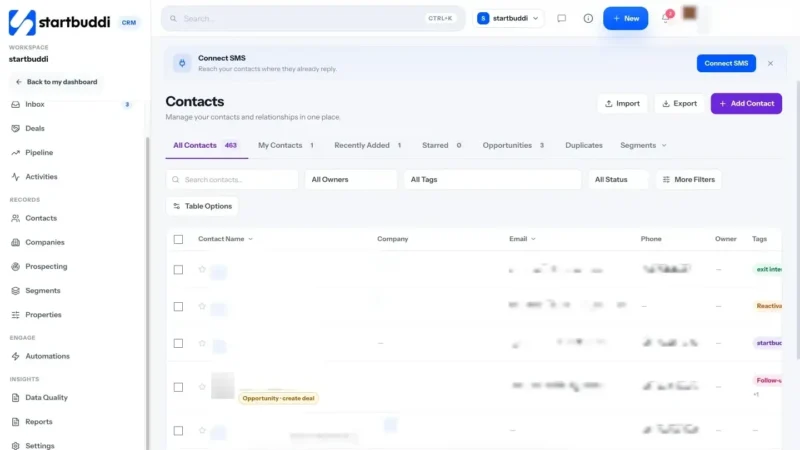
startbuddi is built as a first business system for small businesses: customers, sales, bookings, forms, pages, marketing, projects, documents, team chat, money and people in one workspace, with Chip, the AI assistant, built in. It is not accounting, payroll, point-of-sale or GPS dispatch software, and it is designed to sit alongside those where you need them.
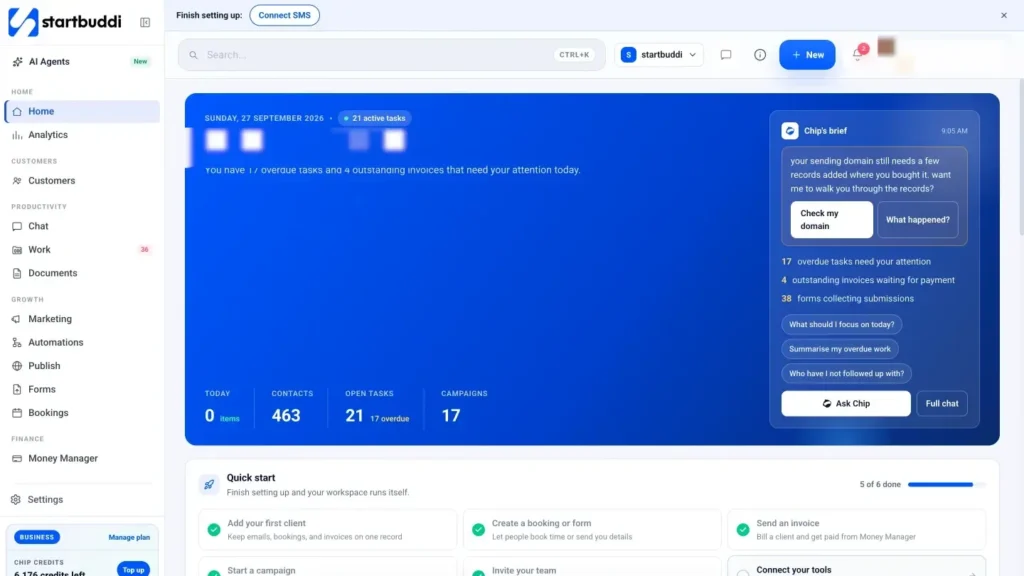
Home is the one screen. When you open startbuddi, Home shows what needs you today: overdue tasks and unpaid invoices under Needs you, today's tasks and bookings in Today's agenda, and counts of contacts, active projects, open tasks and pending invoices. Chip's brief sums up the most urgent things in plain words, with starter prompts such as "What should I focus on today?".
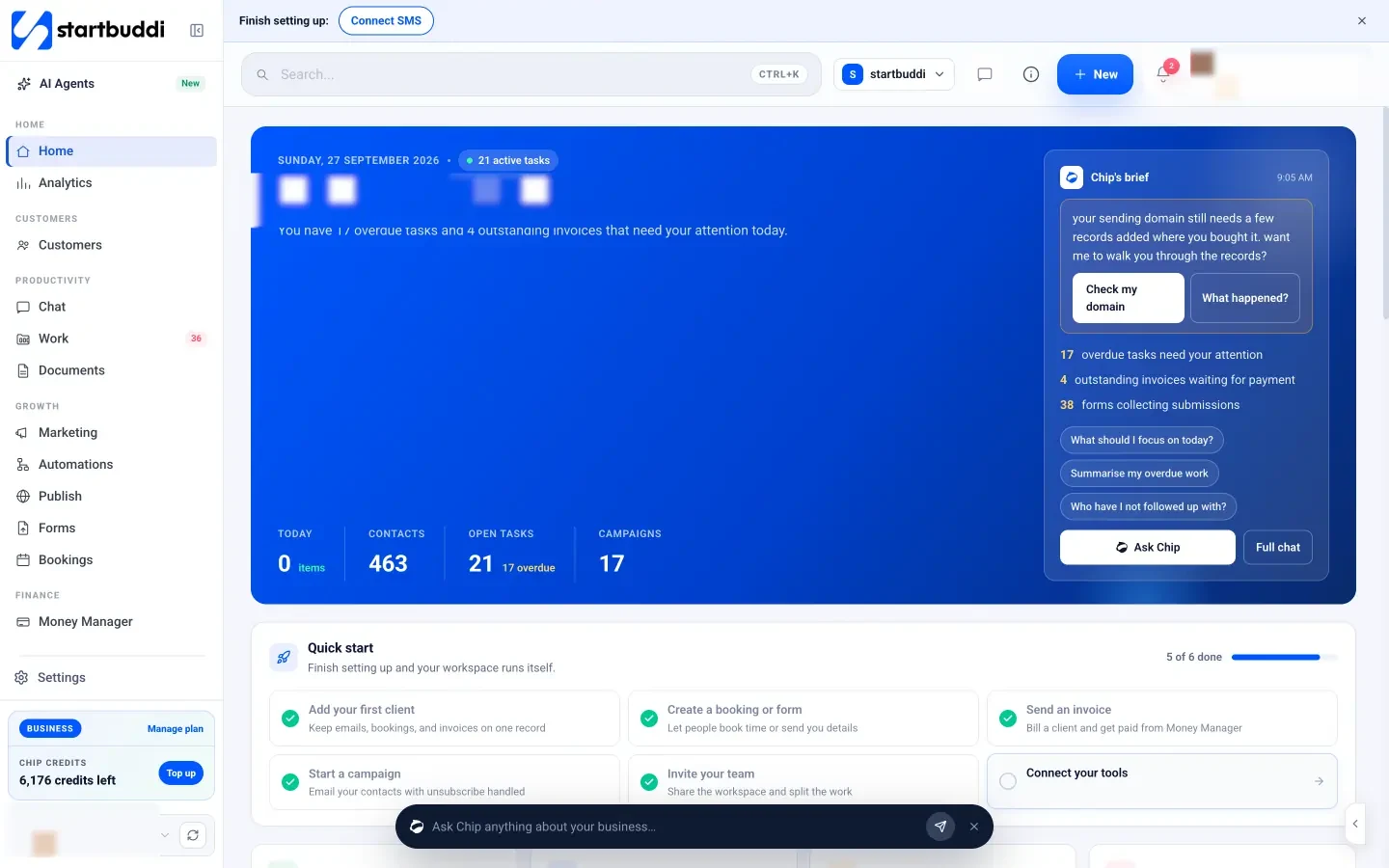
One customer record underneath. Bookings, form submissions, invoices, inbox conversations, deals and automations all read and write the same contact. When you open a customer in Customers, you see their conversations, bookings, invoices and notes together, which is the heart of the Customers module.
The sidebar follows the six jobs. Customers for contacts, deals and the inbox; Marketing, Automations, Publish, Forms and Bookings for winning and booking customers; Work, Documents and Chat for delivery and the team; Money Manager for getting paid; People for HR; and Analytics for the numbers. You can see how it all fits on the Home dashboard page.
In the next chapter, we look at how to compare small business management apps fairly, whether or not you end up choosing startbuddi.
How to choose among small business management apps
- 1. One customer record
- 2. Covers your core jobs well enough
- 3. Payments and currencies that work where you are
- 4. Messaging your customers actually use
- 5. Pricing that grows sensibly
- 6. Team roles and permissions
- 7. Data in and data out
- 8. Connections to the tools you keep
- 9. AI that helps and asks first
- 10. Works on your phone
- 11. Support and stability
- Check the everyday details
There are many small business management apps, and most of their websites say similar things. The way to choose well is to start from your business, not their feature lists: what jobs you do, what must connect, what your team will actually use, and what you can afford as you grow. This chapter gives you a method for comparing apps to manage your business, a scoring sheet and a two-week trial plan.
Small business management apps: the types
Most options fall into four groups:
- All in one business systems: customers, marketing, bookings, projects and money in one product, aimed at small businesses.
- CRM suites: start from contacts and sales, with marketing and service added. Often strong on sales, lighter on projects and money.
- Workspace and project tools: start from tasks, docs and databases, and can be shaped into a CRM with effort.
- Industry-specific systems: built for salons, trades, clinics or restaurants, deep in one industry's workflow.
Each group can be the right answer. An industry system suits you if your industry has special needs, such as clinical notes or restaurant tables. A CRM suite suits a sales-led business with a dedicated sales team. An all in one system suits most service businesses and small teams who want the whole customer journey in one place. Our researched list of all-in-one business software compares options, and fair side-by-side pages such as startbuddi vs HubSpot and startbuddi vs Notion go into detail.
Write down your must-haves first
Before you look at any product, write one page about your business. It stops you being swayed by demos of features you will never use.
- Your six jobs: for each job in chapter 1's table, note how you do it today and what hurts.
- Your customers' channels: email, WhatsApp, Instagram, phone, walk-in. The app must handle the ones they actually use.
- How you get paid: card, bank transfer, payment links, subscriptions, and which providers work in your country.
- Your team: how many people, what each needs to see, and who should not see what.
- Tools you will keep: accounting, payroll, point of sale. The app must work alongside them.
- Your budget: what you pay today in total, and what you could pay as you grow.
The criteria that matter most
1. One customer record
Ask to see a single customer's page. Does it show their form submissions, bookings, invoices, payments and conversations together? If the "all in one" app keeps separate lists for each module, you have bought several tools with one logo.
2. Covers your core jobs well enough
You do not need the best booking tool in the world. You need one that handles your services, your team's hours, deposits if you take them and reminders. Check each core job against your must-haves, not against the market leader in that category.
3. Payments and currencies that work where you are
This is where many global tools fall down for businesses in Africa, Asia and Latin America. Check the payment providers supported in your country, the currencies you can invoice in and whether customers can pay the way they prefer, such as bank transfer, cards or mobile money.
4. Messaging your customers actually use
If your customers live on WhatsApp, an app that only does email marketing will leave half your conversations on your personal phone. Check which channels come into the shared inbox and which can send campaigns.
5. Pricing that grows sensibly
Look beyond the headline price. Check what is included per plan: seats, contacts, emails, messages, automation runs and AI usage. Work out the price at your size today and at double your size. Per-seat pricing can be cheap for one person and expensive for ten.
6. Team roles and permissions
A new part-timer or a client should not see your whole business. Check that you can give people access to only the parts they need.
7. Data in and data out
Check how you import contacts and history from your current tools, and how you export everything if you ever leave. You should never feel trapped.
8. Connections to the tools you keep
Accounting, calendar, payment providers and your email account should connect without a developer. Look for direct integrations and a connector option such as Zapier for the rest.
9. AI that helps and asks first
AI assistants can now draft emails, summarise customers and suggest next steps. Check that any AI action that sends, publishes or charges shows you a preview and waits for your approval.
10. Works on your phone
Owners run businesses from their phones. Check the everyday tasks, such as replying to a customer, checking today's bookings and sending an invoice, work well on a small screen.
11. Support and stability
When something goes wrong on a Monday morning, how do you get help? Check how support works on the plan you would buy, whether there are help articles for common tasks, and how long the company has been running the product. For a system that holds your whole business, a responsive support team matters more than one extra feature.
A scoring sheet you can copy
Score each shortlisted app from 1 to 5 on each criterion, multiply by the weight, and add up. Adjust the weights to your business.
| Criterion | Weight | App A | App B | App C |
|---|---|---|---|---|
| One customer record | 3 | |||
| Covers core jobs | 3 | |||
| Payments and currencies | 3 | |||
| Customer messaging channels | 2 | |||
| Pricing at your size and double | 2 | |||
| Roles and permissions | 1 | |||
| Import and export | 2 | |||
| Connections to tools you keep | 2 | |||
| AI with approval | 1 | |||
| Mobile | 2 |
The highest score is not automatically the winner, but a big gap tells you something. If two apps are close, pick the one your team preferred in the trial.
Check the everyday details
Small details decide whether an app fits daily life. During your trial, check that you can set your time zone and currency, write invoices and emails in the language your customers use, add your logo and colours, and send from your own email domain. For businesses outside the US and Europe, check local phone number formats and that SMS or WhatsApp work in your country. These are rarely on the feature comparison, but they are what customers see.
Worked numbers: comparing costs fairly
Compare total cost, not headline price. Here is an illustrative example for a three-person agency. The tool prices are placeholders to show the method; use the real prices from each provider's own pricing page.
| Setup | Monthly cost | Notes |
|---|---|---|
| Five separate tools at an average of $15 per seat for three people | $225 | Plus the time spent copying between them |
| One all in one app at $49 a month including three seats | $49 | Check message, contact and AI limits |
| Accounting tool kept either way | Same in both | Leave it out of the comparison |
Then add time. If consolidating saves each person 90 minutes a week, that is about 19 hours a month for three people. At $30 an hour, that is $585 a month of time, which usually matters more than the subscription difference. Do the same sum in pounds, naira or rand with your own rates.
Run a two-week trial properly
Most apps offer a free plan or trial. Use it to test your real week, not a demo.
| Days | What to test |
|---|---|
| 1 to 2 | Import 50 real contacts. Set up one service, one form and your invoice details. |
| 3 to 5 | Run one real customer journey: enquiry, reply, booking or quote, invoice, payment. |
| 6 to 8 | Invite a teammate. Assign them a task and a customer conversation. Ask what confused them. |
| 9 to 11 | Use it only from your phone for a day. Try one automation, such as a booking reminder. |
| 12 to 14 | Export your data. Score the app on the sheet. Decide. |
Questions to ask before you commit
- What happens to my data if I cancel, and how do I export it?
- Which features on the website are fully available today, and which are coming soon?
- What are the limits on my plan, and what happens when I reach them?
- Which payment providers and currencies work for my country?
- How do I get help, and how quickly?
Involve the people who will use it
If anyone else works with you, include them in the trial. The person who takes bookings should try the booking screens; the person who sends invoices should send one. Ask each person two questions at the end: "What would you use this for every day?" and "What would make you go back to the old way?" The answers matter more than any feature comparison, because an app the team avoids is an app you are paying for twice.
Think about the next two years
Choose for where the business is going, not only where it is. If you plan to hire, check how seat prices and permissions work at five or ten people. If you plan to sell online, check the store and payment options. If you plan to expand into another country, check currencies and messaging channels there. You do not need to pay for those features now, but you should know the app can grow with you, and what it would cost.
Finally, give the decision a deadline. Comparing apps can become its own time sink. Two weeks of trials and a scoring sheet are enough for most small businesses; after that, choose, commit and review in three months.
Mistakes to avoid when choosing
- Choosing after a demo, not a trial. Demos show the ideal path; your week is messier.
- Ignoring the limits. A low price with a tiny contact or message allowance can cost more by month three.
- Picking for one loud feature. A beautiful website builder does not help if invoicing does not work in your currency.
- Forgetting the exit. Check exporting before you import.
Once you have chosen, write down why in a few lines: the scores, the deciding factors and what you expect to improve. In three months, read it again and check whether the app delivered. It keeps the decision honest.
Red flags
- A "customer record" that does not show bookings, invoices and messages together.
- No way to export your data.
- Key features only on the most expensive plan.
- Claims to replace your accountant, payroll and tills as well as your CRM.
- AI that acts without asking.
How startbuddi measures up, honestly
Here is how startbuddi fits the criteria, so you can score it like anything else.
Plans and limits. Free has 1 seat and 250 contacts. Starter has 2 seats and 2,500 contacts. Growth has 5 seats and 15,000 contacts. Scale has 15 seats and 75,000 contacts. Enterprise is custom. Annual billing costs ten times the monthly price, and every paid plan has a 30-day trial. The whole Marketing module, WhatsApp and SMS need Starter or above, and Chip answering customers automatically needs Growth. Free includes 2 active automations and Starter 10. Prices and full details are on the pricing page.
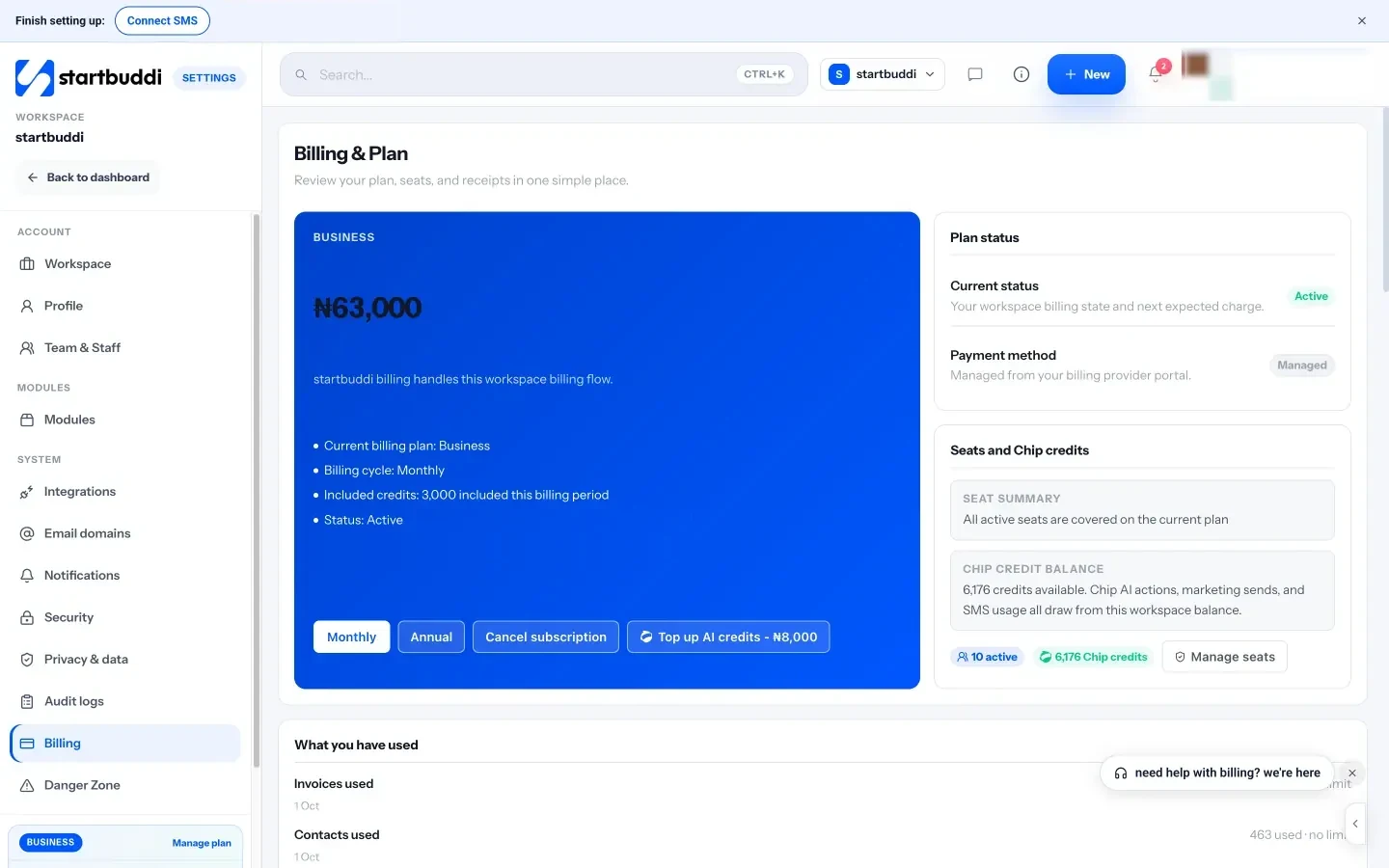
Payments. Invoices, payment links, a pay-me page and subscriptions work with Paystack and Stripe, and invoices can show bank transfer and PayPal details. Payments land in Money Manager and on the customer's record.
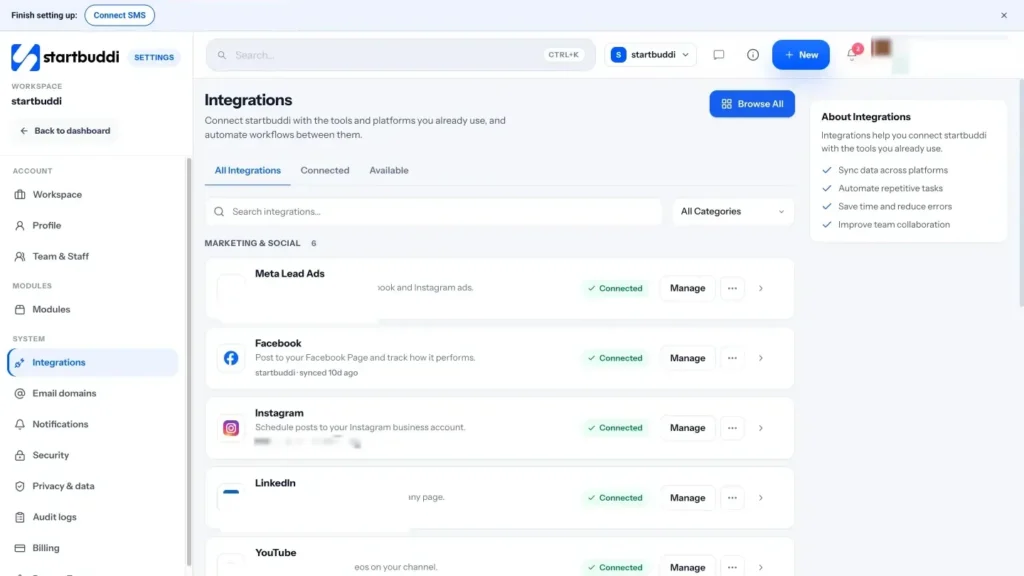
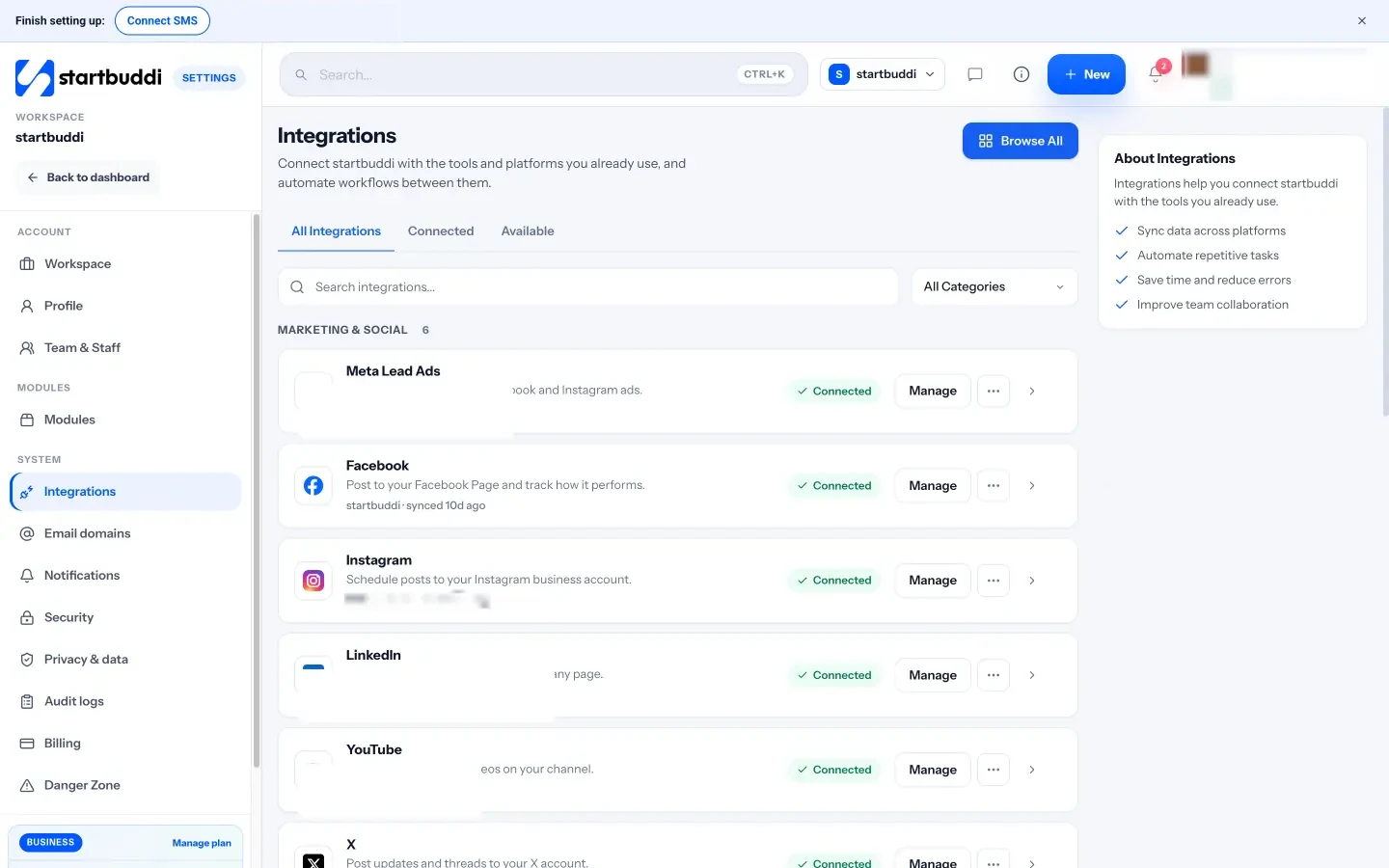
Connections. The Integrations page connects tools such as Google Calendar, Outlook Calendar, Google Sheets, WhatsApp, Gmail and Zapier. The integrations overview explains each one.
Where it is not a fit. startbuddi does not do bookkeeping, tax, payroll, point of sale or GPS dispatch, and it is built for small businesses rather than large enterprises with complex procurement. If one of those is your core need, choose the specialist tool first and see whether startbuddi fits around it. Our small business tool stack guide helps you decide which tools to keep.
Move in without breaking the business
- Run old and new side by side, briefly
- An example: a three-person agency moves in
- Handle what is already in progress
Choosing an app is the easy part. Moving in is where most consolidation projects stall: half the contacts imported, the old tools still running "just in case", and the team using whichever one they opened first that morning. This chapter gives you a step-by-step plan to move your business into one app over about four weeks, without losing customers or data along the way.
Start with an inventory
List every tool the business uses, what lives in it and who uses it. It takes an hour and saves days later. A simple table works:
| Tool | What lives there | Who uses it | Move, keep or connect? |
|---|---|---|---|
| Spreadsheet "Clients 2026" | Contact details, notes, status | Owner | Move |
| Free CRM | Deals, some contacts | Owner, sales | Move |
| Booking tool | Services, upcoming appointments | Everyone | Move after last booked date |
| Invoicing app | Open and past invoices | Owner | Move open invoices; keep history exported |
| Email marketing tool | Subscribers, templates | Owner | Move subscribers with consent status |
| Accounting software | Books, tax | Accountant | Keep and connect |
| WhatsApp on the owner's phone | Customer conversations | Owner | Connect to shared inbox |
The last column is the plan. "Move" means the new app becomes the home for that information. "Keep" means the specialist tool stays. "Connect" means the two talk to each other.
Decide the rules before you import
A new system is a chance to agree how the business records things. Settle a few rules on paper before anything is imported, and share them with everyone who will use the app:
- What counts as a contact: anyone who has enquired, or only people you have spoken to?
- Stages for deals: for example new enquiry, quote sent, won, lost. Keep it to five or six.
- Naming: how you name projects, invoices and documents, such as "Client name, what, month".
- Tags: a short, fixed list, and who can add new ones.
- Where notes go: on the customer's record, not in a separate document or someone's head.
These feel like small decisions, but they are what make search, reports and automations work later. Changing them after a thousand records are in is much harder.
Clean before you move
Moving messy data into a new system just gives you mess in a new place. Before you import, spend an afternoon cleaning:
- Remove duplicates: the same customer in three spreadsheets becomes one row.
- Fix the columns: first name, last name, email, phone with country code, company, and a status such as lead or customer.
- Keep consent information: which contacts agreed to marketing, and when. Do not import people into marketing lists who never opted in.
- Archive what you do not need: leads from five years ago who never replied may not be worth moving.
- Agree tags: a short list, such as the services people bought and where they came from, is more useful than fifty tags nobody remembers.
A four-week migration plan
| Week | What moves | Done when |
|---|---|---|
| 1 | Contacts and companies; your business details, logo and invoice settings | Every active customer is in, with tags and consent |
| 2 | Money: open invoices, payment providers connected; new invoices only from the new app | Your next invoice goes out from the new app and gets paid |
| 3 | Bookings and forms: services, hours, booking link; the main website form | New bookings and enquiries land in the new app; old booking link redirected or retired |
| 4 | Messaging, marketing and projects: inbox channels, email list, active projects | The team works from the new app; old tools are read-only |
Move money early because it is where mistakes are most visible, and because getting paid through the new app builds confidence quickly. Leave anything with lots of history, such as old projects, until the basics are working.
Run old and new side by side, briefly
For each area, have a short overlap: a week, not a month. During the overlap, all new work goes into the new app, and the old tool is only for looking things up. Then switch the old tool to read-only or cancel it. Long overlaps mean double entry and confusion about which record is right.
An example: a three-person agency moves in
Imagine a small marketing agency with three people and about 150 active contacts. In week one, the owner cleans the client spreadsheet down to 140 rows, agrees six tags and imports everything, along with the free CRM's open deals. In week two, she connects her payment provider and sends that month's retainer invoices from the new app; two clients pay by card the same day. In week three, the booking link for discovery calls moves over, and the website form now creates a contact and a task. In week four, the team connects the shared email inbox, moves the eight active projects as open tasks only, and sets the old tools to read-only. By the end of the month, the team works from one place, and the owner cancels three subscriptions.
Nothing about that plan needs special skills. It needs one area at a time and a date for each.
Handle what is already in progress
- Upcoming bookings: honour them in the old tool until the last one has passed, while new bookings go to the new link.
- Unpaid invoices: chase them in the old tool, or recreate them in the new one with the same numbers if your accountant agrees.
- Active projects: move only open tasks, not the full history. Link to the old project if people need to look back.
- Email sequences in progress: let them finish before moving people across.
What to do with history
Not all history is worth moving. A good rule is to move what you will use in the next year and archive the rest where you can find it:
- Move: active and recent customers, open deals, open invoices, upcoming bookings, active projects and current templates.
- Archive as files: old invoices and payment records (keep them for as long as tax rules require), finished projects and old campaign reports.
- Let go: duplicate lists, test data and contacts who never engaged and never agreed to marketing.
Label the archive clearly, for example "Old CRM export, September 2026", and note where it is in your new app so anyone can find it.
Bring the team with you
Software changes fail more often because of people than technology. A few things make a big difference:
- Explain why. "We are losing enquiries between tools" is more persuasive than "we bought new software".
- Give each person the smallest useful view. The part-time bookkeeper needs Money, not the marketing calendar.
- Show them their daily routine in the new app, not every feature. What do they open first? Where do they see their work for today?
- Pick a champion. One person who knows the app well and answers questions for the first month.
- Set a switch-off date, and stick to it.
Train in short sessions
Long training days are forgotten by the following week. Instead, run three short sessions of 30 minutes each, a few days apart:
- Finding things: the home screen, search, a customer's record, where your tasks are.
- Your daily jobs: each person practises the three things they do most, such as replying to a customer, adding a booking or sending an invoice.
- Questions and fixes: what confused people in the first week, and any settings to change.
Record the sessions or write a one-page cheat sheet for each role. New people who join later can use the same material.
Tell your customers what changes
Most customers will not notice a change of software, but some things they will see: a new booking link, a different-looking invoice, a new payment page, a new sender address for emails. Tell regular customers briefly before it happens, update links on your website, social profiles and email signature, and check that important emails are not landing in spam from the new sender.
How to know the move worked
A month after your switch-off date, check a few simple signs:
- Every new enquiry, booking and invoice in the last month went through the new app.
- Nobody has opened the old tools except to look something up.
- You can find any active customer's full history in under a minute.
- The monthly numbers from chapter 4 came from one place.
- The team can name one thing that is easier than before.
If one of these is not true, find out why before the old habit sets in again. Usually it is one missing setting or one person who was not shown how to do their daily job.
Migration mistakes to avoid
- Moving everything on one weekend. One area a week is safer.
- Importing without consent data, then emailing people who never agreed to marketing.
- Cancelling old tools before exporting.
- Customising everything on day one. Use the defaults for a month, then adjust what really does not fit.
- Doing it alone. If you have a team, give each person one area to check during the move, such as bookings or invoices, so problems are spotted early.
- Moving during your busiest season. Pick a calmer month if you can, so mistakes do not land on your biggest weeks.
- No switch-off date, so the old tools linger for a year.
If you have more than a few hundred contacts or several years of invoices, consider asking your accountant or a freelancer to help with the cleaning and export steps. It is a one-off job, and a fresh pair of eyes spots duplicates and gaps quickly.
A migration checklist
- Inventory of every tool, with move, keep or connect decided.
- Rules agreed: contacts, deal stages, naming, tags, notes.
- Full export of every old tool saved and labelled.
- Contacts cleaned, with consent status, and imported.
- Payment providers connected and a test payment made.
- Booking link, forms and website links updated.
- Team invited with the right roles, and three short training sessions booked.
- Customers told about anything they will see differently.
- Switch-off date for each old tool in the calendar.
Moving into startbuddi
1. Answer the four setup questions. When you create your workspace, startbuddi asks who you are, what you do, what kind of business you run and who your customers are. It takes about three minutes. Chip uses the answers to draft a simple page, a contact form matched to your type of business, a draft first invoice, an "About" document and a sample contact labelled as a sample, so you start from something rather than an empty screen. Anything you skip is waiting on Home to finish later.
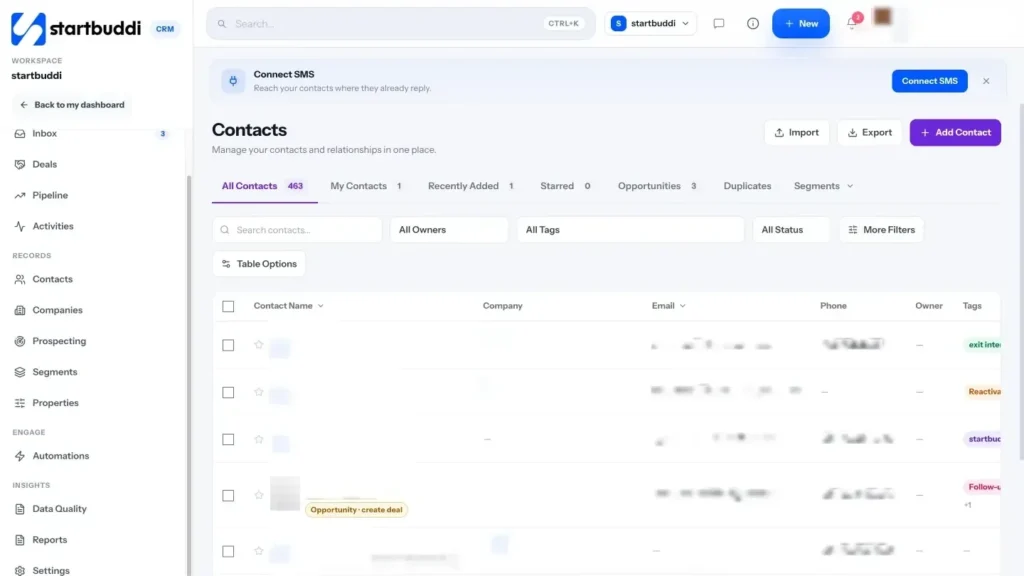
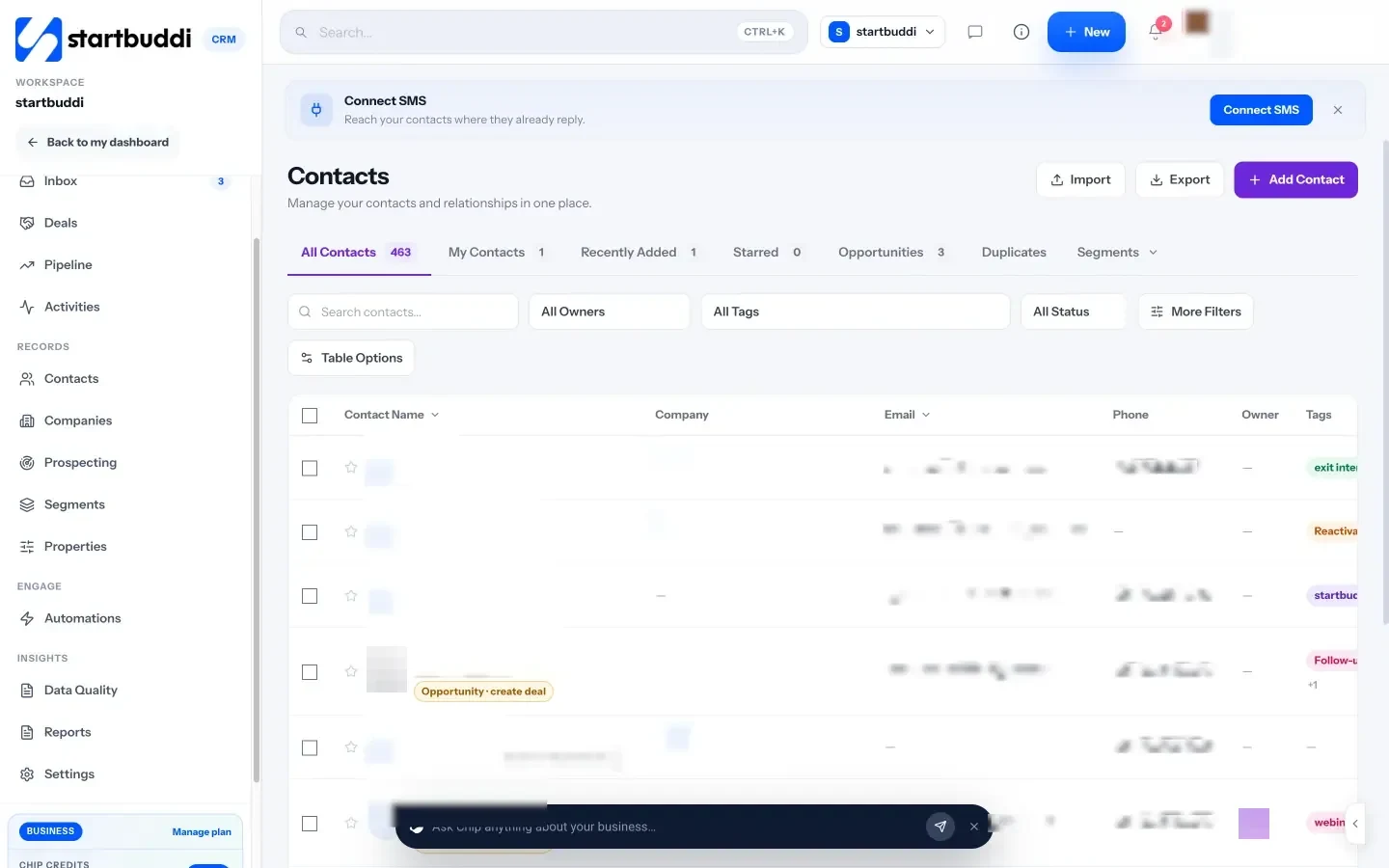
2. Import your contacts. In Customers, open Contacts and import a CSV file of your cleaned list. From HubSpot, Zoho CRM, Salesforce, Pipedrive or Mailchimp, export your contacts as a CSV file and import it the same way, up to 10,000 at a time. Only contacts come across, not deals, workflows or templates. The guide to importing contacts walks through each option.
3. Work through the Quick start. Home shows a Quick start card that ticks itself off as you go: add your first client, create a booking or form, send an invoice, start a campaign, invite your team and connect your tools. Connect your tools opens a panel for your email domain, SMS, WhatsApp, Facebook, Instagram, LinkedIn, payments, Zapier and Google Calendar, each marked connected or not.
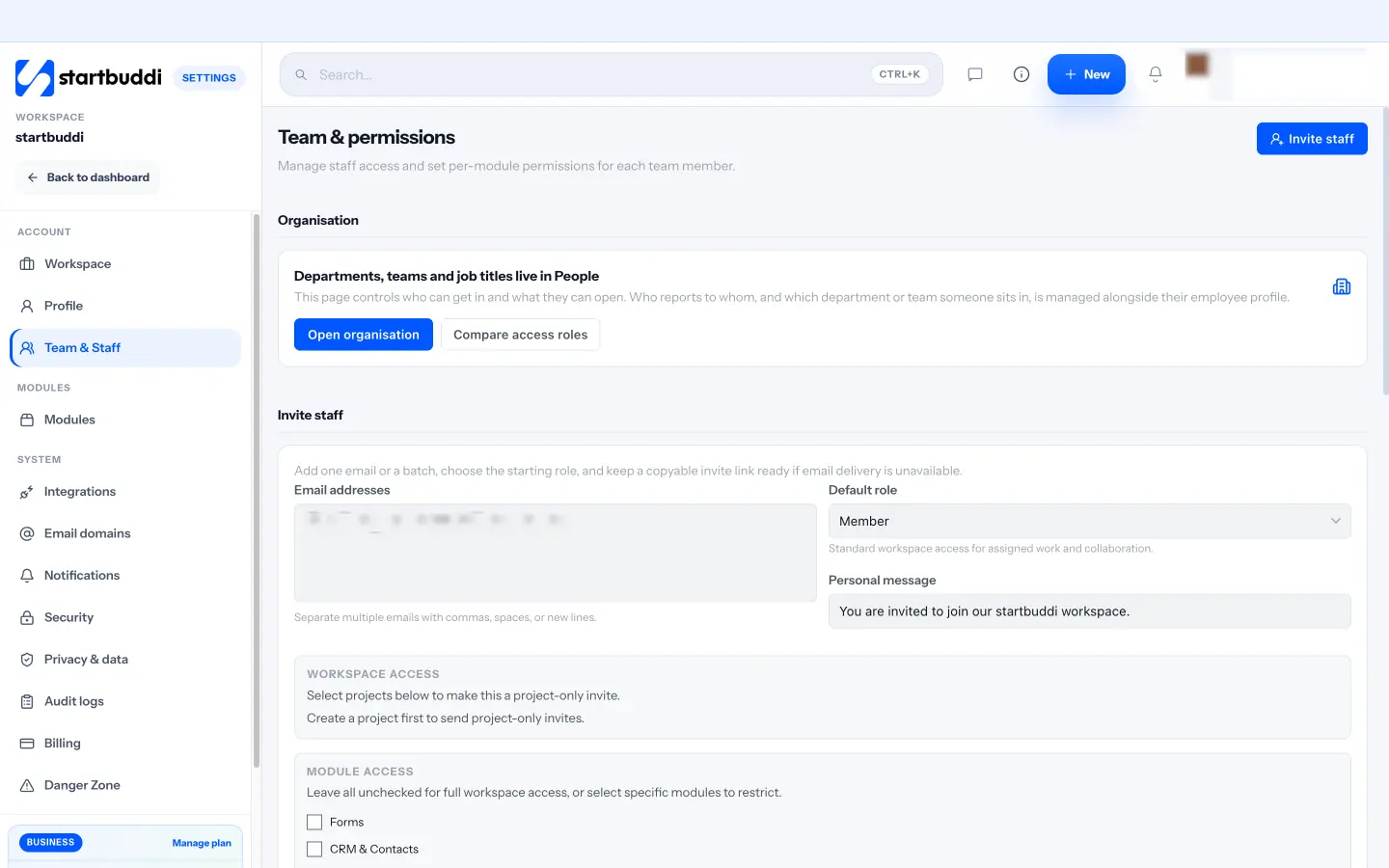
4. Invite your team with the right roles. In Settings, open Team to invite people and choose a role: Owner, Admin, Manager, Member, View only or Client. You can set module by module what each person can open, and a Client sees only the projects they are added to. Team invites need a paid plan; Starter includes 2 seats, Growth 5 and Scale 15, and extra seats can be added.
5. Connect what you keep. Connect your calendar, email account and payment providers from Integrations, and keep your accounting software running alongside startbuddi for bookkeeping and tax. For how everything fits together after the move, the post on how startbuddi replaces separate CRM, project, email, invoicing and booking tools gives a module-by-module view.
Run your week from one app
Once everything is in one place, the benefit comes from how you use it. A single app used like five separate tools, opening a different module for every task with no routine, brings back much of the old chaos. This chapter covers a simple operating rhythm for running your business from one app: a 15-minute daily check, a 30-minute weekly review, a monthly look at the numbers, and the automations and AI help that keep it light.
Run your business from one app: the daily 15 minutes
Start each working day with the same short routine. It replaces the scattered checking of inboxes, calendars and spreadsheets.
- What needs me today? Overdue tasks, unpaid invoices, customers waiting for a reply.
- What is on today? Bookings, meetings and tasks due, in order.
- Who is waiting? Unanswered messages from customers, oldest first.
- What is the one thing that moves the business forward today? A proposal to send, a follow-up to make, a campaign to finish.
If your app has a home screen that shows these in one place, this takes ten to fifteen minutes. If you need to open six tools, it takes an hour, which is why most people skip it.
The weekly review, in 30 minutes
Once a week, at the same time, step back from the daily list. Friday afternoon or Monday morning both work.
| Area | Questions |
|---|---|
| Sales | Which deals moved? Which have gone quiet? Who needs a follow-up? |
| Customers | Who have we not heard from in a while? Any complaints to close? |
| Delivery | Which projects are behind? What is due next week? |
| Money | What is overdue? What is due to come in and go out next week? |
| Marketing | What is going out next week? Where did new enquiries come from? |
| Team | Is anyone overloaded? Any leave or cover to plan? |
Write three priorities for the next week and put them where you will see them every morning. If you work with others, share them.
The monthly numbers
Once a month, look at a small set of numbers and compare them with the month before. You do not need a dashboard with 40 charts. Most small businesses need about six:
- Money received, and money still owed.
- New contacts, and where they came from.
- Deals won and their value.
- Bookings made, held and missed.
- Form submissions or enquiries.
- Your marketing: emails or messages sent and how many people responded.
The advantage of one app is that these numbers come from the same records, so they agree with each other. When the new contacts figure and the deals figure come from different tools, they rarely match, and you spend the review arguing about the numbers instead of acting on them. Pick one or two decisions each month based on what you see.
The quarterly tidy-up
Every three months, spend an hour on housekeeping:
- Archive old contacts, deals and projects you no longer need.
- Review who has access to what, and remove people who have left.
- Check your automations still make sense, using the history on the Automations hub.
- Update templates: invoices, emails, proposals and project checklists.
- Check your plan still fits: seats, contacts and message limits.
Give each person their own view
A single app does not mean everyone sees everything. Each person should open the app to the part they need: the owner to the home screen, a salesperson to deals and the inbox, a project manager to active projects, a bookkeeper to money. Set permissions so people see what they need and nothing they should not, and encourage each person to build their own short daily check, the same way you built yours.
Keep one source of truth
The discipline that makes one app work is simple: if it matters, it goes in the app. The phone number a customer mentioned on a call goes on their record. The promise made in a WhatsApp message becomes a task. The side spreadsheet for "just this month's orders" goes into the system or not at all. Every exception you allow becomes a place where information hides, and after a year you are back to searching six places. Make it a team habit to ask "is it in the app?" whenever something is agreed.
Let automation carry the routine
A single app makes automation simpler, because triggers and actions live in the same place. The follow-ups that used to need a connector between three tools become one rule: when a form is submitted, reply and create a task; when a booking is completed, ask for a review; when an invoice is paid, thank the customer. Start with the three or four follow-ups that happen every week and build from there. Our guide on how to automate your small business covers what to automate first.
Use AI for the thinking you keep putting off
An AI assistant that can see your business data is useful in a way a general chatbot is not. It can answer "Who should I follow up with this week?" from your actual contacts, draft a payment reminder for a specific invoice or summarise how last month compared with the one before. Two rules keep it safe: check what it drafts before it goes to a customer, and choose tools where AI actions that send, publish or charge wait for your approval.
Running the business from your phone
Much of a small business owner's day happens away from a desk. Decide which parts of the routine you do on your phone and make sure they work well there: checking today's agenda, replying to customers, creating a quick task or contact, sending an invoice or payment link. Keep the deeper work, such as building automations, designing pages or reviewing numbers, for a laptop.
Plan the year from the same place
Once your day and week run from one app, use it for the bigger picture too. Set three to five goals for the year, such as revenue, new customers, repeat bookings or a new service launched, and track them where your work already lives. When goals sit next to the tasks and numbers that move them, you can see each week whether you are on track, instead of discovering in December that you are not. Review them each quarter in the tidy-up.
Handing over when you are away
One of the quiet benefits of running everything from one app is that someone else can cover for you. Before a holiday, check that open conversations are assigned, upcoming bookings have an owner, overdue invoices have a note on what was agreed, and your weekly priorities are written down where the team can see them. Because the history lives on each customer's record rather than in your head or your phone, whoever covers can pick up where you left off, and you can take a week off without returning to a pile of surprises.
Signs the one-app setup is working
- You can answer "where did that customer come from and what have they bought?" in under a minute.
- New team members are productive within days, not weeks.
- Your monthly numbers take minutes to gather, not an afternoon.
- Customers stop having to repeat themselves.
- You cancelled at least two subscriptions and did not miss them.
An example week
| When | What you do in the app | Time |
|---|---|---|
| Every morning | Home screen: what needs me, today's agenda, who is waiting; one priority | 15 minutes |
| During the day | Reply from the inbox, update records as you go, send invoices from finished work | As needed |
| Friday afternoon | Weekly review: deals, customers, projects, money, marketing, team; three priorities for next week | 30 minutes |
| First Monday of the month | Monthly numbers compared with last month; one or two decisions | 30 minutes |
| Once a quarter | Tidy-up: archive, access, automations, templates, plan limits, goals | 60 minutes |
That is about three hours a month of deliberate management, and it replaces far more time spent hunting and copying.
Keep it simple as you grow
As the business grows, it is tempting to add layers: more fields, more stages, more reports, more automations. Each addition makes sense on its own, but together they can make the app feel as complicated as the tools you left. Before adding anything, ask whether it will be used every week and by whom. Remove fields nobody fills in, reports nobody opens and stages nobody moves deals through. A simple system that everyone uses beats a complete one that nobody understands.
When to add another tool
Consolidating does not mean never adding software again. Add a specialist tool when the job is core to your business, your all in one app genuinely cannot do it well enough, and the tool connects back so the customer record stays whole. Before you add it, write down the job, what "well enough" means and how the two will share information. If you cannot answer those, the new tool will probably become another island.
Common mistakes after the move
- Letting old habits creep back. A side spreadsheet "just for this" becomes the new source of truth. Put it in the app or delete it.
- Nobody owns the data. Decide who keeps contacts clean and who keeps templates up to date.
- Skipping the routine. The daily check and weekly review are where the benefit lives.
- Adding tools back one by one. Before adding a new tool, check whether the app already does the job well enough.
Your daily routine in startbuddi
1. Start on Home. Home greets you with a one-line brief and Chip's brief, then shows Needs you (overdue tasks and unpaid invoices), Today's agenda (tasks and bookings with a line for now), a live pulse of unread conversations and new contacts, and quick buttons for a new project, contact, campaign, document or invoice. Press Cmd+K (Ctrl+K on Windows) anywhere to search contacts, forms, documents, tasks, projects and invoices, or jump to any part of the app.
2. Clear your conversations. In Customers, the Inbox shows every conversation, from email, website chat, Instagram and Facebook to WhatsApp and SMS on Starter and above, with unread ones first if you choose. Chip can draft replies for you to edit.
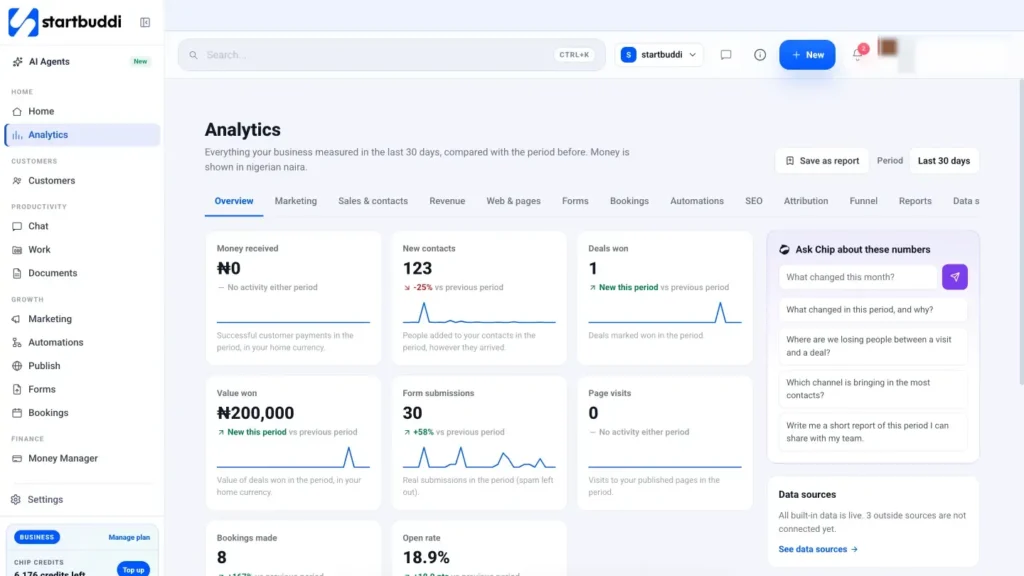
3. Check your work. In Work, My work shows every task assigned to you across projects, in a list, board, timeline or calendar, with overdue items marked.
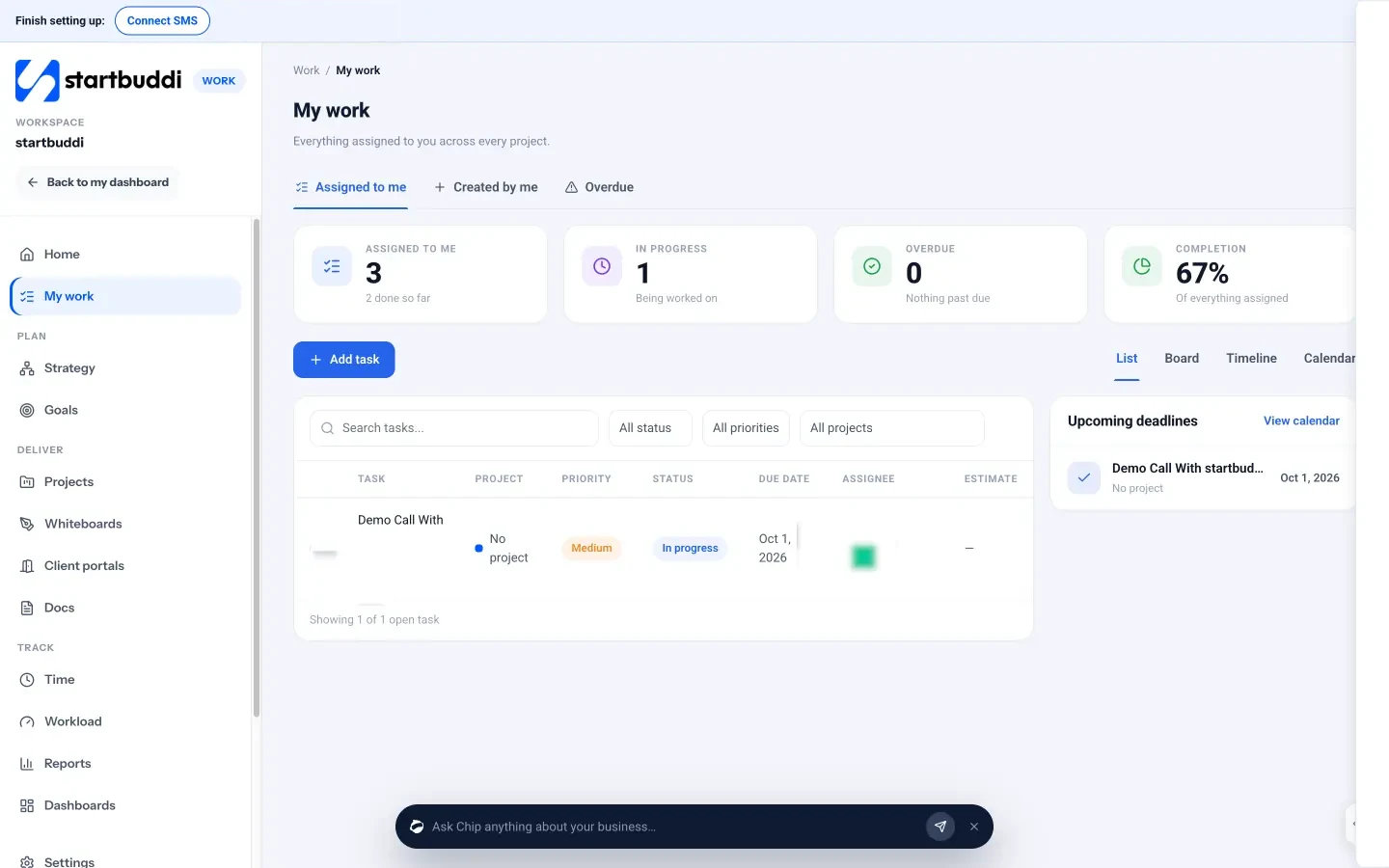
4. Review the numbers monthly. Analytics compares each number with the period before: money received, new contacts, deals won, form submissions, page visits, bookings and email open rate, plus where new contacts came from and a funnel from visit to won deal. You can save a view as a report, print it or save it as a PDF, and ask Chip "What changed this month?". Read more on the Analytics page.
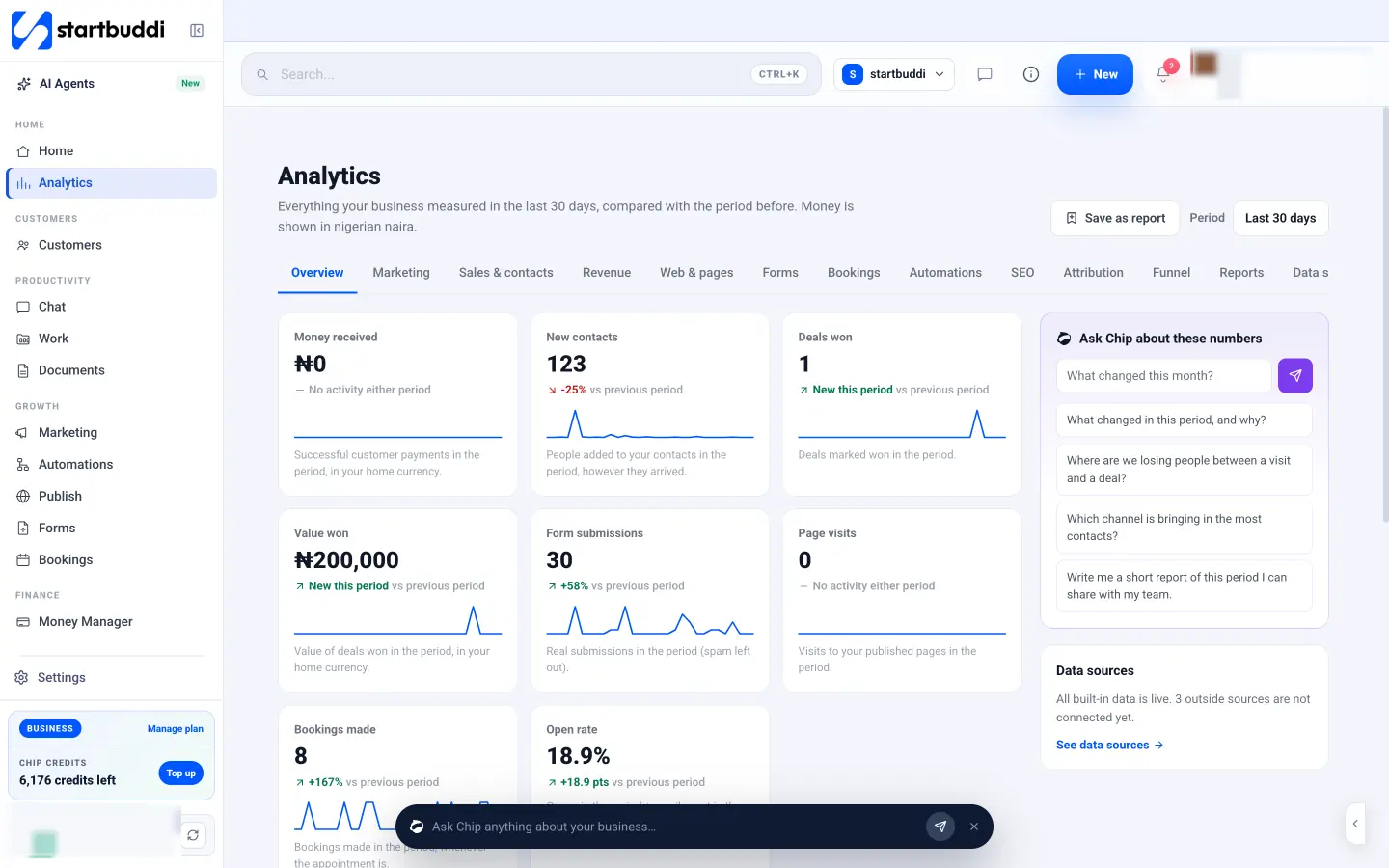
5. Ask Chip. Chip is available on every screen. It knows your contacts, projects, invoices and numbers, and it shows you a preview and waits for your yes before it sends, creates or changes anything. The Chip and AI agents page explains what it can do.
6. On your phone. startbuddi works in your phone's browser with a simple bottom bar: Home, Chat, Work, a Create button for a new contact, task, booking, invoice or payment link, and More. It is a responsive web app rather than a native app, and building automations is best done on a desktop.
You can start free, move one area at a time and unlock more when you need it, with a 30-day trial on every paid plan. See the plans and prices, then begin with the four setup questions and your contact list this week.
Tiwalade Joanna Okedara-Kalu is the founder, CEO and CTO of startbuddi, the business system that brings clients, bookings, invoices, projects, marketing and the Chip AI assistant into one place. Tiwalade builds software around how service businesses really work day to day, and writes about client management, getting paid on time and why small businesses outgrow the tools they start with.
Founded startbuddi and leads its product and engineering