The problem
Clients want to know how their project is going. Most of the time that means an email asking for an update, a reply with three attachments, a follow-up asking which version is the latest, and an invoice that gets lost somewhere in the same thread. Approvals happen in a “looks good” reply that is hard to find later, and requests arrive by WhatsApp, email and phone, depending on the day.
Client portals are meant to fix that, but they often fail for a simple reason: clients do not use them. Another password, another account, a screen full of things that are not about them. So the emails carry on, and the portal becomes one more thing to keep up to date.
What’s new
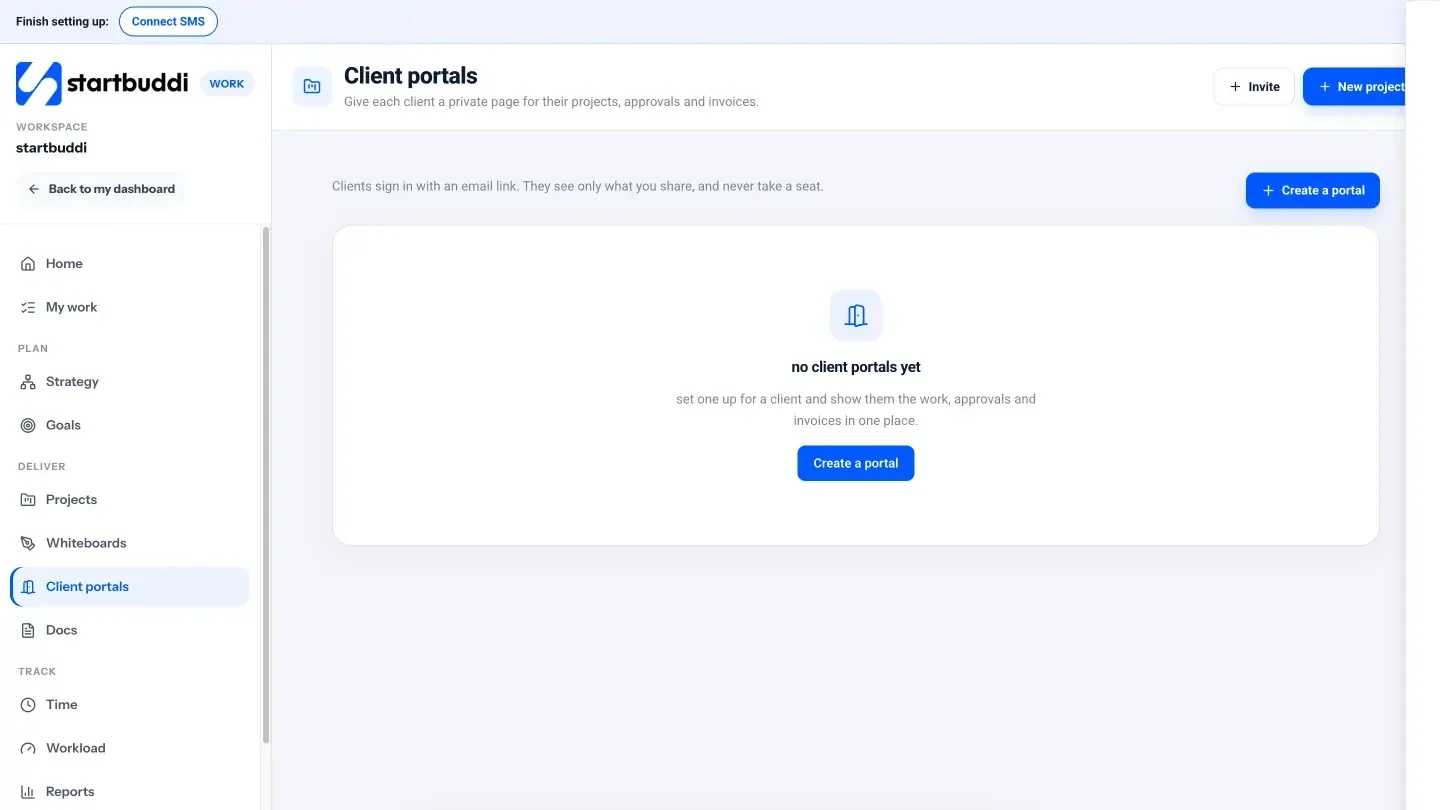
So in startbuddi, the portal starts from what the client needs to see. Each client gets a private page in your brand that shows their projects, what is waiting for their approval, their unpaid bills and the latest requests, and a chat with your team.
Clients sign in with an email link. There is no password to remember, no startbuddi account to create, and they never take up a paid seat on your plan.
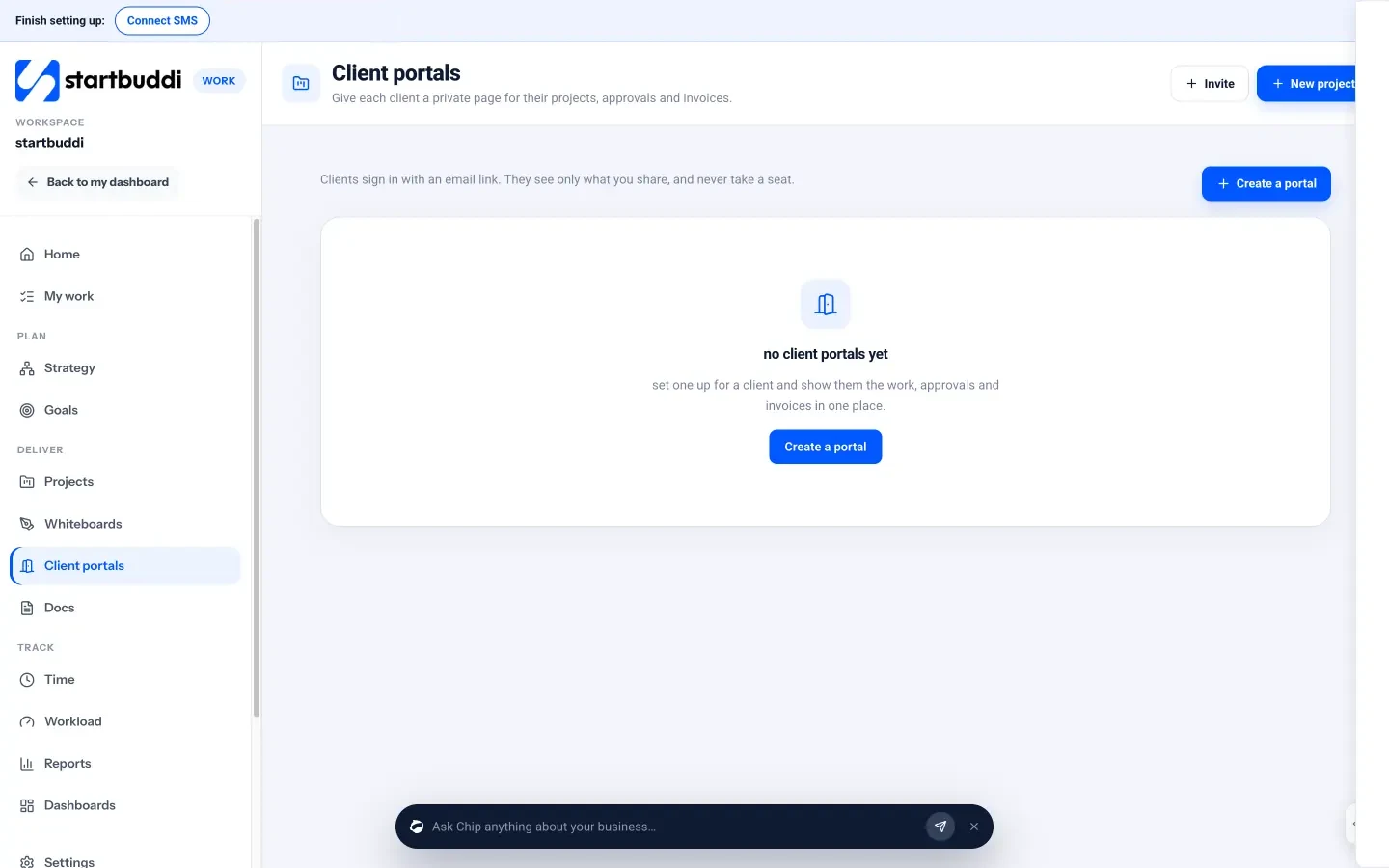
Creating a portal takes three steps: brand it, choose what your client sees, then invite them. Portals live in Work, next to your projects, under Client portals.
What you can do
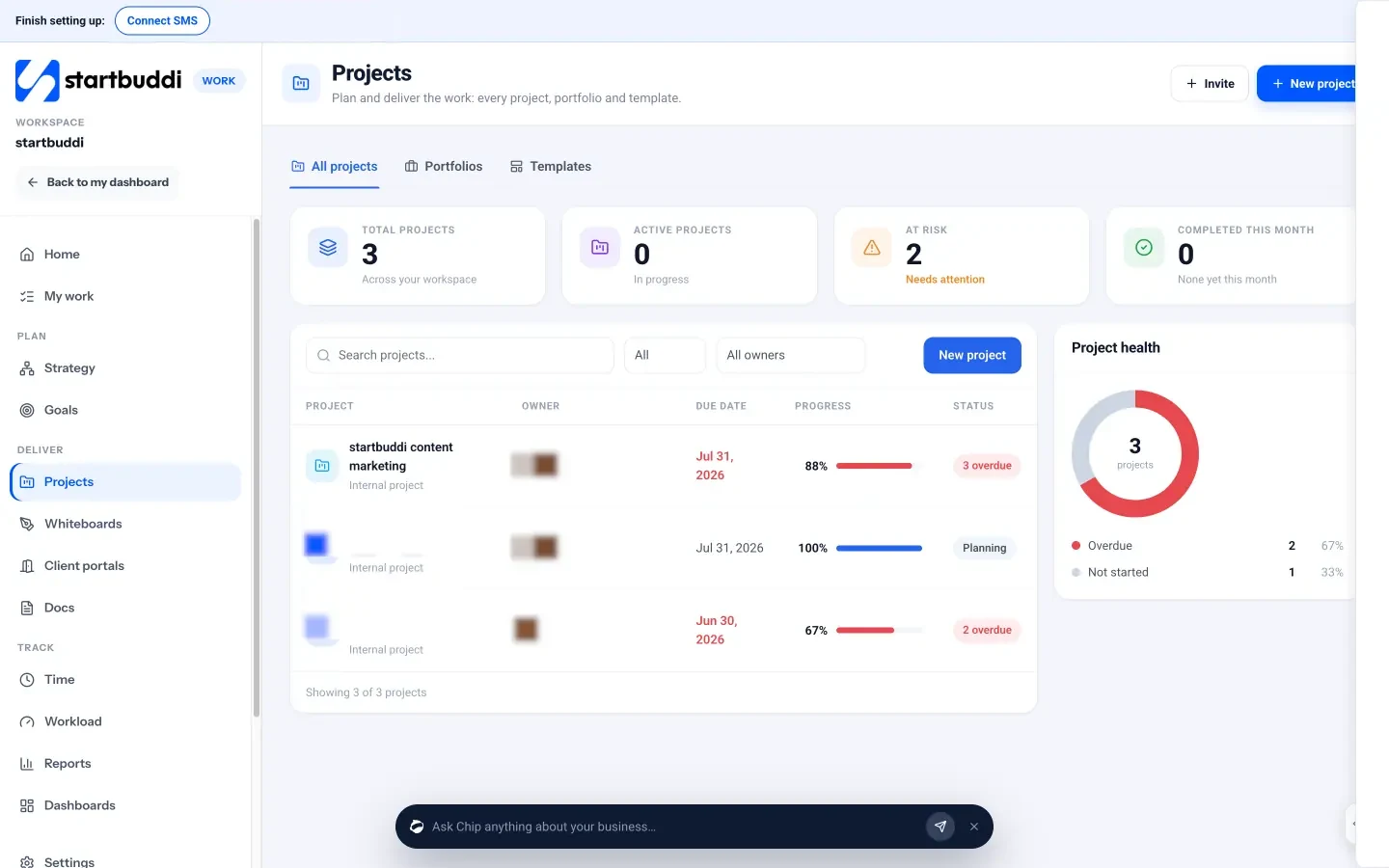
- Show only what matters to this client. Link the projects that belong to them, then tick what they can see: tasks, milestones, deliverables, files, documents, reports, contracts, invoices, approvals, forms, meeting notes and requests. Share each item yourself, or let everything you mark client-visible in those projects reach the portal.
- Get approvals that stick. Share a deliverable for approval, and it cannot be marked done until the client approves it. Owners and admins can override, with a reason that is logged. Approval reminders can go out every few days, or never.
- Turn requests into work. When a client sends a request through the portal, it becomes a task, and the Requests tab links each request to its task, so nothing gets lost between the ask and the doing.
- Talk in one place. Chat with your client inside the portal, with unread counts on the portal and in Work. Since 30 September, on Growth and up, there is also a Call button in the portal chat: your team joins inside startbuddi, and the client joins from their own link, with no account and no lobby. Clients can start a call too, if you allow it.
- See it through their eyes. Preview any portal as your client sees it. Since 28 September you can also ask Chip what a client sees in their portal, and it shows you a live preview of the screen.
- Keep an overview. The portal’s Overview tab shows project progress, approvals waiting, unpaid bills and the latest requests, and the activity log records invites, shares, approvals and requests.
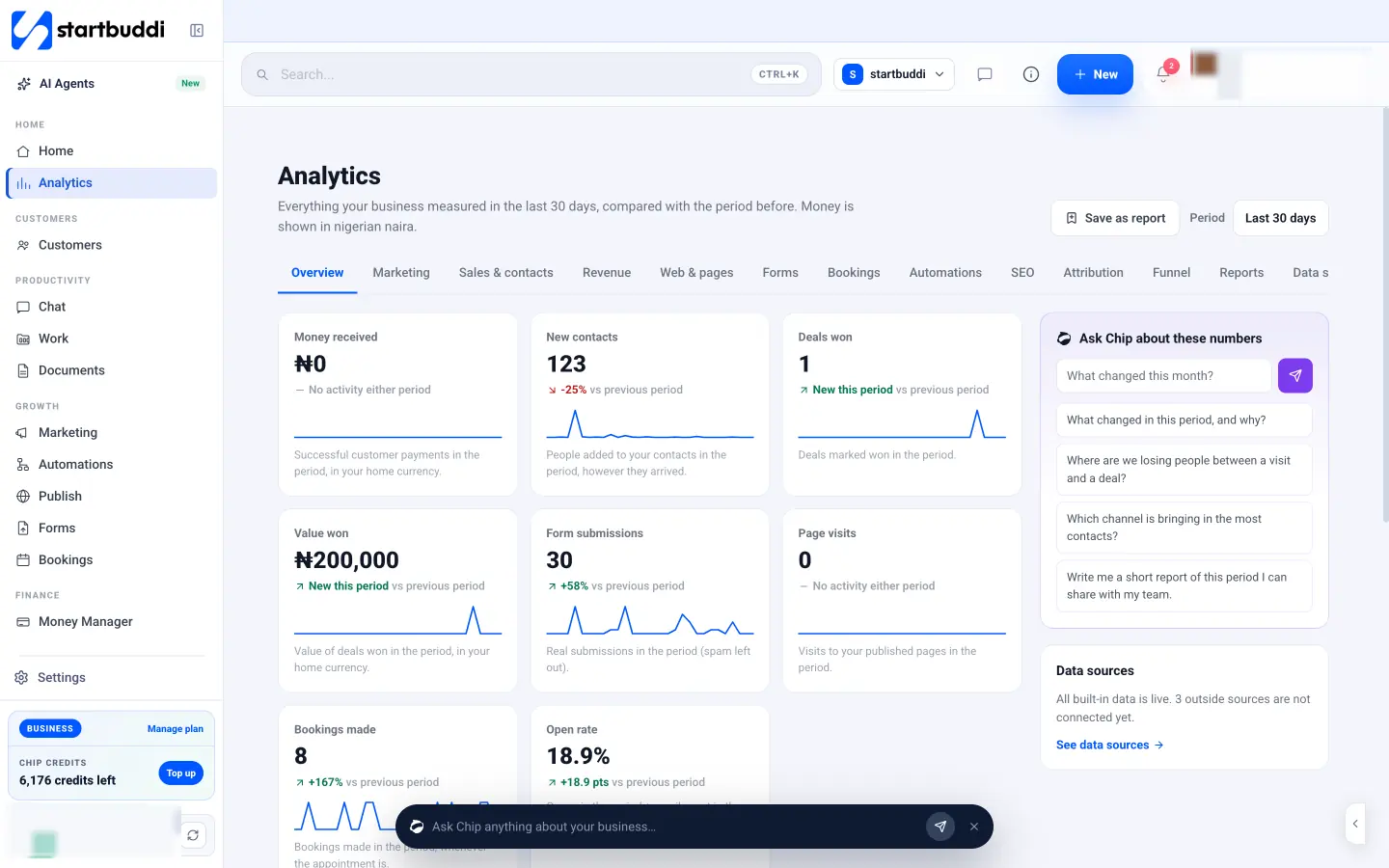
Portals also tie into the rest of startbuddi. Since 30 September, reports from Analytics can be shared straight into a client’s portal, once or on a schedule. When a deal is won, Chip can offer to create the client’s portal and invite them. And a project can start a portal already filled in with its client.
On Free you can build and preview a portal to see how it works. Inviting clients starts on Starter, which includes one live portal; Growth includes 10 and Scale 50. See pricing for the rest of each plan.
If you run client work, the client portals page shows the whole flow, and the help article walks through your first invite step by step.
See it in action
Try it
Build and preview a portal on Free. Inviting clients starts on Starter, and portal calls come with Growth and up. New to startbuddi? Make a free account and have a look around.